
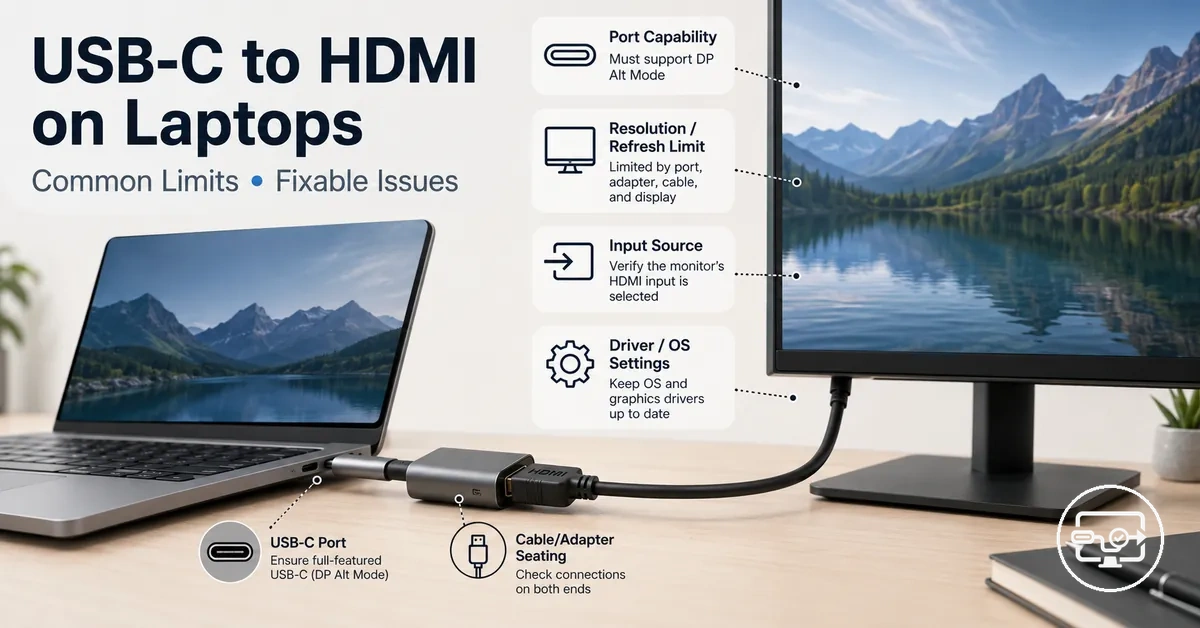
USB-C to HDMI Compatibility for Laptops
USB-C to HDMI compatibility for laptops depends on the laptop’s USB-C port, the adapter or cable, and the HDMI display. This page focuses solely on connecting a laptop to an external HDMI monitor or TV. Results vary by laptop design and accessory type, so no single cable or adapter guarantees a working connection.
When a laptop’s USB-C port supports video output, a USB-C to HDMI adapter can often extend or mirror the display. However, many USB-C ports only handle charging or data transfer and lack the necessary video circuitry.
Several variables determine the outcome:
- Laptop USB-C port (video output capability vs. charging-only/data-only)
- Adapter or cable type (USB-C to HDMI vs. hub/dock with HDMI port)
- HDMI display capabilities (native resolution, refresh rate, HDCP support)
- Cable or adapter quality (signal integrity, length, built-in chipset)
A common misconception is that any USB-C port can output video because the port shape looks the same. In reality, video output is an optional feature. For a more detailed breakdown of port types and accessory categories, see the USB-C to HDMI Compatibility hub.
What “USB-C to HDMI compatible” means on a laptop
USB-C to HDMI compatibility means a laptop's USB-C port can output video to an HDMI display under specific conditions.
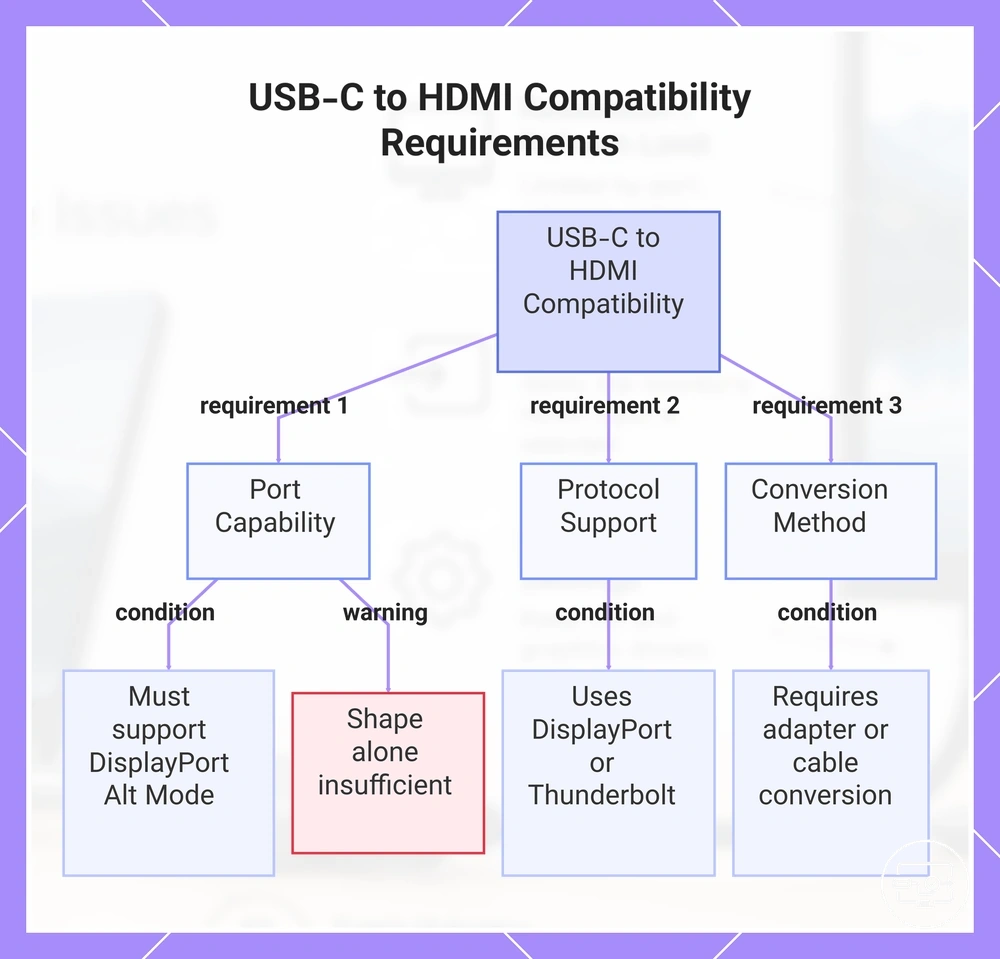
This compatibility depends on three requirement classes:
- Port capability: the USB-C port must support video output, often through DisplayPort Alt Mode.
- Protocol support: the port must use a supported video standard such as DisplayPort or Thunderbolt.
- Conversion method: because HDMI uses a different signal format, an adapter or cable that converts the laptop's video protocol to HDMI is needed.
Missing any one of these means the video signal cannot reach the display.
A USB-C connector shape does not guarantee video capability; only a video-capable USB-C port can output display signals.
This chart shows the three requirement classes for a laptop's USB-C port to output video to an HDMI display.
USB-C ports that cannot output video and why adapters won't help
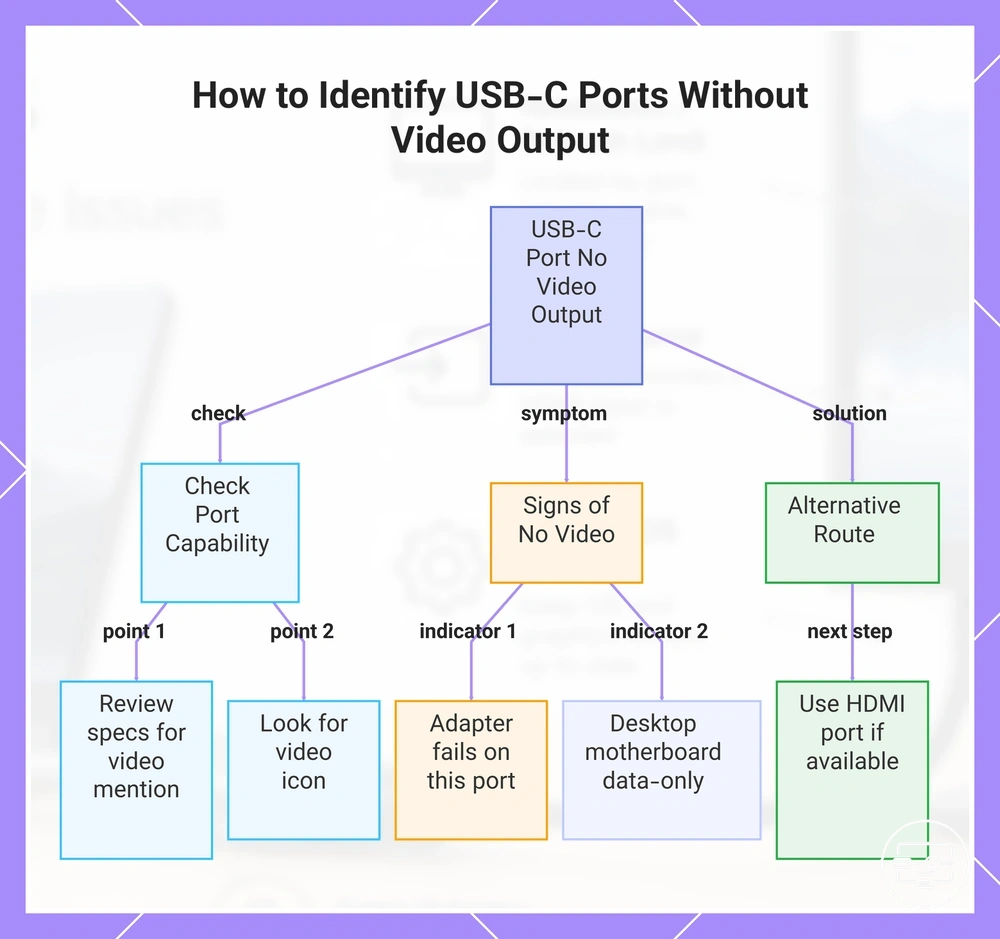
If the port cannot output video, no adapter can add video output. Check the port capability first. These signs indicate no video output support.
- Specifications may list only data speeds and not mention video output support.
- The port may lack a video output icon or a high-speed data symbol near the connector.
- An adapter that works on another laptop may produce no image when connected to this port.
- The laptop's manual or product page may not state that the USB-C port supports external displays.
- The port may be on a desktop PC motherboard, where USB-C ports often provide data only.
If your laptop's USB-C port cannot output video, other built-in ports like HDMI may still support external monitors—those options are covered elsewhere.
This chart shows how to check a USB-C port for video output capability, the signs that indicate no video support, and the alternative solution using other display ports.
Video-capable USB-C ports and the signals they can carry
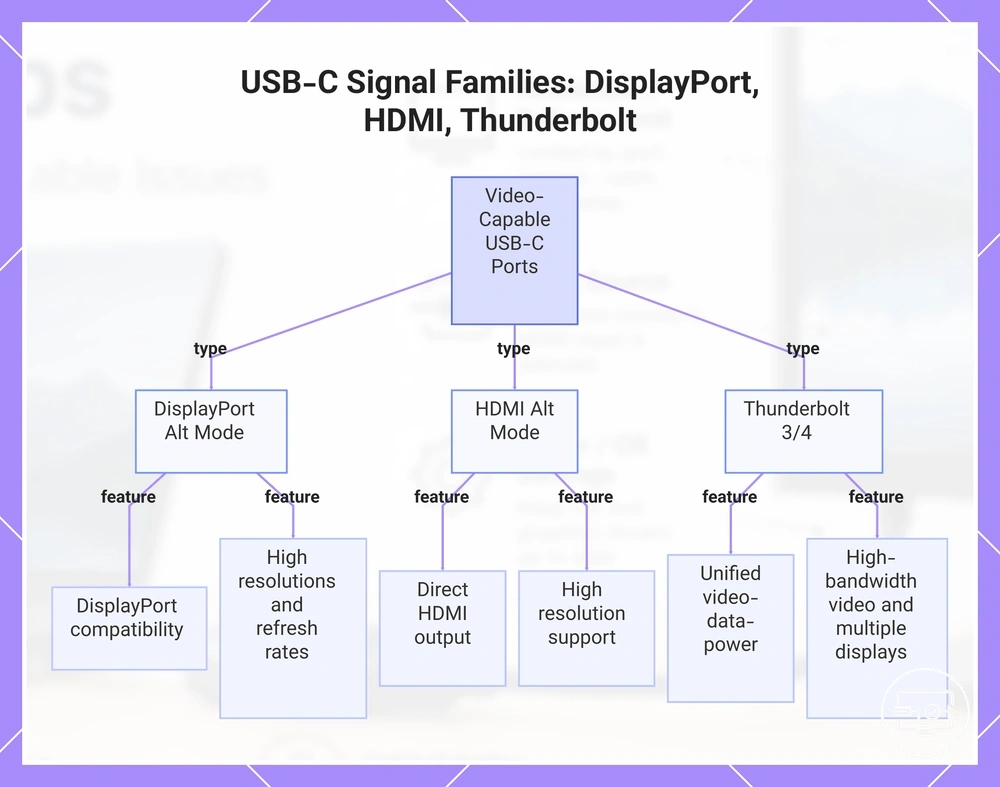
Video-capable USB-C ports carry distinct signal families such as DisplayPort Alt Mode, HDMI Alt Mode, and Thunderbolt. To pick the right adapter or cable for an HDMI display, first determine which signal family your port supports.
A USB-C port outputs video when it supports a specific signal family, but internal routing inside the laptop can affect which signals actually reach the port. The adapter must also match the display's input.
- DisplayPort Alt Mode – typically lets the port send video to a DisplayPort‑compatible display; usually supports high resolutions and refresh rates.
- HDMI Alt Mode – typically lets the port send video directly to an HDMI display; often supports high resolutions.
- Thunderbolt 3 or 4 – typically carries video, data, and power over a single cable; typically supports high‑bandwidth video and multiple displays.
This chart shows the three main signal families supported by video-capable USB-C ports and their key features.
Laptop-side requirements that decide USB-C to HDMI success
Laptop-side success with USB-C to HDMI depends more on the port's video capability, internal signal routing, and firmware state than on the adapter label. A laptop's USB-C port must support DisplayPort Alt Mode or Thunderbolt 3/4 for video output; the internal controller and GPU routing determine whether the display is detected and the maximum resolution, refresh rate, and stability achievable.
Consider a scenario where two laptops with USB-C ports attempt to drive the same 4K monitor. One achieves 4K@60, while the other reaches only 4K@30 or no signal. The difference often comes from hard hardware limits, like DisplayPort 1.2 vs 1.4, versus fixable configuration blockers, such as outdated drivers or disabled video output in BIOS—separating hardware upgrades from settings changes.
The laptop-side signal path from USB-C port through controller, routing, and GPU pipeline to HDMI output helps explain why two laptops with the same USB-C port can behave differently.
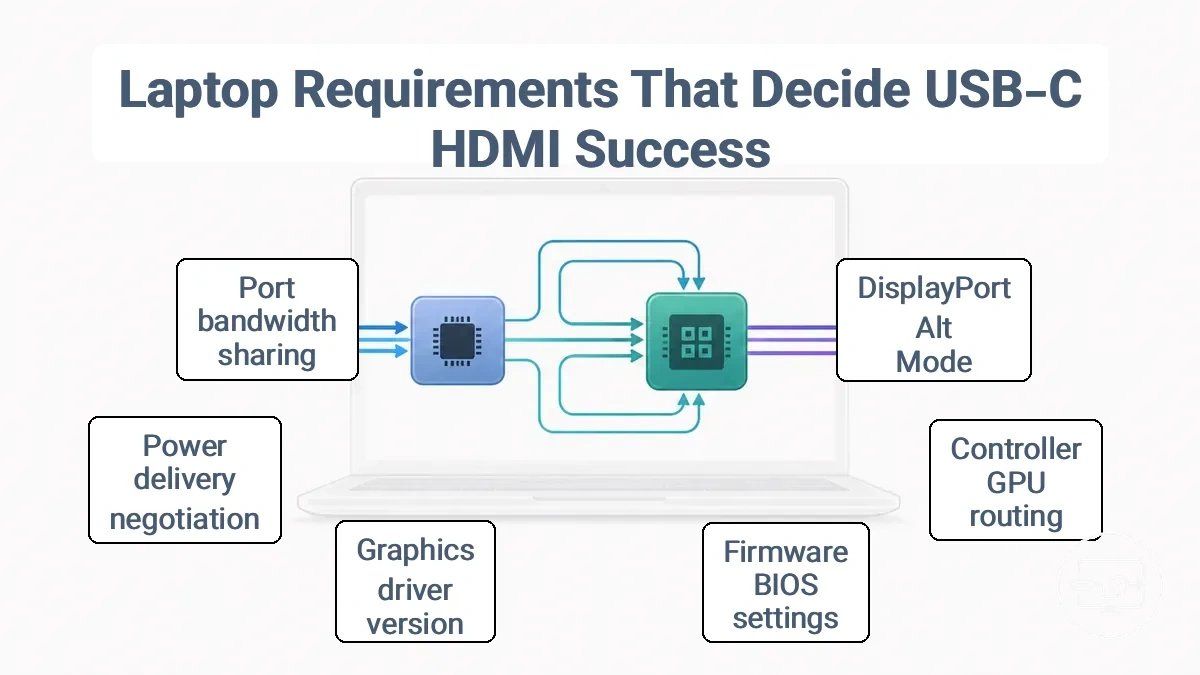
Laptop-side requirements that decide success are grouped by what they affect. Each factor's influence on observable outcomes is shown in the table.
| Factor | What It Affects |
|---|---|
| USB-C port standard (DP Alt Mode, Thunderbolt) | Whether video output is possible at all; without it, no signal. |
| Internal controller and GPU routing | Maximum supported resolution and refresh rate (e.g., 4K@30 vs 4K@60). |
| Firmware/BIOS settings | Whether video output is enabled; can block detection. |
| Graphics driver version | Stability and correct mode negotiation; outdated drivers may fail. |
| Power delivery negotiation (if PD used) | Stability when simultaneous charging and video; can cause flicker. |
| Port bandwidth sharing (if USB-C port also handles data) | Max resolution when other high-bandwidth devices are connected. |
DisplayPort Alt Mode support and how it shows up in specs
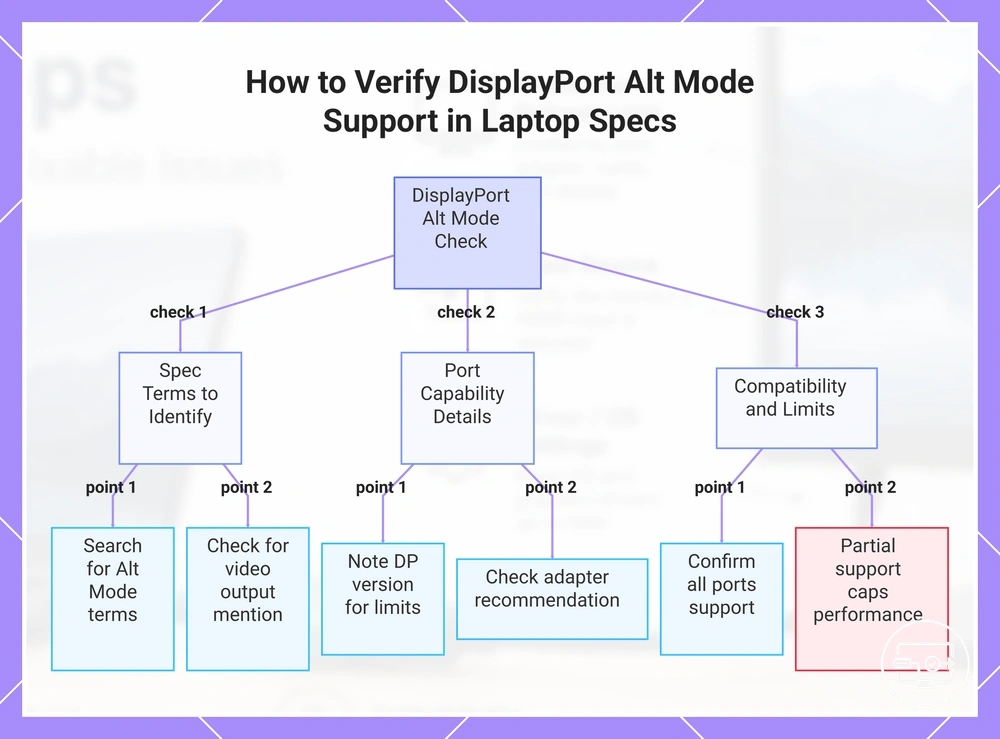
Check the laptop's official technical specifications to verify DisplayPort Alt Mode support instead of relying on port symbols alone. Use specs over guesswork to confirm compatibility.
- Look for terms like 'DisplayPort Alt Mode', 'DP Alt Mode', or 'DisplayPort over USB-C' in the port or display output section of the spec sheet.
- Check whether the port description includes 'video output' or 'display support' alongside USB-C.
- Note the supported DisplayPort version (if listed) to gauge the maximum resolution and refresh rate the port can drive.
- For monitors with a different interface (e.g., HDMI), check whether the laptop vendor recommends an adapter or converter for that connection.
- Confirm that the spec lists the same Alt Mode support for all USB-C ports, as some laptops enable it only on specific ports.
However, partial support may cap resolution or refresh rate, so confirm the detailed output capabilities from the manufacturer.
This chart shows the key checks to confirm DisplayPort Alt Mode support by reading laptop specifications, avoiding reliance on port symbols.
Thunderbolt and USB4 as stronger compatibility indicators
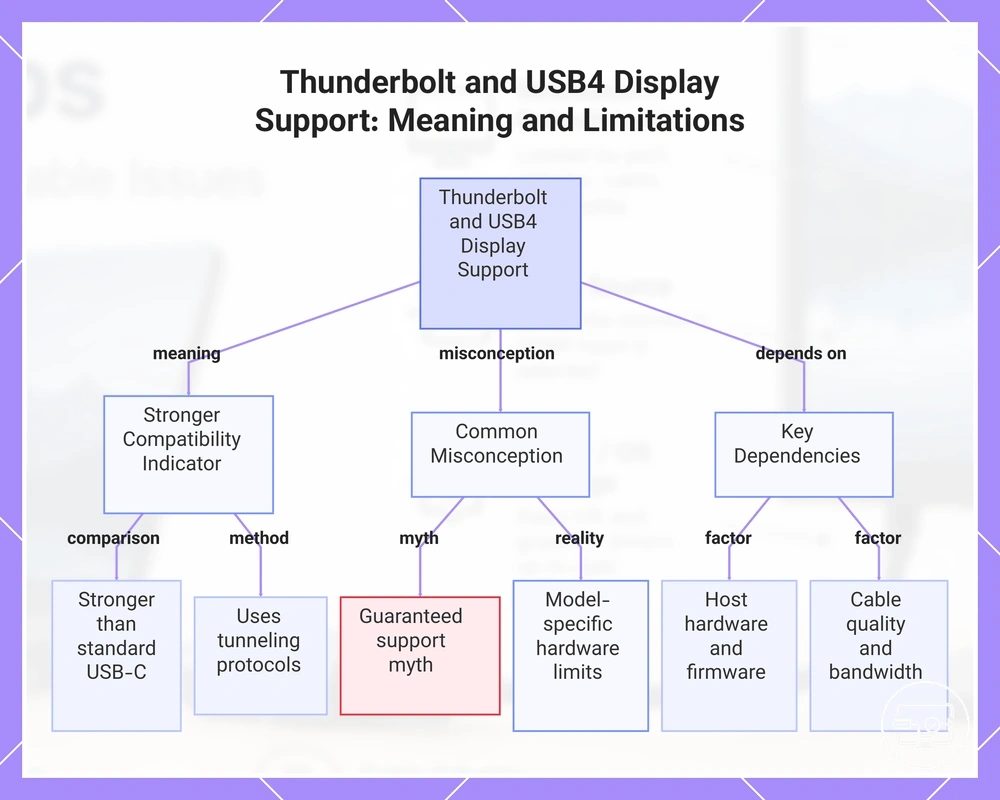
Thunderbolt and USB4 ports indicate reliable external display support more strongly than standard USB-C ports, but they still require verifying the laptop's specific display capabilities and limits. These ports use tunneling protocols to carry video signals along with data and power, but actual display limits depend on the host device's implementation.
A common myth is that any Thunderbolt or USB4 port guarantees high-resolution multi-monitor support. The reality is more conditional: actual display output depends on the laptop's internal hardware configuration and firmware, making the outcome model-specific.
- Thunderbolt 3, 4, and 5 ports typically support external displays via DisplayPort tunneling, but the maximum resolution and refresh rate depend on the laptop's video controller.
- USB4 ports are generally compatible with Thunderbolt 3 and 4 accessories, but the range of supported display modes and charging speeds varies between manufacturers and device generations.
- Thunderbolt and USB4 ports often allow daisy-chaining compatible monitors, but the number of supported displays and total bandwidth are limited by the host implementation and cable quality.
This chart explains the real meaning of Thunderbolt and USB4 ports as display compatibility indicators, the common myth about guaranteed support, and the key dependencies that determine actual display output.
GPU, BIOS, and USB-C controller routing limits on laptops
A USB-C port that supports DisplayPort Alt Mode may look compatible, but internal routing, GPU, BIOS, and USB-C controller choices often determine what it actually delivers. Routing changes outcomes for external display performance.
- USB-C port wired to the integrated GPU → external display runs through the iGPU, which may reduce game frame rates and may prevent G-Sync from working.
- Firmware that treats USB Power Delivery as a battery-like power state → GPU power limit may drop, lowering performance compared to AC power.
- Laptop without a mux switch or Advanced Optimus → external display may not be switched to the discrete GPU even when the dGPU is active.
- BIOS lacking a discrete graphics mode option → user may have no way to force the dGPU for USB-C connected monitors.
For example, one laptop model connected a 1440p gaming monitor through its USB-C port and saw frame rates limited by the iGPU, while the same monitor via HDMI used the dGPU and reached full performance. The difference came from internal routing, not the cable or the monitor.
Adapter, hub, and docking station choices that change compatibility
The type of accessory you choose changes compatibility because conversion method and bandwidth sharing differ across adapters, hubs, and docks. Adapters use a direct conversion path with minimal bandwidth sharing. Hubs add ports but may divide bandwidth among them. Docking stations handle multiple connections with more efficient bandwidth allocation, making the category choice a key compatibility factor.
The form factors illustrate how conversion method and sharing behavior dictate trade-offs.
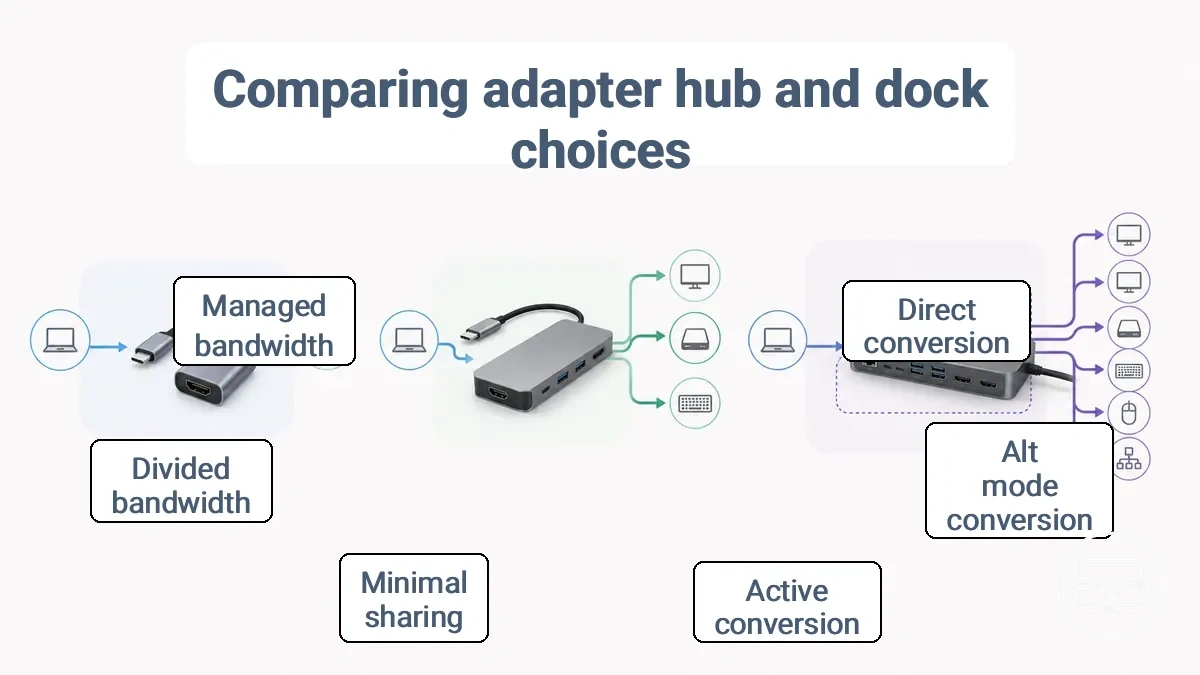
Comparing these choices that change compatibility by risk, output limits, and stability shows how conversion method and sharing behavior affect real-world results.
| Factor | Adapter | Hub | Docking Station |
|---|---|---|---|
| Conversion path | Direct cable conversion | Alt-mode or protocol conversion | Active signal conversion |
| Sharing behavior | Minimal sharing (dedicated path) | Bandwidth divided among ports | Managed bandwidth with priority |
| Expected stability | Least variable, but limited to single display | Moderately stable; may drop resolution with multiple devices | Most stable for multi-device and multi-monitor scenarios |
| Max mode | Typically single external display | One to two displays depending on laptop | Two to four displays depending on dock technology |
| Most suitable category | Users needing simple, fixed connection | Users needing extra ports without heavy monitor use | Users with multiple monitors and peripherals |
For more on how adapters compare with cables and docks, see our comparison on adapter vs cable vs dock choices.
For a single display or occasional use, an adapter often provides the simplest path. For multiple peripherals and monitors, a docking station may offer more reliable results, depending on the laptop's output capability. Matching the accessory to your constraints avoids assuming universal performance.
USB-C to HDMI adapters vs USB-C to HDMI cables on laptops
Many assume any USB-C to HDMI cable works on any laptop. However, cable-style vs. adapter-style determines compatibility, so the conversion method matters.
| Type | Dependency | Typical Outcome |
|---|---|---|
| Adapter-style | Depends on laptop's USB-C port supporting DisplayPort Alt Mode | Works with many modern laptops; may fail with older or limited ports |
| Cable-style | Requires internal chipset to convert USB-C signal to HDMI; relies on laptop output | Often plug-and-play, but performance varies by chipset quality and laptop signal |
| Active conversion | Uses active electronics to boost or convert signal | Needed when laptop output is DisplayPort-only or signal strength is low; may add latency |
An active cable or adapter may be required in rare cases.
USB-C Hubs with HDMI and Common Reliability Trade-Offs
USB-C hubs with HDMI vary in stability because their internal design affects how data, video, and power are shared, creating trade-offs that can reduce HDMI output reliability.
- Shared bandwidth between USB data ports and HDMI can reduce the display refresh rate, often capping 4K output at 30Hz when multiple storage drives or peripherals are active.
- A power delivery design that pulls from the laptop's port without enough headroom can cause the external monitor to flicker or drop out during high-throughput tasks.
- Hub controllers that prioritize charging over video signals can cause the display to briefly black out when a connected device suddenly draws power.
- When hubs have limited PD passthrough, connecting power-hungry accessories can force the HDMI port into a lower resolution or refresh rate to conserve bandwidth.
If you rely on a single 4K display and experience flicker, a dedicated USB-C to HDMI adapter may be more stable than a multi-port hub.
Docking stations and multi-display constraints on laptops
In a multi-display setup, the number of external monitors a laptop can support through a docking station depends on three connected constraints:
- The laptop's own display pipeline
- The docking station's output configuration
- How those two allocate the available video bandwidth
Even when a dock offers multiple video ports, the laptop's GPU and port capabilities typically determine the maximum number of screens that can be driven simultaneously.
The table organizes these constraints by common multi-display goals, laptop-side factors that influence feasibility, and likely outcomes—without specialized technology like indirect display adapters.
| Goal | Laptop-Side Constraint | Likely Outcome |
|---|---|---|
| Single external monitor | Most laptops with a dedicated video port (HDMI, USB-C Alt Mode) support this natively. | Typically works without additional hardware; limited mainly by cable and port compatibility. |
| Dual external monitors via USB-C | The laptop's USB-C port must support DisplayPort Alt Mode and have sufficient bandwidth for two displays. | On Windows, extended displays may work with an MST hub; on macOS, mirrors are likely unless the laptop supports two external displays natively. Resolution may be limited. |
| Triple external monitors | The laptop's GPU must support three or more total displays (including internal screen). Often requires a dedicated GPU or a Thunderbolt 3/4 connection with MST hub. | May work with appropriate docking station and laptop configuration; integrated GPUs often lack the capacity for three external displays. |
| Four or more external monitors | Exceeds typical native GPU limits. Requires indirect display technology (e.g., DisplayLink) that uses CPU resources to drive additional screens. | Possible with specialized universal docking stations, but may reduce CPU performance for non-office tasks; driver installation is required. |
These outcomes depend on the specific laptop model, GPU type, and port specifications. Checking your laptop's native display support before selecting a docking station helps avoid mismatched expectations.
4K 60Hz and Other Output Limits That Affect Laptop Compatibility
4K 60Hz output depends on the combined limits of the laptop's video output port, conversion method, and available bandwidth. These factors determine the highest target mode the laptop can reliably drive to an external display.
The chart below shows how 4K 60Hz and other output limits align with common bottleneck factors, helping set realistic expectations.
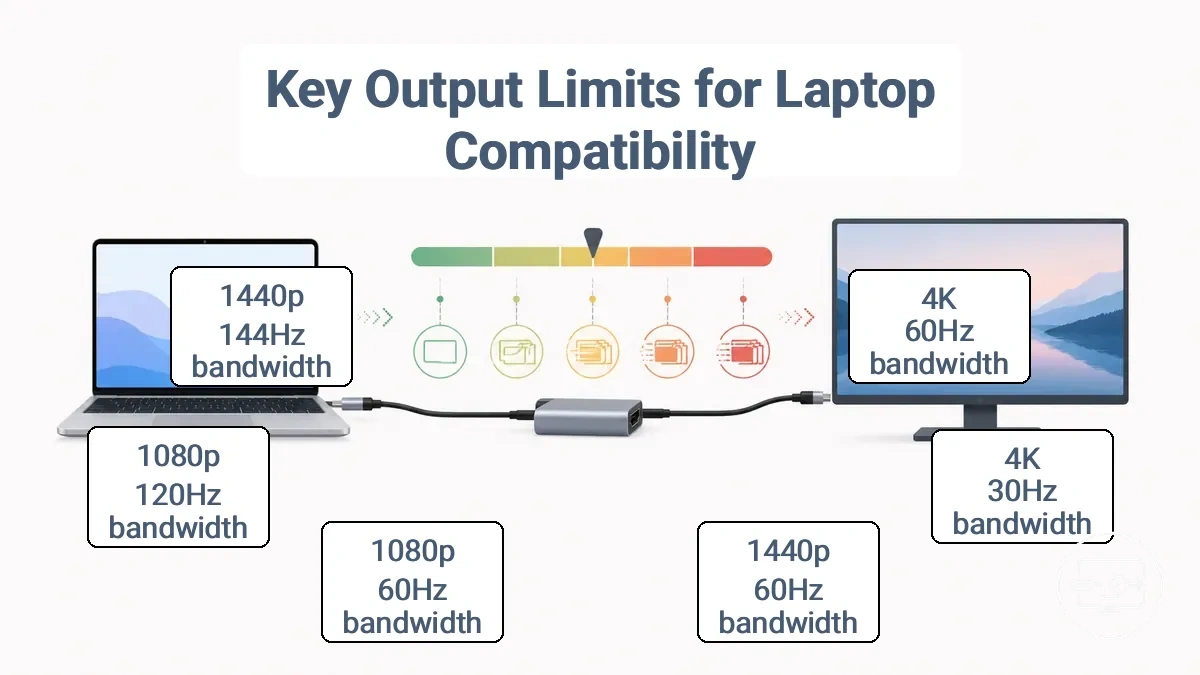
The table below maps common target modes to their bandwidth requirements and laptop constraints.
| Target Mode | Bandwidth & Standard Requirement | Laptop & Accessory Constraint | Achievable Output & Trade-offs |
|---|---|---|---|
| 4K @ 60Hz | High bandwidth | May require a DisplayPort or USB-C with DP Alt Mode; older HDMI ports often limited to 4K@30Hz | Achievable if port supports required bandwidth; otherwise capped to lower resolution or refresh rate |
| 4K @ 30Hz | Lower bandwidth | Common on older laptops with standard HDMI or USB-C without DP Alt Mode | Works for desktop use; noticeable lag in motion |
| 1440p @ 60Hz | Moderate bandwidth | Most modern ports support this; USB-C adapters may add limitations | Typically reliable; good compromise for clarity and smoothness |
| 1080p @ 60Hz | Low bandwidth | Most ports support | Stable; lowest bandwidth demand |
| 1080p @ 120Hz | Moderate bandwidth | Depends on port bandwidth and adapter capability | May be capped to 60Hz if bandwidth insufficient |
| 1440p @ 144Hz | Higher bandwidth | Requires high-bandwidth port | Achievable only with appropriate hardware; otherwise limited to lower refresh rate |
For example, a laptop whose port is rated for 4K at 30Hz may still detect a 4K monitor and allow selection of 3840x2160 resolution, but the refresh rate will be capped at 30Hz because the bandwidth or conversion method cannot support 60Hz. In this case, the connection works, but the capped mode is still considered compatible for basic use.
Bandwidth limits that cap resolution and refresh rate
Bandwidth limits define the maximum data rate a video connection can carry between a source and a display. This rate limits the combinations of resolution and refresh the connection can support. When the signal requires more data than the bandwidth allows, the system typically caps the mode to keep the display stable.
For example, the same laptop may support 1440p at a high refresh on one monitor but only 1080p at the same refresh on another. The cable version, adapter, or port implementation often reduces effective bandwidth, so this variation is normal when hardware setups differ.
- You may see a lower maximum resolution when bandwidth is shared across multiple displays.
- You may see a capped refresh rate when the cable version transfers data slower, even if the monitor and GPU can go higher.
- You may see acceptable image quality but not the full color range when color depth is reduced to fit within bandwidth.
- You may achieve the target resolution but have a limited refresh rate when compression is used, because bandwidth remains a factor.
HDR, color formats, and HDCP issues that look like incompatibility
HDR, color format, and HDCP issues that look like incompatibility usually result from a feature negotiation mismatch rather than actual device incompatibility. Failed handshakes for HDCP version, color format, or HDR metadata cause these symptoms—a mismatch, not a total failure.
- Symptom: No HDR option in display settings. Likely mismatch: HDCP 2.2 or HDR metadata negotiation fails. Safe direction: Check that both adapter and display support HDCP 2.2 and HDR.
- Symptom: Black screen or HDCP error when playing protected content. Likely mismatch: HDCP handshake between source, adapter, and display fails due to version incompatibility. Safe direction: Check HDCP version support across all links; try a different adapter or cable.
- Symptom: Washed out or oversaturated colors during HDR playback. Likely mismatch: Color format negotiation defaults to RGB instead of YUV 4:2:0 or limited range. Safe direction: Adjust display color settings or choose a supported color format via the graphics driver.
- Symptom: 4K resolution unavailable despite display support. Likely mismatch: HDCP version is insufficient or EDID bandwidth is limited. Safe direction: Ensure the adapter supports HDMI 2.0 or higher and HDCP 2.2.
- Symptom: HDR content plays only in standard definition. Likely mismatch: HDCP 2.2 compliance is not met, may cause a fallback to lower resolution. Safe direction: Make sure all devices in the chain comply with HDCP 2.2.
Power Delivery and Signal Stability Factors That Cause Flicker or Dropouts
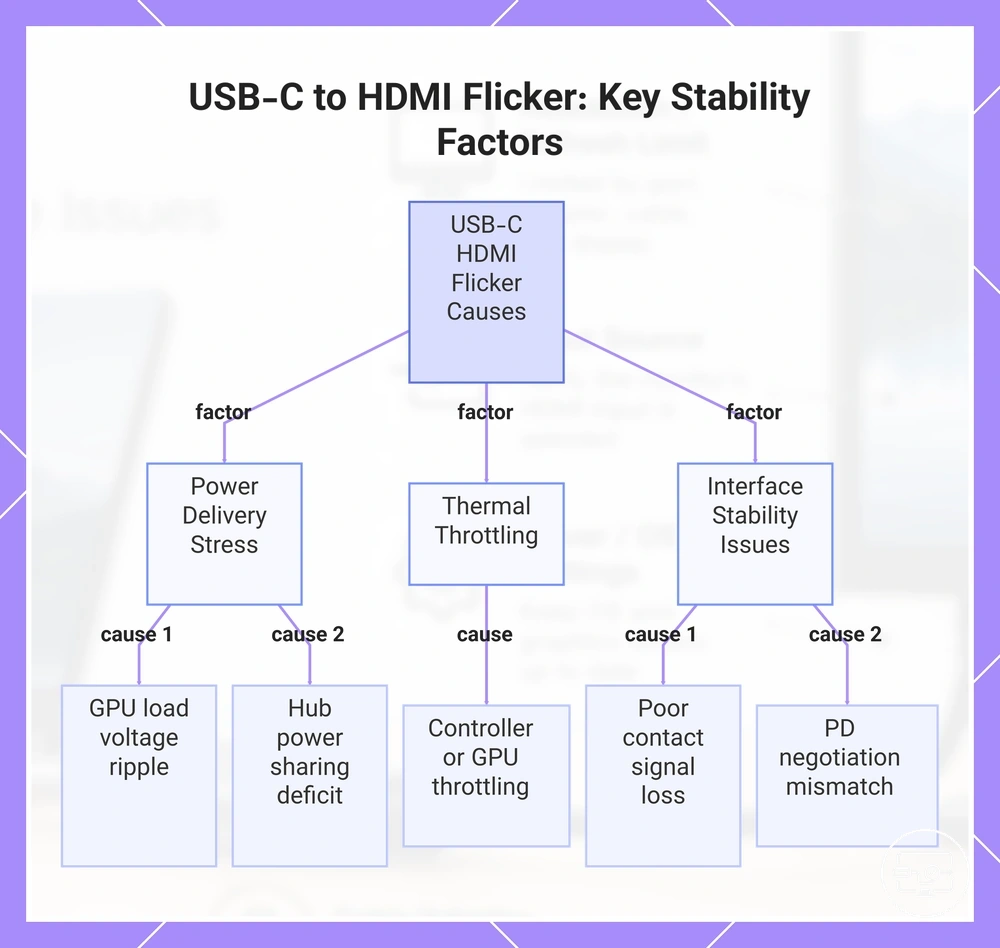
Flicker or dropouts from a laptop's USB-C to HDMI connection typically trace to stability factors like power negotiation mismatches, signal integrity degradation, or thermal limits—not outright incompatibility. These conditions produce intermittent disruptions rather than a persistent black screen. Isolating the stability factor is the first step.
It's easy to assume a faulty cable or adapter is the cause of flicker or dropout, but these symptoms actually indicate a stability condition that requires a different diagnostic approach.
- High GPU load during gaming or video editing → voltage ripple on the power delivery line → can trigger short screen flicker or dropout during current draw spikes.
- Using a USB-C hub that powers multiple peripherals → reduced power delivery capacity per port → can trigger intermittent dropouts during heavy data transfer when combined demand exceeds supply.
- Laptop operating near thermal limits → throttling of the USB-C controller or GPU → can trigger flicker that resolves after cooling down when internal temperature rises.
- Poor contact or slight movement in the USB-C connection → signal integrity degradation on the differential data lines → can trigger flicker or brief loss of signal when cable is jostled.
- Incompatible PD negotiation between the laptop and the display adapter → voltage or current profile mismatch → can trigger flicker at start or switch during initial connection or mode change.
This chart shows the main stability factors that cause intermittent flicker or dropouts in a USB-C to HDMI connection, grouped by power delivery, thermal, and interface issues.
USB-C Charging Pass-Through During External Display Use
Power delivery (PD) pass-through can change how an external display behaves when you charge through the same USB-C port. The PD negotiation between the power source, hub or dock, and laptop affects whether the battery holds steady, drains slowly, or charges normally. Observe changes when the power state changes.
- Single USB-C port used for both charging and video → Battery level may gradually drop during extended use, especially if the system draws more power than the PD source can supply.
- PD pass-through cable with dedicated power input → Laptop may stay charged while the display remains active, provided the power adapter delivers enough wattage for both the hub and the system.
- Laptop connected to a monitor with USB-C PD and video pass-through → Battery may charge slowly or not if the monitor’s PD output is lower than the laptop’s requirement.
- Barrel charger used alongside USB-C display → USB-C port carries only video, avoiding PD negotiation issues; battery behavior depends primarily on the barrel charger’s output.
- Safe observation: If the battery drains over time when using a single USB-C connection for both, note the power state when starting and after one hour to check if PD pass-through is contributing.
Evaluating Cable Quality, Cable Length, and Adapter Thermal Limits
Evaluating cable quality, cable length, and adapter thermal limits helps pinpoint the physical signal constraints that often cause intermittent issues at higher display modes. Signal degradation or heat buildup can cause flickering, dropouts, or resolution downgrades. Higher modes are less tolerant of marginal cables and adapters, so the same setup that works at 1080p may fail at 4K HDR.
- Conductor gauge and material – Thinner or lower‑purity copper increases resistance, which reduces signal strength over distance and can cause intermittent flicker at higher bandwidths.
- Cable length – Longer runs add more signal attenuation; even if a short cable works, a longer cable of the same quality may introduce dropouts or force a reduced mode.
- Shielding quality – Poor shielding allows electromagnetic interference to corrupt the signal, which can lead to sparkles, black screens, or mode instability.
- Adapter thermal design – Heat buildup inside the adapter can cause the chipset to throttle or shut down, resulting in sudden disconnects or persistent lower‑resolution operation.
- Connector and contact integrity – Loose or poorly plated connectors can cause intermittent contact, which manifests as flickering or momentary signal loss.
Each attribute above can be assessed without specialized tools: feel the adapter temperature after moderate use, check the cable length against the typical distances in your setup, and examine the connector fit. The goal is to identify which physical factor most likely causes instability at your target mode.
Compatibility checks to do before buying an adapter, hub, or dock
The most dependable approach is to verify your laptop's video output capability, your target display's requirements, and the conversion method's compatibility. Verify in order.
When you only need to connect a single monitor and your laptop's USB-C port supports DisplayPort Alt Mode, a simple adapter may be sufficient. If you plan to connect multiple displays, charge the laptop through the accessory, or add wired networking, a dock is often the appropriate choice. Select the type that fits your verified requirements.
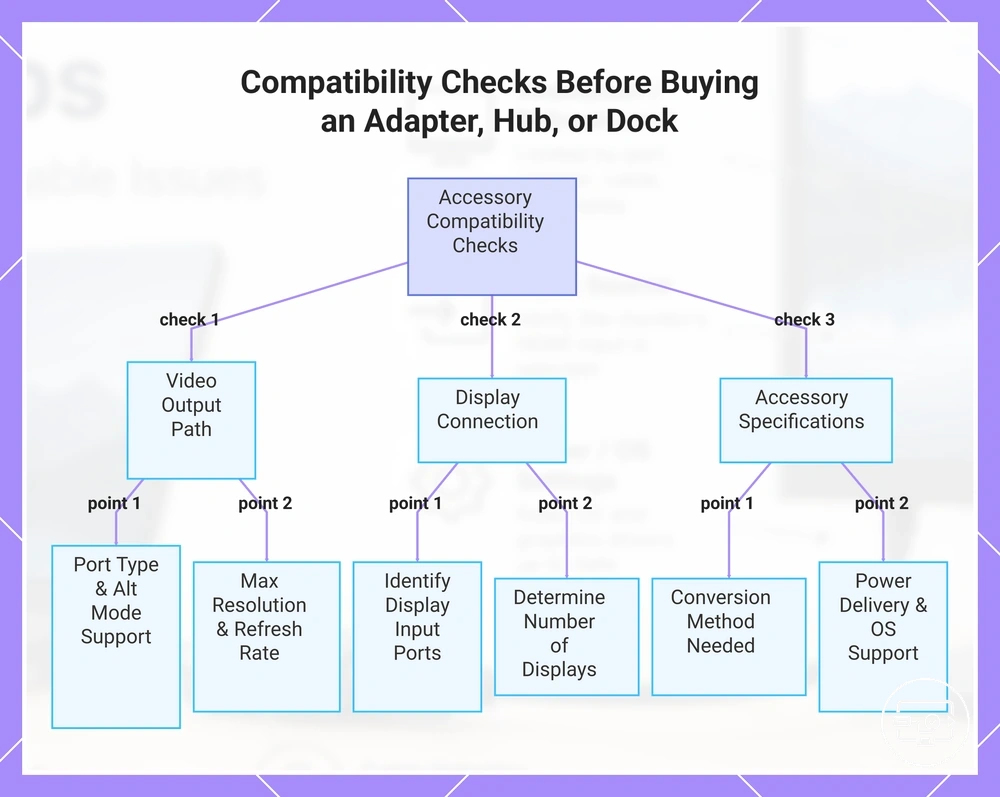
- Identify your laptop's port type — USB-C, Thunderbolt, or USB-A — since the accessory must match that connector.
- Confirm that the port supports video output by checking for DisplayPort Alt Mode support or Thunderbolt capability; otherwise, a direct video signal may not be available.
- Check the maximum resolution and refresh rate your laptop can output through that port, as these limits determine what the accessory must support.
- Identify the video input ports on your target display (HDMI, DisplayPort, VGA, or USB-C) to ensure you select an accessory with the correct output.
- Determine the conversion method needed — for example, USB-C to HDMI or DisplayPort to HDMI — and verify that the accessory actively handles that conversion.
- Verify power delivery support if you want the accessory to charge the laptop; check the wattage your laptop requires and whether the accessory can supply it through the same cable.
- Count the number of displays you intend to connect simultaneously, because multi-monitor setups require a dock with sufficient bandwidth and dedicated video outputs.
- Confirm that the accessory supports your operating system (Windows, macOS, ChromeOS) to avoid driver or feature gaps that can cause partial functionality.
For a detailed step-by-step reference, consult the USB-C port requirements checklist.
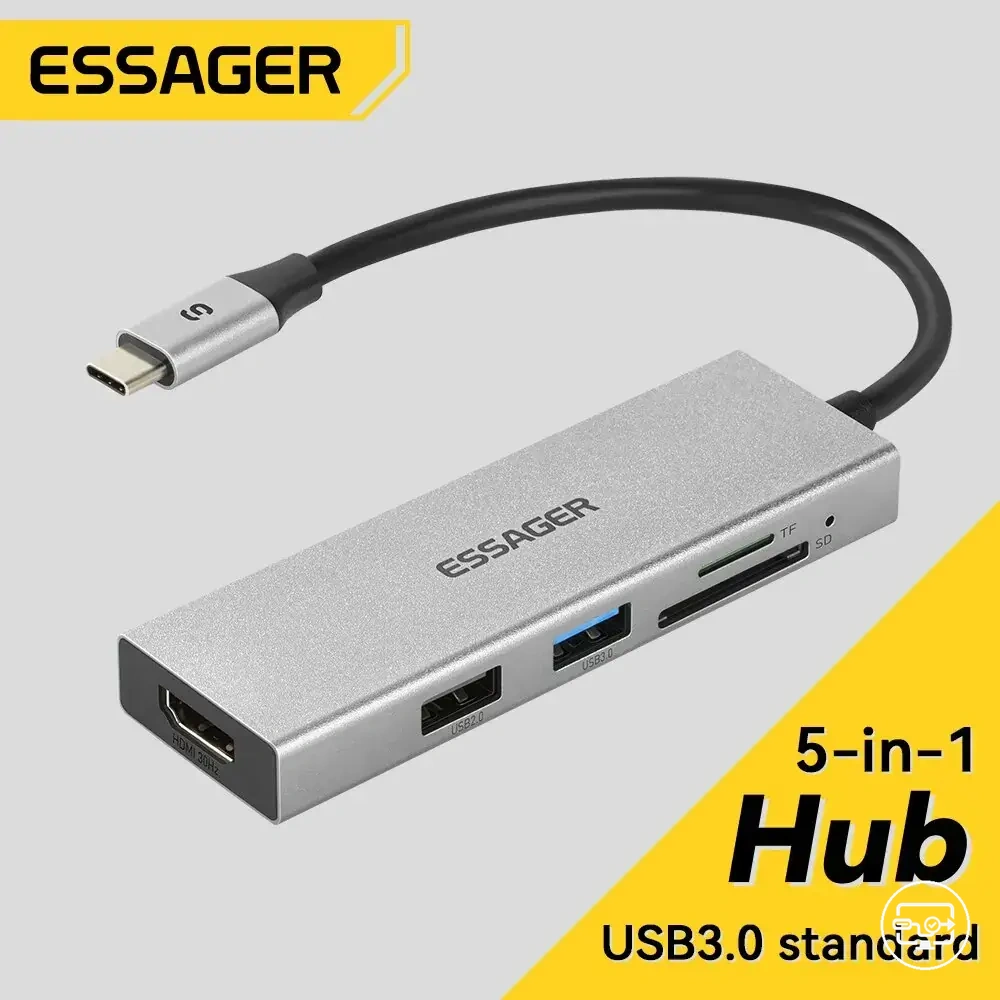
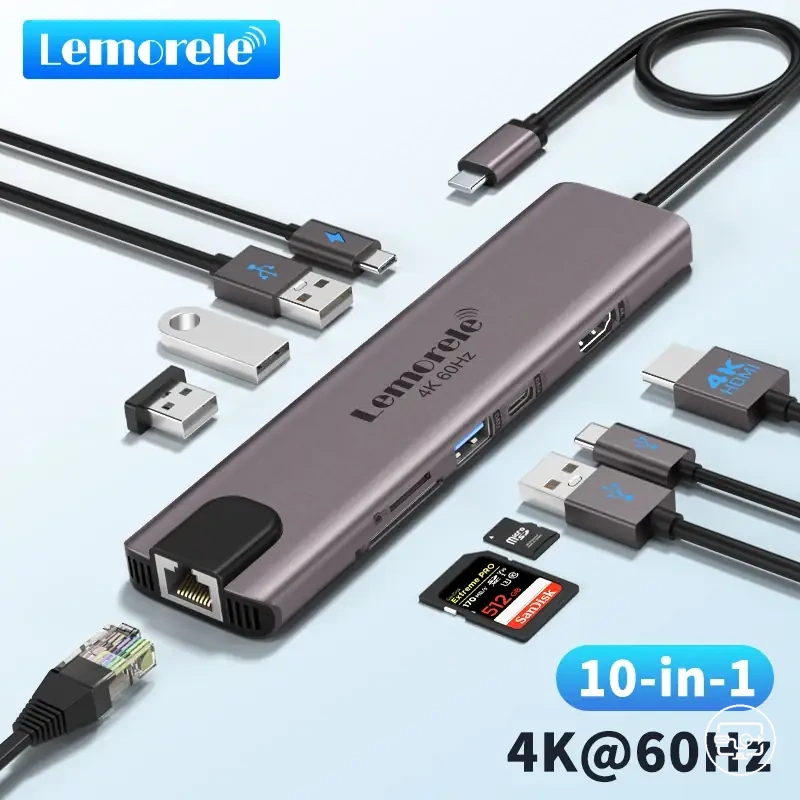
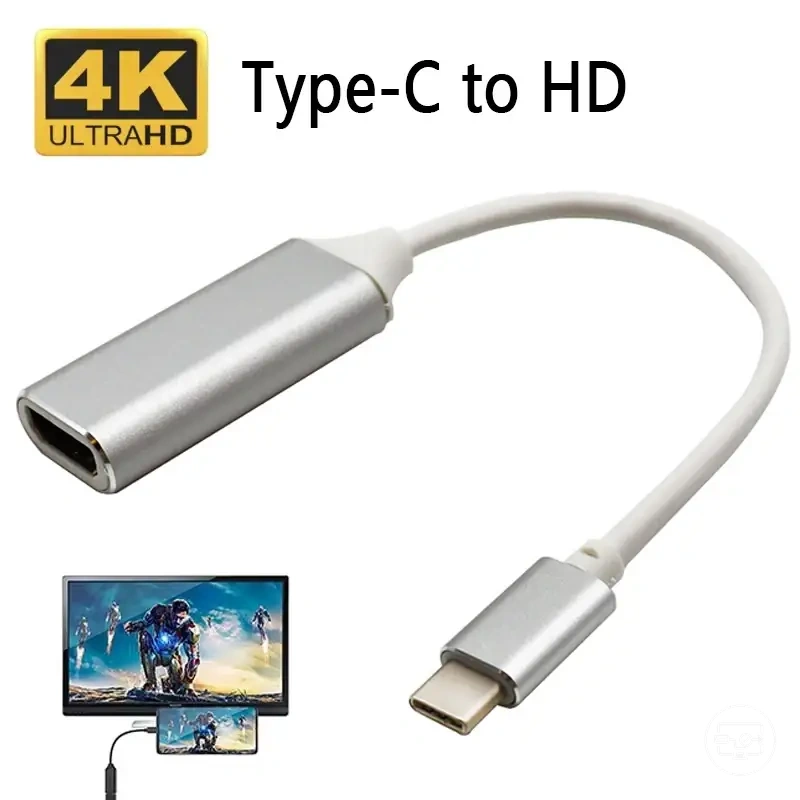
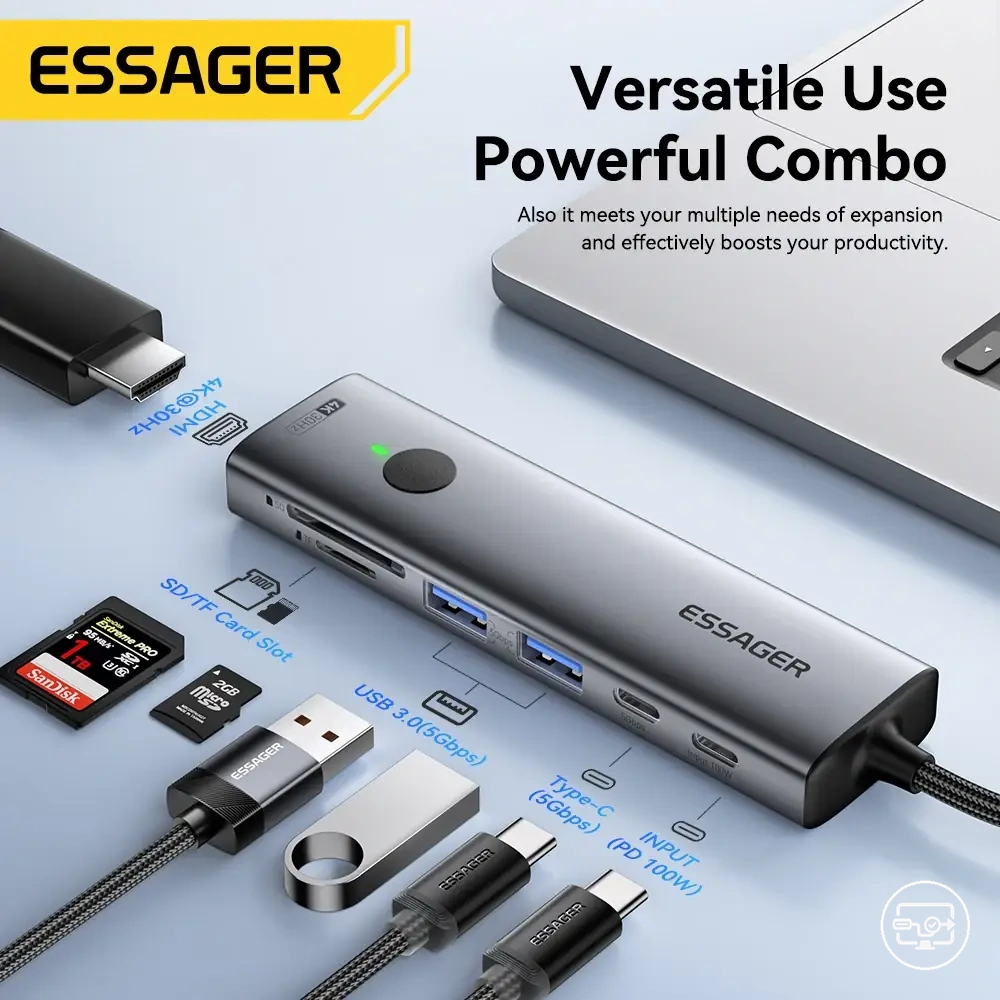
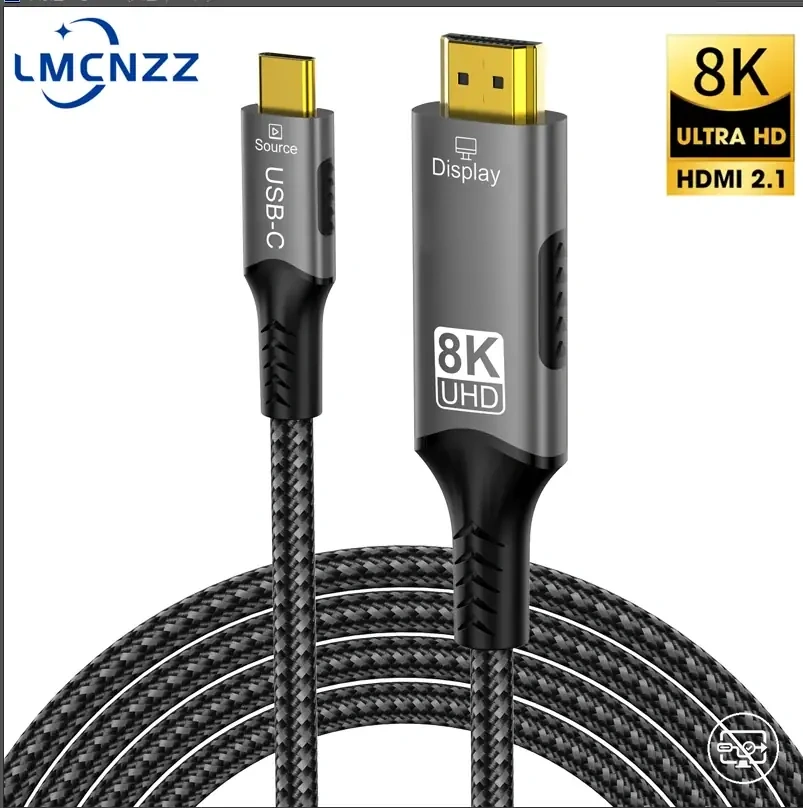
Here are product examples that may make comparison easier. Before buying, always review the compatibility criteria, essential features, and product details.
This chart outlines the three main areas to verify when selecting a compatible adapter, hub, or dock: laptop video output, display requirements, and accessory specifications.
How to verify laptop USB-C video output support without guesswork
Cross-check official specifications with your operating system's display settings to verify USB-C video output support without guesswork. Official specifications provide higher confidence than port logos alone.
- Check the laptop's technical specifications on the manufacturer's support page for phrases like 'DisplayPort Alt Mode', 'Thunderbolt', or 'video output'.
- Inspect the USB-C port for a DP or Thunderbolt symbol as a secondary clue. Even without symbols, the port may still support video if the spec sheet confirms it.
- On Windows, open Settings > System > Display and connect an external display to the USB-C port. If the system detects the display, the hardware likely supports video output.
- On macOS, go to Apple menu > About This Mac > System Report > Graphics/Displays to check video output capability directly.
- If documentation is inconsistent or missing, cross-check your exact laptop model in official forums or knowledge bases to confirm video output support.
Manufacturers do not always label USB-C ports consistently.
What to Verify on the Monitor or TV Side to Avoid False Negatives
Display-side settings can cause a false negative that mimics laptop incompatibility, so checking the monitor or TV inputs and settings first can help isolate display-side causes and rule out false negatives.
- Check the selected input source — this can help prevent missing a working signal when the display is on the wrong input.
- Verify the display is set to accept the incoming resolution and refresh rate — this can help prevent a blank screen caused by unsupported timing.
- Confirm HDCP and EDID handshaking are not blocked by a third-party adapter or splitter — this can help prevent a no-signal error that mimics a port failure.
- Ensure the display is not in deep sleep or standby mode — this can help prevent a false negative when the screen is simply powered down.
- On multi-input displays, cycle through each input mode manually rather than relying on auto-detect — auto-detect can cause a no-signal result if the display fails to switch automatically.
Enabling USB-C display output when the laptop hardware supports it
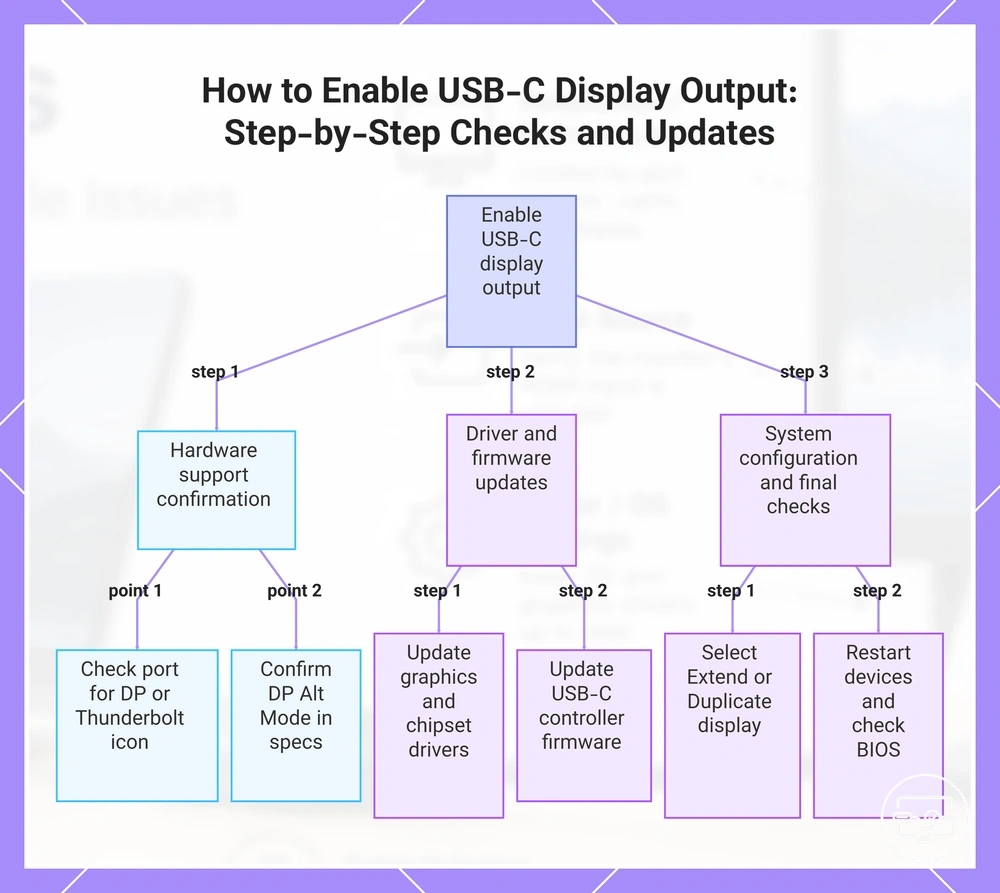
When your laptop hardware supports video over USB-C, enabling display output usually comes down to using the right cable, updated drivers, and firmware — these low-risk checks often resolve detection problems.
The steps move from simple cable checks to deeper system adjustments. Each step includes an outcome so you can track progress. Only use these steps if your laptop hardware supports video over USB-C.
Some users assume a BIOS toggle alone activates video output. In reality, the USB-C port must already include DisplayPort Alt Mode support at the hardware level — software cannot add that. If your port lacks it, these steps will not make video work — don't force unsupported ports with adapters that still require DP Alt Mode.
- Check the USB-C port on your laptop for a DP or Thunderbolt icon and confirm the official specification lists DisplayPort Alt Mode. Outcome: this should help you confirm the port can output video.
- Use a full-featured USB-C cable that supports video and power — not a charge-only cable. Outcome: the monitor should receive a signal and wake from standby.
- Update graphics drivers and chipset drivers from the laptop manufacturer, not just from Windows Update. Outcome: this should help you confirm the operating system recognizes the display connection.
- Update the USB-C controller firmware and any Thunderbolt or USB4 drivers. Outcome: this should help you confirm hotplug detection is functioning.
- Use the operating system display settings to select Extend or Duplicate. Outcome: the second display appears in Display Settings if the signal path is active.
- Restart both the laptop and the monitor after all updates, then reconnect the cable. Outcome: this should help you confirm the system reinitialises the USB-C display path cleanly.
- Enter BIOS (usually F10 or F2) and look for a setting such as "USB-C DisplayPort", "DDI to TBT", or "High resolution dock mode". Enable it if present. Outcome: this should help you confirm video lanes are routed correctly to the USB-C port.
Once the monitor is detected and stable, you can adjust resolution and extend your desktop. For more detailed connection guidance, see the setup steps for laptops.
This chart outlines the sequence of checks, driver updates, and system configurations needed to enable display output over USB-C when hardware supports it.
Display Settings, Input Selection, and Output Mode on the Laptop
Set the correct output mode so the laptop actively outputs to an external display. Then confirm detection on the external screen.
- Press the display mode shortcut key (often a function key) to open the projection options.
- Choose an output mode such as Extend or Mirror. Extend creates a separate desktop space; Mirror duplicates the laptop screen.
- Check the external display for the expected output. The laptop screen may also change to reflect the selected mode.
- If no signal appears on the external display, cycle through available modes until the display activates.
- In multi-display setups, selecting the wrong mode may hide a working signal.
Driver, firmware, and BIOS settings that can block external display output
When hardware is functional, software or firmware settings can still block external display output, leading to symptoms like missing native resolution or no detection. To identify the specific blocker, systematically check the driver, firmware, and BIOS layers, starting with the least invasive step. Change safely by noting current settings before adjusting so you can revert if the result worsens. Do not assume one update resolves all issues.
- Check current graphics driver version. Safe action: Use a display driver uninstaller in Safe Mode to remove the existing driver, then install the driver from the chipset vendor. Observe whether the external monitor regains correct resolution or refresh rate options.
- Check if system firmware enforces a display output fallback mode. Safe action: Review firmware settings for options such as 'Always enable external display' or 'Boot display output'. Observe if enabling or disabling these options changes monitor behavior.
- Check if a recent BIOS update altered HDMI port capabilities. Safe action: Confirm the BIOS version and compare release notes for display-related changes. Reset BIOS to default settings (after noting current settings) to rule out configuration conflicts if available. Observe any change in supported resolutions.
- Check if the monitor's EDID is being read correctly. Safe action: Use a tool to inspect the EDID and add standard resolutions manually. Observe if custom resolutions appear in display settings.
- Check if Windows is using the Microsoft Basic Display Adapter. Safe action: Prevent automatic driver updates via group policy or device installation settings after installing the correct driver. Observe whether the monitor works after a reboot without driver reversion.
When USB-C to HDMI Shows No Signal or Unstable Output on a Laptop
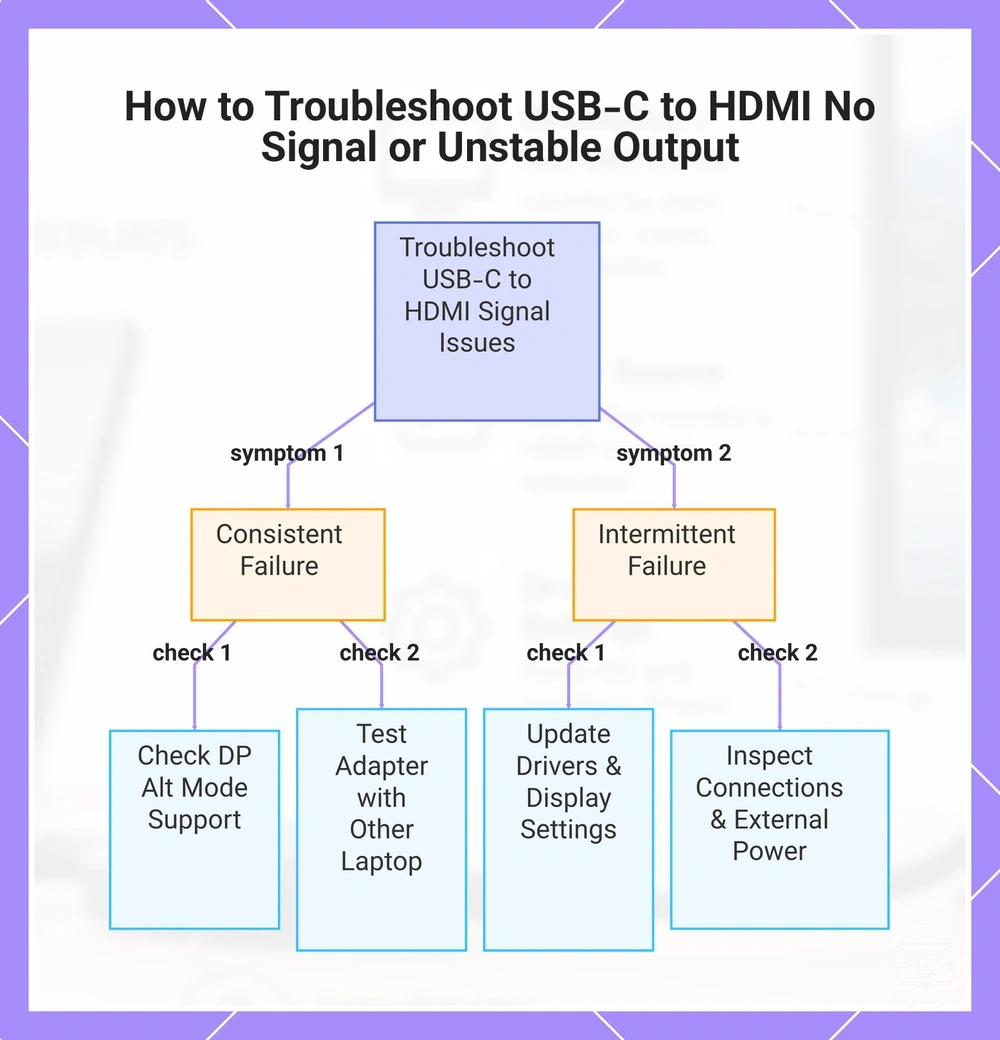
Resolving no signal or unstable output from a laptop USB-C to HDMI connection requires isolating the cause category—laptop capability, configuration, accessory conversion, or signal integrity—before applying fixes, as this narrows the likely cause class and prevents unnecessary attempts.
Consistent failure from the first connection often points toward a blocked capability or an incompatible accessory. Intermittent failure that works at times but not others usually points to configuration, power delivery, or signal integrity issues. Choose the right branch before testing.
- Check whether the laptop’s USB-C port supports DisplayPort Alternate Mode; if it does not, the cause likely lies in a capability limitation.
- If the port lacks DP Alt Mode, the adapter typically cannot transmit a display signal regardless of settings or cable quality.
- Update the graphics and USB-C controller drivers, then restart and reconnect; if the output stabilizes, it suggests a configuration or driver issue.
- Check the display settings to ensure the monitor is set to extend or duplicate; if it was disabled, that points to a configuration cause.
- Test the adapter and HDMI cable with another known-working laptop; if the issue follows the accessory, it indicates an accessory compatibility or defect.
- If the adapter requires external power, ensure it is plugged into a working source; unstable output due to power suggests an accessory power issue.
- Inspect physical connections for looseness or damage; a partially inserted connector causing intermittent loss indicates a signal integrity issue.
- Use the shortest possible HDMI cable; longer cables may degrade signal integrity, pointing to a signal integrity cause.
For a more detailed breakdown by symptom, troubleshoot laptop display issues with step-by-step guidance.
This chart shows how to isolate the cause of USB-C to HDMI signal issues by identifying whether the failure is consistent or intermittent, then applying targeted checks.
Here are product examples that may make comparison easier. Before buying, always review the compatibility criteria, essential features, and product details.
No signal or not detected and how to isolate the cause
A 'no signal' or 'not detected' error indicates the display is not receiving a compatible signal. To isolate whether the cause is a hardware limitation, a display input setting, an accessory fault, or a software setting, test each variable one at a time.
- Swap cable and port — Use a different known-working cable and port, then observe if the screen shows an image. If it does, this suggests the original cable or port was faulty. If it does not, this suggests the issue lies elsewhere.
- Test with another display — Connect the same cable and port to a known-working monitor and observe if that display shows a signal. If it does not, this suggests the computer’s video output or driver may be at fault. If it does, the original display’s input or compatibility may be the problem.
- Verify display input source — Cycle through the display’s input sources using its remote or on‑screen menu and observe if the "no signal" message disappears. If it does, this suggests the display was set to the wrong input. If it does not, this suggests input selection is not the cause.
- Disable fast startup in Windows — Go to Control Panel > Power Options > Choose what the power buttons do, disable fast startup, reboot, then observe if the external monitor shows an image. If it does, this suggests that fast startup was interfering with the display handshake. If it does not, this suggests the cause is elsewhere.
- Update or roll back the graphics driver — Install the latest driver from the GPU manufacturer (NVIDIA, Intel, or AMD) or roll back to a previous version if a recent update triggered the problem. Reboot and observe if the signal returns. If it does, this suggests a driver compatibility issue. If it does not, the problem may be hardware or another setting.
- Reset display settings in the graphics control panel — Open the manufacturer’s control panel (e.g., NVIDIA Control Panel, Intel Graphics Command Center) and set the external display to a standard resolution and refresh rate, then observe if the image appears. If it does, this suggests the previous resolution or refresh rate was unsupported. If it does not, the issue may be deeper.
- Test with integrated graphics only — For a laptop with switchable graphics, temporarily force the system to use only the integrated GPU (e.g., disable the discrete GPU in Device Manager). Reconnect the monitor and observe if it works. If it does, this suggests the discrete GPU or its driver is contributing to the failure. If it does not, the integrated graphics or motherboard may be involved.
- Check for firmware updates related to display compatibility — Visit the laptop manufacturer’s support page and look for BIOS or firmware notes that mention external display issues. Observe if a relevant update exists. If it does, this suggests a known firmware incompatibility may be the cause. If it does not, this suggests the issue may be due to hardware or other settings.
How to Narrow Down the Trigger for Flickering and Intermittent Disconnects
Narrowing down the trigger for flickering or intermittent disconnects often involves recognizing patterns like loose connections, unstable power delivery, or component incompatibility, which can be faster than testing every variable. This mapping can help identify the trigger class for efficient corrective action.
- Often, loose physical connections – flickering that stops when the cable is held in a certain position – check and reseat all cable ends; replace cable if bent or damaged.
- Often, power delivery instability – flickering or disconnects that occur when the laptop is on battery versus plugged in – verify power adapter wattage; reduce connected device load.
- Often, voltage fluctuations from the source – disconnects that happen when other high-power appliances cycle on the same circuit – try a surge protector or a different outlet; consider an uninterruptible power supply.
- Often, faulty adapter or cable – intermittent dropouts reproducible with one cable but not another – swap with a known-good USB-C or HDMI cable/adapter.
- Often, incompatible device combination – flickering only when using a specific laptop and monitor – check alternate mode support (DisplayPort over USB-C) and HDMI version requirements; update drivers.
- Often, bandwidth limitation at high resolutions – stable only when display output is lowered from 4K 60Hz to 30Hz or 1080p – use a higher-quality cable rated for the required bandwidth; reduce resolution or refresh rate.
When It Is the Adapter or Dock versus a True Laptop Limitation
Distinguishing between a laptop limitation and an accessory issue starts with a controlled swap. The observable outcome from this controlled swap suggests whether the issue is with the accessory or the laptop.
- Swap the cable or adapter with a known-working alternative if possible.
- Test the same peripheral on a different laptop to see if the issue follows the peripheral.
- Verify that your laptop’s USB-C port supports the video mode required (DisplayPort Alt Mode or Thunderbolt).
- Install any necessary drivers for multi-monitor extensions, especially on macOS.
- Confirm that your operating system supports the display layout you want (e.g., macOS typically requires third-party software for MST).
- Reboot the laptop with the dock disconnected and note whether the symptom returns when reconnected.
- Document each change and the observable outcome to identify which component is more likely responsible.