
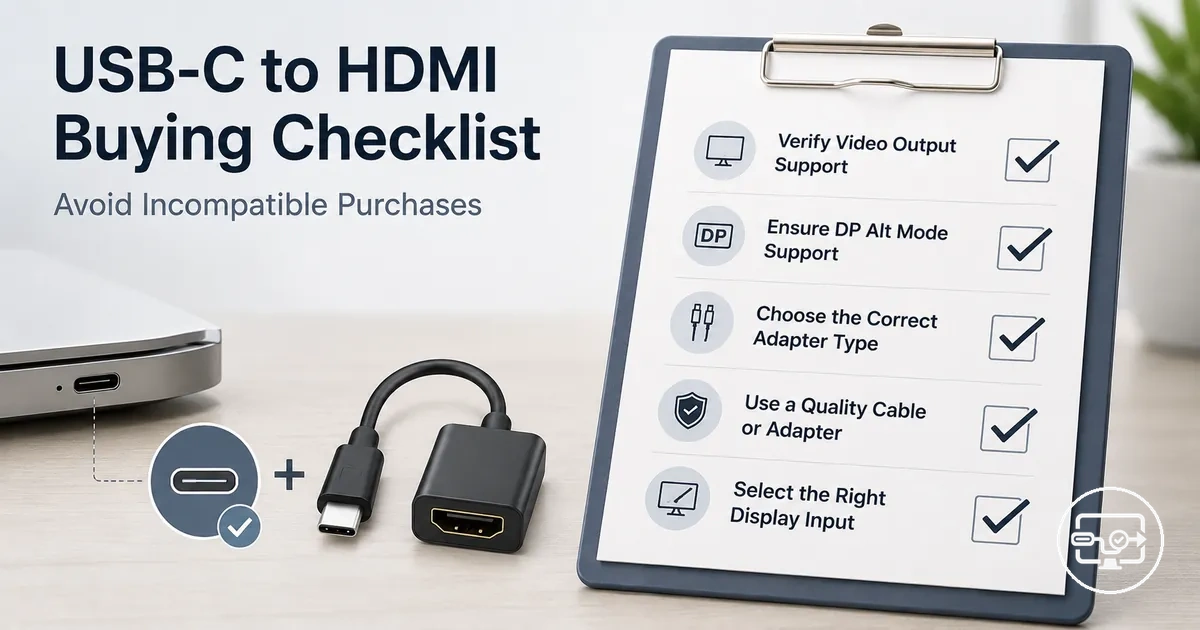
USB-C to HDMI Adapter Compatibility Checklist
USB-C to HDMI adapter compatibility depends on a chain of three factors: the source device’s video output support, the adapter’s conversion method, and the HDMI display’s input capabilities.
The USB-C port’s shape does not guarantee video output. Many assume any USB-C port can send video, but that capability depends on whether the port supports DisplayPort Alternate Mode (DP Alt Mode) or Thunderbolt. Without this feature, the port handles data or power only, not video.
Verifying all three before purchase avoids a mismatch because each link must support video passing.
- Device video output: Check for DP Alt Mode or Thunderbolt in specifications.
- Adapter type: Use an active adapter that converts DisplayPort to HDMI.
- Display requirements: Confirm HDMI input supports your target resolution (e.g., 4K at 60 Hz).
Common buying scenarios include connecting a laptop to a desk monitor, a phone to a TV, or a tablet to a projector. In each case, the same chain applies, but device support for video output varies widely. Laptops with Thunderbolt ports usually work, while budget phones may lack DP Alt Mode.
The highest-risk mismatch is a device without video output paired with any USB-C to HDMI adapter; check device specifications first.
A safe practice is to rely on manufacturer documentation for the source device rather than assuming compatibility. Even within the same product line, some models include video output while others do not. This checklist approach shifts the focus from guessing to systematic verification, reducing the risk of a mismatch.
For a broader overview of compatibility factors, visit our USB-C to HDMI Compatibility hub.
Compatibility Scope for a USB-C to HDMI Purchase
For a compatible USB-C to HDMI purchase, your source device’s USB-C port must support video output, the adapter must correctly convert that signal, and your HDMI display must accept the resulting format.
Many people assume any USB-C port can output video. In reality, many are data-only or charging-only. The USB-C connector shape alone does not guarantee HDMI output; the port must support DisplayPort Alt Mode or an equivalent video standard. The diagram shows the compatibility scope for a USB-C to HDMI purchase and indicates where incompatibility occurs.
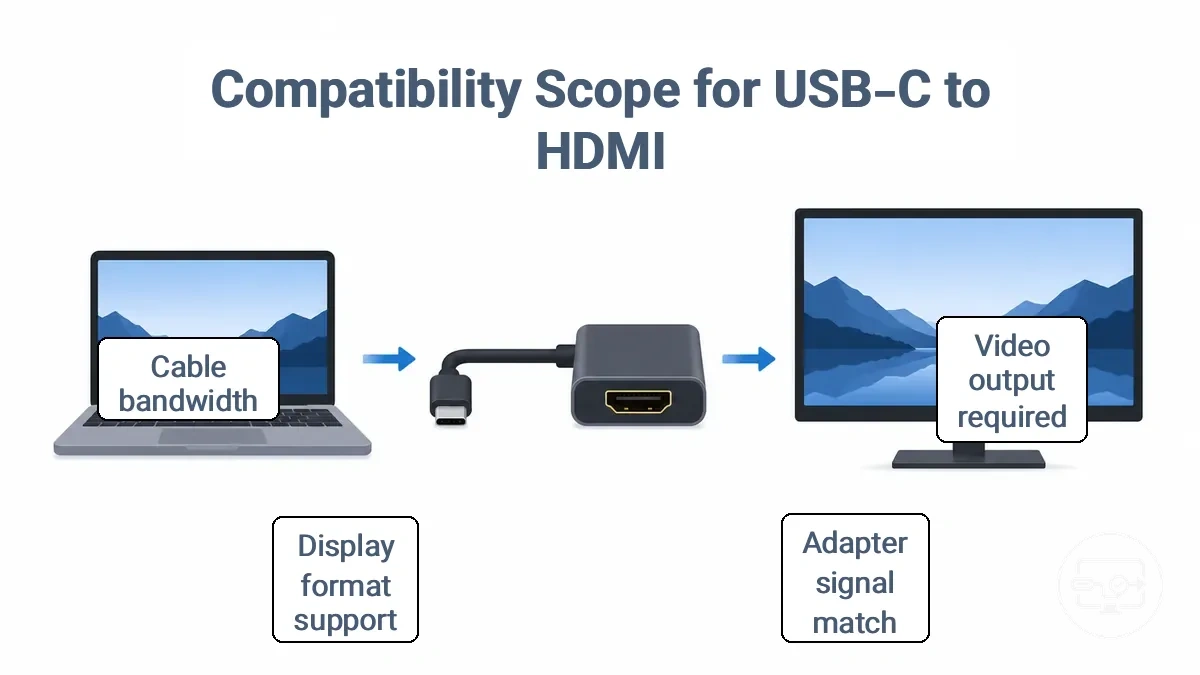
- USB-C port video support – Verify the source device’s USB-C port supports video output; this often requires DisplayPort Alt Mode and depends on the specific model and OS.
- Adapter type – Choose an adapter that matches the source’s video signal and the display’s HDMI version; passive adapters may work for many devices, but some need active conversion.
- HDMI input limits – Check the display’s HDMI input specifications to ensure it can handle the resolution and refresh rate you intend to use.
- Operating system compatibility – Some adapters require driver updates or specific firmware on certain OS versions; review the adapter’s listed support.
- Display capabilities – The monitor or TV must support the same video format (resolution, refresh rate, color depth) that the source and adapter can deliver.
- Cable quality – Use cables rated for the required bandwidth to avoid signal loss; this depends on the total chain length.
- Power delivery pass-through – If you need to charge the source while using video, confirm the adapter supports sufficient power delivery.
The checklist covers pre-purchase verification only. It does not include post-purchase troubleshooting—such as adjusting display settings or updating drivers—which may be needed if compatibility is borderline.
USB-C port video output support vs data-only USB-C
Some USB-C ports are data-only and cannot output video. Others support video output via DisplayPort Alt Mode or Thunderbolt. Without these protocols, the port cannot send a display signal to an HDMI adapter or monitor, even if the cable and adapter are compatible.
- Thunderbolt icon (lightning bolt) next to the port → video output supported
- DisplayPort (DP) icon next to the port → DisplayPort Alt Mode supported
- Spec sheet lists 'DisplayPort Alt Mode' or 'DP Alt Mode' → video output capability
- Spec sheet lists 'USB-C with video output' or 'supports external display' → video output
- Manual mentions 'HDMI over USB-C' or 'USB-C video adapter' → video output supported
- Port labeled only as 'USB 3.1 Gen 1' or 'SuperSpeed USB-C' → may be data-only; check further
When the spec sheet or port lacks clear labels, checking the device's official documentation for 'DisplayPort Alt Mode', 'DP Alt Mode', or 'Thunderbolt' is a safe next step. When information remains unclear, testing the port with a known working external monitor and a full-featured USB-C cable can confirm video output support.
DisplayPort Alt Mode passthrough vs active conversion adapters
A passthrough adapter requires the source to output an HDMI-compatible signal through Dual-Mode (DP++). An active converter uses a built-in chipset to translate DisplayPort into HDMI.
Choose an active converter if your USB-C port lacks DisplayPort Alt Mode or if you need broader compatibility without checking Dual-Mode support. Active adapters have some limits: HDCP handshake issues or occasional external power needs.
Passthrough (Passive) Adapter
- Source must output HDMI over DP++: the adapter passes the signal without conversion.
- No internal chipset: keeps cost low and size compact.
- May fail if laptop does not support DP++ over USB-C.
- Limited to source output resolution, often below 4K.
Active Converter Adapter
- Source lacks DP++: the active chipset converts the signal internally.
- Supports higher resolutions like 4K at 60Hz (adapter-dependent).
- High-bandwidth usage may require external power.
- Broader compatibility, but may encounter HDCP limitations.
Source device checks before you buy a USB-C to HDMI adapter
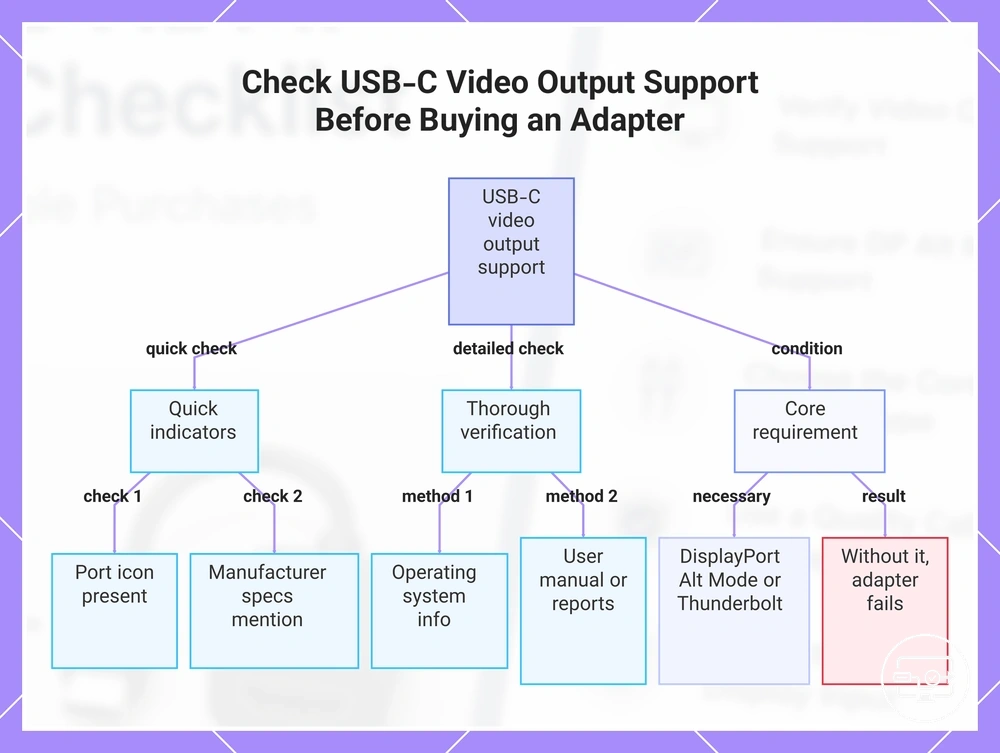
Before buying a USB-C to HDMI adapter, confirm that your device's USB-C port supports video output. If it doesn't, the adapter won't work.
Laptops with USB-C ports often support video output if they have DisplayPort Alt Mode or Thunderbolt 3/4. Smartphones and tablets differ; many do not support video output over USB-C even if the port looks identical.
Use these checks to verify video output support:
- Manufacturer specs: Look up your device model number on the official support page. If specs mention 'DisplayPort Alt Mode,' 'video output,' or 'Thunderbolt 3/4', the port may support external displays. Decision: buy if confirmed; do not buy if not listed.
- Port icon: Check the USB-C port for a small icon of a monitor, a 'DP' symbol, or a lightning bolt (Thunderbolt). A present icon may indicate video output support. An absent icon does not rule it out.
- Operating system info: On Windows, open Display Settings and see if 'Multiple displays' options appear when a monitor is connected. On macOS, open System Report under Thunderbolt/USB-C and look for 'Video Output' support.
- User manual: Look in the user manual for terms like 'video output,' 'external display,' or 'USB-C Alt Mode.' If the manual says the port supports video, you can proceed.
- User reports: Search for your device model plus 'USB-C video output' or 'external display.' User reports may provide real-world confirmation.
A device without DisplayPort Alt Mode or Thunderbolt support cannot output video natively through an adapter. Such an adapter may not work regardless of its specifications.
This chart helps you verify whether your device supports USB-C video output using quick indicators, thorough verification methods, and the core requirement for compatibility.
How to verify DisplayPort Alt Mode or Thunderbolt video output support
Verify DisplayPort Alt Mode or Thunderbolt video output support by checking device specs for explicit keywords rather than relying on the USB-C connector shape alone.
Spec sheets often list capabilities inconsistently, so knowing which terms to look for is important. The screenshot shows how to verify DisplayPort Alt Mode or Thunderbolt video output support by highlighting the exact spec wording to look for, including a model identifier callout and a caution note that USB-C alone does not guarantee video.
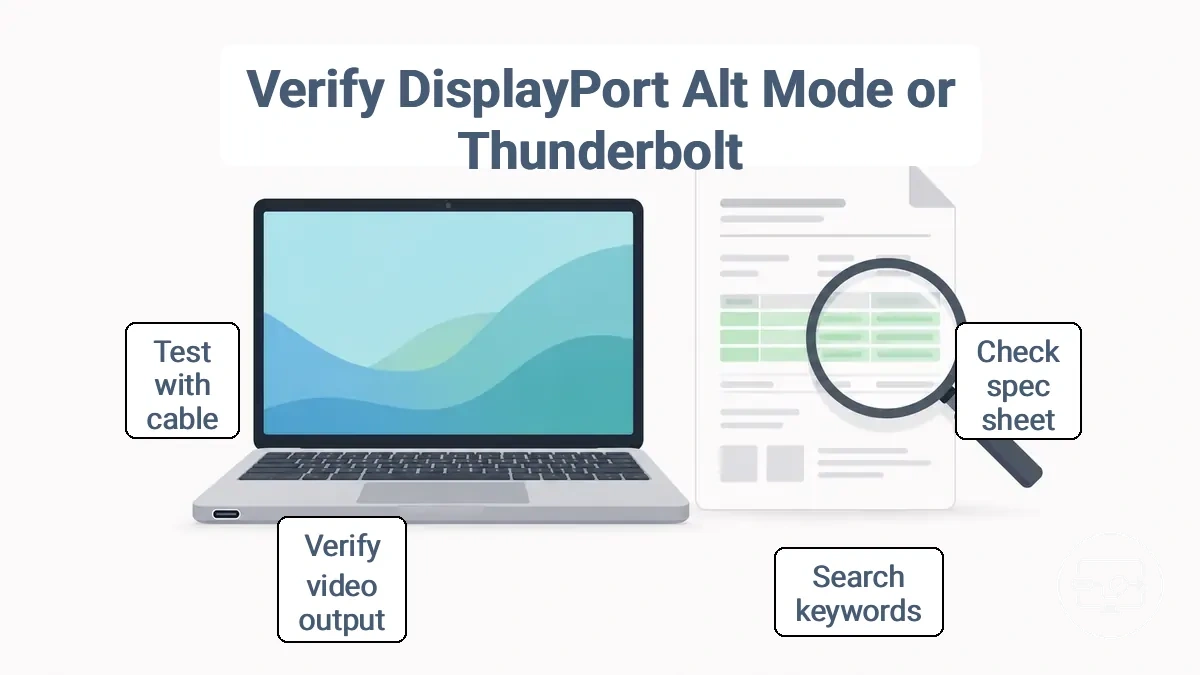
- Find the full model number of your device (laptop, tablet, or phone).
- Open the official spec sheet or product page from the manufacturer.
- Search for ‘DisplayPort Alt Mode,’ ‘DP Alt Mode,’ or ‘Thunderbolt’ in the connectivity section.
- Look for phrases such as ‘supports display output,’ ‘external display,’ or ‘video output’ next to the USB-C port description.
- Check the user manual or support page if the spec sheet is unclear.
- If documentation is missing, test with a known-good USB-C cable that supports video output and a monitor that supports DP Alt Mode.
- Treat a working display as a signal of compatibility, not guaranteed proof, because cable and monitor variables can affect the result.
Without a clear mention of DisplayPort Alt Mode or Thunderbolt, the USB-C port may not carry a video signal, and a USB-C to HDMI adapter may not create one from nothing.
Laptop USB-C ports that look compatible but fail in practice
Even when the cable fits, a laptop’s USB-C port may not support external displays because the port’s capability depends on how the manufacturer implemented it.
The same physical connector can hide different levels of support: one port may charge and drive a 4K monitor, while another on the same laptop may only handle data at USB 2.0 speeds. The outcome depends on how the port is wired to the GPU and whether the motherboard routes DisplayPort Alt Mode to that connector.
- Port lacks DisplayPort Alt Mode → the laptop cannot output video through that USB-C port at all; look for explicit Alt Mode support in spec sheets.
- Port wired to integrated GPU only → external displays may run but cannot use the dedicated GPU for gaming or rendering; check GPU routing before buying.
- Port does not support USB Power Delivery → the laptop may not charge through that port, even if the adapter fits; verify charging capability per port.
- Port is Thunderbolt 3/4 but cable or dock does not meet Thunderbolt requirements → display may not light up; use certified Thunderbolt accessories for more reliable compatibility.
- Dock introduces additional negotiation issues → some docks fail to enable Alt Mode if the laptop's USB-C controller does not pass through the correct signal; test with a direct adapter first.
- Laptop manufacturer restricts charging to specific ports or chargers → the port may appear universal but may only work with proprietary accessories; confirm power compatibility from the vendor.
- Mechanical wear on the small Type-C connector → repeated plugging can loosen the port and cause intermittent display dropouts; inspect for physical damage before purchase of a used laptop.
The difference often stems from design choice, not defect; the display signal is routed through one specific port.
For Thunderbolt ports, check whether the laptop explicitly lists Thunderbolt certification; port labels are rarely applied, so the manufacturer’s technical specification sheet is a reliable pre-buy signal.
Phone and tablet USB-C ports where HDMI output is restricted or unavailable
Display output via USB-C on phones and tablets is often restricted and depends on the model. Even ports that look the same may not support video.
- USB-C port lacks DisplayPort Alternate Mode support → no video signal is sent even if the adapter is detected
- Vendor or OS explicitly disables video output → the phone shows a connection but no picture appears on the TV or monitor
- Desktop mode is required (e.g., Samsung DeX) → screen mirroring may fail if the device does not switch to that mode automatically
- Power delivery limitations → some phones cannot maintain a stable video output without external charging, causing flickering or disconnection
- TV or monitor input settings are incompatible → the display may require adjusting HDMI input settings to accept the phone signal
- Adapter compatibility is device-specific → an adapter that works with one device may not work with another due to differences in USB‑C controller behavior
- iOS or Android updates can break previously working adapters → screen mirroring may stop after a system update until the adapter or display settings are adjusted
Since restrictions vary, check whether your device explicitly supports display output via USB-C, whether a desktop mode is required, and test the adapter with your target display if possible.
Choosing the right adapter, cable, hub, or dock for your setup
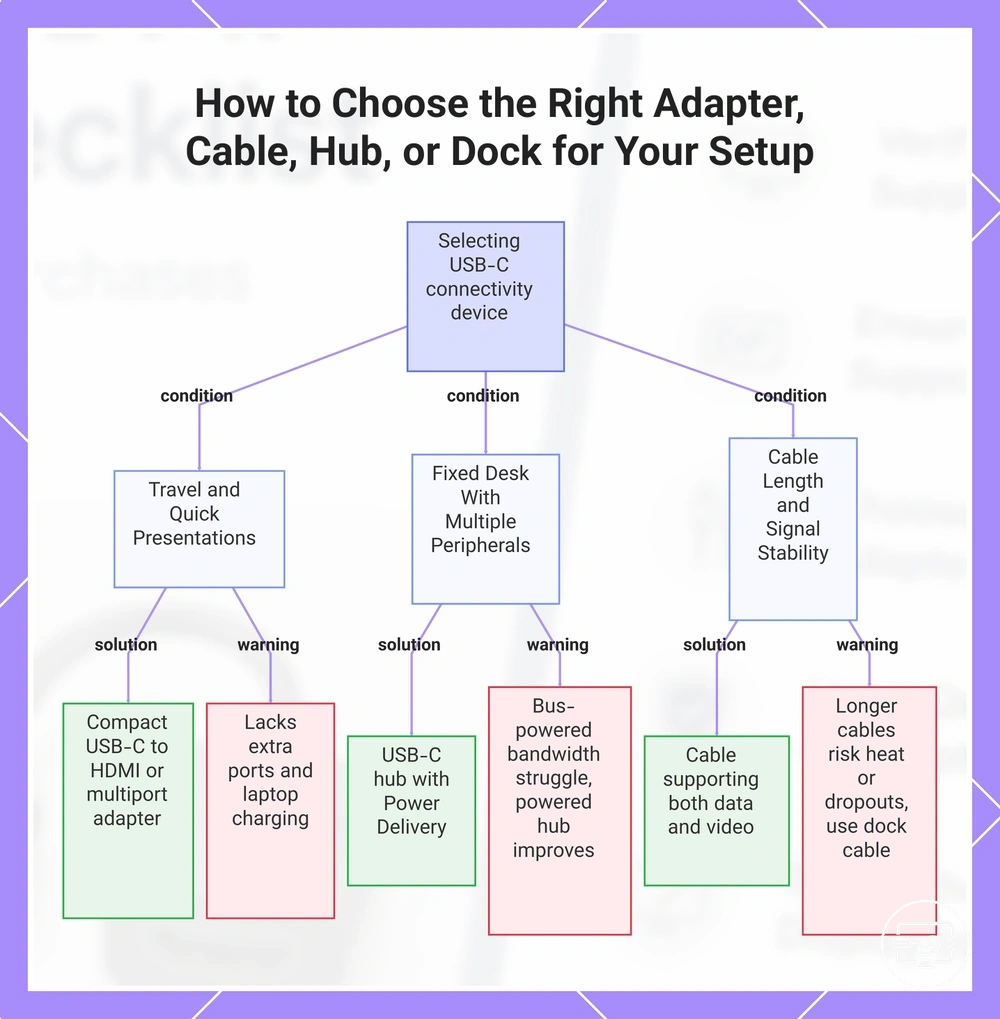
Start by considering your display use and connected devices to choose the right adapter, cable, hub, or dock. For a single external monitor during travel presentations, a compact USB-C to HDMI adapter or a multiport adapter often works well. For a fixed desk with multiple peripherals, a docking station or a powered USB-C hub provides stable power and port expansion through one cable.
Connecting multiple high-resolution monitors or needing high data bandwidth often requires a dock or hub that supports those requirements.
For Travel and Quick Presentations
- For connecting only one external display with the occasional need for a USB port, a USB-C to HDMI adapter or a compact multiport adapter keeps your travel kit minimal.
- Trade-off: These adapters typically lack additional ports for many peripherals and do not charge the host laptop when powered by the laptop alone.
For a Fixed Desk With Multiple Peripherals
- For a desk setup with a keyboard, mouse, external drive, and monitor, a USB-C hub with Power Delivery can manage all connections through a single cable.
- Trade-off: Bus-powered hubs may struggle with bandwidth when multiple devices are active; a powered hub or docking station improves stability and reduces dropout risk.
When Cable Length and Signal Stability Matter
- For reliable display output, choose a USB-C cable that supports both data and video rather than a charging-only cable.
- Trade-off: Longer cables can cause heat buildup or intermittent dropouts. For desktop setups, using the cable included with your dock can help maintain stable performance.
This chart shows the three main use cases — travel, fixed desk, and cable stability — and their best choices and trade-offs.
Adapter vs cable vs hub or dock as a compatibility decision
A direct cable or basic adapter is the safest form factor when simplicity matters, as it adds fewer variables between the host and the peripheral.
Each form factor suits a different scenario and has trade-offs:
- Cable (charging): simplest connection with high reliability, but cannot add extra ports.
- Cable (data): direct link with low latency, but supports only one peripheral.
- Adapter (single-port): fills a specific gap (e.g., USB-C to HDMI), but may overheat under sustained load.
- Adapter (multiport): adds ports in a compact size, but when bus‑powered, a limited power budget can cause dropouts with high‑power devices.
- Hub (bus‑powered): portable and easy to add, but drawing power from the host can affect stability and charging.
- Hub (self‑powered): provides more stability for multiple peripherals but lacks the advanced display features of a full dock.
- Dock (powered): offers a complete workstation solution with power delivery, but compatibility depends on laptop specifications, operating system, and drivers.
Hubs and docks introduce variables such as shared power budgets, chipset drivers, and heat dissipation that can lead to unexpected compatibility issues. Choosing a self‑powered hub or dock with adequate power delivery can reduce stability risks for users who need multiple ports.
See the solution type comparison for a more detailed overview.
When you need an active USB-C to HDMI adapter instead of Alt Mode passthrough
An active adapter is necessary when the source device does not support DisplayPort Alt Mode over USB-C. Without Alt Mode, the USB-C port typically handles only data transfer and charging, not video output. An active adapter converts USB data into an HDMI signal using an internal chipset.
- Operating system limitations → Some adapters need specific drivers for the conversion chipset
- Content protection requirements → Chipset must support HDCP pass-through for protected content
- Power draw from adapter → Can affect battery life; some adapters need external power
- Potential heat generation → Conversion chipset may produce heat during extended use, affecting stability
Small latency differences are possible, so verify that the adapter supports your display resolution and refresh rate. No adapter works with every device; check driver support and display limitations.
When HDMI plus Power Delivery passthrough is the deciding requirement
Power Delivery passthrough is required when your single USB-C port must charge the host device while carrying HDMI video to an external display. Without it, the device may drain its battery during extended use, or you may need to plug in a separate charger.
This checklist separates must-have Power Delivery features from optional ones. Each item shows the requirement and the risk if it is missing.
Must-have
- USB-C port supports Power Delivery input → risk: cannot charge host device while using HDMI output
- Adapter or hub declares its power budget (wattage) → risk: connected peripherals may not get enough power, causing dropouts or intermittent charging
- Charger wattage matches or exceeds the power needs of host plus peripherals → risk: slow charging or battery drain under heavy load
- Hub/dock supports passthrough power delivery → risk: power loss or reduced efficiency may occur, potentially affecting charging stability
Optional
- Power Delivery 3.0 or later support → without it, fast charging may not be available, but basic charging still works
- Multiple USB-C ports for simultaneous data and charging → missing this may force you to choose between charging and connecting other devices
- Built-in cable with appropriate gauge for longer runs → risk: voltage drop and unstable charging over longer distances
- Compatibility with the host device’s Power Delivery profile → risk: mismatched profiles can cause negotiation failures and no charging at all
At a desk, you may keep the laptop plugged into a wall charger that feeds through the hub, allowing stable charging while the HDMI monitor functions normally. In a travel setup, the same hub must rely on the laptop’s battery or a lower‑power portable charger; without enough power budget, the system may throttle charging or drop the HDMI signal under load.
Matching performance claims to your display requirements
Advertised specs—such as 4K at 60Hz, HDR, or HDCP support—apply only when your monitor or TV actually supports those modes. A USB-C to HDMI adapter may list these outputs, but the final result depends on your display’s capabilities and connection version.
Marketing often highlights maximum performance without explaining required conditions. In practice, the adapter can only deliver what the display’s EDID and HDMI version allow.
This graphic shows matching performance claims to your display requirements by translating claims into checks you can verify.
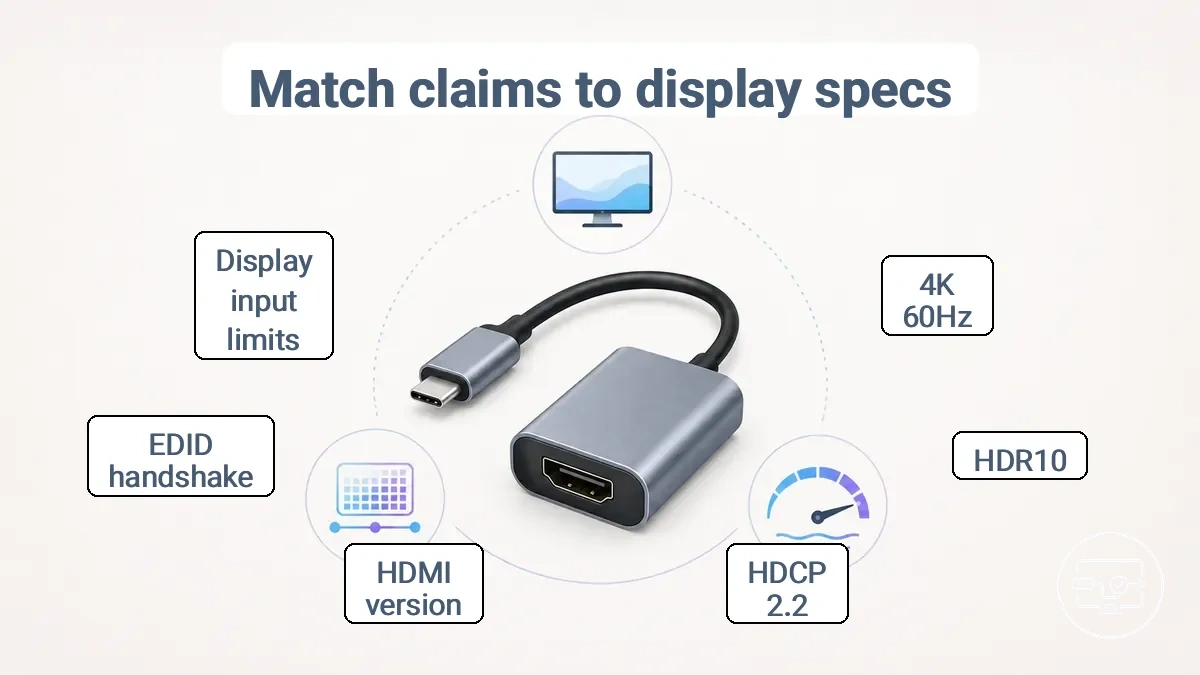
- Claim: 4K 60Hz → Verify that your display supports 4K at 60Hz (requires HDMI 2.0 or higher and DP Alt Mode on the adapter)
- Claim: HDR10 → Verify your display’s HDR capability, color bit depth (10-bit recommended), and HDMI version that supports HDR
- Claim: HDCP 2.2 → Verify your display’s HDCP compliance; needed for protected content from streaming services
- Claim: HDMI 2.0 → Version mismatch may limit bandwidth to the lower standard, even if the adapter claims 4K 60Hz
- Claim: 4K at 30Hz → Usually works with HDMI 1.4; verify that both adapter and display support that version
- Claim: Multi-format support (e.g., 1080p, 1440p, 4K) → Check that each resolution and refresh rate combination is actually listed in the specs
- Claim: Audio pass-through → Verify that your display supports audio over HDMI; some adapters pass stereo only
- Claim: “Supports all displays” → Check for EDID handshake compatibility; some adapters fail with older monitors
Display input limits may cap adapter output. A monitor limited to 4K 30Hz prevents an adapter from outputting 4K 60Hz, even if the adapter claims support.
Before purchasing, compare the adapter’s maximum claimed specs with your display’s input specifications.
Vague labels like “4K upscaling” or “compatible with 4K” do not guarantee native 4K at a specific refresh rate. “HDR-ready” may indicate pass-through only.
Use the verification checks above to avoid surprises when connecting your devices.
4K at 60Hz Requirements, Bandwidth Claims, and HDMI Version Limits
For 4K at 60Hz adapter compatibility, check four gates: HDMI version, DisplayPort lanes, cable bandwidth, and compression support. All four must align for the output to work.
Insufficient DisplayPort lanes, for instance, often cause signal dropouts or black screen at 4K 60Hz. The table lists common output modes, their requirements (including DisplayPort lanes and compression), and typical failure symptoms.
| Output Mode | Requirement | Common Failure Symptom |
|---|---|---|
| 4K 30 Hz | HDMI 1.4 or higher, at least 2 DisplayPort lanes, High Speed cable | May show flicker or instability |
| 4K 60 Hz (full bandwidth) | HDMI 2.0 or higher, 4 DisplayPort lanes, Premium High Speed cable | Signal dropouts or black screen |
| 4K 60 Hz (limited lanes) | HDMI 2.0 or higher, 2 DisplayPort lanes with Display Stream Compression, Premium High Speed cable | Color artifacts or no image if compression is not supported |
For most TVs and monitors, the adapter must meet the bandwidth and lane requirements of both the display and the source output. Cable length and build quality can affect stability, especially at higher bandwidths. For more on what to expect from 4K and HDR at different refresh rates, see the 4K and HDR expectation checks guide.
HDR and color format expectations that affect real-world output
HDR output and color format depend on the full signal chain, not just the monitor's HDR mode setting. The graphics card, cable, port standard, and display must all agree on color format, bit depth, and chroma handling for HDR to work as expected.
- GPU output set to RGB 10-bit → can deliver full color detail and smooth tonal transitions; missing this can cause banding in gradients
- Chroma subsampling (e.g., YCbCr 4:2:2) at high bandwidth → can preserve 10-bit HDR at high refresh rates but may reduce text clarity on desktop
- Display support for wide color gamut (Rec.2020 or P3) → can enable richer, more saturated colors; without it, HDR content often appears limited to sRGB
- Cable and port bandwidth sufficient for chosen resolution, refresh rate, and bit depth → can prevent black flashes, sparkles, or HDR toggling off
- Operating system HDR mode enabled only for HDR content → can avoid washed-out appearance on SDR desktop material
- Monitor correctly identifying its peak brightness and tone-mapping metadata → can prevent clipped highlights or overly dark shadows
When these conditions are not met, typical mismatch symptoms include dull contrast and color shifts. The root cause is usually a gap between what the source sends and what the display expects, rather than a broken HDR feature.
Checking each link in the chain, from GPU control panel settings to cable certification, can resolve most issues without replacing hardware.
HDCP Compatibility When Protected Content Fails
HDCP compatibility matters when protected content fails to play. HDCP (High-Bandwidth Digital Content Protection) requires that the source device, adapter, and display authenticate each other before the content can be decrypted and displayed.
When authentication fails, streaming services often display errors such as “HDCP Error Detected.” Common causes and checks include:
Question: Can a USB-C to HDMI adapter cause HDCP errors?
Answer: Yes, if the adapter does not support HDCP or supports a lower version than the source or display. Using an adapter that is explicitly HDCP-compliant reduces the risk.
Question: Why does protected content play only in standard definition?
Answer: The display or adapter may not meet HDCP requirements for HD playback, forcing the streaming service to downgrade the resolution. This often occurs with older monitors or non-compliant adapters.
Question: What should I check when an HDCP error appears?
Answer: Verify that all devices and cables are HDCP-compliant, restart the source and display, and try a different HDMI input or cable. A simple power cycle can reinitiate the HDCP handshake.
Question: Does the HDCP version matter for 4K streaming?
Answer: Yes, 4K and HDR content typically requires HDCP 2.2 or higher. An older HDCP 1.4 connection may limit resolution or trigger playback errors.
Stability Factors That Cause Intermittent Signal Problems
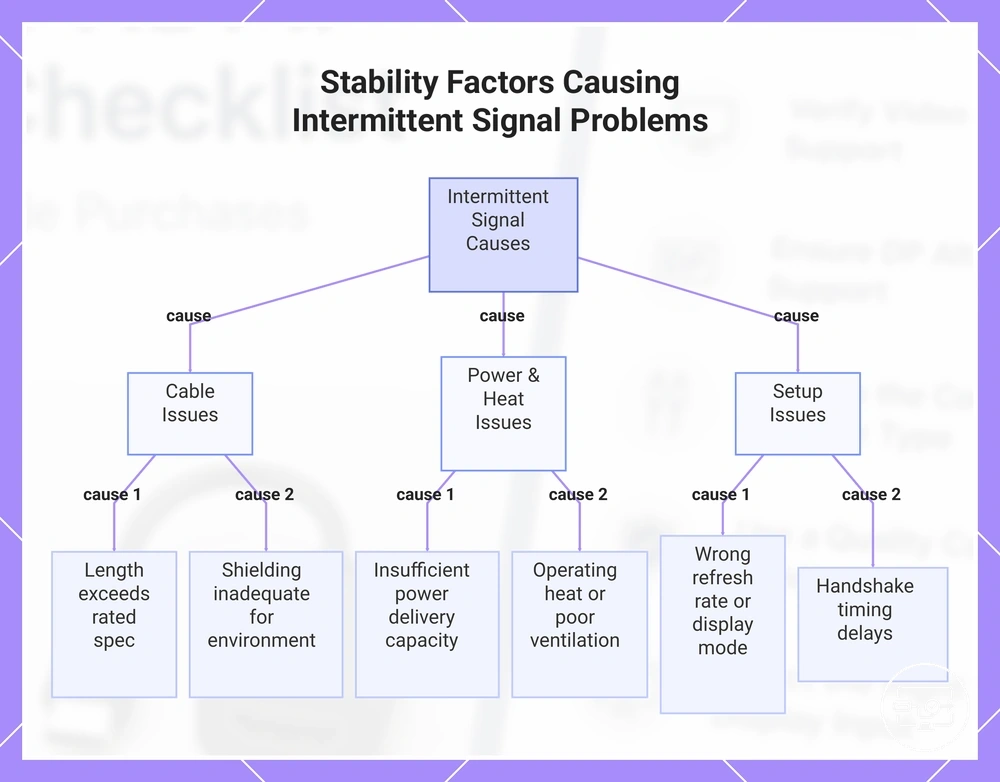
Intermittent problems—flicker, dropouts, or no-signal events—are not random; they usually trace back to stability factors you can identify and avoid before purchase.
A stable signal chain depends on the cable, power budget, operating temperature, and display settings. Instability usually follows one of these paths, and knowing which one applies helps narrow the buying decision.
- Cable length → flicker or dropout when cable exceeds rated spec → choose a cable length that matches the rated bandwidth of your devices
- Cable shielding → intermittent no-signal events near other electronics → prefer braided or foil-shielded cables for environments with wireless or power cables nearby
- Cable bandwidth rating → flicker at higher resolutions or refresh rates → confirm the cable supports the full bandwidth your display and source require
- Power Delivery capacity → disconnects when bus power runs low → use an adapter or cable that supplies enough power for the connected device
- Power budget of the host port → random dropouts under load → verify the USB‑C port can deliver the wattage your cable plus HDMI adapter need
- Operating heat → gradual signal degradation during long sessions → avoid tight enclosures or direct sunlight on the adapter
- Ventilation around the adapter → intermittent flicker after hours of use → leave air gaps around the adapter or choose a model with passive cooling
- Display refresh rate setting → persistent flicker or no-signal cycles → start at the display native refresh rate and increase only if stable
- Display mode selection (mirror vs extend) → dropouts when switching modes → test the connection once in each mode before finalizing the setup
- Handshake timing between source and display → no signal on first connect → allow the devices to complete the negotiation before troubleshooting
Some instability resolves after a configuration change, such as adjusting the refresh rate or toggling the display mode. Other cases indicate hardware that cannot meet the demands of your setup.
Return or exchange a cable or adapter when flicker or dropouts occur at the same point in the chain every time, across multiple ports and displays. Configuration changes are worth trying first when the issue appears only in one app, after a system update, or when a second display is connected. A reliable connection depends on matching the stability requirements of your devices, not on finding a part that works despite a mismatch.
This chart shows the main stability factors that cause intermittent signal problems, including cable, power, heat, and setup issues.
Cable length and build quality as signal variables
Longer or lower-quality cables increase the risk of signal dropouts, but do not guarantee them. The actual impact depends on cable materials, shielding effectiveness, connector quality, and bandwidth demands of your display setup.
- Look for cables with adequate shielding and thicker conductors, especially for longer runs, to reduce interference and signal attenuation.
- Ensure the connector fits snugly without excessive play; poorly fitted connectors can cause intermittent contact or signal degradation.
- Look for bandwidth headroom: a cable rated for higher speeds than your current needs can better tolerate signal loss over distance.
- Inspect the cable for visible defects like kinks, thin insulation, or damaged ends that can harm signal quality.
The threshold at which signal problems become noticeable varies by setup because it depends on the bandwidth requirements of your video signal. Higher resolutions and refresh rates demand more bandwidth headroom, making them more sensitive to cable impedance and shielding quality. A cable that works reliably for 1080p may produce dropouts or sparkles when used for 4K at 60Hz, because the higher-frequency signal attenuates more over the same distance.
Heat, Power Draw, and Connector Strain in Compact Adapters and Hubs
Compact adapters may destabilize output due to heat and shared power budgets. The compact design restricts airflow, so heat builds up near sensitive components. When power delivery and data transfer happen simultaneously, power draw from multiple ports can exceed the available power budget.
- High power draw from peripherals: Excessive heat and possible performance throttling.
- Multiport usage: Shared power budget may reduce charging speed or cause device dropouts.
- Poor enclosure heat dissipation: Heat buildup can cause performance instability and flickering.
- High-resolution video output: Increased conversion workload raises internal temperature.
- Connector strain from cable movement: Physical stress may cause intermittent signal loss.
- Simultaneous charging and data: Power delivery competition can trigger thermal shutdown.
- Compact form factor: Limited space for heat sinks leads to quicker heat accumulation.
For example, charging a laptop through a hub while outputting 4K video and connecting multiple peripherals puts a high load on the power budget and generates heat. This may lead to performance drops, video flickering, or device disconnections.
Firmware, Drivers, and OS Display Settings That Affect HDMI Output
A compatible HDMI cable and matching hardware ports do not guarantee a working display — firmware, drivers, and OS settings often determine whether the signal reaches the screen and how it appears. A driver update can disable the GPU, a BIOS revision can alter color format, and OS display settings can limit resolution or refresh rate — all without any hardware change.
Before assuming the cable or port is faulty, check these software factors that often affect HDMI output:
- Check display mode selection: When the OS is set to output only to the built-in screen, the external monitor may not detect a signal even with compatible hardware.
- Confirm the GPU driver is installed and enabled: Windows updates or driver installations sometimes disable the display adapter, which can prevent the HDMI port from being recognised by the system.
- Verify BIOS version compatibility: Certain motherboard firmware revisions cause HDMI timing issues or can force an incorrect color format, resulting in blurry text and HDR failure.
- Update monitor firmware if available: Outdated monitor firmware can break the HDMI handshake or limit supported resolutions and refresh rates.
- Check the OS display settings for resolution and refresh rate: Using a mode the monitor does not support frequently results in a blank screen, distorted image, or loss of signal.
- Review color format settings in the GPU control panel: An incorrect color space (e.g., YCbCr420 instead of RGB) can reduce sharpness and prevent HDR from engaging, even when the display is otherwise compatible.
These software factors can block or degrade HDMI output, but software cannot create missing hardware capability.
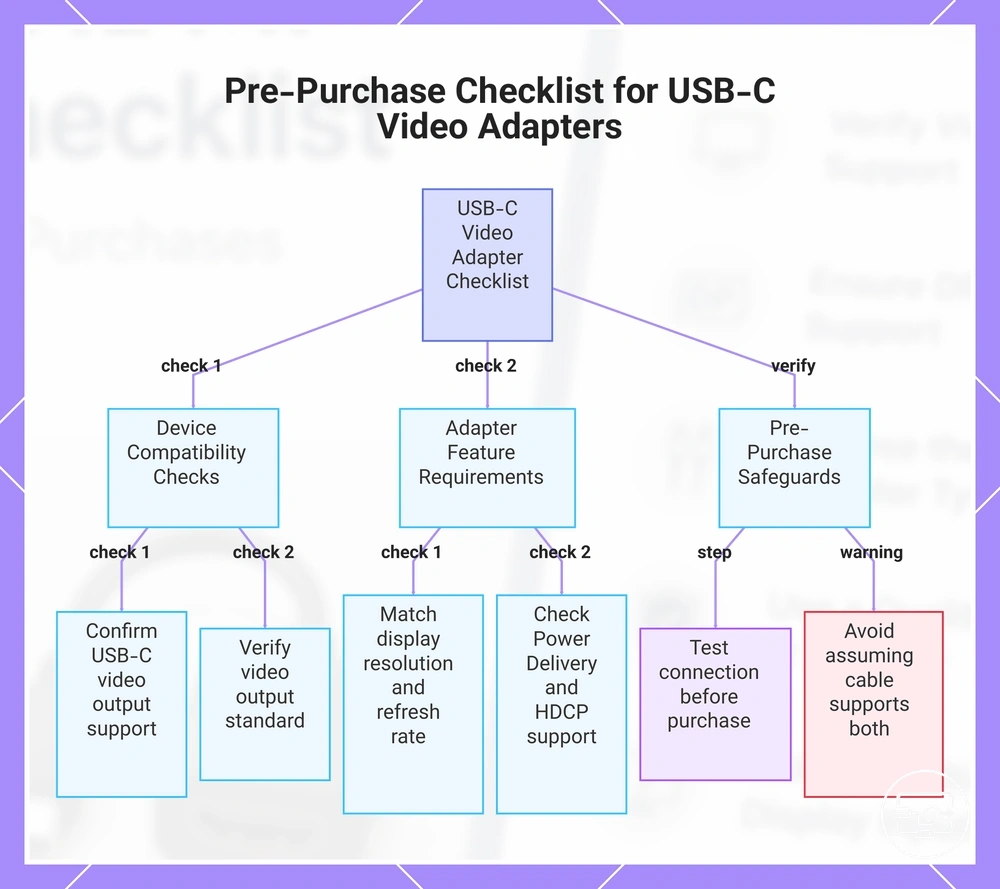
A fast pre-purchase checklist to avoid incompatible purchases
Confirm at minimum that your device supports video output over USB-C and check your display's resolution and refresh rate requirements.
Using a pre-purchase checklist reduces the risk of wasting money on an incompatible adapter or cable. Use the compatibility test steps to confirm each dependency before you spend.
- Check if your device supports video output over USB-C.
- Verify the video output standard your device uses, such as DisplayPort Alt Mode or HDMI alternate mode.
- Confirm the display resolution and refresh rate you plan to use.
- Choose an adapter or cable that supports that resolution and refresh rate.
- Ensure the adapter can handle Power Delivery if you need to charge the device while connected.
- Check for HDCP support if you intend to stream protected content from services.
- Inspect the cable for build quality and shielding to reduce signal interference.
- Test the connection with your display before finalizing the purchase.
- Look for known compatibility issues or firmware updates from the manufacturer.
- Check the return policy or compatibility guarantee from the retailer before finalizing the purchase.
If you are unsure about any specification, choose a lower-risk path such as an adapter known to work with a range of devices. Many manufacturers publish compatibility lists online.
Avoid assuming all USB-C cables support video or power simultaneously. Confirm each function separately to help avoid mismatch.
The products below are useful examples for comparing available options. Before buying, check that the compatibility criteria, key features, and product details match your needs.
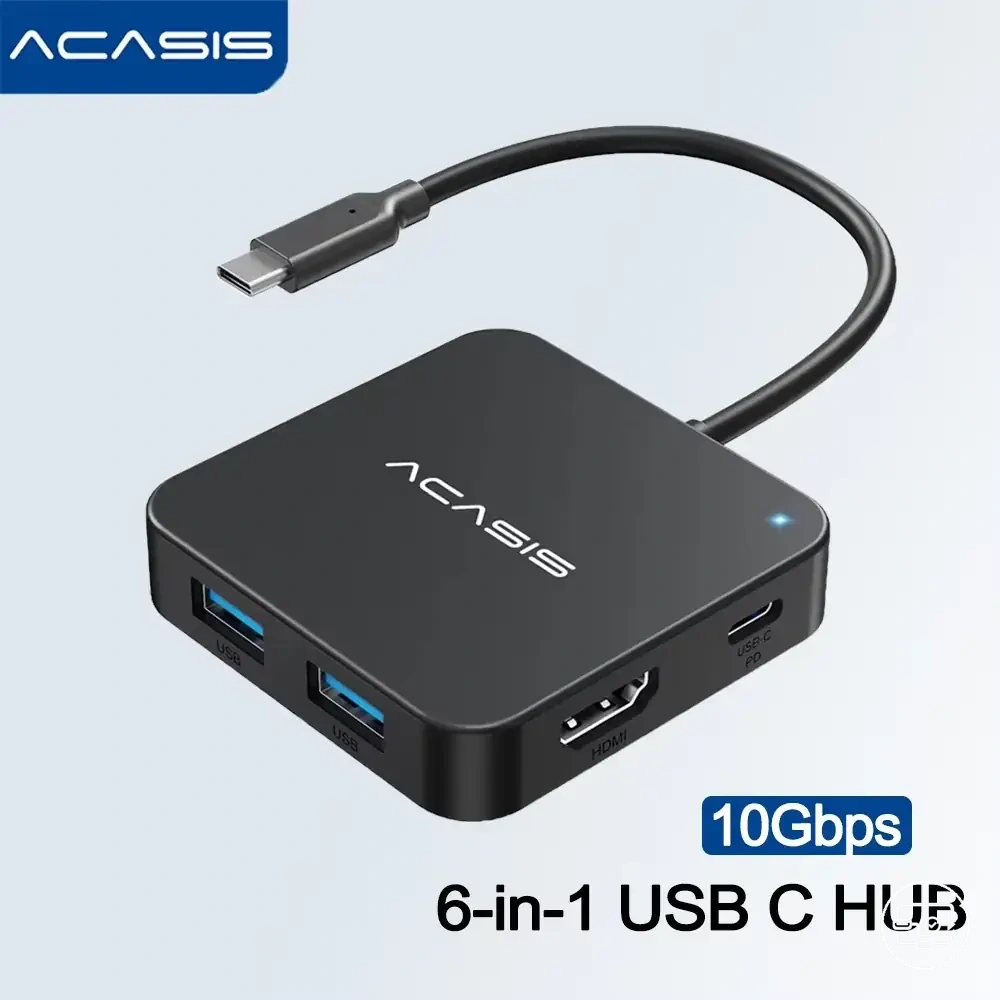
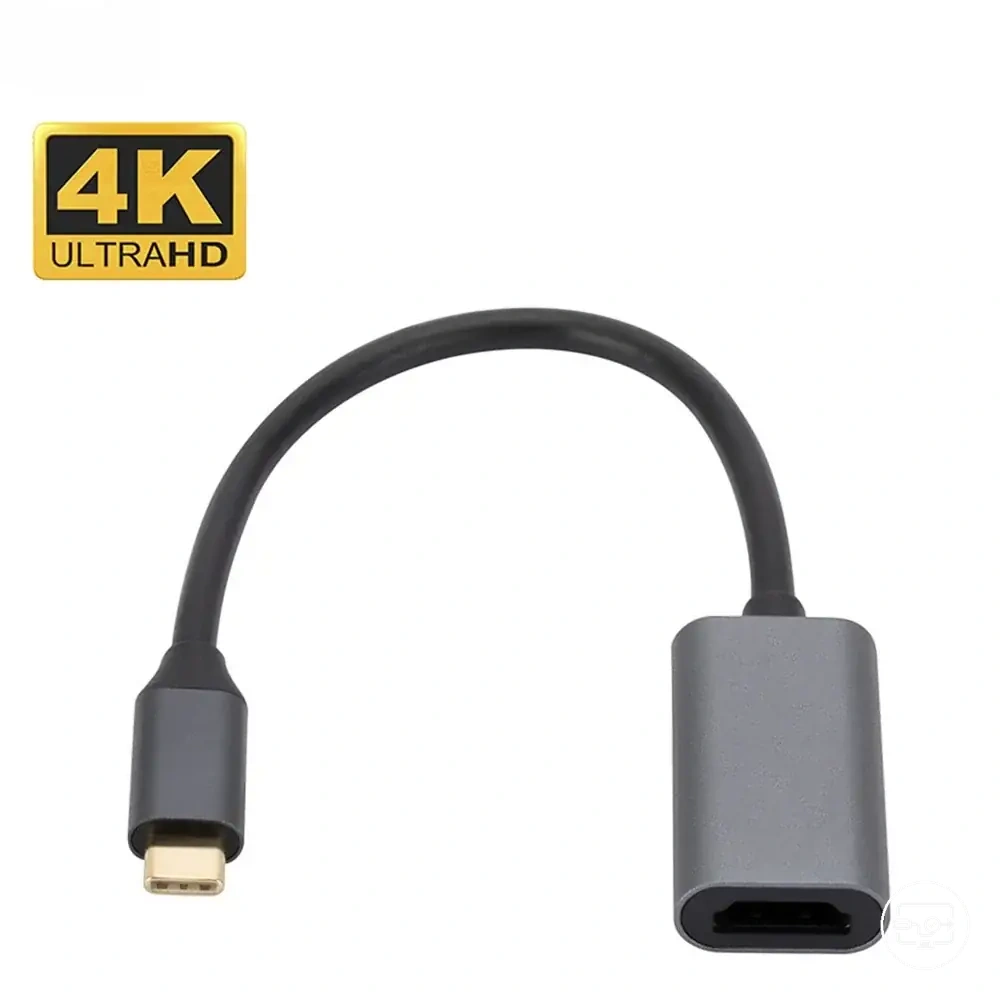
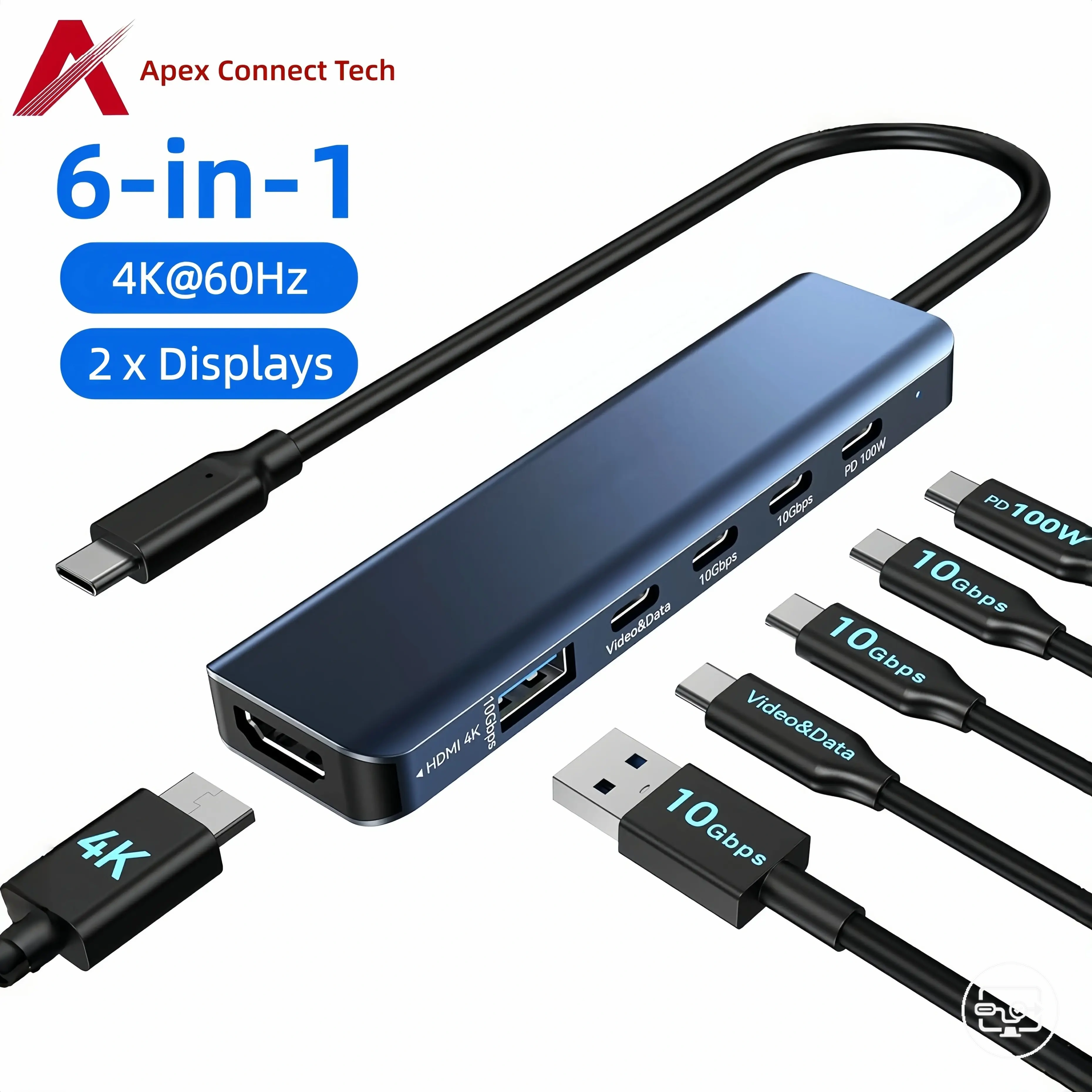
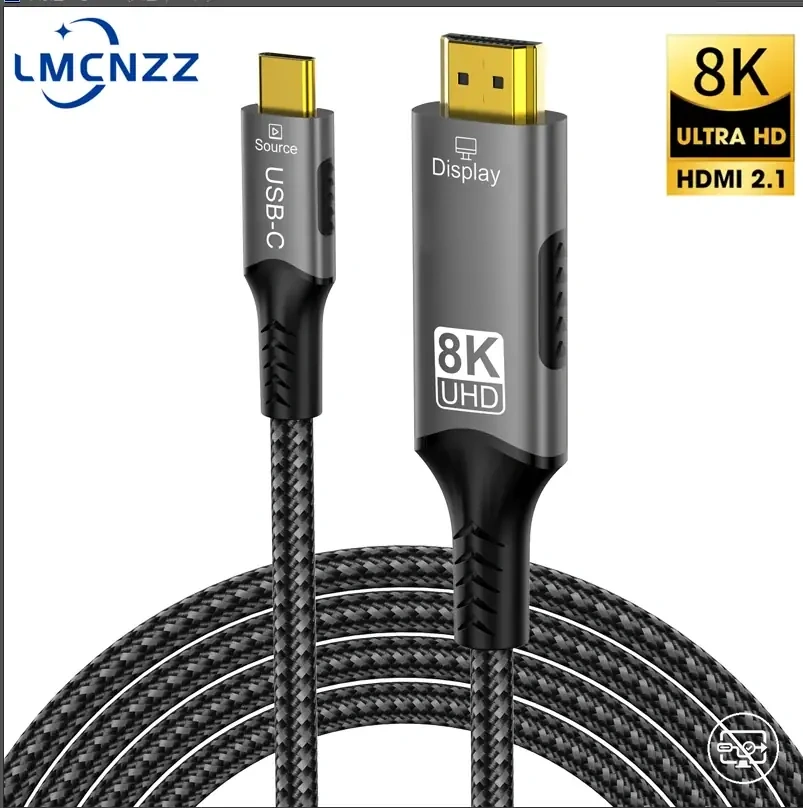
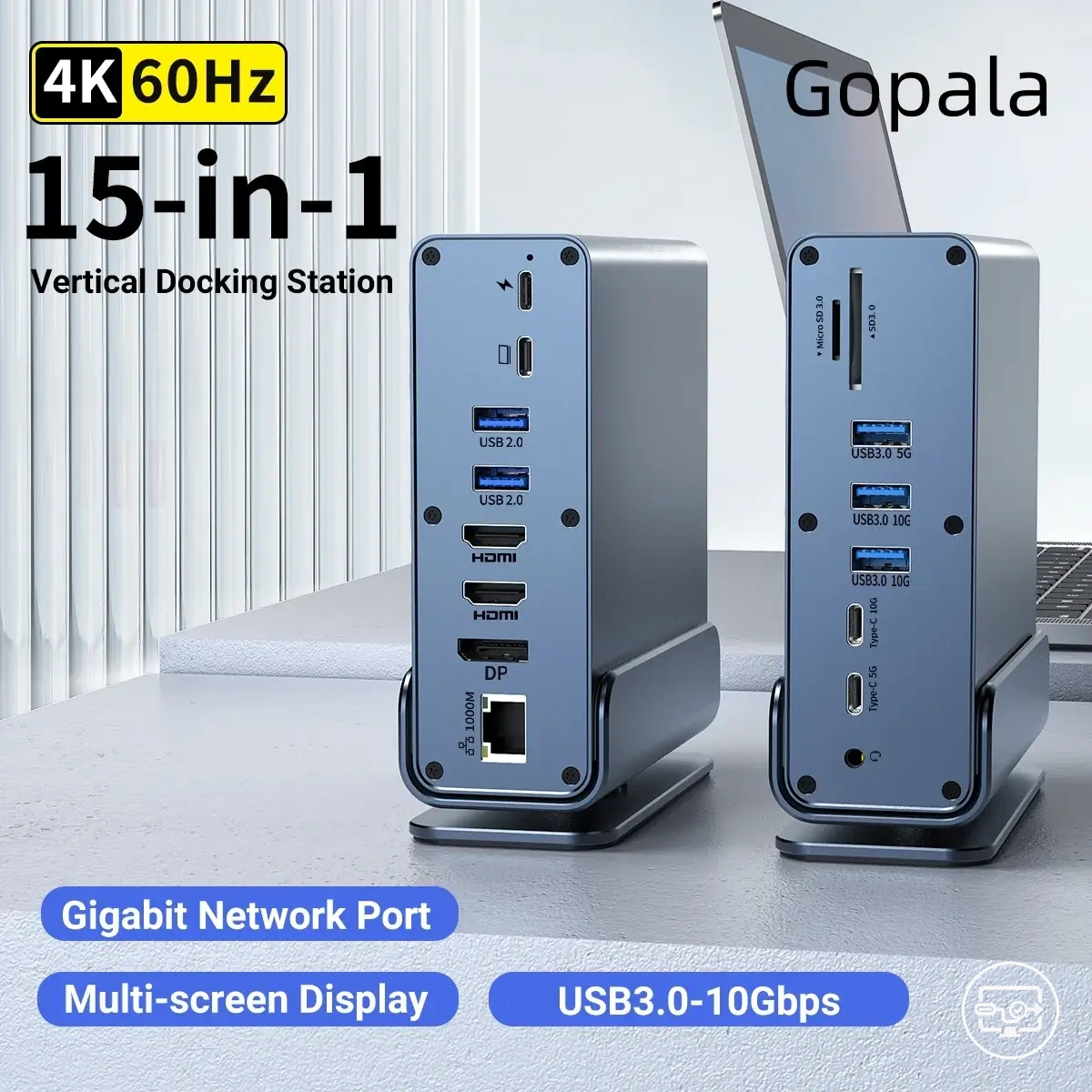
This chart summarizes the essential checks and warnings to avoid buying an incompatible USB-C video adapter or cable.
Device-side checks
Device-side checks begin with confirming USB-C Alt Mode support for video output.
- Spec evidence:
- Check the device manual or support page for explicit terms like “USB-C Alt Mode” or “DisplayPort Alt Mode” for video output.
- Confirm the model identifier supports DisplayPort over USB-C.
- Observable indicators:
- Connect the USB-C cable and check if the OS shows “display detected” or a second monitor option in display settings (Windows, macOS, Chrome OS).
- Test with a known-working HDMI adapter or cable to rule out cable or adapter issues.
- Verify the device screen does not go blank or flicker when connecting – that can signal a partial or failing Alt Mode negotiation.
If any check is missing or inconclusive, treat the device’s HDMI output capability as unknown.
Adapter, hub, or dock specification checks
The accessory's spec sheet lists the video output, charging, and data capabilities to check before buying.
- Alt Mode vs active conversion – shows whether the accessory uses the host's native video signal or needs driver-based conversion.
- Maximum supported video output (e.g., 4K 60Hz) – specifies the highest resolution and refresh rate the accessory can deliver when the source and cable allow it.
- Number of simultaneous displays – shows the maximum number of monitors the accessory can support.
- HDR support – enables high dynamic range when the source, cable, and display all support it.
- HDCP compliance – required for playing copy-protected content from apps and media players.
- Power Delivery wattage – specifies how much power the accessory can supply to the host (e.g., 60W, 100W, 140W).
- PD passthrough vs dedicated power – shows whether the hub shares power with the host or uses its own power supply.
- Power budget reservation – some hubs reserve part of the connected charger’s wattage for their own operation, reducing what is available for the laptop.
- Ethernet port speed – affects wired network throughput (e.g., Gigabit vs 2.5Gbps).
- USB data port generation – affects peripheral transfer speed (e.g., USB 3.2 Gen 2 10Gbps vs USB 2.0).
Prefer products with clear disclosures for each of these parameters.
Display and Cable Checks
Display-side limits can mimic adapter incompatibility. Checking display-side factors first can save time and avoid unnecessary returns.
- Check HDMI input selection — If the display is on the wrong input, you'll see 'No signal' or a black screen.
- Check the HDMI version your TV or monitor supports — If it only supports HDMI 1.4, it may not accept 4K at 60Hz, resulting in a blank screen or resolution limit.
- Check EDID handshake — If the source cannot read the display's EDID correctly, the display may not be detected or may run at a lower resolution.
- Check cable suitability — If the cable does not have enough bandwidth, symptoms can include flickering, intermittent signal, or sparkles.
- Check the intended resolution and refresh rate — If the display does not support the output mode, the monitor may show 'Out of Range' or go black.
- Check which HDMI port you are using — On many TVs and monitors, only one port supports the highest HDMI version; using a lower-capability port can block 4K HDR or high refresh rates.
- Check the cable connection — A loose or partially inserted cable can cause no signal or intermittent detection.
- Check the display's power-saving or auto-sleep settings — If the display is in standby, it may not handshake correctly on wake, leading to a 'check video cable' message.
Different HDMI ports on the same TV or monitor often support different bandwidth limits. Plugging into an older HDMI 1.4 port while using an HDMI 2.0 cable and adapter can produce the same symptoms as a faulty adapter. Knowing which port to use and ensuring adequate cable headroom helps isolate the actual cause without replacing hardware.
Residual Pre-Buy Questions That Block Confident Selection
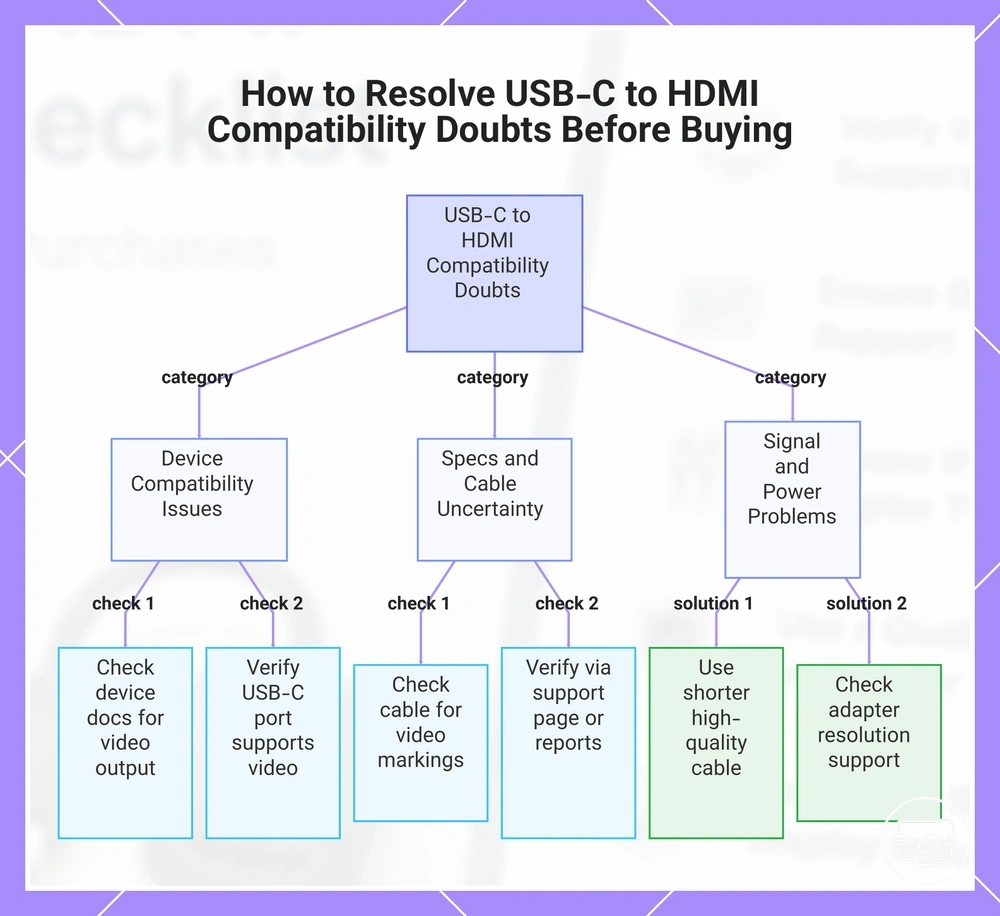
These FAQs address lingering doubts about USB-C to HDMI compatibility that remain after reviewing the main checklist. They focus on capability variance, plug-and-play expectations, and handling missing specifications to help you move from uncertainty to a purchase decision.
Question: Why does my USB-C to HDMI adapter work on one device but not another?
Answer: Compatibility varies by device model because USB-C implementation differs across manufacturers. Some devices support DisplayPort Alt Mode, while others do not provide video output. Checking your device's documentation before purchase can confirm whether video output is supported.
The products below are useful examples for comparing available options. Before buying, check that the compatibility criteria, key features, and product details match your needs.
Question: When should I expect true plug-and-play with a USB-C to HDMI connection?
Answer: Plug-and-play usually works when both the source device and the adapter support the same video standard over USB-C. Detection may still require adjusting display settings on some devices. If the adapter is not detected, verify that the device's USB-C port supports video output.
Question: What should I do when the specifications for a device or adapter are missing?
Answer: Verify compatibility by checking the product's official support page, contacting the manufacturer, or checking user reports that clearly state whether the combination works. Missing specs increase the risk of incompatibility.
Question: How can I tell if a USB-C cable supports video output?
Answer: Look for cables explicitly marked as supporting video, DisplayPort Alt Mode, or 4K output. Not all USB-C cables carry video signals. If labeling is unclear, choose a cable from a reputable brand that includes video support in its specifications.
Question: What causes intermittent display flickering with a USB-C to HDMI adapter?
Answer: Intermittent flickering often results from cable length, signal interference, or insufficient power delivery over the USB-C connection. Using a shorter, high-quality cable and ensuring the device is powered can reduce flickering. If the issue persists, the adapter may not fully support the display's resolution or refresh rate.
When clear evidence is missing, choosing an adapter that supports your device model reduces uncertainty.
This chart groups common pre-purchase questions about USB-C to HDMI compatibility into three areas and shows the key checks and solutions to make a confident selection.
Why the same USB-C to HDMI adapter works on one device but not another
The same USB-C to HDMI adapter works on one device but not another because video output support varies between devices, along with the adapter path and display limits. Common differences include:
- A source USB-C port that does not support DisplayPort Alt Mode prevents the adapter from delivering any video signal, regardless of adapter quality.
- A unidirectional adapter designed only for USB-C to HDMI will not produce output when used in the reverse direction.
- A passive adapter paired with a source that does not output a compatible video stream causes the conversion to fail, leaving the monitor black.
- When the display requests a resolution, refresh rate, or HDCP level beyond the adapter or source capability, the monitor may not recognize the signal.
- A driver update, system power‑saving setting, or BIOS configuration can block video output, causing the same hardware setup to stop working without hardware failure.
- A loose or worn USB‑C or HDMI connection can cause intermittent signal loss that simulates a complete failure.
When USB-C to HDMI is truly plug-and-play and when it isn’t
USB-C to HDMI works as a plug-and-play connection when the source device supports Alt Mode, the operating system automatically detects the display, and the cable or adapter is compatible.
USB-C to HDMI typically works immediately when:
- The source device supports DisplayPort Alternate Mode (Alt Mode) over its USB-C port.
- The cable or adapter is designed to send video from USB‑C to HDMI (unidirectional).
- The operating system automatically detects the external display on connection.
- The display accepts HDMI input without needing special settings or mode switching.
Plug-and-play often fails when:
- The USB-C port on the source device does not support Alt Mode (common on budget phones and older tablets).
- The cable is built for the reverse direction (HDMI‑to‑USB‑C) but used for USB‑C video out.
- The OS requires selecting a display mode (extend, mirror, resolution) before video appears.
- The adapter or hub does not support the HDMI version or HDR format the display expects.
- HDCP‑protected content (streaming apps, Blu‑ray rips) can trigger a handshake error on the adapter.
For any setup, expect exceptions by device ecosystem.
What to do when the port specs are missing or unclear before purchase
If port specifications are missing or unclear, treat the port as unknown until you confirm its video output capabilities.
- Find the exact model number of the laptop, dock, or adapter. Manufacturer support pages may list detailed specifications for that model.
- Check the official product spec sheet or user manual for terms such as Alternate Mode, DisplayPort over USB-C, video output, or Thunderbolt.
- If the documentation does not mention video output support, treat the port as unconfirmed. Before purchase, confirm the required video output term appears in official documentation. If absent, do not rely on the port for video output.
- Check community forums or technical support threads for the same model to see if others have successfully used video output. Treat this as secondary evidence only.
- Test the port with a known-good USB-C to HDMI adapter or monitor, and use a retailer with a return policy.
If you cannot confirm before purchase, choose a device that lists the required video output capability in its official specs.