
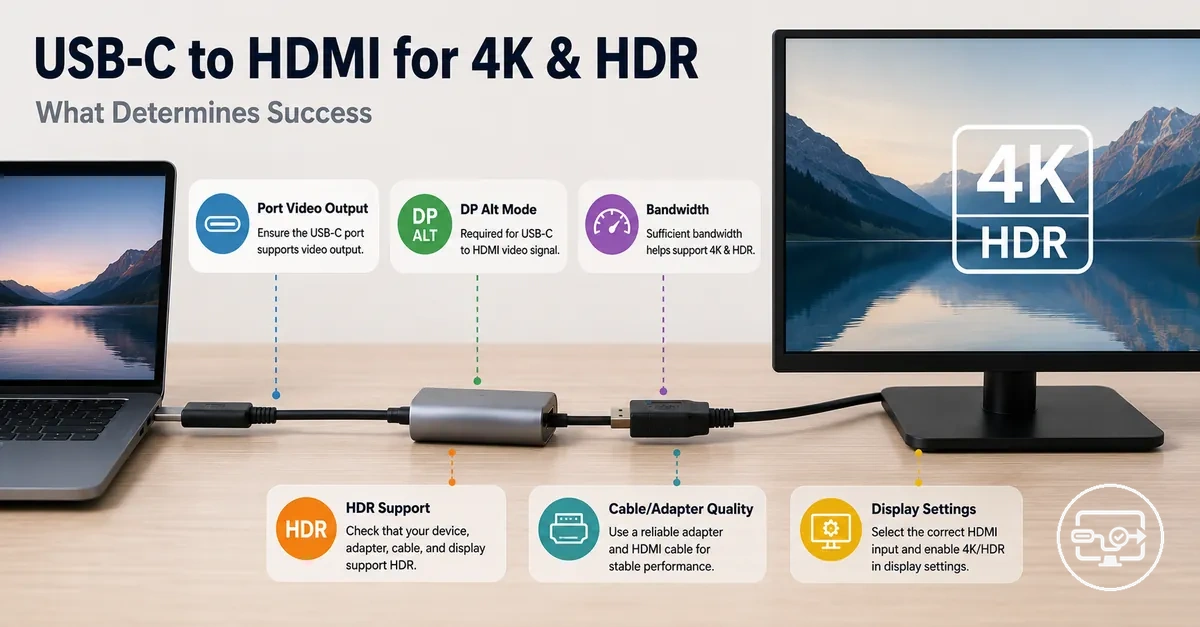
USB-C to HDMI 4K and HDR compatibility limits and performance factors
USB-C to HDMI 4K and HDR compatibility describes a USB-C source delivering stable 4K resolution with HDR metadata to an HDMI display via an adapter or cable. This compatibility depends on the weakest link in the chain—source video output capability, adapter or cable bandwidth, display EDID negotiation, and system settings—which determines the final output mode.
Achieving 4K and HDR over USB-C to HDMI means sustaining a specific output mode—such as 4K at 60Hz with 10‑bit HDR—not simply producing any picture. The end-to-end chain that determines 4K and HDR compatibility limits includes:
- a source with DisplayPort Alternate Mode
- a USB-C to HDMI converter
- a bandwidth-capable HDMI cable
- a display that negotiates resolution and HDR format
If any component lacks the necessary bandwidth or handshake capability, the output may fall back to a lower resolution or drop HDR entirely.
The 4K and HDR compatibility limits depend on these key factors:
- the source port’s bandwidth (10–18 Gbps for 4K with HDR)
- the adapter’s HDR negotiation
- the HDMI cable’s speed rating (High Speed for 4K60, Ultra High Speed for higher)
- the display’s ability to accept the negotiated mode
A “4K-capable” label does not guarantee a stable 4K60 HDR connection; the entire chain must align.
A common misconception is that any USB-C to HDMI cable works for 4K HDR. In reality, the display’s EDID handshake and the adapter’s HDR metadata pass-through are key checkpoints that determine whether the final output meets 4K HDR specifications. Knowing these dependencies helps diagnose and resolve 4K HDR compatibility issues.
What 4K and HDR compatibility means in real output modes
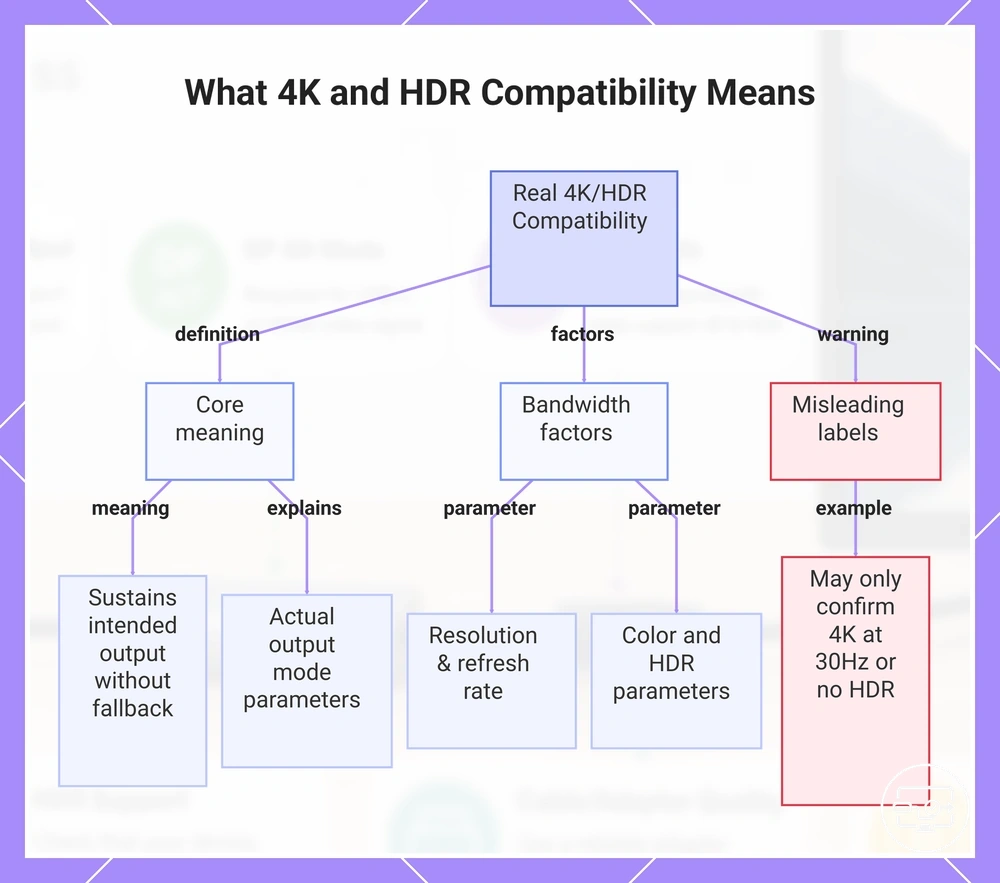
4K and HDR compatibility means sustaining a specific output mode at the intended resolution, refresh rate, and HDR state without signal dropouts or forced fallback. An output mode is the combination of these parameters that the display actually renders.
When any component in the chain cannot maintain the required bandwidth or negotiate the proper handshake, the system may fall back to a lower resolution, a reduced refresh rate such as 30Hz, or a less demanding color format.
- Resolution: Higher pixel counts increase the data rate, putting more strain on bandwidth limits.
- Refresh rate: A higher rate like 60Hz demands significantly more bandwidth than 30Hz.
- Bit depth: 10-bit color depth required for HDR carries more data per pixel than 8-bit used in SDR.
- Chroma format: Full color sampling (4:4:4) uses the most bandwidth, while 4:2:2 or 4:2:0 reduces the load.
- HDR enabled: Activating HDR adds metadata and a wider color gamut, increasing overall signal overhead.
A display labeled '4K supported' does not always guarantee full HDR at 60Hz. That label may only confirm the panel can accept a 4K signal at 30Hz or without HDR. The actual output mode depends on the chain's ability to sustain the required bandwidth and correct handshake, not solely on the display's listed capabilities.
This chart explains the true meaning of 4K and HDR compatibility, the key bandwidth factors that determine stable output, and a warning about misleading display labels.
Resolution, refresh rate, bit depth, and chroma format as the actual compatibility targets
Resolution, refresh rate, bit depth, and chroma format are the four parameters that define the actual compatibility targets for a 4K HDR output, directly affecting bandwidth demand and image quality. Resolution and refresh rate define the total number of pixels transmitted per second, while bit depth and chroma determine how much color information each pixel carries. Together, these are the targets that a cable, port, and display typically need to support to deliver a stable HDR signal.
These actual compatibility targets are grouped in the table by bandwidth impact and typical compromise when the connection is constrained.
| Parameter | What it affects | Typical fallback when constrained |
|---|---|---|
| Resolution (e.g., 4K) | Total pixel count per frame; higher resolution increases raw pixel throughput. | If bandwidth is limited, resolution may drop to a lower resolution, such as 1440p or 1080p, or the refresh rate may be reduced to compensate. |
| Refresh rate (e.g., 60Hz) | Number of frames per second; higher refresh rates multiply pixel throughput proportionally. | Common fallback is a lower refresh rate, such as 30Hz, when the link cannot maintain the required data rate at the desired resolution and color settings. |
| Bit depth (e.g., 10-bit for HDR) | Number of bits per color channel; higher bit depth allows smoother gradients and wider HDR range but raises bandwidth per pixel. | When bandwidth is constrained, the system may fall back to 8-bit color depth, which can cause visible banding in HDR content. |
| Chroma format (subsampling) | How much color information is kept per pixel; formats like 4:4:4 retain full chroma, while 4:2:2 and 4:2:0 reduce it to save bandwidth. | To fit within a limited link budget, chroma subsampling is often reduced (e.g., from 4:4:4 to 4:2:2 or 4:2:0), which can make fine colored text appear less sharp on a desktop. |
Raising any parameter increases bandwidth demand and the risk of instability or forced downgrades.
For example, a 4K desktop at 60Hz may run full chroma and 10-bit depth without issue, but at 120Hz the link often requires reduced chroma subsampling or lower bit depth to maintain stability—a typical fallback when bandwidth is constrained.
Why a setup can be 4K-capable but still fail at 4K60 or HDR simultaneously
A setup may be 4K-capable but still fail to deliver stable 4K60 with HDR because the entire signal chain—source, cable, converter, and display—must sustain the required bandwidth and negotiate a compatible mode. The weakest link in this chain dictates the final output.
When a constraint limits bandwidth, the system downgrades one or more mode parameters. For example, when a display’s EDID setting limits the HDMI port to version 1.4, the system negotiates a fallback from 60Hz to 30Hz despite both devices supporting higher modes. This trade-off becomes visible when checking refresh rate expectations. Sometimes, the negotiation intentionally selects a lower mode for stability even when higher modes appear available.
- Source port version: older HDMI or DisplayPort versions cap bandwidth, often causing a 30Hz fallback.
- Hub or dock bandwidth sharing: USB-C hubs can reduce HDMI throughput, leading to chroma subsampling or SDR.
- Cable condition and rating: cables rated for 4K60 may degrade, resulting in intermittent HDR or refresh drops.
- Display port settings: the TV’s EDID or HDMI mode (standard vs. enhanced) often limits to 30Hz.
- HDCP and HDR protection: incompatible protection schemes can disable HDR when bandwidth is tight.
Capability vs. sustained performance:
- Capability: the device supports the resolution and color mode in isolation.
- Sustained performance: chain sustains stable bandwidth and handshake simultaneously.
The USB-C video output capability that sets the maximum performance
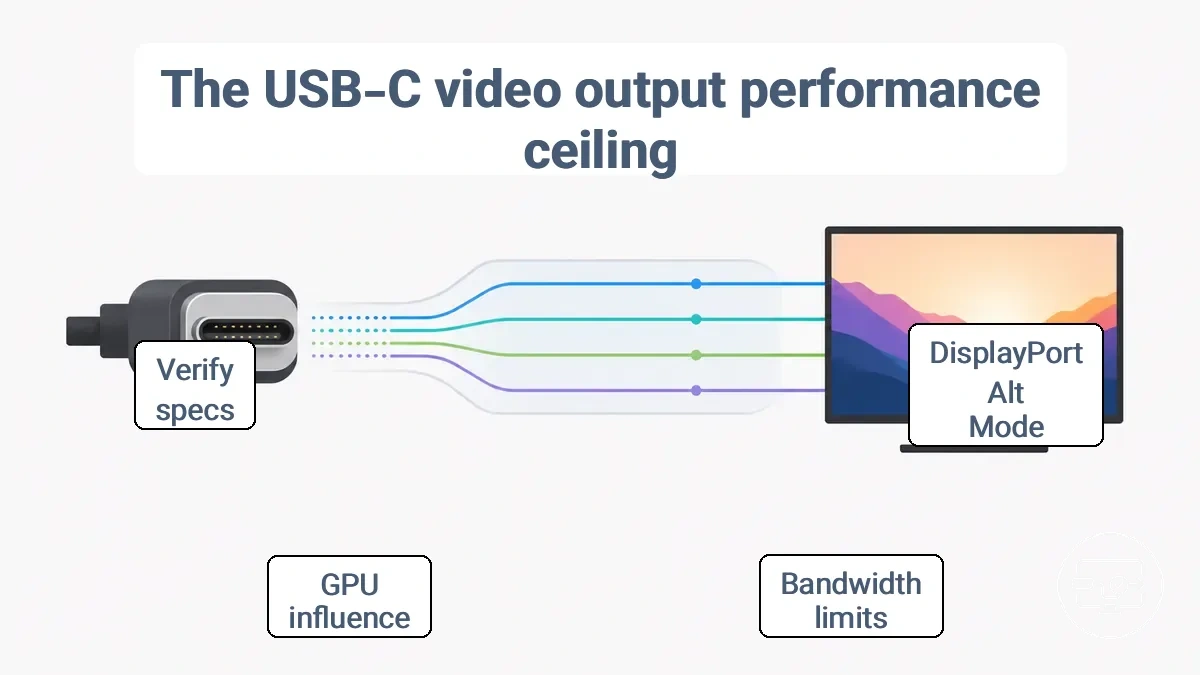
The USB-C video output capability from the source device defines the maximum performance ceiling before any adapter, cable, or display is considered. The port's support for DisplayPort Alt Mode, its available bandwidth, and the GPU path all determine whether a given resolution, refresh rate, or HDR mode is feasible. This ceiling may not be bypassable later in the connection chain.
The port must support DisplayPort Alt Mode (DP Alt Mode) to carry native display signals. The bandwidth budget, determined by the USB version and lane allocation, typically sets the upper limit for resolution and refresh rate. The GPU and driver also influence available output modes. Cable quality and monitor capabilities can further affect the final output.
The diagram shows how lane allocation and bandwidth determine whether 4K30 or 4K60 with HDR is achievable.
Myth: A USB‑C port always supports video output because the connector fits.
In reality, many ports are designed only for charging or data transfer. Labels such as 'Power Delivery' do not guarantee video capability, and two physically identical ports on the same device may offer different video support.
- Spec sheet lists DisplayPort Alt Mode or DP Alt Mode → port likely supports native video output
- Port icon includes a DisplayPort symbol or lightning bolt → likely video-capable
- Port is labeled Thunderbolt 3 or 4 → video output is expected
- Port supports USB4 with DisplayPort → video is typically supported
- Port described only as 'Power Delivery' or 'data transfer' → does not guarantee video
- Two USB-C ports on the same device have different symbols → they may have different video capabilities
- Assume all USB-C ports support video → Verify each port's specifications individually
- Assume a charging cable can carry video → Verify the cable is rated for video or DP Alt Mode
- Assume the display will work if the cable fits → Verify the full chain: source, cable, and monitor all support video
DisplayPort Alt Mode on USB-C as the baseline requirement for HDMI output
For HDMI output, a USB‑C port typically needs to support DisplayPort Alt Mode, which lets the connector carry a DisplayPort signal for conversion to HDMI. The rule is simple: if the port supports video output via DisplayPort Alt Mode, a compatible adapter can convert the signal for the display; a data-only port cannot produce a signal. Some USB‑C ports are data‑only even when they look identical to video‑capable ports.
- Device spec sheet: check for phrases such as 'DisplayPort Alt Mode', 'DP Alt Mode', 'USB‑C with DisplayPort', or 'Thunderbolt'.
- System information: on Windows, check Device Manager or a manufacturer utility for a 'USB‑C DisplayPort' entry.
- Port labeling: a DP or monitor icon next to the USB‑C port often indicates video support.
- Monitor specs: confirm that the monitor’s USB‑C input accepts DisplayPort Alt Mode.
- Adapter description: ensure the USB‑C to HDMI cable or adapter explicitly states support for DisplayPort Alt Mode.
DisplayPort Version, Lane Count, and Bandwidth Allocation vs USB Data Lanes
The bandwidth budget for video over USB-C depends on the DisplayPort version and lane count. Lane count refers to how many high-speed pairs are assigned to video versus USB data. This allocation changes, but the connector shape does not. A higher lane count increases bandwidth headroom for video.
- DisplayPort version and link rate specify the maximum bandwidth per lane, setting the upper limit of the budget.
- USB data sharing reduces the bandwidth headroom available for video, as some lanes carry peripheral or storage traffic.
- Compression technologies such as Display Stream Compression can extend feasibility by lowering the bit rate needed per pixel.
- Color format and bit depth trade-offs allow more conservative use of the bandwidth budget when high resolution and HDR are required.
GPU and driver constraints that cap 4K60 or HDR even with a capable port
Even when a port is technically capable, the GPU and its driver may limit available modes to lower refresh rates or disable HDR entirely. The driver maintains a list of supported modes negotiated with the display; if a particular refresh rate or color format is missing from that list, the output is capped. This supported modes list determines the final output the display can receive.
For instance, a GPU and driver combination may lack support for a desired refresh rate or HDR on a capable display, while another setup works fine—pointing to a GPU-level or driver-level constraint rather than a cable or port problem.
- OS display settings mode list: If 4K120 or HDR options are missing, the GPU and driver may not have enabled them during negotiation with the display.
- GPU control panel supported resolutions: A missing entry for 4K at 120 Hz or HDR can indicate a ceiling imposed by the driver’s mode list.
- HDR toggle availability in Windows: When the HDR switch is grayed out or absent, the driver may not be sending the required signal.
- Refresh rate cap shown in display properties: A lower maximum than expected can suggest a driver-side limitation rather than a port bandwidth issue.
- Driver update state: Outdated or beta drivers can lack proper mode support for certain displays, causing caps that a newer driver may resolve.
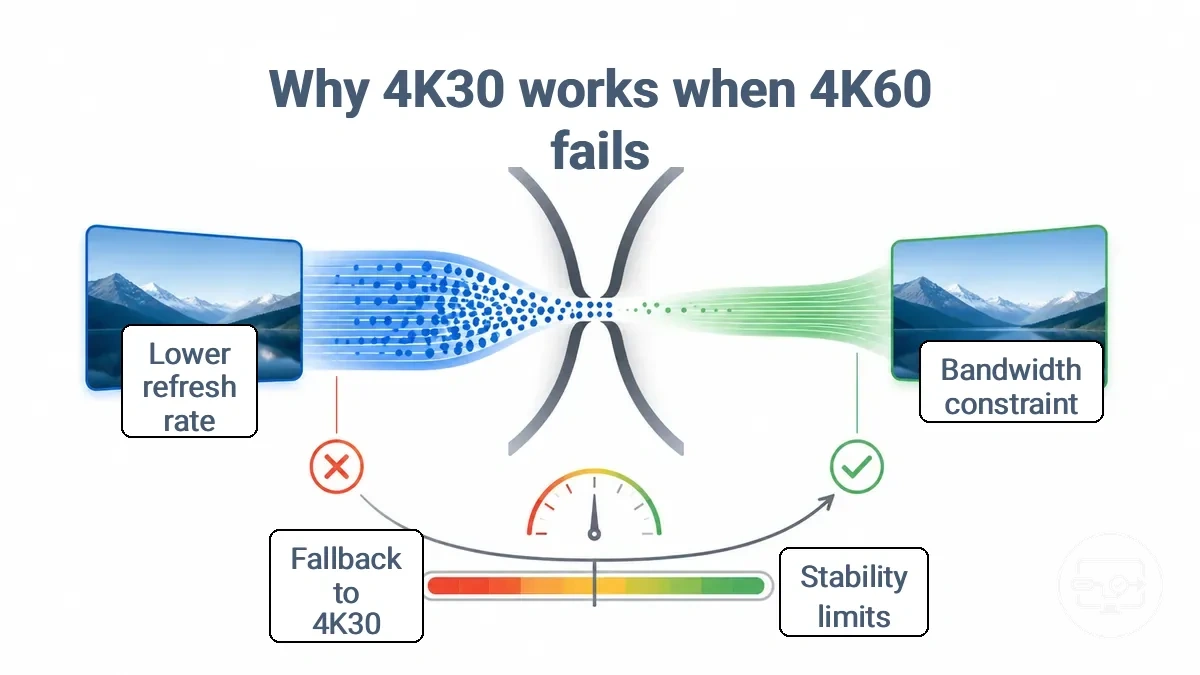
Why 4K30 works when 4K60 fails
4K60 typically fails when the signal chain cannot sustain the required bandwidth and stability, while 4K30 fits the same limits because its lower bandwidth requirement leaves headroom. The graphic below summarizes why 4K30 works when 4K60 fails, and the table organizes the failure pattern by target mode.
| Target mode | What usually limits it | Typical fallback | What you’ll notice |
|---|---|---|---|
| 4K60 | Bandwidth and stability constraints; chroma or bit depth may be compromised | Drops to 4K30, or to a lower resolution like 1440p or 1080p | Stuttering, black screens, or HDR artifacts |
| 4K30 | Lower bandwidth requirement fits within typical connection limits | Typically no fallback needed; mode runs as intended | Typically smooth playback with full frame rate |
When 4K60 cannot be sustained, the connection often negotiates a fallback to 4K30. This fallback may involve a trade-off in color depth or chroma sampling to keep the link stable.
4K30 running successfully does not always mean the connection supports full 4K video quality. HDR performance may be reduced, and certain color formats may be unavailable. The stability of 4K30 comes at the cost of lower refresh rate, which affects motion clarity.
Bandwidth thresholds that separate 4K30 from 4K60 across common output modes
Bandwidth thresholds for 4K60 depend on configuration variables such as chroma subsampling, bit depth, and interface generation, which alter bandwidth demand and stability margin. When demand exceeds headroom, the system falls back to a lower refresh rate, reduced chroma, or lower bit depth—making 60Hz conditional.
- Chroma subsampling (4:4:4 vs 4:2:0): Full chroma can nearly double bandwidth demand compared to 4:2:0, reducing headroom for 60Hz.
- Bit depth (8-bit vs 10-bit HDR): Higher bit depth increases data per pixel, reducing the stability margin and making 60Hz more likely to trigger a fallback.
- Interface generation (HDMI 1.4 vs 2.0, DisplayPort 1.2 vs 1.4): Older standards offer lower raw bandwidth, often limiting 4K60 to reduced chroma or bit depth.
- Cable quality and length: Longer or uncertified cables can degrade the signal, reducing effective bandwidth even when the interface formally supports 60Hz.
- Source device output capability: A laptop or GPU with an older video output may not deliver necessary bandwidth for 4K60, regardless of monitor specification.
Compression and fidelity trade-offs that may enable 4K60 under limited bandwidth
Under limited bandwidth, systems may maintain stable 4K60 by trading image fidelity through compression, chroma subsampling, or bit-depth reduction. This introduces visible artifacts and creates a choice between quality and stability.
- Compression: reduces bandwidth but can create blocking or smearing artifacts during motion, and helps maintain a stable 60 Hz refresh rate.
- Chroma subsampling: reduces color data to lower bandwidth usage, which may soften fine text and cause slight color fringing, but can keep the stream within bandwidth limits.
- Bit-depth reduction: lowers color precision and can produce visible banding in gradients, but can ease the bandwidth bottleneck for 4K60.
- Lowered chroma resolution plus compression: a combined trade‑off that may degrade sharpness and introduce artifact patterns, but often sustains frame rate under strict bandwidth caps.
Keep in mind that aggressive compression or chroma subsampling may reduce fine-detail sharpness, especially on large screens.
HDR Compatibility Conditions Beyond a Simple HDR Label
HDR compatibility goes beyond a simple label—it demands end-to-end support for signaling, format parameters, and protected-content constraints. Without that full chain, a display labeled as HDR-capable may still fall back to Standard Dynamic Range (SDR).
Three categories of conditions determine whether HDR is enabled: signaling and format negotiation, bandwidth trade-offs, and content protection.
Signaling requires detecting HDR metadata and exchanging display capabilities through EDID. Bandwidth constraints can force a reduction in chroma sampling or bit depth, which may prevent HDR from engaging at higher resolutions. For protected content, HDCP compatibility for protected content must be verified to avoid a blocked handshake that forces the signal to SDR.
Many assume HDR always works at 4K60, but bandwidth constraints often require trade-offs in refresh rate or color depth to enable HDR.
The diagram illustrates the HDR checkpoints and fallback points, showing how HDR compatibility conditions beyond a simple HDR label determine whether HDR is enabled or falls back to SDR. The checklist below separates conditions that cause HDR to be missing entirely from those that result in unstable or degraded HDR output.
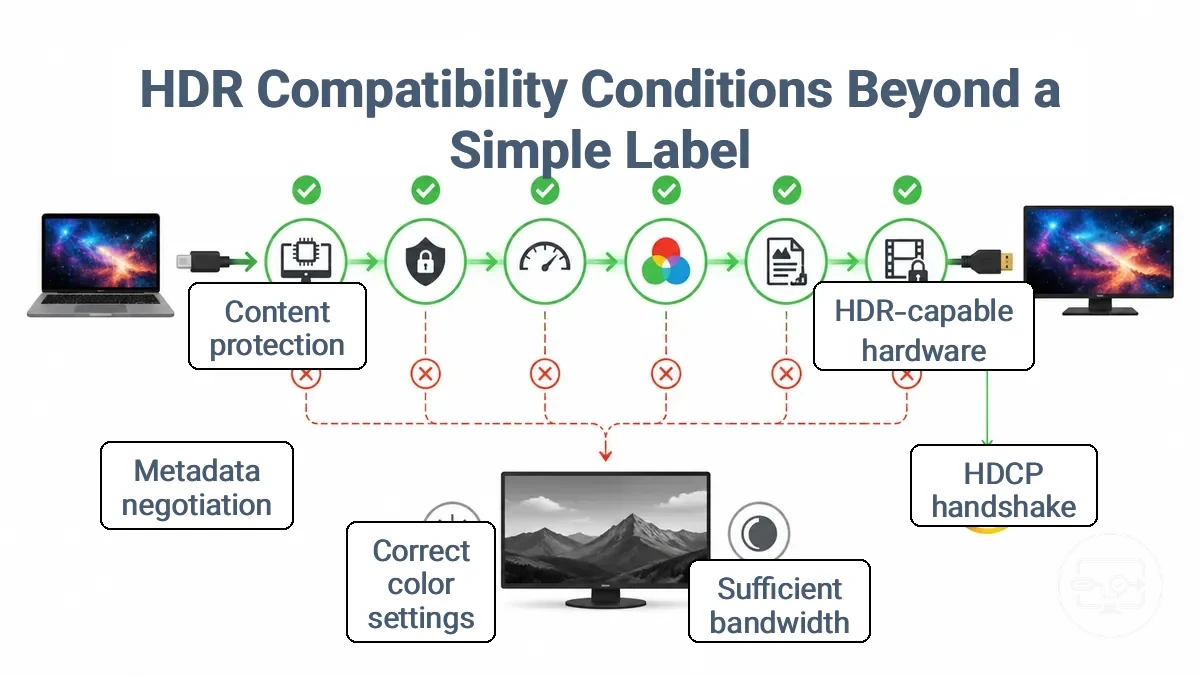
| Condition | If missing | Typical symptom |
|---|---|---|
| HDR-capable display and GPU | No HDR signal accepted | Image remains in SDR |
| HDCP handshake for protected content | Handshake fails | SDR fallback or black screen |
| Sufficient HDMI bandwidth | Bandwidth insufficient for 4K60 HDR | Reduced chroma (4:2:0) or lower refresh |
| Correct color and bit-depth settings | Output not set to 10‑bit | Washed out colors or low brightness |
| HDR metadata negotiation (EDID/SCDC) | Metadata not exchanged | Display typically does not switch to HDR mode |
HDR signaling, color depth, and chroma formats that must align end-to-end
HDR signaling, color depth, and chroma formats must align across the source, converter, and display—they define how luminance and color information travel through the link.
When these match, the system can negotiate a stable HDR mode; when they conflict, the negotiated mode may fall back to SDR or produce visual artifacts. The following parameters must align to avoid a mismatch:
| Parameter | What must match | What happens if it doesn’t |
|---|---|---|
| HDR signaling | Both source and display must support the same HDR format | An HDR mode may not be negotiated; content may appear in SDR with limited contrast |
| Color depth | Number of bits per channel must be consistent | The display may reject the signal or apply banding; a fallback to lower bit depth often occurs |
| Chroma format | Chroma subsampling pattern must be compatible | Color artifacts or loss of detail can appear; the link may drop to a format both sides support, possibly reducing quality |
For example, a mismatch in both color depth and chroma format can lead to a fallback to SDR or a limited HDR range, losing the intended dynamic range.
Protected content constraints that can block HDR modes on otherwise compatible hardware
Protected content support depends on a working HDCP handshake. When that authentication fails, the system may disable HDR or trigger a playback error, even if non-protected HDR content displays correctly.
For example, a browser might handle HDR fine on the same connection, but a dedicated app may fail. The outcome depends on how each application manages the HDCP handshake and on the display driver correctly reporting the required HDCP version.
- Non-protected HDR works, but protected streaming plays in SDR or fails. — Suggests an HDCP handshake failure, not a general HDR capability issue.
- Streaming video plays at limited resolution (e.g., 1080p) on a 4K HDR display when protected content is requested. — Points to an HDCP handshake that does not meet the required version for 4K HDR.
- A consistent “playback error” or “content not available” message appears only when launching protected content. — Suggests an HDCP authentication failure that prevents content from loading.
Adapter, Cable, Hub, and Dock Factors That Decide Real-World Results
When the source device supports 4K HDR output, the quality of adapter, cable, hub, and dock components directly determines real-world stability and supported mode. The converter chipset in an adapter, the shared bandwidth in a hub or dock, and the signal integrity of the cable can each become a limiting factor, so the weakest component determines the final outcome.
Different component types introduce distinct failure classes. A standalone adapter with a high-quality converter chipset is typically a direct bridge between the source and display, and its primary risk comes from chipset capability. A hub or dock adds internal bus sharing, meaning multiple devices compete for bandwidth; under higher loads, display stability can drop. A cable introduces signal integrity concerns—longer runs or lower-grade cables can cause flicker or dropouts.
Consider a direct USB-C to HDMI adapter versus connecting through a hub or dock. With a direct adapter, the signal path is minimal and shared bandwidth is not a factor; instability, if it occurs, is likely due to chipset limits. Through a hub or dock, the same adapter function is integrated alongside other ports, and bandwidth is shared between storage, network, and display. This shared-bandwidth scenario can produce intermittent dropouts or reduced refresh rates even if the chipset is capable. The distinction between mode missing and mode unstable helps identify whether the issue lies in the converter chipset (mode not supported) or in the hub/dock limitations (mode unstable under load).
- Adapter converter chipset → support for required HDMI version → can determine 4K HDR mode availability
- Adapter chipset compatibility with source signalling → standard mismatch → can cause mode missing
- Hub internal architecture → shared bandwidth allocation → intermittent dropouts under multi-device usage
- Hub power delivery → insufficient power to connected devices → display flicker when hub loaded
- Dock MST or DisplayLink implementation → limits on macOS or high-resolution multi-stream → mode instability
- Cable quality → conductor grade and shielding → affects signal integrity, especially over longer distances
- Cable length → attenuation over longer runs → flicker or signal loss at higher bandwidths
- Cable certification → proper E-mark and speed rating → can determine whether full HDMI bandwidth is achievable
This chart shows how the weakest component among adapter chipset, hub/dock bandwidth sharing, and cable signal integrity determines real-world 4K HDR output stability.
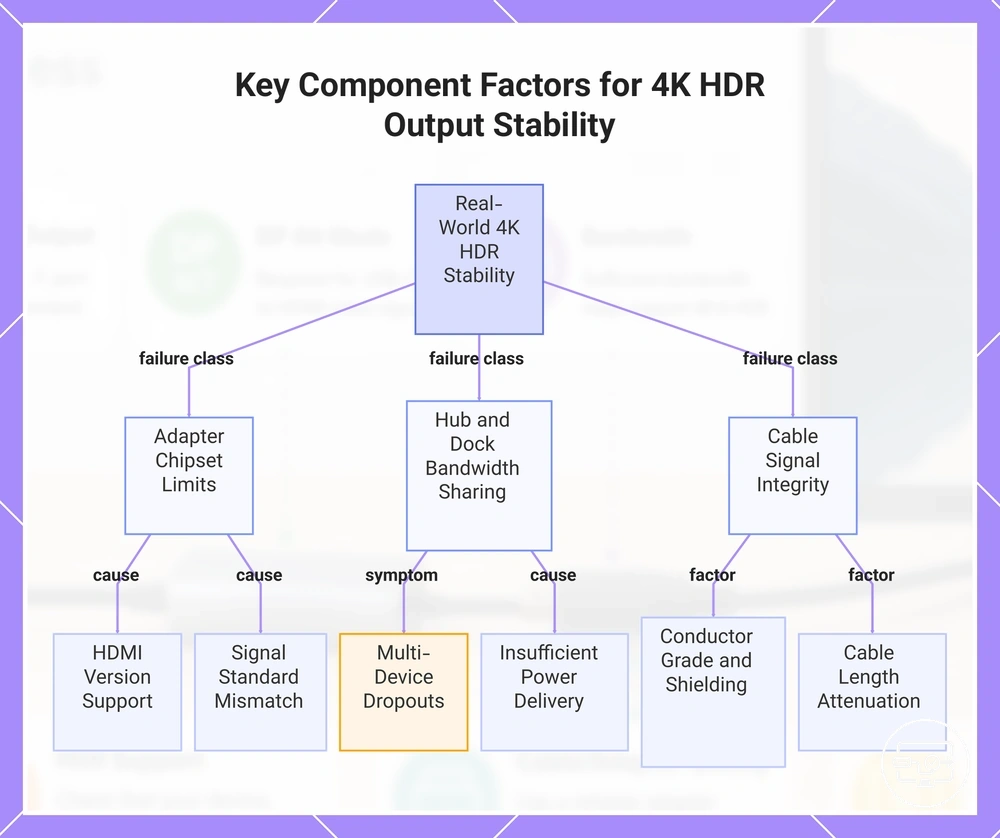
Active vs passive conversion and why adapter chipset class matters for 4K60 and HDR
Active and passive conversion differ in chipset reliance and negotiation behavior, which directly affects 4K60 HDR support. The chipset class determines capability: active conversion uses a powered converter chip, while passive relies on the source's DP++ output. Implementation varies by GPU generation, port labeling, and the chipset used.
| Conversion type | Typical capability impact | Common risk |
|---|---|---|
| Active conversion | Can support 4K60 HDR when the chipset is rated for that mode; mode support depends on the specific converter chip. | Higher cost and occasional compatibility issues with older chipsets that may not negotiate HDR correctly. |
| Passive conversion | Limited to modes the source's DP++ output can deliver; often fails to sustain 4K60 HDR if the source does not output that mode natively. | Fallback to lower resolution or refresh rate when the source lacks DP++ or the GPU cannot drive multiple DP++ outputs simultaneously. |
USB-C hubs and docking stations: shared bandwidth and multi-output limitations
Shared bandwidth in hubs and docking stations reduces display performance under load, especially with high-bandwidth accessories like storage drives active. The result may be resolution or refresh rate reductions or intermittent dropouts.
- Insufficient total bandwidth for multiple high-resolution displays → possible mode reduction, e.g., 4K downgrades to 1080p or lower refresh rate.
- Bandwidth contention with an external SSD during file transfers → possible display flicker or temporary signal loss.
- Hub bandwidth cap (e.g., 10Gbps) → may be unable to sustain 4K 60Hz when other USB 3.0 devices are active.
- Bus-powered hub with multiple peripherals attached → power-related instability that can cause display disconnections.
- Routing overhead from hub topology → may increase latency or reduce achievable refresh rate on external monitors.
Cable Length and Signal Integrity Limits When Pushing High-Bandwidth 4K and HDR Modes
Signal integrity describes how accurately an HDMI cable transmits the electrical signal from source to display, minimizing distortion. As cable length increases, the available signal margin decreases, especially at high data rates for 4K HDR, which can lead to intermittent symptoms such as flicker, dropouts, or temporary black screens when the system switches to a higher bandwidth mode.
Such instability symptoms often indicate signal integrity issues rather than missing hardware capability.
- Flicker when HDR is enabled suggests the cable may not have enough signal margin for 10‑bit color or wide color gamut.
- Dropouts or a black screen after a few minutes of use often point to intermittent loss of signal lock, typical of borderline signal strength.
- Reduced refresh rate options in display settings can indicate that the cable may not sustain the full bandwidth needed for both high resolution and high refresh.
- Sparkles or static on screen suggest signal corruption due to attenuation or interference along the cable run.
- Audio dropouts or loss of multichannel audio can mean the combined audio-video data stream is too demanding for the cable's signal quality.
Display-side constraints that can look like USB-C incompatibility
A display’s input and its settings can be the limiting factor, preventing a signal from appearing even when the USB-C source and adapter are fully capable.
HDMI inputs on a TV or monitor can differ in feature set: one port may support 4K60 HDR while another may be limited to 4K30 or lack HDR. Feature toggles like HDMI UHD Color or Enhanced HDMI often need to be enabled for higher bandwidth modes. Otherwise, the display may not accept a 4K HDR signal even if the cable and source are ready.
A display that cannot match the advertised mode from the source can advertise a fallback resolution or refresh rate via its EDID. The source then negotiates down to that lower mode, which can mimic a USB-C or adapter failure. Verify display-side settings before assuming the cable or adapter is at fault.
- Check the HDMI input label – Some inputs are labeled HDMI 2.0 or HDMI 2.1; using a lower-spec input can cap resolution or HDR.
- Enable the enhanced HDMI mode – A feature toggle like HDMI UHD Color or Enhanced Format may need to be turned on for 4K60 HDR.
- Confirm the display’s native resolution – A 1080p panel cannot show a 4K signal natively; the source may downscale or fail to output.
- Test a different HDMI port – Port A may support 4K60 HDR while port B on the same display may only support 4K30 without HDR.
- Check for HDCP handshake issues – Some displays require HDCP 2.2 for 4K content; a mismatch can cause a blank screen.
- Review the display’s EDID capabilities – The display can advertise a maximum mode that is lower than what the source can provide, forcing a fallback.
This chart shows the main display-side constraints that can prevent a video signal from appearing, often mistaken for a USB-C or adapter failure.
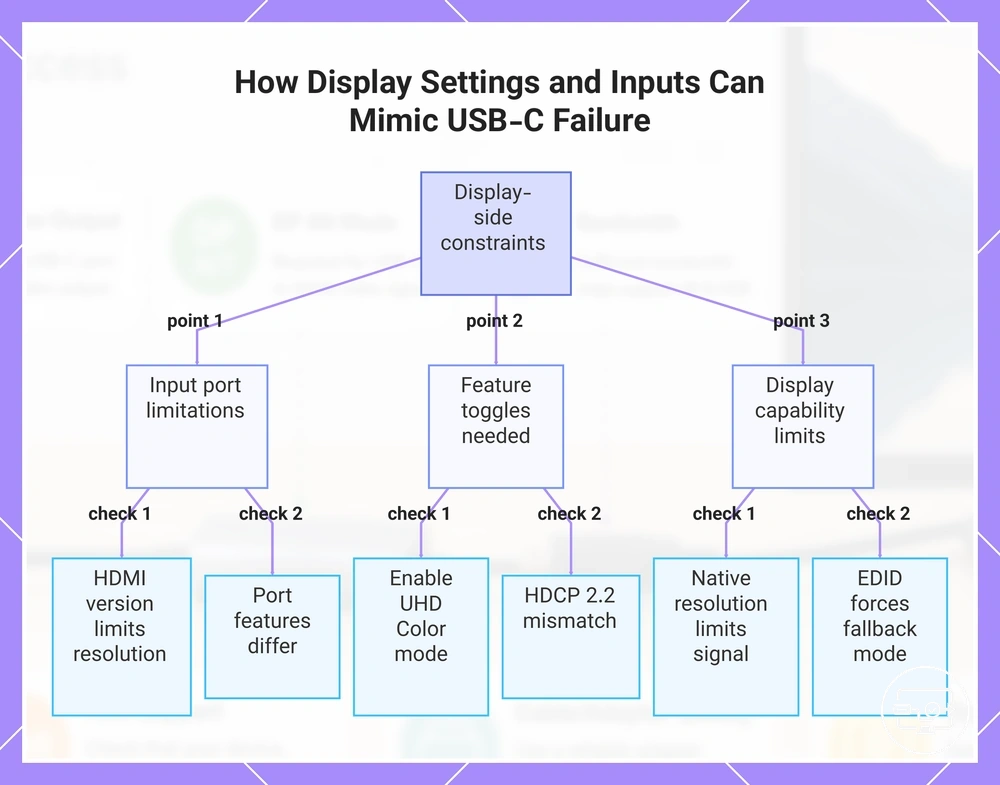
Verifying HDMI Port Support for 4K60 and HDR
Whether a specific HDMI input supports 4K60 and HDR typically depends on the port's capabilities and the status of its feature toggles. Each HDMI port may impose its own per-port limitation. A disabled feature toggle can block the required mode even when the hardware supports it, mimicking hardware incompatibility.
- Check the HDMI version and bandwidth rating of the input port: a port limited to HDMI 1.4 may not reliably deliver 4K60 with HDR, whereas an HDMI 2.0 or higher port is typically necessary for that mode.
- Verify that HDCP is enabled and active on the port: if HDCP authentication fails or is disabled, the source device may restrict output to lower resolutions or disable HDR, making the mode unavailable even when the cable is capable.
- Confirm the display’s EDID reports support for 4K60 and HDR: the source relies on EDID data to know which modes the display accepts; missing or incorrect EDID entries can prevent 4K60 or HDR from appearing in the source’s output list.
- Examine any per‑port format toggle in the display’s settings: many displays offer a per‑port format toggle; disabling that toggle often restricts the port to HDMI 1.4 speeds, which can block 4K60 HDR.
- Test with a known compatible source: if 4K60 HDR works with one device but not another on the same port, the issue likely lies with the source configuration or cable, not the port itself; this helps isolate per‑port limitations.
EDID and negotiation behavior that can advertise modes your chain cannot sustain
A common misconception is that once a resolution or refresh rate appears in the mode list, the entire signal path can sustain it. The display sends an EDID block that advertises its own capabilities, but intermediate devices like docks, KVMs, or adapters may translate or cache that EDID, so the mode list can include timings the full chain cannot carry — the negotiation does not directly account for every device in between. That mismatch means a selectable mode can fail or revert because real-world sustainability differs from what the handshake promised.
- Mode shows as available but selecting it triggers a black screen — EDID indicates support, but the full path (dock, cable, converter) may not transport the signal reliably. The source attempts the mode, instability occurs, then the system drops to a lower mode or shows no image.
- Monitors drop to 1080p or 30 Hz after a few seconds — the initial handshake advertises a higher mode, but the link loses margin. The source detects errors and renegotiates to a safer, lower-bandwidth mode, creating an intermittent cycle.
- Ultrawide or high-refresh modes appear in the list but cause flickering or periodic blackouts — EDID includes non-standard timings. The source attempts them, but if intermediate hardware cannot pass the signal cleanly, the signal becomes unstable and the display reverts to a standard timing.
- In dual-monitor setups, one screen goes blank or shows duplication after switching — the KVM or dock presents a combined EDID that merges both displays' capabilities. The source negotiates using that merged data and may select a mode that works for only one display, causing the other to fall back or go black.
- The correct resolution is available with a direct connection but fails through a hub — the intermediate device alters or caches the EDID. The advertised mode is valid, but the negotiation through the hub introduces a mismatch, leading to instability or fallback.
Configuration choices that change what you actually get
Configuration choices set in the operating system display settings or GPU control panel determine the video mode negotiated and sustained over a connection without any hardware change. A single setting change can switch the achieved mode from higher resolution with limited color depth to lower resolution with full color, and vice versa.
Key settings such as refresh rate, HDR toggle, bit depth, and chroma each consume a portion of available bandwidth. Enabling HDR increases data requirements, which may force a reduction in refresh rate or bit depth to stay within the connection limit. The final output mode is negotiated between the source, cable, and display, so the same settings may produce different results on different hardware.
Enabling HDR does not always improve the image. Under bandwidth limits, it can trade off refresh rate or color precision. The configuration choices that change what you actually get include the following categories:
- Refresh rate – influences smoothness and bandwidth consumption; higher rates may require reduced color depth or chroma.
- HDR toggle – increases data load; can force a lower refresh rate or decreased chroma subsampling under bandwidth limits.
- Bit depth – sets color precision; higher bit depth (10‑bit) uses more bandwidth, potentially affecting the achieved mode.
- Chroma – controls color detail; full 4:4:4 may require a lower resolution or a reduced refresh rate.
- Output mode configuration – the negotiated combination of resolution, refresh rate, and color format that the display accepts.
Depending on your goal, the same settings can be adjusted differently:
- To gain stability – lower the refresh rate or disable the HDR toggle to avoid dropouts and maintain consistent signal timing.
- To gain quality – prioritize high bit depth and full chroma, even if it means accepting a lower refresh rate or resolution.
This chart shows how key display settings (refresh rate, HDR, bit depth, chroma) interact to affect video output, and how to adjust them based on your goal for stability or image quality.
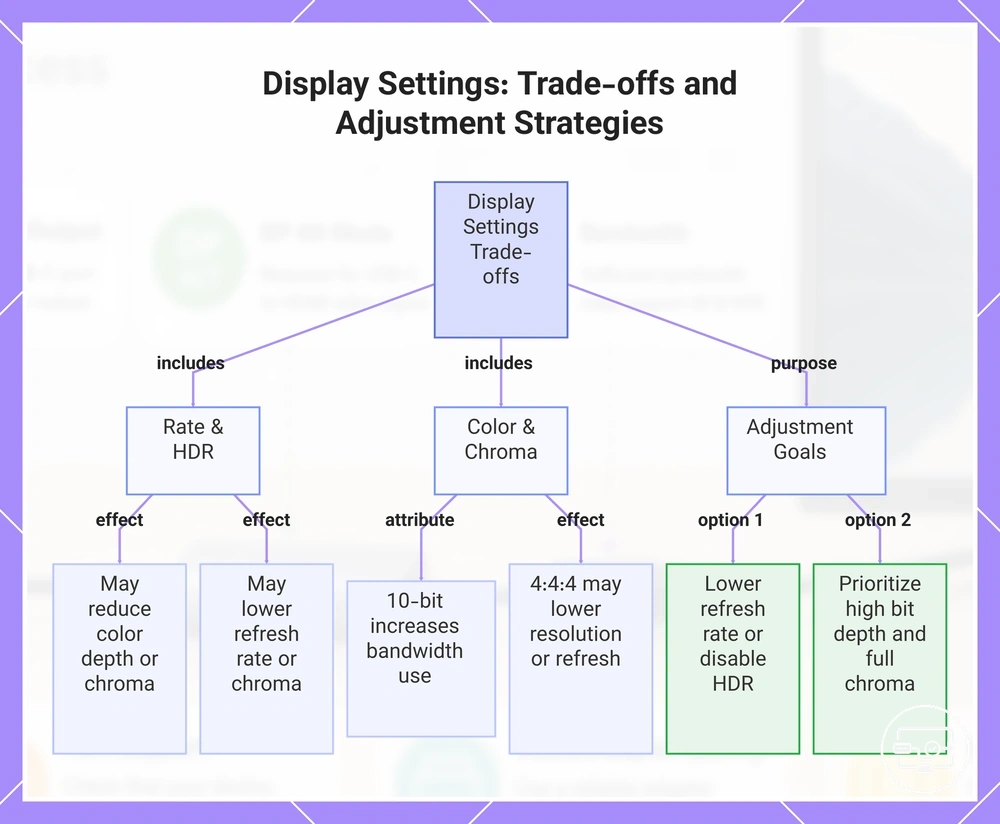
OS and GPU settings that switch refresh rate, HDR state, bit depth, and chroma format
OS display settings and GPU control panels include categories, each modifying a single output parameter: refresh rate, HDR state, bit depth, chroma format, or scaling. These parameters compete for available link bandwidth; a change in one often forces a trade-off in another. Their availability depends on the display's reported support.
- Refresh rate setting: controls frame update timing. Higher refresh rates consume more bandwidth, potentially preventing higher bit depth or full chroma. With HDR active, the maximum stable refresh rate may be lower than advertised.
- HDR state setting: toggles between SDR and HDR signaling. Enabling HDR typically requires 10‑bit color depth and wider color metadata. The GPU control panel may reduce the refresh rate or switch chroma format to maintain stability when HDR is on.
- Bit depth setting: determines tonal steps per channel. Higher bit depth (10‑bit) increases precision and bandwidth demand. On bandwidth‑limited links, 10‑bit may force a subsampled chroma format.
- Chroma format setting: defines how color information is stored relative to brightness. Full RGB 4:4:4 preserves all color data, while subsampled formats like 4:2:2 or 4:2:0 sacrifice color resolution to save bandwidth. The choice affects text sharpness and is often limited by the display's reported support for a given refresh rate.
- Scaling setting: controls how non‑native resolutions are fitted to the panel. GPU‑based scaling can introduce processing overhead, while monitor‑based scaling may accept a wider range of modes. The scaling mode itself typically does not directly affect bandwidth but can influence which output combinations are negotiable.
Common mode conflicts between HDR, 4K60, and high color depth under bandwidth limits
Common mode conflicts happen when bandwidth limits force trade-offs between HDR, 4K60, and high color depth. The table shows each trade-off: what you gain, what you lose, and when it makes sense.
| Priority | What you gain | What you lose | When it makes sense |
|---|---|---|---|
| HDR + 60Hz + full chroma (4:4:4) | Sharp text, 60Hz motion, HDR image | Color depth typically drops to 8-bit; HDR gradients may show banding | When readability and edge clarity matter more than smooth tonal transitions |
| HDR + 60Hz + 10-bit color depth | Smooth HDR gradients, 60Hz motion, 10-bit | Chroma subsampled (4:2:2 or 4:2:0); less chroma resolution in fine patterns | When watching movies or playing games where chroma loss is less noticeable |
| HDR + color depth + full chroma | 10-bit, full chroma, HDR image quality | Refresh rate drops (e.g., 30Hz); motion feels less fluid | When viewing static or slow-moving content, or when image fidelity is the top priority |
| 60Hz + color depth + full chroma (SDR) | 60Hz motion, 10-bit, full chroma, stable gradients | No HDR; dynamic range stays within SDR limits | When color-critical work does not require HDR, or HDR adds no benefit |
When 4K or HDR is not working: symptom patterns and likely causes
When 4K or HDR fails to display correctly, start by mapping the observed symptom to a specific constraint class in the signal chain. Common classes include capability mismatch (the display or cable cannot support the required bandwidth), negotiation or EDID handshake failure, signal integrity problems, configuration errors, or protected content restrictions. Each class produces a distinct symptom pattern.
These cause classes differ because they originate at different points in the signal chain. A capability mismatch typically results in a failure to display 4K or HDR at all, while negotiation errors often result in intermittent blanking or resolution caps. Signal integrity issues, such as cable or power instability, tend to cause flicker or dropouts rather than static failures. Configuration errors may produce washed-out HDR or missing features, and protected content restrictions usually block HDR entirely despite a working 4K signal. Each likely cause requires a different check; treating all symptoms the same may waste effort.
The following table maps common symptom patterns to their likely cause classes for quick diagnosis.
| Symptom | Likely cause class | Quick check | What it indicates |
|---|---|---|---|
| 4K signal accepted but HDR unavailable | Protected content / HDCP handshake | Try a different HDR source or adjust HDCP settings | The handshake between source and display may be blocked |
| HDR appears washed out or gray | Configuration / tone‑mapping error | Confirm the display HDR mode and system HDR settings are both active | The monitor may be in SDR mode or the system is not sending HDR metadata |
| Black screen or signal dropout when switching to 4K | Negotiation / EDID failure | Reduce resolution or refresh rate temporarily; then re‑switch | The display or cable may not be negotiating the required mode |
| Screen flicker or intermittent dropouts | Signal integrity (cable or power) | Replace the cable with a known good high-speed cable | Unstable signal often points to bandwidth or shielding limits |
A common misconception is that intermittent dropouts mean an absolute capability limit; they usually indicate signal integrity or power stability instead, so checking the cable, ports, and power source is more productive than assuming incompatibility. For deeper diagnostics beyond initial symptom mapping, see performance-related troubleshooting for more targeted steps.
Stuck at 1080p or no 4K option: capability mismatch vs handshake or EDID issues
When a display is stuck at 1080p or shows no 4K option, the cause is usually a capability mismatch or a handshake/EDID failure. This checklist helps narrow it down by isolating whether the problem is a missing 4K option or a handshake/EDID failure.
- Verify source and cable bandwidth capability. If the graphics port or cable cannot support 4K at the desired refresh rate, the mode list typically will not include it. Use a cable rated for the required bandwidth and test a direct connection to the source.
- Check the display input setting. Some monitors only advertise full 4K timings when the input is set to an enhanced or high-bandwidth mode (e.g., HDMI 2.0 or higher). Without that setting, the EDID may report only 1080p.
- Test a direct connection without intermediate devices. Remove any splitter, KVM, dock, or adapter between the source and display. If 4K now appears, the removed device is likely altering EDID or interfering with the handshake.
- Check if the correct 4K mode appears but fails when selected. If the mode is listed but selecting it produces a black screen or flicker, a handshake or EDID relay problem is likely. The source sees a capability that the full path cannot deliver.
- To isolate the constraint, swap ports or sources. Try a different source port or a different display input. If the symptom follows a specific port or cable, the constraint is likely physical; if it follows the device, the EDID negotiation is likely at fault.
4K flicker, dropouts, or black screens: signal integrity, cable length, power, and hub stability
Intermittent flicker, dropouts, or black screens at 4K usually stem from a stability driver—cable length and signal integrity, power stability, hub load, or thermal conditions—rather than a permanent display limitation. Lowering resolution or disabling HDR can restore stability, but that is a diagnostic test, not a desired end state. Use isolation tests to find the stability driver before making permanent changes.
- Brief flicker that self-corrects → often cable signal integrity or connection margin.
- Frequent dropouts lasting seconds → commonly hub load or power stability.
- Black screen requiring reboot or reinsertion → may involve thermal or handshake failure.
- Test a short, certified cable directly from source to display. If symptoms stop, that suggests signal integrity issues from cable length or quality.
- Reduce resolution to 1080p 60Hz. If flicker/dropouts disappear, that suggests the link is bandwidth-limited.
- Disable HDR and reduce chroma. If the black screen stops, that suggests the chain may not be able to handle the full HDR data rate.
- Swap the cable with a known-working high-speed cable of the same length. If symptoms persist, the issue likely lies in the source or display rather than the cable.
- Test with the display connected directly to the source, bypassing any hub or dock → if symptoms clear, that suggests hub load or power stability is a likely cause.
- Monitor the display after 30+ minutes of use → if flicker appears only when warm, that suggests thermal instability in the cable or port may be contributing.
- Power-cycle both display and source → if black screen resolves temporarily but returns, that suggests deeper stability factors may be at play.
- Borrow a certified cable rated for your resolution and refresh rate → if symptoms stop, the original cable likely lacked sufficient rating; if they continue, source or display limits may be the cause.
HDR Missing or Greyed Out: Negotiation Limits and Protected-Content Constraints
When HDR is greyed out or missing, the cause is either a missing prerequisite or a protected-content constraint. Prerequisites cover system, display, and cable or driver settings; protected-content constraints involve HDCP, content-path restrictions, and luminance requirements. The checklist distinguishes between these two cause types.
- Windows HDR enabled? – If HDR is off in Windows, apps keep it greyed out. Enable HDR in Windows display settings.
- Display mode correct? – Some apps require exclusive fullscreen for HDR. Try switching from borderless to fullscreen.
- Cable and GPU support? – HDR-capable displays may still show HDR unavailable if the cable lacks bandwidth or GPU driver fails. Use a cable rated for HDR.
- Driver or system update needed? – Outdated GPU drivers or Windows version can prevent HDR negotiation. Update drivers and OS.
- Display luminance meets streaming threshold? – For streaming HDR, Windows hides the option if monitor luminance is below 300 nits. Check EDID or test a different display.
- HDCP handshake completed? – Protected HDR video requires HDCP 2.2. If handshake fails, app falls back to SDR and HDR remains greyed out. Verify HDCP 2.2 support on both GPU and monitor.
- Content path allows HDR on this PC? – Not all apps or services enable HDR on all PCs. Test with a known HDR game or local file to isolate content-path restrictions.
If prerequisite checks pass but certain apps or streams still show HDR greyed out, the issue is likely a protected-content constraint. Fallback to SDR is expected until conditions like HDCP or luminance are satisfied.
Compatibility checklist for choosing a USB-C to HDMI solution for 4K60 and HDR
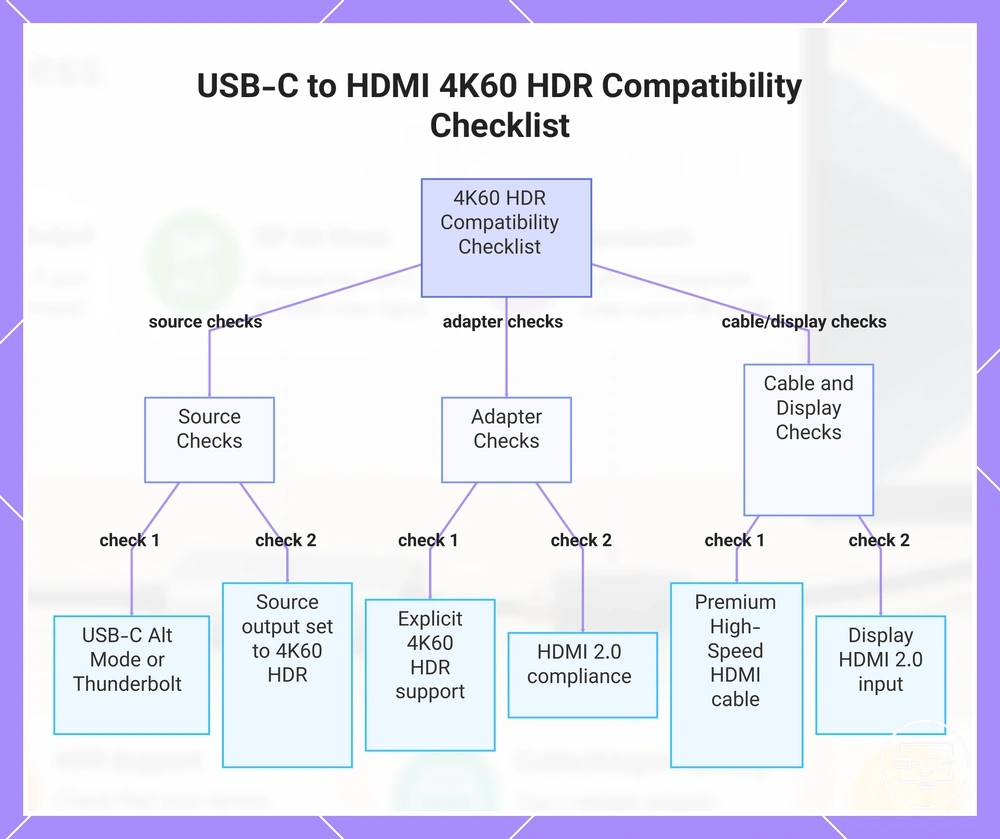
Verify that every component in the signal chain—source, adapter/hub, cable, and display—supports 4K60 with HDR; a single weak link can cause instability or signal failure. Verify source capability first before evaluating other parts.
This checklist organizes the decision by chain component—source, adapter/hub, cable, and display—and verifies each stage component by component. For source-level compatibility, verify using the USB-C to HDMI Compatibility hub.
- Source
- Confirm the USB-C port supports DisplayPort Alt Mode or Thunderbolt 3/4 for video output. Without Alt Mode, no conversion is possible.
- Verify the source can output 4K at 60 Hz with HDR in its display settings. Some devices limit output to 30 Hz unless configured correctly.
- Check that the source supports HDCP 2.2 or higher for protected HDR streaming content; otherwise the display may show a black screen.
- Adapter or Hub
- Ensure the adapter or hub explicitly states it supports 4K60 output and HDR pass-through. Many adapters cap at 4K30.
- Confirm HDMI 2.0 (or higher) compliance on the adapter side. HDMI 2.0 is required for 4K60 bandwidth and HDR metadata.
- Verify HDCP 2.2/2.3 compatibility in the adapter specs to avoid playback errors on streaming services.
- Check that the adapter uses a chipset that does not introduce additional latency or signal degradation at 4K60 HDR.
- Cable
- Use a Premium High-Speed HDMI cable (or HDMI 2.0 compliant) between the adapter and display. Standard cables may not carry HDR reliably at 4K60.
- Keep cable length under 5 m for passive cables, or use an active/boosted cable for longer runs to maintain signal stability.
- Confirm the cable supports the required bandwidth (18 Gbps for HDMI 2.0) and HDR transmission.
- Display
- Ensure the display has an HDMI 2.0 (or 2.1) input and supports 4K60 HDR input. Older HDMI 1.4 inputs may limit to 4K30.
- Check the display’s EDID and input settings; some monitors require manual selection of HDMI 2.0 mode or HDR enablement.
- Test with known working content to confirm HDR metadata is received and the display switches to HDR mode.
This chart presents the key compatibility checks for each component in the USB-C to HDMI signal chain for 4K60 HDR, organized by source, adapter, and cable/display.
What to confirm on the laptop or tablet before buying an adapter, hub, or dock
Confirm the source device’s own video-output capabilities, not the adapter or dock. The USB-C port must support DisplayPort Alt Mode (DP Alt Mode) for video, the GPU and its driver must handle the required resolution and refresh rate, and the system configuration must enable that output.
Since ports on the same device can differ in their video and power delivery roles, check each USB-C port individually before assuming it will work for a 4K60 HDR setup.
- Check the laptop or tablet’s specs for the maximum video resolution and refresh rate it can output via USB-C — this sets the upper limit for what the dock or adapter can pass through.
- Verify that the GPU supports the target resolution and HDR format — the graphics hardware must be capable of driving a 4K60 HDR signal, especially on integrated GPUs where HDMI/DisplayPort versions may limit output.
- Review the system info for the current graphics driver version — outdated or generic drivers can restrict mode support and cause issues with higher resolutions or HDR.
- Identify whether the USB-C port is connected to the dedicated GPU or the integrated graphics on dual-GPU laptops — output capabilities vary depending on which GPU drives the port.
- When using a tablet, check the operating system’s display settings to confirm that external monitor support is enabled — some tablets require explicit activation of video output via a driver or system toggle.
- Test with a known-working monitor or adapter if possible — this can help isolate source-side limitations from cable or dock compatibility issues.
Specification Cues That Correlate with Stable 4K60 HDR Output
Specification cues help translate what a component claims to support into practical confidence about stable 4K60 HDR output. A claim like 'HDMI 2.0' or 'supports HDR' implies a compatible bandwidth path, but sustained output depends on how the cue fits into the full chain—adapter, cable, and display working together. Each cue carries an implied capability, a limitation risk, and an expected effect on stability if the chain is intact. A device that 'supports' 4K60 HDR on its spec sheet may not 'sustain' that output under sustained load, making the distinction a critical cue to evaluate.
Specification cues, grouped by component type, map each indicator to its likely capability and stability outcome:
Adapter/Hub
- 'Supports 4K60 HDR' implies the device can handle 18 Gbps bandwidth with 4:2:0 chroma. Limitation risk: thermal throttling or power delivery may cause frame drops under sustained load. Expected effect: stable when used with passive cooling and appropriate power.
- 'HDMI 2.0' output indicates up to 18 Gbps capability. Limitation risk: if the source outputs 4:4:4 at 4K60, the adapter may switch modes, potentially disrupting HDR stability. Expected effect: stable for HDR when chroma is 4:2:0 and cable length is moderate.
- 'HDR pass-through' claims often forward HDR metadata correctly. Limitation risk: dynamic HDR formats (HDR10+) may not pass all metadata. Expected effect: stable pass-through with static HDR10; variable with dynamic.
Cable
- 'High-Speed HDMI' rating implies tested for 18 Gbps. Limitation risk: length beyond 5 meters can degrade signal. Expected effect: stable on shorter runs; longer runs may introduce sparkles.
- 'Premium High Speed HDMI' certification adds build quality indicators. Limitation risk: still limited by connector quality. Expected effect: stable in most home setups when cable is undamaged.
- 'Ultra High Speed HDMI' provides 48 Gbps headroom. Limitation risk: overkill for 4K60 HDR; no stability advantage if other components are weak. Expected effect: stable but not necessary.
Display
- VESA DisplayHDR certification (e.g., 400, 600) indicates measured brightness and dimming. Limitation risk: lower tiers may not sustain high brightness. Expected effect: stable HDR likely with tier 600 or above.
- '10-bit' panel support implies ability to display 10-bit color. Limitation risk: many panels use 8+2-bit FRC, which can cause banding. Expected effect: stable output for HDR; banding typically does not affect stability.
- 'HDMI 2.0' input restricts chroma to 4:2:0 for 4K60 HDR 10-bit. Limitation risk: if source sends 4:4:4, display may reject. Expected effect: stable when source and cable match this spec.
Edge cases and quick clarifications for 4K and HDR over USB-C to HDMI
Edge cases around 4K and HDR over USB-C to HDMI often arise from mismatched chain components or overlooked settings.
Question: Can any USB-C cable transmit 4K60 HDR over an HDMI adapter?
Answer: No, it depends on the cable supporting DisplayPort Alt Mode or Thunderbolt. Without that support, the cable carries only data and power, not video. Check the cable's markings or specifications to confirm video support.
Question: Does a USB-C port labeled 'display' always support 4K HDR output?
Answer: Not always; the port's Alt Mode version and bandwidth negotiation set the maximum resolution and color depth. Some ports cap at 4K30 without HDR. Check the device specifications for supported display outputs.
Question: Why does my 4K monitor show only 1080p when connected via USB-C to HDMI?
Answer: This often happens when the adapter or cable lacks bandwidth for 4K60 HDR, so the source downgrades to SDR 1080p. Try a direct USB-C to DisplayPort connection if the monitor supports that input.
Question: Does HDR pass through a USB-C to HDMI adapter without special settings?
Answer: It can, but it depends on the adapter's HDCP 2.2 support and the operating system's HDR setting. Many adapters pass standard HDR metadata, but you may need to enable HDR in the display settings.
Question: What causes a black screen or flicker when using USB-C to HDMI for HDR content?
Answer: A common cause is an HDCP handshake failure due to incompatible HDCP versions between source, adapter, and display, especially with protected HDR content from streaming services. Check that all devices support HDCP 2.2 for 4K HDR.
Question: Is 4K60 with HDR possible over a passive USB-C to HDMI cable?
Answer: It is possible only when the source outputs a DisplayPort signal over USB-C and the adapter converts it. The cable must be rated for the full bandwidth, and many passive cables support 4K60 but not HDR due to bandwidth limits. Check the cable specifications and try a shorter cable if needed.
Question: Does the length of a USB-C cable affect 4K HDR signal integrity?
Answer: Yes, longer cables increase signal degradation, which can cause visual artifacts or loss of lock at higher resolutions. A cable shorter than 2 meters and certified for SuperSpeed or Thunderbolt can help maintain stability with 4K HDR.
Question: Are all USB-C to HDMI adapters capable of 10-bit HDR color depth?
Answer: No, many adapters are limited to 8-bit color and may downscale HDR content. Full 10-bit support requires an adapter that explicitly lists HDR10 compatibility. Test with a known HDR source and monitor to verify the adapter's capability.