
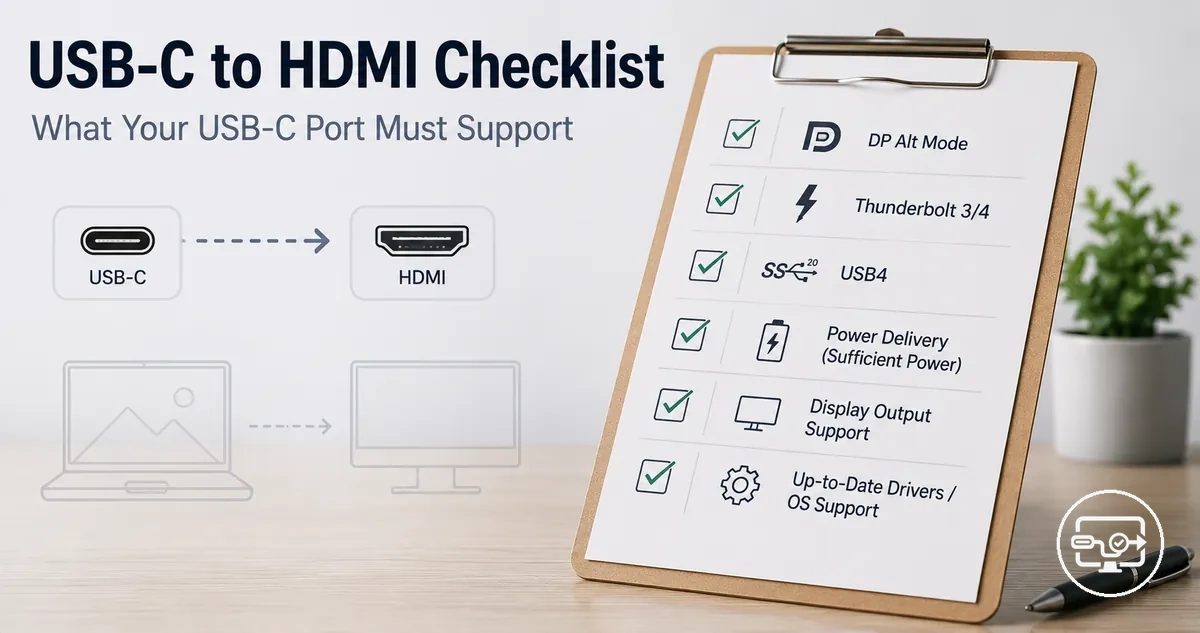
USB-C to HDMI Compatibility Checklist for Your USB-C Port
Your USB-C port must support video output to drive an HDMI display. This page verifies that port capability before you choose an adapter or connection method.
Not all USB-C ports are the same—some only handle charging or data, while others can output video. Your device's hardware and implementation determine whether video out is available. (For a full overview of USB-C to HDMI compatibility, see the USB-C to HDMI Compatibility hub.)
The same adapter may work with a laptop but not a tablet, depending on the port’s video capabilities.
The checklist helps you confirm compatibility by checking physical markings, device specifications, and operating system settings. For example, a DisplayPort Alt Mode symbol or Thunderbolt icon near the port indicates video support. Once you confirm the port’s video output capability, you can determine which adapter or conversion path is viable.
Full setup steps and symptom-by-symptom troubleshooting for connection failures are not covered here. Instead, the criteria provided determine if your USB-C port can connect to an HDMI display at all.
What this checklist can confirm: USB-C port capability versus adapter conversion
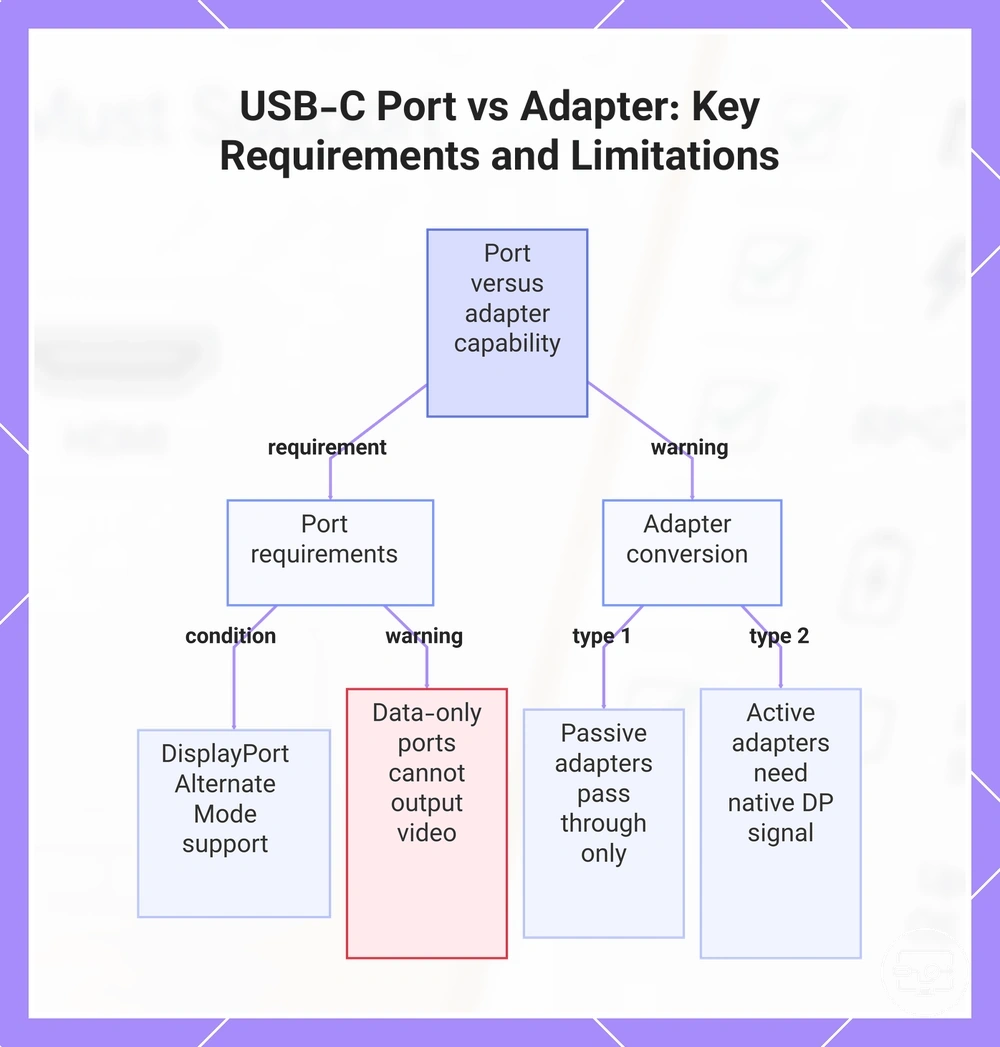
USB-C port capability and adapter conversion are two separate factors that determine if a device can output video over HDMI. The port’s native feature set defines what is possible, while the adapter only translates or repurposes signals that already exist. An adapter typically cannot add a capability that the port lacks at the hardware level.
Mismatches happen because the same USB-C connector can serve different purposes. A USB-C port may support only data and power, while another may handle DisplayPort alternate mode for video. The connector itself does not guarantee specific capability; internal hardware determines available features.
Two common scenarios illustrate this difference. A data-only laptop USB-C port can transfer files and charge, but cannot send video even with an HDMI adapter — it lacks alternate mode support. Many smartphones support fast charging and data but not video output; no adapter can enable HDMI output from such a phone.
The checklist separates port-side requirements from adapter conversion capabilities.
- Port-side requirement: The USB-C port needs to support DisplayPort Alternate Mode (or an equivalent video-capable standard) for direct video output.
- Adapter conversion: A passive USB-C to HDMI adapter can only pass through a video signal that the port already generates; it does not add video support.
- Port-side requirement: For high-resolution or high-refresh-rate displays, the port often needs sufficient data throughput.
- Adapter conversion: An active converter may translate DisplayPort signals to HDMI, but it still relies on the port providing a native DisplayPort signal.
- Port-side requirement: A data-only USB-C port (often labeled for charging and file transfer) cannot output video regardless of the adapter used.
- Adapter conversion: Some adapters incorporate USB graphics fallback via driver-based rendering, but this approach often introduces lag and resolution limits; it may not be a reliable substitute for native hardware support.
- Port-side requirement: Device firmware or OS settings may block video output even when the hardware is capable — check manufacturer documentation.
- Adapter conversion: Passive adapters are usually plug-and-play when the port supports the required alternate mode; active adapters may need driver installation in some cases.
This chart shows the essential port-side requirements and adapter limitations that determine whether a USB-C device can output video over HDMI.
Decide Whether Your USB-C Port Supports Video Output
Your USB-C port must support video output to connect an external display. Not every USB-C port can send a video signal; the port must support DisplayPort Alt Mode or Thunderbolt. To decide, check the physical markings, the spec sheet, and optionally your operating system.
Video-capability evidence varies in reliability. A symbol (DP icon or lightning bolt) suggests capability but is not guaranteed. Manufacturer specs that list DisplayPort Alt Mode or Thunderbolt give higher confidence. Operating system detection can confirm, but only when a display is physically attached.
- Look for port symbols. A DisplayPort (DP) icon or lightning bolt suggests the port can output video. What it means: the port likely supports DisplayPort Alt Mode (DP icon) or Thunderbolt (lightning bolt); treat an unmarked port as unknown until tested.
- Check the manufacturer's spec sheet. Search for "DisplayPort Alt Mode" or "Thunderbolt" in technical specifications. What it means: if either technology is listed, the USB-C port is specified to support video output.
- Verify in operating system display settings. Connect a monitor or adapter and open the display settings. What it means: if the OS detects an additional monitor, the port is transmitting a video signal.
- Check GPU or processor documentation for built-in display outputs. Some devices route video through the CPU or graphics chip. What it means: if the spec notes a built-in display output via USB-C, the port can likely output video, but physical wiring must be present.
- Note device-specific restrictions. Some laptops designate certain USB-C ports as data-only or charging-only despite theoretical capability. What it means: a port can be limited by design; check the user manual for each port's role.
- If uncertain, treat the port as unknown until tested. Without confirmation, assume the port may not support video output. What it means: testing with a known good adapter is a reliable way to check.
Frequently Asked Questions
Question: Does every USB-C port support HDMI?
Answer: No. A USB-C port supports HDMI only if it supports DisplayPort Alt Mode or Thunderbolt; data-only ports cannot transmit video.
Question: How do I know if my USB-C port is data-only?
Answer: If the port lacks a DP or Thunderbolt symbol and the specs do not list DisplayPort Alt Mode or Thunderbolt, it is likely data-only. You can confirm by testing a monitor: no detection indicates no video support.
This chart shows three main methods to decide whether a USB-C port can output video: checking physical symbols, reviewing technical specifications, and testing with an operating system.
Port markings and symbols that indicate display output support
Port markings and symbols near a USB‑C connector provide preliminary hints about video output support, but they are not definitive proof. Actual display capability depends on the device and should be confirmed via the manufacturer's specifications.
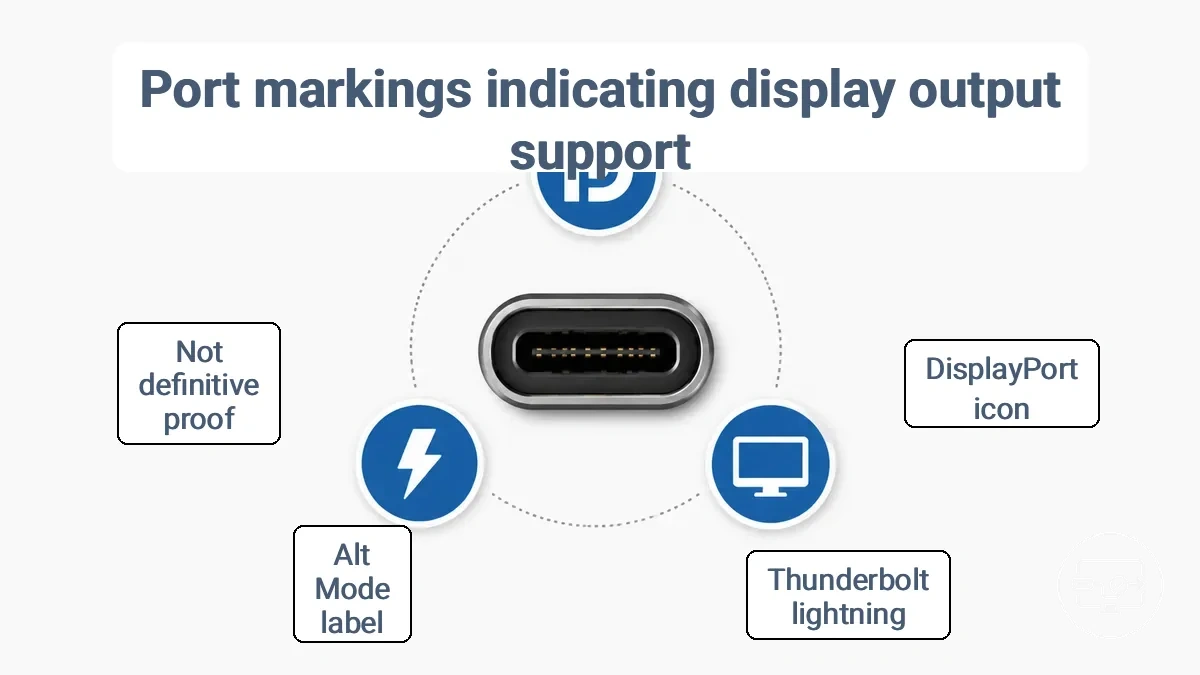
The image above shows common USB‑C port symbols. The list below groups them by what they usually indicate for display output support through an adapter.
DisplayPort and monitor icons
- A DP or monitor icon next to the USB‑C port often signals DisplayPort Alt Mode support. This marking raises confidence, but resolution and refresh rate depend on hardware.
- A black D with white P (DisplayPort logo) indicates Alt Mode capability, enabling video signal transmission to HDMI via an adapter; final output depends on adapter capabilities.
Thunderbolt lightning icon
- A lightning bolt symbol marks Thunderbolt 3 or 4. This marking often supports video output via DisplayPort protocol and may drive multiple displays. HDMI output requires a Thunderbolt-to-HDMI adapter; bandwidth may limit the number of displays.
- HDMI resolution and refresh rate depend on the Thunderbolt version and adapter used.
Generic “DP” or “Alt Mode” references
- A 'DP' or 'DisplayPort' marking without a distinct logo suggests DisplayPort Alt Mode, indicating that video output may be possible. Confidence is moderate because the marking may be absent even when the feature exists.
- A 'DP' or 'Alt Mode' label near the port often implies that video output may be possible, but performance varies by device generation and adapter quality.
- If no symbol is present, do not assume unsupported; confirm via specs.
Spec sheet signals to look for: DisplayPort Alt Mode and Thunderbolt
Key terms on a spec sheet that indicate USB-C video output support are DisplayPort Alt Mode, Thunderbolt, and USB4 with DP. This table compares what each term confirms and what it leaves uncertain.
| Term | What It Usually Means | What It Does Not Guarantee |
|---|---|---|
| DisplayPort Alt Mode | The USB-C port supports video transmission using the DisplayPort protocol. | Does not guarantee which DisplayPort version (e.g., 1.2, 1.4, 2.0) is supported or the maximum resolution and refresh rate. |
| Thunderbolt (3 or 4) | The port is likely to support display output alongside high-speed data and charging. | Does not guarantee compatibility with all DisplayPort Alt Mode peripherals; some implementations may restrict video bandwidth. |
| USB4 with DP | The port combines USB4 data speeds with DisplayPort video capability. | Does not guarantee a specific version of DisplayPort or that HDMI output is natively supported without an adapter. |
High USB data rates, USB 3.x labeling, or Power Delivery support do not imply video output or DisplayPort Alt Mode. Instead, check the specification for explicit mentions of DisplayPort Alt Mode, Thunderbolt, or USB4 with DP.
Device and OS-level checks when markings or specs aren't clear
When device markings or specs are unclear, check whether the OS detects an external display using its built-in tools and settings.
- Open display settings and check for options related to multiple displays or external screens.
- Use the detect monitor function, if available, to check whether the OS identifies a connected external display.
- Navigate to projection or display mode settings (e.g., duplicate, extend) and confirm the OS recognizes an external output.
- If a vendor graphics utility is installed, open it and check the display output section for detected monitors.
- Open system information tools and look for active display outputs or connected monitors.
- Some devices prompt for permission or show a security notice when an external display is connected; confirm whether your device shows such a prompt.
Absence of detection does not rule out capability until the cable and adapter are verified to be functional and compatible.
DisplayPort Alt Mode Requirements for HDMI Output Through USB-C
DisplayPort Alt Mode is the key prerequisite for using a passive USB-C to HDMI adapter. It carries video signals from the source to the adapter for conversion to HDMI.
Alt Mode repurposes certain pins inside the USB-C connector to transmit DisplayPort video and audio signals directly. This direct transmission enables HDMI output; why Alt Mode matters for HDMI explains the mechanism.
The following diagram illustrates why Alt Mode is the gating requirement for HDMI output through a USB-C port. It shows the signal path from device to display, highlighting the conversion step.
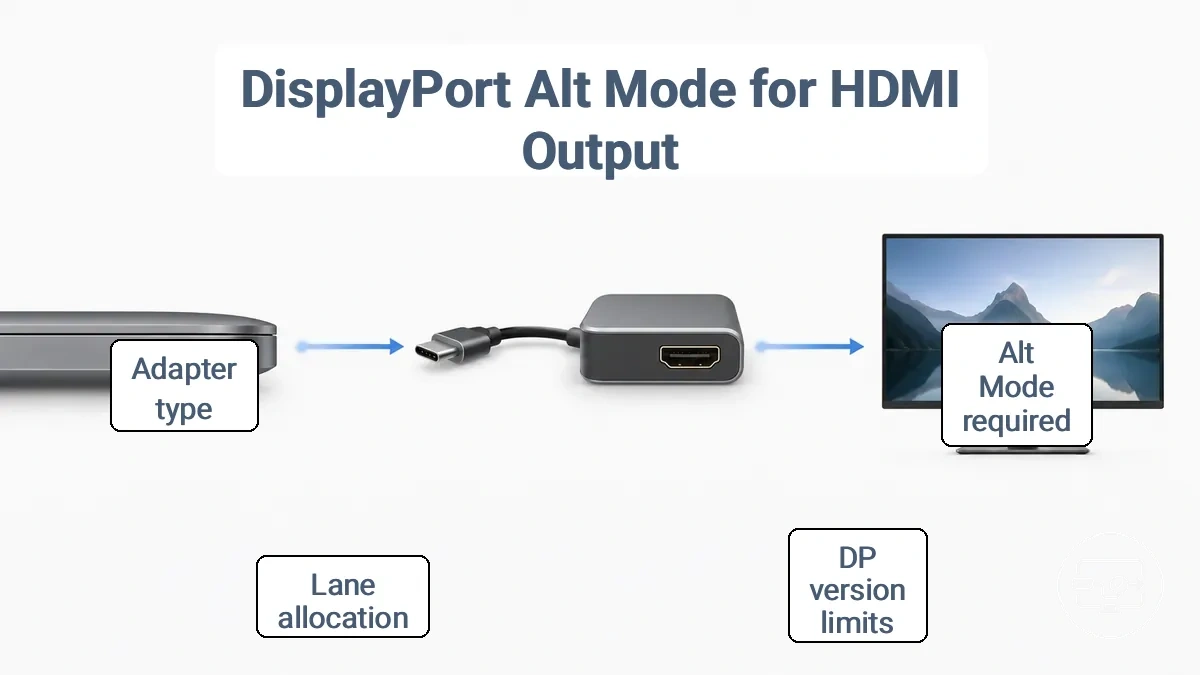
- The DisplayPort version supported by the source affects the available bandwidth.
- The number of lanes allocated to video affects maximum resolution and refresh rate.
- Some devices implement DP Alt Mode with limited capabilities, while others support high-bandwidth modes.
- The type of adapter matters: passive adapters rely on the source’s DP Alt Mode signal, while active adapters may convert from other protocols.
To verify that your setup meets the minimum Alt Mode conditions for HDMI output through USB-C, check the following:
- The device specifications state DisplayPort Alt Mode or DP over USB-C.
- The USB-C port is labeled with a DisplayPort or Thunderbolt logo indicating video output.
- The laptop or phone supports external display output through its USB‑C port.
- Your target resolution and refresh rate are within the bandwidth limits of the supported DP version.
- The adapter type (passive or active) matches the capabilities of your source port.
Bandwidth realities: DP version, lane use, and when resolution or refresh is limited
The DP version's bandwidth and lane allocation set practical ceilings for resolution, refresh rate, and HDR on a USB-C port. Performance remains conditional even with DisplayPort Alt Mode support. The table organizes typical limits by common bandwidth conditions, not fixed promises.
| Configuration | Likely practical ceiling | Typical compromise |
|---|---|---|
| USB-C with DP 1.4, 4 lanes | Can often support 4K at 60 Hz without compression; may reach 4K at 120 Hz with Display Stream Compression enabled | Lower refresh or chroma subsampling at higher resolutions |
| USB-C with DP 1.4, 2 lanes | Typically limited to 1440p at 60 Hz; can handle 1080p at higher refresh rates | May require reduced color depth or lower resolution for smoother motion |
| USB-C with DP 2.1 (UHBR10), 4 lanes | Common target for 4K at 144 Hz; may drive 8K at 30 Hz without compression | Compression or reduced refresh when pushing beyond typical bounds |
| USB-C with DP 2.1 (UHBR20), 4 lanes | Often used for 4K at 240 Hz; can support 8K at 60 Hz with DSC | Bandwidth can be strained with high HDR demands or multiple displays |
| USB-C with shared lanes (USB data active while displaying) | Reduced bandwidth may drop to 2 lanes or limit resolution to 1080p at 60 Hz | Display performance often degrades when simultaneous USB data transfer is active |
When USB data shares lanes with the DisplayPort signal, the reduced bandwidth limits resolution and refresh rate even if the port supports higher specs. Users may notice reduced display capability when external storage or high-speed peripherals share the same USB-C link, so overall port usage matters more than DP version support alone.
What the port provides versus what the adapter must actively convert
Whether a USB-C to HDMI adapter works depends on what the port provides—either a DisplayPort signal via DP Alt Mode or only USB data—and what the adapter must actively convert. The adapter class—passive, active, or USB graphics—needs to match what the port provides, because each class handles conversion differently.
| Adapter class | Requires from port | Typical HDMI result | Common limitations |
|---|---|---|---|
| Passive adapter | DP Alt Mode with DP++ support | Video output typically works without additional drivers; often up to 1080p or 1440p | May fail if port lacks DP++ or DP Alt Mode; limited to single display and lower resolutions in many cases |
| Active adapter (converter) | DP Alt Mode (DP++ not needed) | Higher resolutions such as 4K at 60Hz are possible; typically works with older GPUs | Still requires the USB-C port to provide a DisplayPort signal; may not work if port has no video output; may need USB power in some models |
| USB graphics adapter | No DP Alt Mode required; port needs to support USB data | Video appears through driver-based rendering; can work on any USB-C port | Driver installation required; visible latency; limited refresh rates; resolution caps often below 4K; not suitable for gaming |
Choose the right USB-C to HDMI solution based on what your port supports
Your choice depends on what your USB-C port supports—specifically whether it supports DP Alt Mode or Thunderbolt for video output.
Ports with DP Alt Mode or Thunderbolt support can typically use a passive USB-C to HDMI cable or adapter for direct video output.
Data-only ports (e.g., USB 3.2 without Alt Mode) cannot output video directly and require a hub or dock with active video conversion or a USB graphics adapter with driver support.
The decision diagram organizes solution choices by port capability, helping you identify the right category.
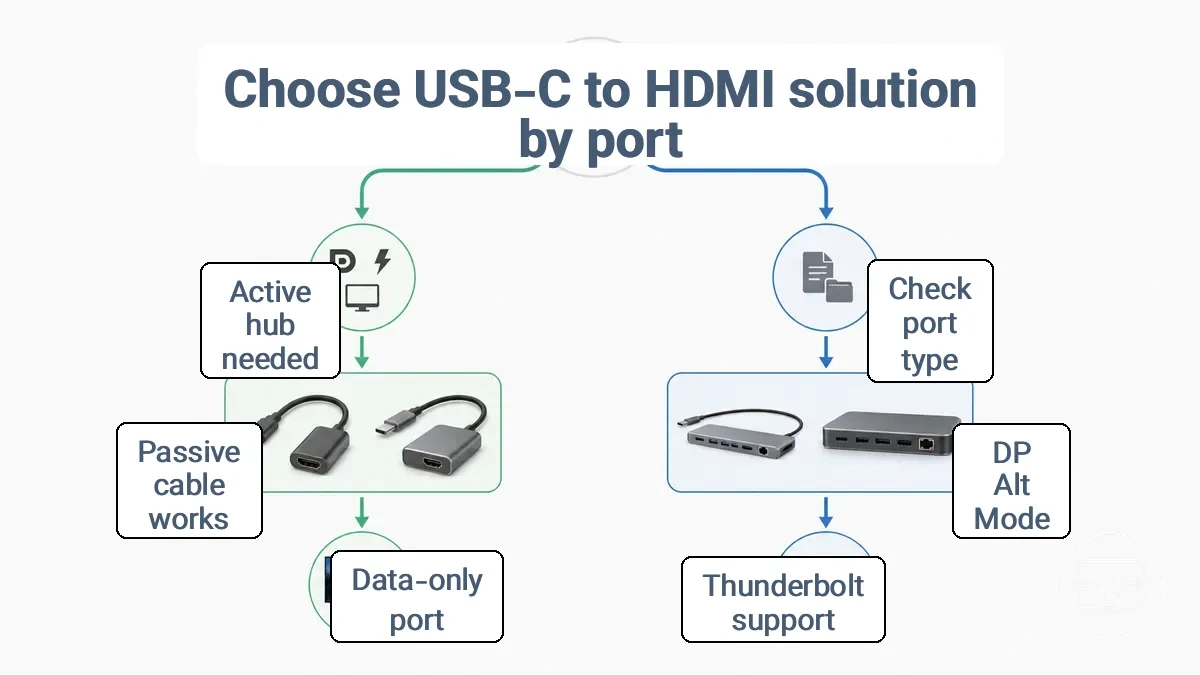
- Check your device's specifications to see if your USB-C port supports DP Alt Mode or Thunderbolt.
- If DP Alt Mode is supported, a passive USB-C to HDMI cable or adapter may work. Confirm that the cable matches your desired resolution and refresh rate.
- If Thunderbolt is supported, passive solutions work and support daisy-chaining and higher bandwidth. Check Thunderbolt cable compatibility for your performance needs.
- If your port does not support video output (data-only), a passive cable will not display any video.
- For data-only ports, a USB-C hub or dock with active video conversion (like DisplayLink) may allow video output, but often requires driver installation and may have performance limits. Verify driver support and system requirements before proceeding.
- For hubs or docks that rely on the port's video signal, video output only works if the port supports video output. Check reviews for success reports with your specific device.
Based on your port's capability, you can choose adapter, cable, or dock that fits your setup.
If your port supports DP Alt Mode: what “works” typically looks like
When a USB-C port supports DP Alt Mode, it reassigns its high-speed data lanes to carry a native DisplayPort signal, typically leading to immediate detection and the availability of modes like extended or duplicate in display settings.
The specific resolution and refresh rate depend on the device’s GPU, adapter class, and display capabilities. For example, a port using a two‑lane configuration may cap the output at a lower resolution or reduce the refresh rate to stay within available bandwidth. A full‑featured USB‑C cable is usually necessary to carry video and power simultaneously.
- Display is listed as a detected monitor in system display settings
- Extended or duplicate display mode and at least one supported resolution and refresh rate are selectable
- Maximum resolution may be lower than the display’s native maximum when bandwidth is shared with USB data
- Refresh rate can be limited when using high resolutions or when power delivery is active
If your port is data-only: when USB graphics (DisplayLink-style) adapters are the fallback
For a data-only USB-C port with no native video output, USB graphics (DisplayLink-style) adapters offer a software-based fallback that uses the host computer's CPU and internal graphics system.
- Driver requirement: A dedicated driver must be installed on the host system so the adapter is recognized and can output video. Without it, the adapter will not function as a display.
- OS compatibility: Support depends on the operating system version. Windows and macOS have different driver availability and integration levels; Linux may require additional setup. Compatibility is not universal.
- Performance and latency: Video performance depends on the workload and the host CPU. Demanding tasks such as gaming, high-refresh-rate video, or GPU-intensive applications may experience more latency or lower frame rates than native video output.
- Protected content limitations: HDCP-encrypted streams (e.g., from streaming services) may be limited or unavailable over a USB graphics connection. This varies by adapter and software version.
- Application limitations: Some applications that require direct GPU access or specific graphics APIs may not work correctly over a software-based display connection. Compatibility should be verified per application.
- Troubleshooting boundary: When the adapter is not recognized, common checks include verifying the USB cable, ensuring adequate power delivery (especially for bus-powered devices), and testing on another USB port or computer. Persistent issues may indicate a hardware fault.
- Compatibility variability: The combination of USB graphics chip, host hardware, and driver version can lead to inconsistent behavior. Not every adapter will work optimally with every system.
Match port capability to display expectations: 1080p vs 4K, refresh rate, and HDR
Higher resolution, higher refresh rates, and HDR output increase the requirements your USB‑C port, cable, and adapter must meet. Delivering a specific mode, such as 4K at 60 Hz with HDR, depends on the weakest link in the chain — typically the available bandwidth, adapter capability, or display support.
Limitations come from the host port’s DisplayPort alternate mode version, the adapter’s capabilities, and the display’s input support. For example, a port with DisplayPort 1.2 may struggle with 4K at high refresh rates, especially when USB data or multiple displays share the same connection. An adapter rated only for 4K 30 Hz cannot output 4K 60 Hz even if the laptop’s port could theoretically supply it.
The table maps common display goals to the conditions that usually determine success and the typical bottlenecks that prevent it.
| Display goal | Typical requirement signals | Common bottlenecks |
|---|---|---|
| 1080p | Low bandwidth needed; works over most DP Alt Mode ports | Data-only USB‑C port, charge-only cable, or poor adapter quality |
| 4K (30 Hz or 60 Hz) | 4K 30 Hz often requires DisplayPort 1.2 or higher; 4K 60 Hz often needs DisplayPort 1.4 with DSC | Older adapter limited to 4K 30 Hz, insufficient bandwidth due to shared USB data, or a cable not rated for the required data rate |
| Higher refresh (e.g., 1440p 144 Hz, 4K 120 Hz) | Higher bandwidth demand; DisplayPort 1.4 with DSC or Thunderbolt often required | Cable length (longer runs weaken signal), adapter that caps refresh rate, or host port that lacks enough bandwidth for the combined resolution and refresh |
| HDR | Adds overhead for 10‑bit color and higher brightness data | Adapter that does not support HDR passthrough, insufficient DP version (e.g., DP 1.2 without DSC), or display that requires a specific HDR format the adapter cannot deliver |
Power, Charging Passthrough, and Port-Sharing Constraints with Hubs or Docks
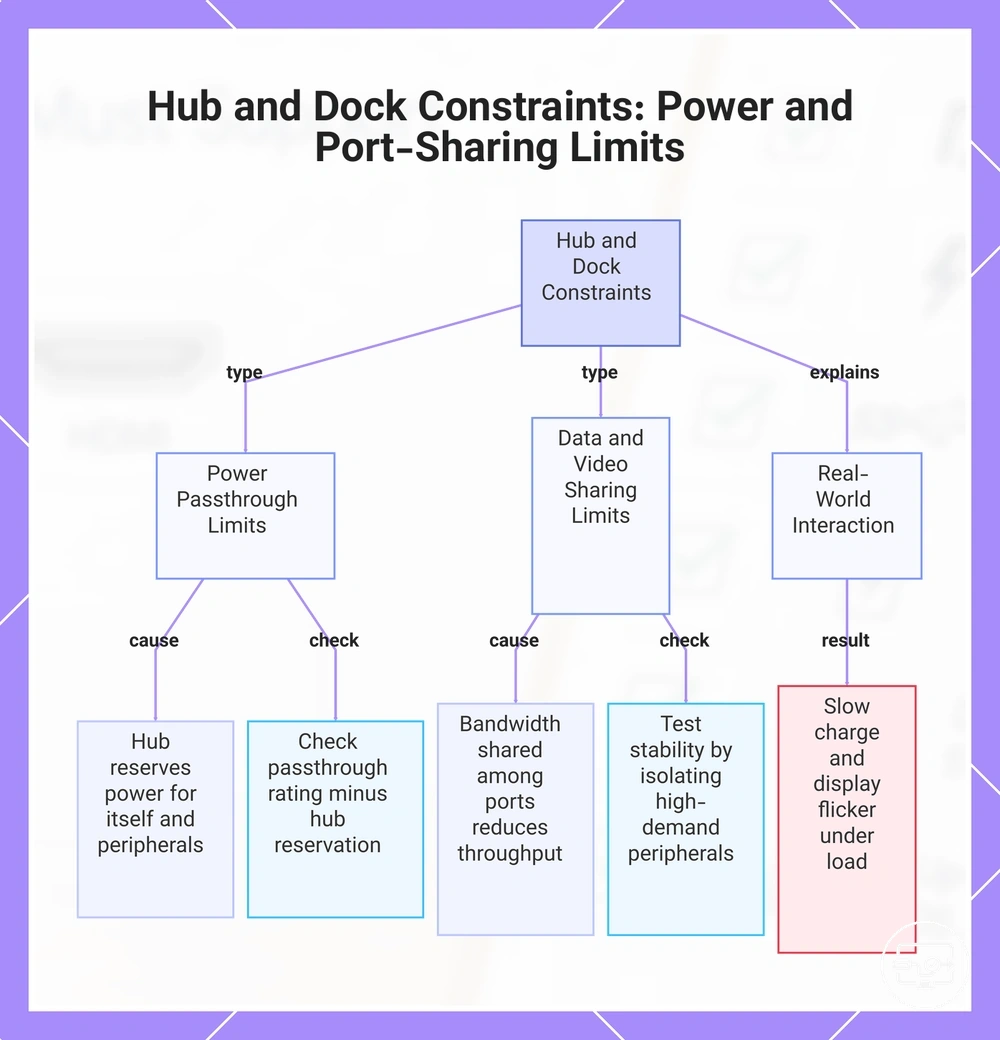
Hubs and docks introduce power delivery and port-sharing constraints because they add negotiation steps and share bandwidth; a hub with charging passthrough does not generate power itself but relies on an external adapter connected to its dedicated input port. During passthrough, the hub reserves power for its own operation and peripherals, so the laptop may receive less than when charging directly. Data ports and video outputs share the hub’s internal bandwidth; simultaneous use of multiple high-speed functions can reduce performance or cause intermittent behavior.
Power delivery issues differ from data and video sharing problems. On the power side, the external adapter’s wattage, the hub’s internal power allocation, and the Power Delivery negotiation between the hub and the connected device all determine how much charging current reaches the laptop. A hub that claims 100 W passthrough may only forward 85 W to the host after reserving 15 W for downstream ports and hub logic. On the data and video side, hubs and docks route multiple signals over a single connection, limiting throughput. Running a 4K display at 60 Hz alongside a high-speed SSD can push the hub’s internal controller to its limits, potentially causing flicker, dropped frames, or slower data transfers. These limitations are not inherent to USB-C itself but arise from the hub’s design and its port-sharing architecture.
A common real‑world scenario shows how power and sharing constraints interact. Suppose you connect a laptop to a multiport adapter that supports charging passthrough and then attach an HDMI monitor. The hub’s internal power controller negotiates with the laptop to determine how much current it can supply after reserving power for the HDMI output and any other peripherals. If the external adapter provides just enough wattage to cover the laptop’s peak demand under load, the passthrough reserve may leave the laptop with insufficient power during heavy tasks, triggering a slow charge or a gradual battery drain. The shared connection between HDMI and USB data ports can cause the display to flicker or the data connection to stutter when both are active. These outcomes depend on the specific hub design, the laptop’s power requirements, and the cable or adapter used; they are not guaranteed but can contribute to an unstable experience.
The following checklist separates power input requirements from port-sharing constraints to help you identify where issues may arise when using hubs or docks:
- Confirm that the external power adapter’s wattage meets or exceeds the combined power needs of the laptop and any bus‑powered peripherals.
- Check the hub’s passthrough rating and subtract the power it reserves for internal use to estimate the actual wattage available to the host.
- Verify that the Power Delivery negotiation between the hub and laptop supports the voltage and current your device requires under typical load.
- Be aware that simultaneous use of multiple high‑bandwidth video outputs (e.g., two 4K displays) can reduce the bandwidth available for data transfer.
- Test stability by connecting the highest‑demand peripherals one at a time to isolate whether flicker or slowdowns are tied to port‑sharing or to power limitations.
- If the hub provides dedicated charging ports for accessories, note that those ports draw from the same external adapter and further reduce passthrough power to the host.
This chart explains the two main types of constraints introduced by hubs and docks—power delivery limits and data/video bandwidth sharing—along with a real-world example and practical checks.
Why HDMI output can fail even when the port is capable
A capable USB-C port does not guarantee HDMI output.
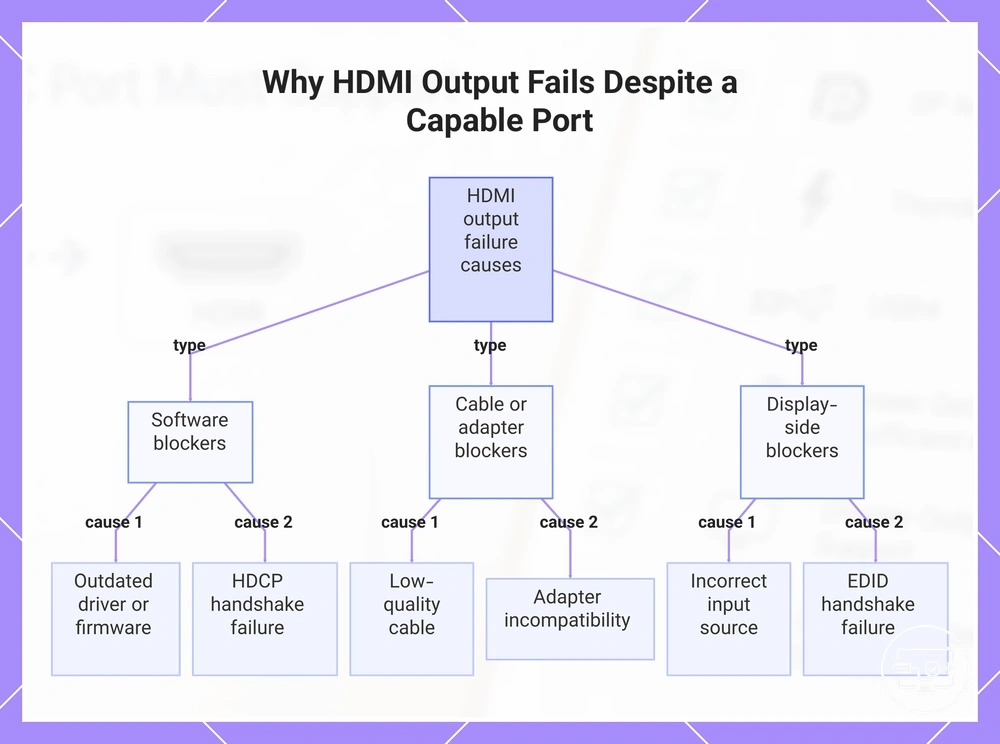
A verification-first approach helps identify the actual block. Instead of assuming a hardware defect, check the software environment, the cable or adapter path, and the display's input configuration. Intermittent or total failures may trace back to a single manageable condition rather than a failed port.
Why HDMI output can fail even when the port is capable: common blockers are organized by where they occur.
- Driver or firmware version — May prevent detection or cause intermittent no output. Verify that graphics drivers and firmware are up to date through the device manager or manufacturer utility.
- HDCP handshake failure — Can result in a black screen or no output even when the device is detected. Check that all devices in the chain support the same HDCP version and that no incompatible intermediate hardware is present.
- Resolution or refresh rate mismatch — May produce no signal or a blank display. Confirm that the output resolution and refresh rate are within the display's supported range; reduce settings if uncertain.
- Operating system display mode — Setting to 'PC screen only' may not send output to the HDMI port. Use the projection menu (Windows key + P) to select Duplicate or Extend and confirm detection.
Cable or adapter blockers
- Cable quality — Low-quality cables may degrade the signal, leading to flickering or no output. Verify with a known-good cable rated for the required bandwidth.
- Cable length — Signal loss over long cable runs may cause flickering or no output. Verify with a shorter cable if possible.
- Adapter incompatibility — A USB-C to HDMI adapter may not support Alt Mode with the specific device. Check that the adapter is rated for video output and compatible with both the source and the cable.
- Loose or damaged connection — May cause intermittent signal dropout or no detection. Verify that the connector is fully seated at both ends and inspect for bent pins or debris.
Display-side blockers
- Input source selection — The display may be set to the wrong HDMI input, showing a black screen despite a live signal. Verify that the correct input is selected using the TV or monitor's source menu.
- HDMI port setting — Some displays offer adjustable HDMI version or mode per port. An incompatible setting may block detection or output. Check the display's on-screen menu for port-specific settings.
- EDID handshake failure — If the display does not return correct EDID data, the source may disable output. Try cycling the display power or connecting a different source to verify the port itself works.
- HDCP compliance conflict — Older or non-compliant displays may refuse HDCP-protected content. Check if the issue occurs only with protected content; a non-protected test signal can help isolate the cause.
For a more targeted diagnostic flow, if it fails, troubleshoot by symptom.
Frequently Asked Questions
Question: Why does it work on one laptop but not another?
Answer: Compatibility can depend on the specific USB-C implementation, including Alt Mode support, DisplayPort version, and power delivery negotiation. One laptop may supply the correct signal while another does not, even when both appear capable.
Question: Why do I get no signal even with Alt Mode?
Answer: Alt Mode support alone may not guarantee output if the cable, adapter, or display side introduces a compatibility gap.
This chart shows common blockers that cause HDMI output failure even when the port is capable, organized by where they occur: software, cable or adapter, and display-side issues.
Drivers, firmware, and device settings that commonly block external display detection
Software gates such as display settings, drivers, firmware toggles, and security prompts commonly block external display detection even when the cable and monitor are functional. Checking these gates helps isolate the cause before assuming hardware incompatibility.
- Check display mode: an incorrect mode can prevent the external monitor from showing content. Use Win+P to select Extend or Duplicate.
- Check the detected monitors list in Settings > System > Display. A missing monitor may indicate the software layer is not receiving identification data. Use the Detect button.
- Check the graphics driver state under Device Manager > Display adapters. A corrupted, missing, or disabled driver can block detection. If a recent update triggered the issue, reinstalling or rolling back the driver may restore functionality.
- Check USB/Thunderbolt permissions: some systems require explicit authorization for display output. Look for security prompts or blocked devices in Device Manager and re-authorize the dock or monitor to resolve detection.
- Check firmware/BIOS display output toggles: some laptops include a setting to disable external outputs (not universal, but if available, ensure it is enabled).
- Check the fast startup setting in Power Options. Temporarily disable it to rule out this setting as a cause.
- Reboot after changes because a full restart finalizes the detection chain and applies pending changes.
Device-category limits that frequently prevent output: laptops versus phones and tablets
Laptops often support video output via USB-C, while phones and tablets frequently limit or lack this capability.
| Category | Typical USB-C Video Support | Documentation Source | Common Blockers | What to Check |
|---|---|---|---|---|
| Laptop | Often supports external display via USB-C; varies by model and port specification | Manufacturer specifications, port diagrams | Insufficient port bandwidth, missing DisplayPort alternate mode | Look for DisplayPort alt mode symbol or video output mention in specs |
| Phone/tablet | Model-dependent; some support video output, many do not | Manufacturer documentation, device manual | OS limitations, lack of alternate mode support, cable compatibility | Verify if device lists "external display" or "video output" in its feature set |
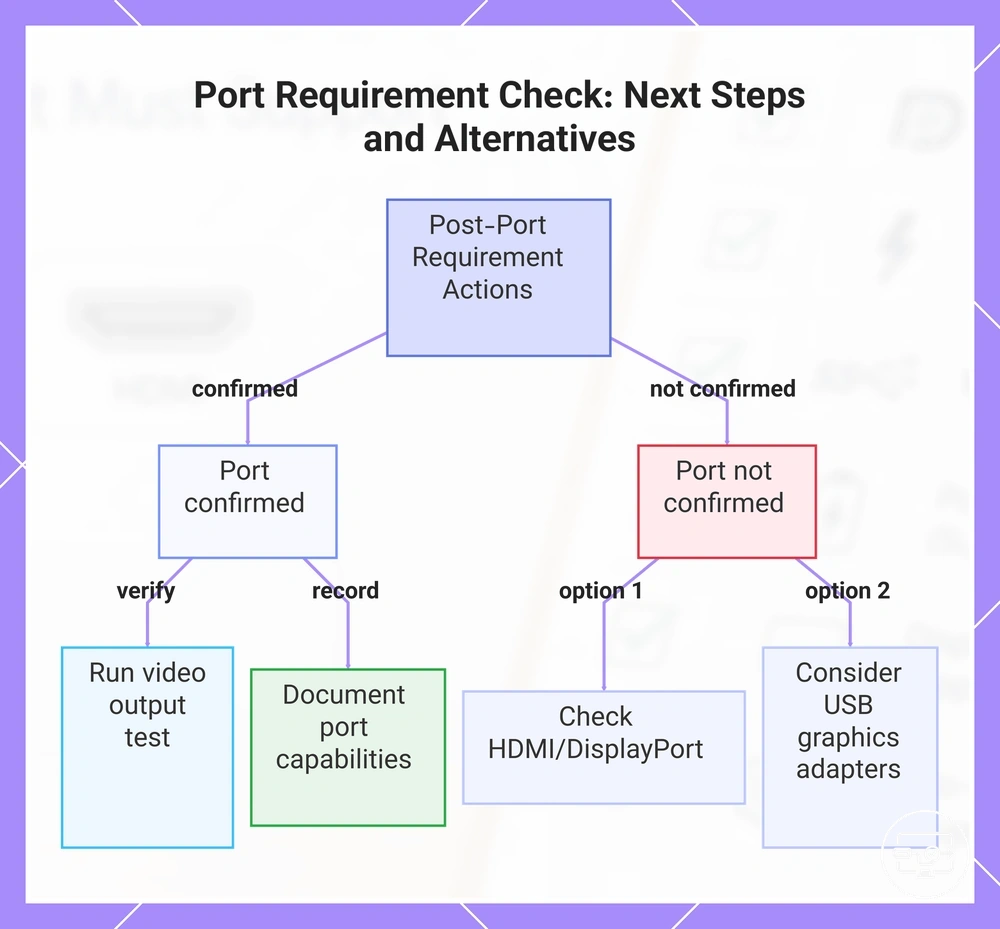
Checklist results: what to do after you confirm (or fail) the port requirements
When the port requirements are confirmed, the next check is to verify video output and adapter compatibility. When not confirmed, alternatives become the selection path.
When port requirements are confirmed (supports video output):
- Verify that the port outputs video by running a compatibility test with your display.
- Check the adapter's specifications to ensure it matches the video format needed.
- Confirm the cable supports your display's resolution and refresh rate.
- Test the connection with the display to verify stable video output.
- Document the port's video output capabilities for later compatibility checks.
When port requirements are not confirmed (does not support video output):
- Check alternative ports like HDMI or DisplayPort for video support.
- Test wireless display compatibility if both device and display support it.
- Consider USB graphics adapters as an alternative for video output.
- Look up alternate mode support in device documentation to find available options.
- Check for firmware or driver updates that may enable video support through the port.
This chart shows the actions to take after confirming or failing port video output requirements, including verification steps and alternative solutions.
If the port supports video output: what to verify next before buying
After confirming your laptop's USB-C port supports video output, check the rest of the connection chain before buying a monitor or adapter.
To avoid surprises when claims don't match reality, follow this checklist and learn how to verify compatibility before buying with a hands-on test.
- Verify your target resolution and refresh rate: Why it matters: The monitor, cable, and adapter must all support the same resolution and refresh rate; mismatches can cause blank screens or degraded performance.
- Check the adapter type (passive vs. active): Why it matters: Passive adapters require DisplayPort Alt Mode from your port, while active adapters may have different support; confirm that your adapter's claimed capabilities work on your specific laptop.
- Confirm cable quality and length: Why it matters: Video-rated USB-C cables (labeled for DisplayPort Alt Mode or Thunderbolt) can carry a display signal; longer cables can affect high-resolution performance.
- Review your display's input version (e.g., HDMI 2.0, DisplayPort 1.4): Why it matters: The monitor's video input version sets the maximum resolution and refresh rate; verify that it matches your adapter's output standards.
- Check operating system support: Why it matters: Some OS versions need driver updates or extended display settings to enable full performance; confirm that your system supports the connected display at the intended settings.
- Plan a compatibility test before purchase: Why it matters: Testing the full chain (laptop, cable, adapter, monitor) helps confirm compatibility in your actual setup, catching issues that specifications alone might miss.
- Review the return policy for the adapter or monitor: Why it matters: If the combination does not work as expected, a clear return path protects your purchase.
If the port does not support video output: the realistic alternatives to HDMI out
When the USB-C port does not support video output, connecting an HDMI display directly through that port is not possible because the port lacks the necessary video signal for DisplayPort Alt Mode.
Which alternative works depends on your priorities for latency, reliability, and portability. These alternatives are organized by feasibility and trade-offs.
- Other native ports (HDMI, DisplayPort): If available, a dedicated HDMI or DisplayPort output provides a reliable, high-quality connection without conversion issues.
- Docking station via a different interface: Some laptops support video output through a docking station connected via USB-C with DisplayPort Alt Mode, Thunderbolt, or USB4—but only if the USB-C port supports those standards.
- Wireless display (Miracast, AirPlay, Chromecast): Wireless casting can transmit the screen to an HDMI-equipped TV or projector without a physical cable. Latency and image quality vary with network conditions, so this may be acceptable for static content but less suitable for real-time interaction.
- USB graphics adapter (USB 3.0 to HDMI): A USB 3.0 to HDMI adapter can add a video output to a port that lacks native video support. Performance is limited to lower resolutions (typically 1080p) and may introduce slight lag, making it a viable backup for basic productivity or secondary displays.
- Device upgrade consideration: If workarounds cannot meet display needs, upgrading to a device with native video output on its USB-C port or a dedicated HDMI port may be a long-term solution, but involves cost.