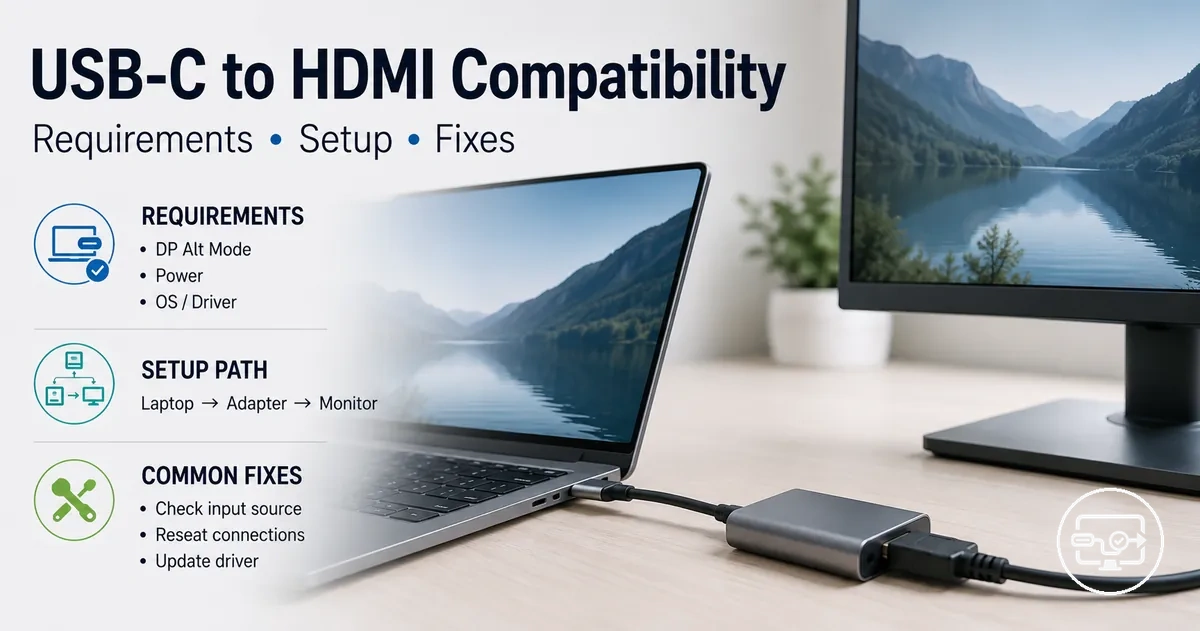
USB-C to HDMI Compatibility
USB-C to HDMI compatibility is the ability of a device with a USB-C port to send video and audio to an HDMI display through a suitable adapter, cable, hub, or dock. Whether a connection works depends on three factors: the USB-C port's video output support, the conversion path, and the display's input capabilities.
When you plug a USB-C to HDMI adapter into a device and the screen stays dark, the issue may not be a faulty cable. Instead, it is often a misunderstanding: the shape of the USB-C connector alone does not tell you whether that port can output video. A USB-C port may carry only data or power, not display signals.
Does a USB-C port support HDMI? It depends on whether the port includes DisplayPort Alternate Mode (DP Alt Mode) support. If it does, a passive adapter can carry the display signal. If it does not, an active converter may be needed, or the port may not support video output at all. Understanding these conditions helps you check your device first, choose the right conversion path, and set realistic expectations for resolution and performance.
The outcome of a USB-C to HDMI connection depends on several factors:
- USB-C port video output support (DP Alt Mode, Thunderbolt, USB4)
- Passive or active conversion method
- Cable, hub, or dock capabilities
- Display input mode and settings
- Bandwidth limits for 4K, HDR, or high refresh rates
Manufacturers implement video support differently across device models. The same adapter can work on one laptop and fail on another. The reliable approach is to verify the port's capability before assuming the adapter or cable is at fault.
When USB-C can output HDMI and when it cannot
Whether USB-C can output HDMI depends on two factors: the device's USB-C video output support and the chosen conversion path. These two determinants set the boundary between a working display signal and a 'no signal' outcome.
Many users assume that any USB-C port works with HDMI adapters, but video output is an optional feature. A port may support charging and data transfer without supporting video. The criteria below show when USB-C to HDMI usually works and when it usually fails.
When USB-C can output HDMI, specific conditions are typically present; when it cannot, one or more supporting factors are missing.
- Usually works when: The USB-C port supports DisplayPort Alt Mode or Thunderbolt, and the adapter matches the required conversion path. The display input is set correctly, and the adapter is properly seated.
- Usually works when: The device specification lists 'video output' or 'external display support' for the USB-C port. The adapter is known to be compatible with the source device.
- Usually works when: A dedicated USB-C to HDMI cable or a powered hub is used, maintaining stable signal integrity.
- Usually fails when: The USB-C port is designed for charging or data only and does not pass video signals. The typical symptom is 'no signal' on the display.
- Usually fails when: The conversion path is missing or the adapter does not support the required protocol, even if the port supports video output. A wrong adapter type can block the signal.
- Usually fails when: The connection is loose, the adapter is low-quality, or the cable length exceeds stability limits, leading to intermittent display or no detection.
Across all cases, the most common missing condition is that the USB-C port itself lacks video output support.
A common misconception is that all USB-C cables can transmit video. In reality, a cable designed only for charging or data cannot carry an HDMI signal. The first step is to verify the port capability, not to replace the adapter.
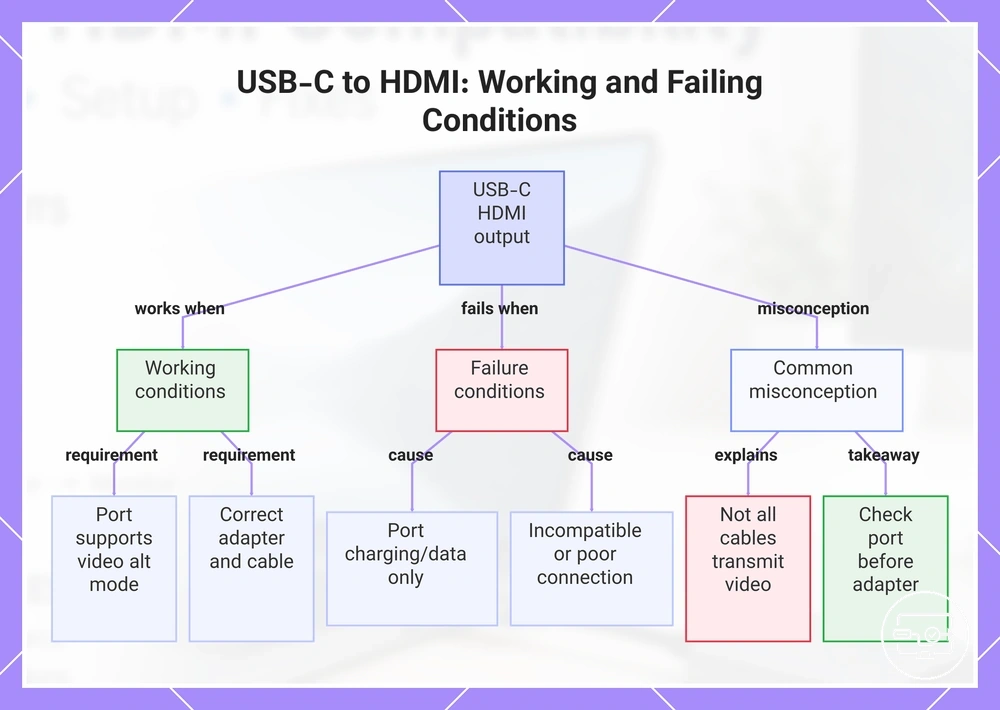
This chart shows the key conditions that determine whether a USB-C port can output HDMI, including common misconceptions and the first troubleshooting step.
Why a USB-C connector is not proof of video output
A USB-C connector is a physical plug shape. It does not signal what the port can do. A port with that connector shape can deliver charging only, data transfer only, video output, or a combination, depending on how the manufacturer designed the internal port hardware. Video output requires additional support through protocols built into the port, not merely the connector shape.
- Connector shape – The physical plug fits any USB-C port but does not indicate the port's internal capabilities.
- Data capability – A port may support high-speed data transfer without including the display routing needed for video output.
- Video output capability – For a port to output video, the hardware needs to route display signals from the graphics system through the USB-C controller, a feature that is optional and often absent.
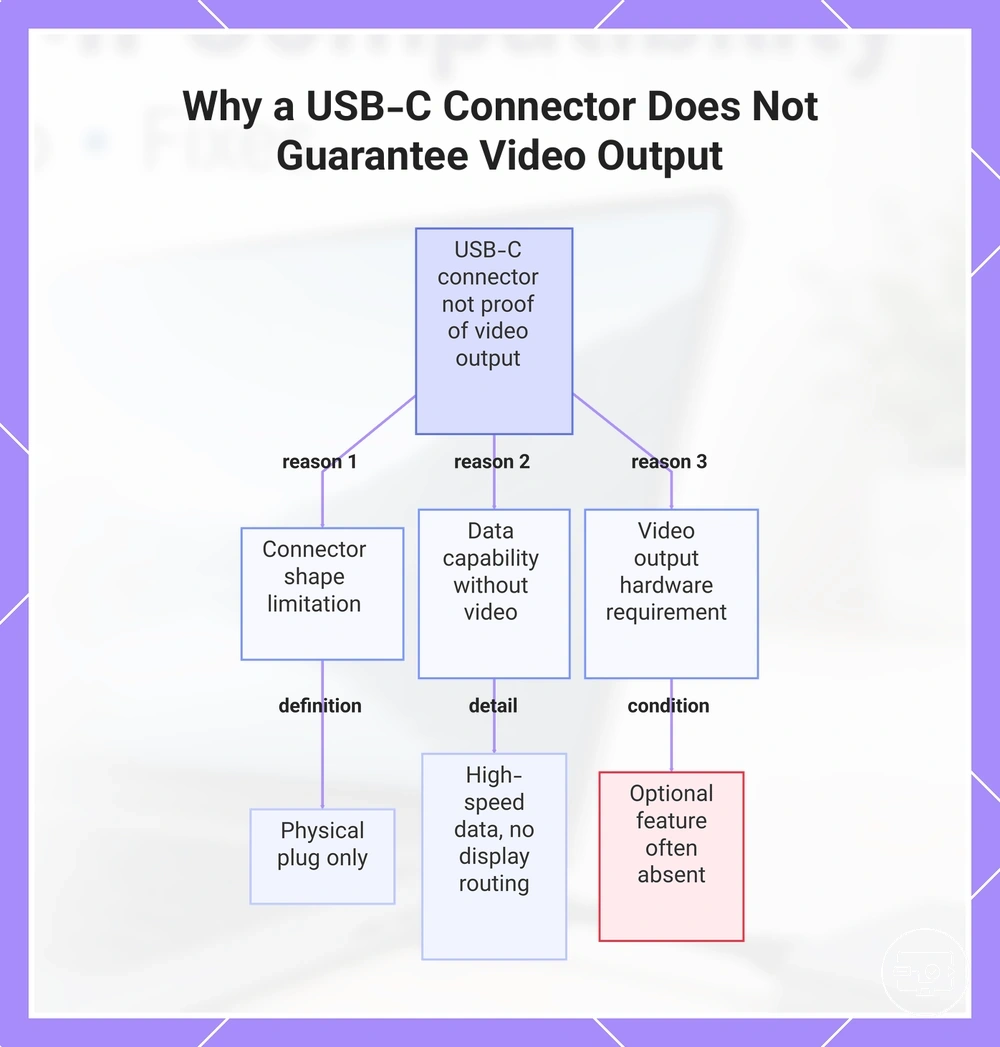
This chart explains why the USB-C connector shape alone does not prove video output capability, covering the physical limitation, data-only scenarios, and the hardware requirement for video.
Compatibility misconceptions that cause wrong purchases and wrong troubleshooting
Most USB-C to HDMI compatibility failures stem from a fundamental mismatch between what users assume and what their devices actually support. A wrong assumption about port capability, cable direction, or display settings lies behind most failures, leading to wasted spending on the wrong adapter and hours of misplaced troubleshooting.
- Misconception: Any USB-C cable or adapter can output HDMI. Correction: The USB-C port must support video output (typically via DisplayPort Alt Mode); a charging-only or data-only port cannot send a display signal. Outcome: No signal often appears even when the adapter is plugged in correctly.
- Misconception: A USB-C to HDMI cable works regardless of which end connects to the source. Correction: Signal direction is fixed; the cable must be oriented from the device that has video output toward the display. Outcome: Reversing the cable may cause no signal or an unstable connection.
- Misconception: All USB-C ports that charge also support video output. Correction: Many phones, tablets, and laptops use USB-C for charging and data only; video output requires additional hardware support. Outcome: No signal typically results because the port lacks the required video pins.
- Misconception: A 4K-rated adapter guarantees 4K output on any device. Correction: The source device must also support 4K output through its USB-C port, and the cable bandwidth must be sufficient. Outcome: Lower resolution, flickering, or no signal may appear when the chain cannot handle the target mode.
- Misconception: A Thunderbolt port always works with any HDMI adapter without additional configuration. Correction: Thunderbolt can carry video, but the port implementation may limit HDMI output depending on the device manufacturer's design. Outcome: No signal or limited mode may occur despite the Thunderbolt label.
- Misconception: A hub or dock with HDMI can create video output even if the source device does not support video. Correction: Hubs and docks cannot generate a video signal; they only convert or pass through what the source provides. Outcome: No signal is the typical result when the source lacks video capability.
One critical distinction is the difference between a USB-C port that lacks video output and a display that is set to the wrong input; the symptom—no signal—looks the same, but the fix differs.
USB-C port capabilities that determine HDMI output
The USB-C port's supported video mode is the primary determinant of whether HDMI output succeeds. Three capability groups — video mode, bandwidth and performance, and power negotiation — define what a USB-C port can deliver to an external display.
A USB-C port must support a video output mode such as DisplayPort Alt Mode or Thunderbolt to carry a display signal. When this capability is present, the port can transmit video through a compatible adapter or cable to an HDMI display.
The specific mode version typically determines the conversion requirement: ports with DisplayPort Alt Mode can often use a passive adapter for many connections, while ports without native video support require active conversion or a separate graphics-based solution. The output result — stable video, limited resolution, or no signal — follows from the capability present in the port.
The following table organizes the port capabilities that determine HDMI output into three groups, showing what to look for and what each group affects.
| Capability group | What to look for | What it affects |
|---|---|---|
| Video mode | DisplayPort Alt Mode or Thunderbolt support | Whether HDMI output is possible through the port |
| Bandwidth / performance | Supported resolution, refresh rate, and HDR capability | Maximum stable resolution and frame rate |
| Power / negotiation | Power delivery support and charging passthrough | Ability to charge while using HDMI and signal stability |
Two identical-looking USB-C ports on different devices can behave differently because one supports DisplayPort Alt Mode and the other does not. One may drive a 4K display at 60 Hz through a passive adapter, while the other produces no signal regardless of the adapter used. The visible difference comes from the port's internal capability, not the connector shape.
This section covers capability attributes only; for setup steps or symptom troubleshooting, see the dedicated pages on this site.
DisplayPort Alt Mode as the most common HDMI output pathway
DisplayPort Alt Mode allows a USB-C port to carry DisplayPort video signals for output to an external display. It repurposes some of the connector's high-speed lanes for video transmission. This mode only works when the device's USB-C port and supporting hardware explicitly include support for this function.
When a USB-C port supports DisplayPort Alt Mode, it becomes the most common pathway for sending video to an HDMI display. Adapters and cables using this mode often need only passive signal handling when the signal is compatible. However, the presence of this mode depends on the device's design, not on the connector shape. For a closer look at how DisplayPort Alt Mode enables HDMI output, see our dedicated explanation: DisplayPort Alt Mode and HDMI output.
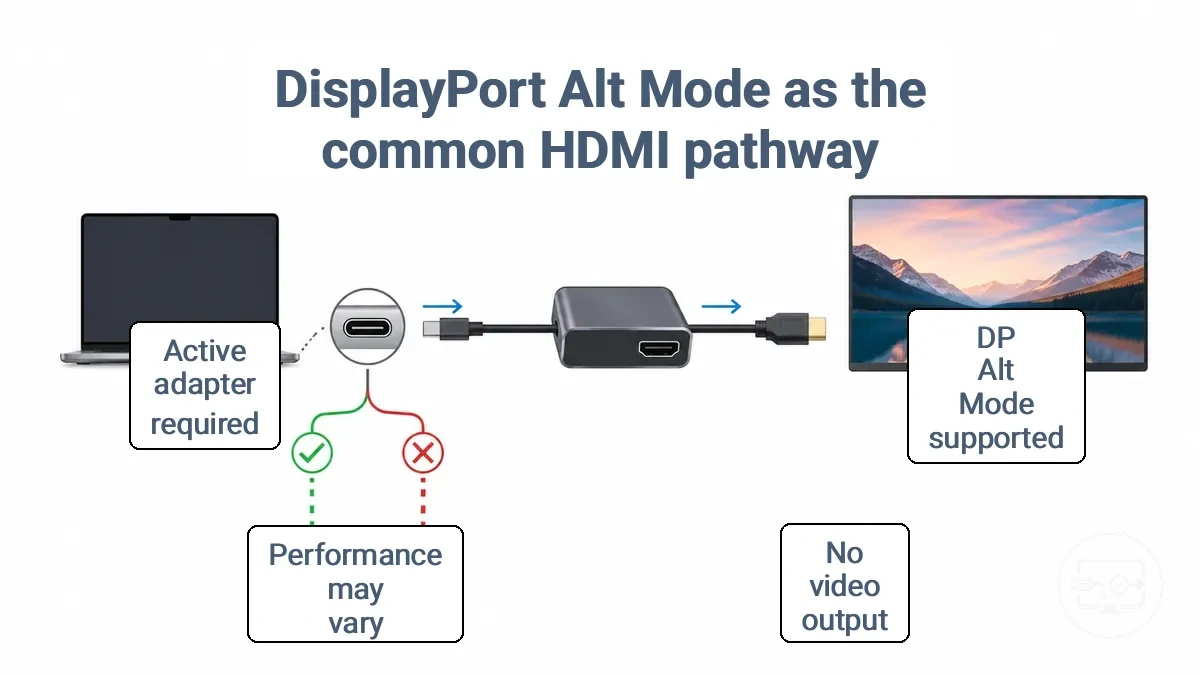
- When a device supports DP Alt Mode, a USB-C to HDMI adapter or cable can often pass the video signal directly, requiring only passive conversion for signal routing.
- When DP Alt Mode is not supported, the USB-C port cannot output a native video signal, so any adapter will not produce HDMI output regardless of conversion type.
- Even with DP Alt Mode present, the adapter's conversion chip and cable quality can affect the achievable resolution and refresh rate, so performance may vary.
- Some devices with DP Alt Mode may still require an active adapter if the video signal needs protocol conversion from DisplayPort to HDMI, which can introduce additional bandwidth limitations.
Thunderbolt vs standard USB-C ports for external displays
Whether a Thunderbolt-labeled USB-C port supports HDMI output depends on the device configuration, not just the branding. Thunderbolt branding often correlates with display support, but the actual capability varies by model and manufacturer. Verify on the device spec sheet.
- Port label vs actual support: A lightning-bolt icon next to a USB-C port often indicates Thunderbolt support, but some devices omit markings or use inconsistent symbols. A plain USB-C port may or may not support video output.
- Device spec verification: Check the device documentation or manufacturer website for explicit mention of Thunderbolt or DisplayPort Alt Mode support.
- Expected behavior differences: Thunderbolt ports typically support higher bandwidth (up to 40 Gbps) and can drive multiple 4K displays, but verify on your model. Standard USB-C ports often handle a single 4K stream at 60 Hz when Alt Mode is present. Both can deliver up to 100 W of power.
- Common limit: A USB-C port that lacks Thunderbolt or DisplayPort Alt Mode often cannot output HDMI regardless of the adapter or cable used. Thunderbolt ports accept USB-C devices, but USB-C ports typically cannot unlock Thunderbolt features.
How to check whether your USB-C port supports video output
The fastest checks are your device’s spec sheet, port markings, and known supported display modes. These three methods together give a reliable answer without needing to buy an adapter first.
A quick verification before purchasing any adapter or cable helps avoid spending on incompatible hardware. Use the following checklist to confirm your USB-C port’s video output capability with high, medium, or low confidence.
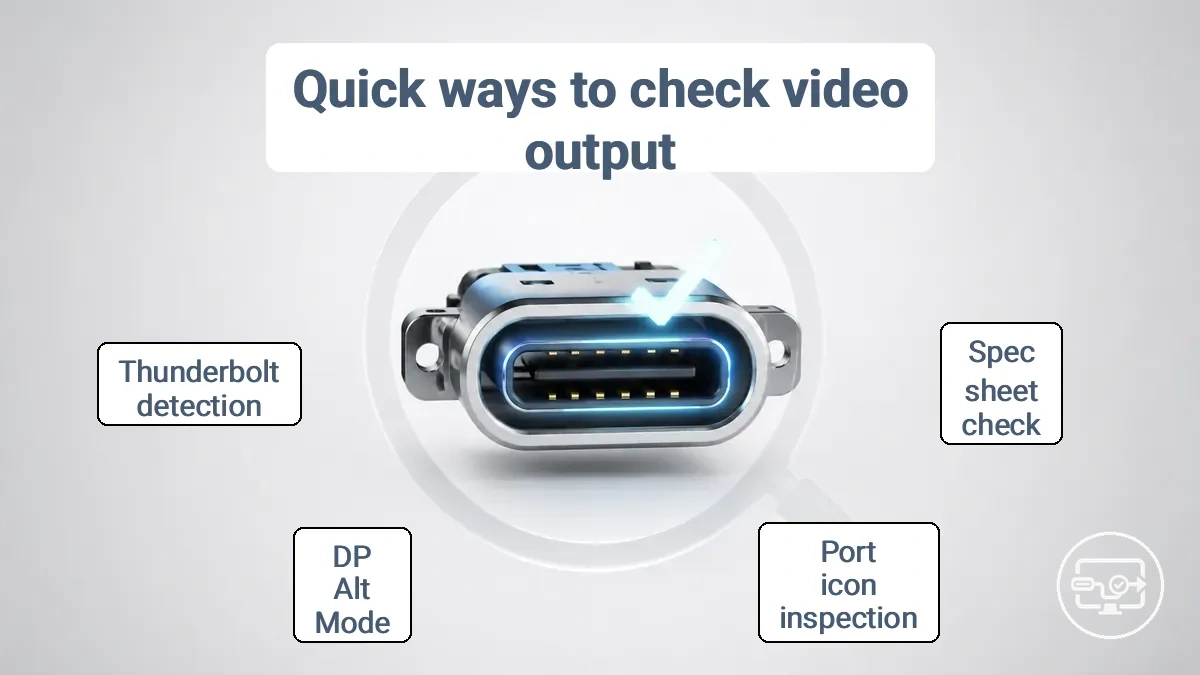
- Check the device spec sheet – Look for phrases like “DisplayPort out”, “DP Alt Mode”, “Video output”, or “External display support”. This provides high confidence if the terms appear in the official documentation.
- Inspect the port label – Some USB-C ports have a small “DP” icon next to them. This icon indicates DisplayPort Alt Mode support, offering medium confidence because markings vary by manufacturer and some ports lack visible labeling.
- Look for a lightning bolt symbol – This symbol usually means Thunderbolt 3 or 4, which includes video output support. High confidence if the symbol is present, but it does not guarantee the specific HDMI or resolution you need.
- Search by model number on the manufacturer’s support site – Enter your device’s exact model number and look for “specifications” or “technical details”. Terms like “USB-C with DisplayPort” or “Thunderbolt” confirm support with high confidence.
- Check the user manual (PDF) – The manual often contains a port diagram or a table listing each port’s capabilities. Search within the manual for “video”, “output”, or “Alt Mode”. Medium to high confidence.
- Try connecting a known-working display via an adapter you can return – If you already have access to a friend’s adapter or a store with a flexible return policy, a quick physical test gives definitive low-cost confirmation. Low confidence for prediction, but definitive for that specific chain.
- Use a system information tool (Windows) or About This Mac (macOS) – In Windows, check Device Manager under “Display adapters” for integrated graphics or external display support. In macOS, the system report lists Thunderbolt/USB-C capabilities. Medium confidence because the information may be generic.
- Verify whether your phone or tablet supports USB-C video out – Many mobile devices use USB-C only for charging and data. The spec sheet or manufacturer site must explicitly mention “video output” or “DisplayPort Alt Mode”. Low confidence unless stated clearly.
The table below organises these check methods by what they reveal and how reliable they are. Use it to compare approaches quickly.
| Check method | What it tells you |
|---|---|
| Device spec sheet | Strong indicator of video output support (e.g., “DisplayPort out”) |
| Port markings (DP icon, lightning bolt) | Visual hint of Alt Mode or Thunderbolt support |
| Manufacturer support site (model search) | Official spec listing with or without display output |
| User manual PDF | Port capability table or diagram |
| Physical test with returnable adapter | Actual behaviour under your specific setup |
| System information tool | Generic display adapter details, may not show USB-C video support |
For a deeper step-by-step checklist that covers the main requirements, including how to interpret ambiguous port markings and what to do when the spec is incomplete, refer to the USB-C to HDMI compatibility checklist.
Spec-sheet and port-marking signals that indicate display output support
The most reliable way to confirm that a USB-C port supports video output is to consult the official documentation for the device. A spec sheet typically includes a line specifying whether the USB-C port supports DisplayPort Alt Mode or external display output. Port markings and OS indicators can be helpful but are secondary cues and should be cross-checked with documentation because documentation outranks icons.
- Documentation
- Spec sheet: confirms display output support when it explicitly lists Alt Mode or external display capability. Reliability is high, but check the exact model variant because specifications can differ within a product line.
- Device manual: details exact port capabilities. Reliability is moderate; ensure the manual corresponds to the specific configuration.
- Port markings
- DP logo or monitor icon near the USB-C port: often indicates that the port supports video output. Caveat: not all devices include such markings even when video output is supported, and the absence of an icon is not proof of missing capability.
- Thunderbolt logo (lightning bolt): usually implies display support. Caveat: Thunderbolt ports generally support video, but the available resolution or refresh rate may vary depending on the device and cable.
- OS/device menus
- System information or device manager: can display supported display output modes. Reliability is moderate; this information may require the latest drivers and may not be available without a connected display.
- Display settings: after connecting a monitor, can confirm detection and available modes. Reliability depends on correct setup; a display may not appear if the port or cable does not support the signal.
What to do when the device spec is unclear or inconsistent
When a device's spec sheet is unclear or inconsistent about USB-C video output support, relying on a single check often leads to wrong conclusions. Instead, a layered verification approach using safe, non-invasive checks gives a more reliable picture. That layered process starts with the simplest, most accessible method and proceeds only when the result remains uncertain.
- Verify the official documentation for the device model. Search for terms like 'DisplayPort Alt Mode' or 'video output' in the spec sheet. If found, support is confirmed; stop here. If absent, proceed to the next step.
- Examine the USB-C port for visual markings. A display icon or 'SS' with a monitor symbol often indicates video output capability, but markings vary by manufacturer. If no marking is present, do not assume lack of support; continue to step 3.
- Test with a known-working passive adapter and an external display. If the display shows output, the port supports video. If there is no signal, it may indicate lack of Alt Mode support, but also check cable and display input. Stop if you confirm support; otherwise continue.
- Check the operating system's display settings for detection of an external monitor. If the display is detected but not showing, the port likely supports video; a settings or mode mismatch is the probable cause. Stop when detection confirms capability.
- Search for your exact device model in online forums or community databases. If multiple reliable sources state that the device lacks video output, consider that as strong evidence. Stop when the evidence is consistent.
No adapter or cable can create video output from a USB-C port that does not have the necessary hardware support in the first place.
Adapters, cables, hubs, and docks as HDMI connection paths
USB-C to HDMI adapters, cables, hubs, and docking stations differ primarily by how they handle signal conversion and what trade-offs they bring in port expansion and power pass-through. Adapters convert a single video signal, cables integrate conversion into the wire, hubs add extra ports with basic video output, and docking stations provide a full desktop-like connection array.
The core distinction is conversion responsibility: whether the solution relies on the device's native DisplayPort Alt Mode or performs active conversion internally. This determines upstream requirements and performance limits. The comparison below organizes each type by what it converts versus what it merely passes through.
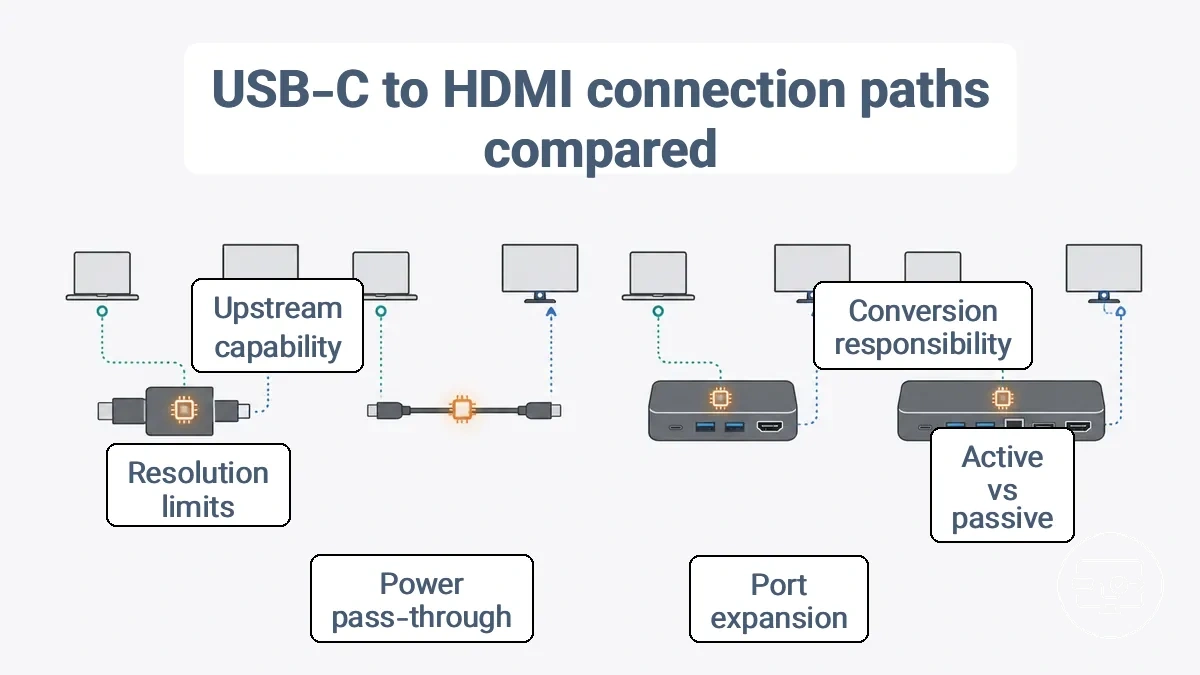
- Adapters: is used when you need a single HDMI output from a USB-C source; requires DisplayPort Alt Mode or an active converter chip; typically affects maximum resolution and refresh rate depending on the chip's capability.
- Adapters (passive): is used when the source already outputs HDMI via Alt Mode; requires the host to support video over USB-C; works only if the adapter's connection direction matches the signal flow.
- Cables: is used as an all-in-one wiring solution; requires Alt Mode support from both the source and the display; works well for short, fixed connections and may lack active conversion for longer runs.
- Hubs: is used to expand port count while adding HDMI; requires Alt Mode from the host; typically affects power negotiation, and video quality may drop to a lower resolution if the hub is not externally powered.
- Hubs (multiport adapters): is used for portable setups with a few extra ports; often bus-powered, drawing current from the host; can limit charging pass-through and may not support higher resolutions without external power.
- Docks: is used for a stationary workstation with multiple peripherals; requires USB-C with Alt Mode or Thunderbolt; typically includes its own power supply, supports higher resolutions, and can drive multiple displays.
- Docks (Thunderbolt): is used when maximum bandwidth and multi-monitor support are needed; requires a Thunderbolt port; generally provides more stable video output and higher power delivery to the host.
- Docks (USB-C): is used when compatibility across different laptops is important; may rely on DisplayLink technology for multi-display output; often requires driver installation for the added video adapters.
Note that labeling can be misleading: a device sold as a USB-C hub may actually be a multiport adapter, and not all cables marked 'USB-C to HDMI' support video if the source lacks Alt Mode. Check directionality and the specific conversion method before purchase. For a full breakdown of each solution type, see our dedicated adapter vs cable vs dock comparison.
Why some solutions are passive and others require active conversion
In a USB-C to HDMI connection, a passive solution passes the display signal through without modifying it, while an active conversion uses a converter chip to transform the signal. The main prerequisite is the source port’s video output capability and whether it provides a signal the display can accept directly.
- When the source supports a compatible display output mode over USB-C, a passive adapter can often pass the signal through to an HDMI display with no format conversion required.
- When the source does not support that output mode, a passive solution usually cannot produce a usable HDMI signal because the port does not carry the right video format.
- An active converter can accept a wider range of source outputs and transform them into HDMI, but it still requires the source to have some form of video output capability.
- Even with an active converter, success depends on the full chain: the source must provide a usable signal, the converter must match the signal type, and the display must accept the converted output.
- Higher performance targets such as 4K or higher refresh rates may place additional demands on both passive and active pathways, but an active converter does not guarantee those targets by itself.
For example, the same USB-C port may work with a passive adapter when it supports a compatible output mode, but may require an active converter when connected to a display that expects a different signal format or when the chain adds extra distance.
Directionality and 'bidirectional' confusion in USB-C and HDMI products
Directionality in USB-C to HDMI connections means the signal must travel from a source device that supports video output to the display in the intended direction. A cable labeled as USB-C to HDMI sends video from the USB-C device to an HDMI display, not the reverse. Checking source-to-display matters before buying a cable or adapter.
- USB-C to HDMI — signal flows from a USB-C source to an HDMI display; reversing the connection typically produces no output.
- HDMI to USB-C — signal flows from an HDMI source to a USB-C monitor; this configuration is less common and may require different hardware.
- Bidirectional — may work in both directions in some setups but depends on device video output support and the cable's internal hardware.
- No direction stated — many product listings omit direction details, which can lead to reversed-connection errors when the user assumes either orientation works.
- Physical connector fit — both USB-C ends may connect mechanically, but the cable's internal wiring determines the valid signal path from source to display.
A common misconception is that a USB-C to HDMI cable works when reversed; in most cases it does not because the signal path is designed for one direction only.
Setup paths that most reliably produce a working signal
A stable USB-C to HDMI connection depends on the order in which you connect the components, the power available to the chain, and the input selected on the display. Starting with the right chain order reduces the chance of detection failures and signal dropouts.
The following steps are device-agnostic and assume your USB-C port supports video output. They provide a baseline before moving to more detailed setup guidance.
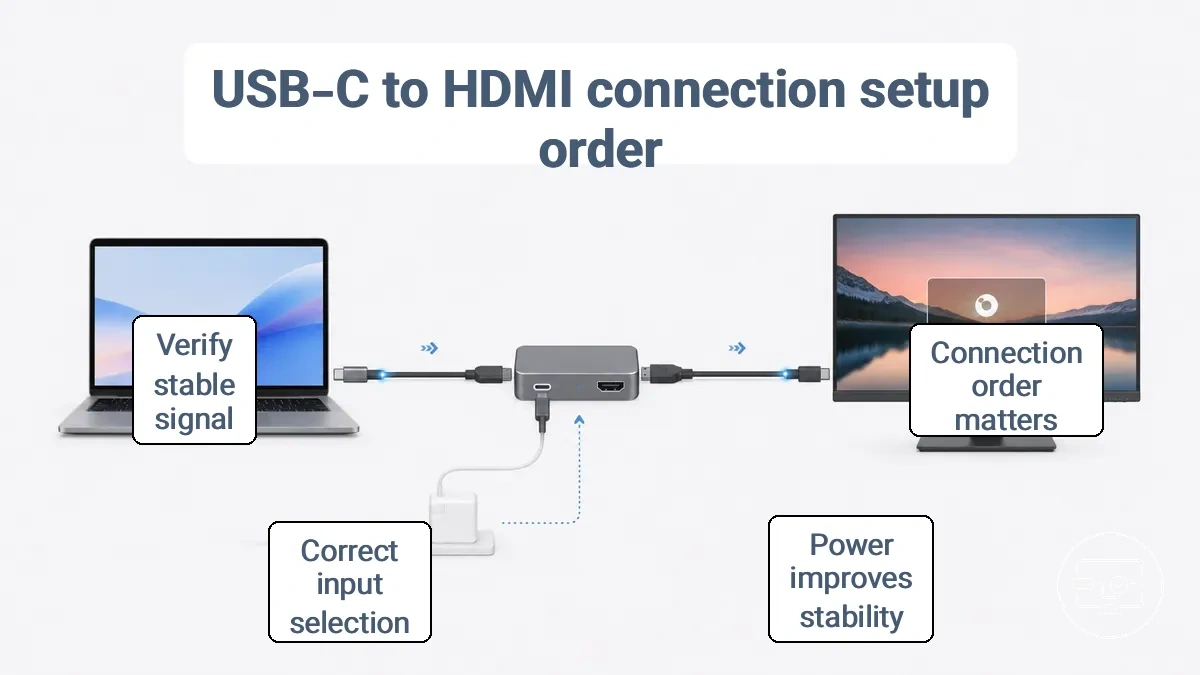
To establish a working signal, follow these setup steps:
- Connect the USB-C adapter, cable, or hub to your device's USB-C port. The device should recognize the connection, often indicated by a notification or display menu.
- Attach the HDMI cable from the adapter or hub to the display. Ensure the cable is fully seated on both ends.
- If using a hub or dock that supports power delivery, connect its power supply. This step improves stability, especially for high-resolution output or extended use.
- Turn on the display and select the correct HDMI input source using the remote or on-screen menu. Using the wrong input is a common cause of a no-signal message.
- Adjust the display mode on your source device (for example, duplicate, extend, or second screen only) through the operating system's display settings or a keyboard shortcut.
- Check for a stable image. If no signal appears, verify each connection and try a different HDMI port or input on the display.
For a more detailed walkthrough, see the setup steps for a reliable connection.
Connection order, power conditions, and input selection that affect detection
Detection failures often come from the connection chain state rather than a single broken component. The way power is supplied, the order in which devices are connected, and the display's input configuration can all determine whether the external monitor is recognized.
Check these detection-critical factors before assuming a hardware defect:
Power
- Ensure the USB-C hub or dock receives adequate power. Many hubs may need external power to deliver stable video output; power supplied only by the source device may be insufficient and cause intermittent detection or no detection at all.
- Verify that the power source provides a stable voltage within the typical range for the adapter. Fluctuations or excessive ripple can disrupt the signal negotiation between the source and the display, leading to detection failures.
Connection order
- Connect the USB-C adapter or hub to the source device before attaching the HDMI cable to the display. This order often gives the chain time to negotiate the correct video output mode before the display tries to establish a signal.
- Connecting in reverse order (HDMI first, then USB-C) can cause detection to fail or require reconnecting the display. Try unplugging all cables and reconnecting in the recommended order.
- When using a dock, connect the dock to power before plugging it into the source device. This can help the dock begin negotiating video output as soon as the USB-C link is established.
Display input/mode
- Confirm that the display is powered on and set to the correct HDMI input. Many monitors and TVs have multiple HDMI ports; selecting the wrong input can show no signal even if the chain works.
- Check whether the display supports the resolution or refresh rate being sent by the source. If the source attempts to output a mode that the display cannot accept, detection may fail or the screen may remain black.
- For some displays, a manual input source selection or a quick power cycle of the display may be required to trigger detection after connecting the USB-C chain. This can be more common with projectors and older TV models.
What "detected but not displaying" usually means at a high level
When a display is detected but not showing output, the cause is often a mismatch in mode, negotiation, or settings rather than a complete hardware failure. This scenario typically falls into three cause classes: mode or resolution incompatibility, signal negotiation problems between the source and display, or incorrect display or system settings.
- Detected but black screen — likely a mode or resolution mismatch; a safe next check is to verify the display's supported resolution and refresh rate.
- Detected but flickering or unstable — may indicate a negotiation issue with the cable, adapter, or hub; checking the connection chain and trying a shorter or better-shielded cable can help.
- Detected but no video in a specific application — often a permissions or settings problem; confirming that the app has access to the display output is a safe first step.
- Detected but showing "no signal" on the display itself — usually an input selection mismatch; switching the display input to the correct HDMI port is the simplest check.
These categories serve as triage guidance, not a complete fix list. Each cause class points to a different area of the connection chain, and the appropriate resolution route depends on confirming which class fits the specific symptom.
4K, 60 Hz, HDR, and protected content expectations that affect compatibility
High-resolution 4K 60 Hz output and HDR success depend on the full chain—source port, adapter, cable, and display—rather than on any single specification. Each link must meet the required bandwidth and compatibility; the chain sets the ceiling for what the final display can achieve.
The table below organizes common limiting factors by chain component.
| Chain component | What commonly limits 4K/HDR | Typical symptom |
|---|---|---|
| Source device (USB-C port) | Missing DisplayPort Alt Mode, limited bandwidth or no external display support | No 4K option available, display list empty |
| Adapter or hub | Insufficient bandwidth, passive design without HDCP 2.2 compliance | Resolution stuck at 1080p, protected content blocked |
| Cable | Low bandwidth rating, excessive length, inadequate shielding | Flicker, sparkles, intermittent signal loss |
| Display (TV/monitor) | HDMI input lacks HDCP 2.2, limited bandwidth or missing HDR support | Black screen, resolution downgraded, HDR unavailable |
Protected content failures often stem from HDCP handshake mismatches rather than pure signal loss. If any device in the chain lacks HDCP 2.2 support, 4K or HDR playback may fall back to a lower resolution. For more detail on what determines successful output, see the dedicated page on 4K and HDR compatibility basics.
Why 4K 60 Hz success depends on the full chain, not one component
Achieving a stable 4K 60 Hz signal requires the full connection chain to work together; the limiting link sets the maximum stable mode the chain can achieve. Every component—from the source device's USB-C port to the display's input—must handle the required bandwidth.
Here are the limits that commonly appear, listed in order from source to display:
- Source device USB-C port: Needs to support the required video output mode (such as DisplayPort Alt Mode) with enough bandwidth for 4K 60 Hz.
- Graphics processor (GPU): The device's GPU must be capable of encoding a 4K 60 Hz video signal; integrated or older GPUs are more likely to introduce limits.
- Adapter or cable conversion: Passive adapters rely on the source's native signal, while active converters perform the conversion but vary in their maximum supported resolution and refresh rate.
- Cable length and quality: Longer or lower-quality cables can introduce signal degradation or bandwidth bottlenecks that make 4K 60 Hz unstable.
- Hub or dock chipset (if used): The internal chipset must support the bandwidth tier needed for 4K 60 Hz; hubs designed for basic connectivity often cap at lower modes.
- Display input: The monitor or TV needs an HDMI port that supports 4K 60 Hz; otherwise, the target mode cannot be achieved.
For example, connecting a 4K 60 Hz-capable laptop through a hub that only supports HDMI 1.4 can block the 60 Hz output, even when every other component in the chain is capable.
HDR and HDCP constraints that can block output even when the cable works
HDR and protected-content playback failures can occur even when basic video output is functional, because the chain must also satisfy HDR capability and HDCP handshake requirements. HDR failures often stem from a bandwidth or format mismatch in the chain, while HDCP-related failures result from protection handshake issues between devices.
- HDCP version mismatch – if a device in the chain supports only an older HDCP version, protected HDR content may fall back to a lower resolution or fail to display entirely.
- Faulty or loose HDMI connection – intermittent contact can break the HDCP handshake and cause a black screen or flicker during protected content playback.
- Unsynchronized power-on sequence – turning on the source, display, or intermediary devices out of order can prevent proper HDCP negotiation and result in a black screen.
- Outdated firmware – televisions, adapters, or hubs with outdated firmware may not process newer HDCP handshakes correctly, leading to handshake failures.
- Non-compliant intermediary devices – splitters, switches, or extenders that lack full HDCP support can interrupt the protection handshake and produce a black screen.
When such symptoms appear, isolating each link in the chain (source, cable, adapter, display) helps identify the specific component causing the handshake or capability failure rather than changing settings blindly.
Compatibility differences by source device and display environment
Whether a USB-C port can output video to an HDMI display depends heavily on the device category and the display environment. Laptops, phones, tablets, and TVs or projectors each present different constraints that affect the likelihood of a working connection.
Device classes vary in how they implement USB-C video output and what limitations commonly appear:
- Laptops – Many laptops support DisplayPort Alt Mode over USB-C, but the specific port may be limited to data or charging only. Some models require a specific port for video output, and performance can vary by OS and driver support.
- Phones and tablets – Many phones and tablets use USB-C for charging and data transfer without enabling external display output. Even when video output is supported, it may be limited to mirroring or a specific resolution. The adapter cannot create video output if the device does not provide it.
- TVs and projectors – Display-side input selection, HDMI port version, and mode settings can determine whether the signal is shown correctly. A TV may have multiple HDMI ports with different capabilities, and the wrong input or mode can mimic a no-signal problem.
The same adapter or cable may behave differently across device classes because the upstream capability—whether the source device outputs a video signal over USB-C—is the primary determinant. Verify the source device's video output support before assuming a connection will work.
This chart shows how the source device category and display environment determine whether a USB-C port can output video to an HDMI display, with specific constraints for laptops, phones/tablets, and TVs/projectors.
Laptop behavior patterns that commonly limit or change HDMI output
Laptop USB-C display output varies by model, port implementation, and OS or display mode settings, so the same adapter can behave differently on two devices or even two ports on the same laptop.
- Port implementation differences: some USB-C ports support video out, others are data-only or limited to charging, which directly determines whether an HDMI output is possible.
- OS and display mode settings: extended, mirrored, or second-screen-only modes affect detection and resolution; incorrect mode selection can produce a blank screen or limited output.
- Cable and connection quality: long runs, poor shielding, or loose connections often cause flicker, dropouts, or no signal, even when the port and adapter are capable.
- Power delivery constraints: passive adapters and hubs may not maintain stable output when the laptop or hub lacks sufficient power negotiation.
- Driver and firmware variations: laptop graphics drivers, USB controller firmware, or BIOS settings can enable or disable external display support, leading to intermittent or missing output.
- Bandwidth limits: older or bandwidth-restricted USB-C ports may cap resolution or refresh rate, causing poor image quality or failure to negotiate higher modes like 4K at 60 Hz.
For example, a laptop with two USB-C ports may support video out on only one port, so connecting to the other port produces no signal even though the adapter and display are compatible.
Phone and tablet limits that prevent USB-C display output
Many phones and tablets use USB-C for charging and data without enabling external display output. Video output requires specific device support, such as DisplayPort Alt Mode, which is absent in many models. A USB-C connector does not guarantee display output on phones, and no adapter can create video output when the device does not provide it.
Common limitations fall into three categories:
- No video output support – Many phones and tablets lack the hardware or firmware to output video over USB-C; some tablets use the port only for power and data.
- Limited mode support – Even when video output is available, some devices may support only screen mirroring; resolution may be capped below the display's native setting; refresh rate may be limited to lower values.
- Power and peripheral constraints – Using an adapter or hub can reduce available power to the device; connecting multiple peripherals may limit bandwidth for video; display output may become unstable when battery is low or under load.
TV and Projector Inputs, Modes, and Settings That Affect Success Rates
Whether a TV or projector shows the USB-C signal correctly depends on the display's input selection and HDMI port settings. An incorrect input source or a mode that processes the signal differently can result in a blank screen even when the cable and adapter work properly. Display-side settings are a common cause of a ‘no signal’ appearance.
Check the following display-side settings when the connection seems otherwise correct:
- Make sure the display is set to the HDMI input that matches the connected port.
- Try each available HDMI input on the display if the first one shows no signal.
- Disable any automatic source detection that may switch away from the active input.
- Set the picture mode to Standard or Cinema to avoid processing that could suppress the signal.
- Turn off power-saving or standby modes that may blank the display after idle time.
- Confirm that the HDMI port supports the required resolution and refresh rate; some ports (for example, ARC or older HDMI versions) may limit 4K or 60Hz output.
- Check that the display is not in a multi-window or picture-in-picture mode that could hide the full image.
- Reset the display's input settings to defaults if previous configurations are interfering.
For example, selecting the HDMI port labeled ‘ARC’ instead of a regular HDMI input can cause no signal because the ARC port may expect a different handshake. Similarly, a projector in ‘Eco’ mode may not detect the incoming signal until the mode is changed.
Why USB-C to HDMI fails and how to choose the correct fix route
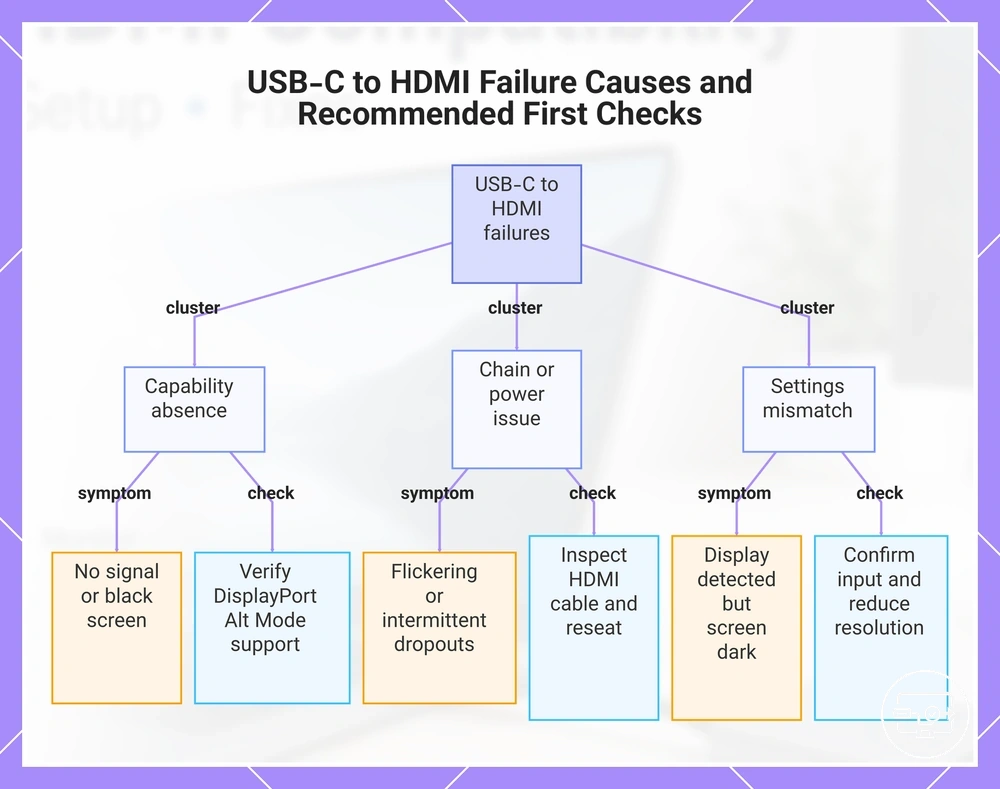
USB-C to HDMI failures generally fall into three clusters: the source port does not support video output (capability absence), the connection chain has a weak or broken link (cable, adapter, or power issue), or the display settings do not match the signal (resolution, input selection, or handshake mismatch). Identifying which cluster a symptom belongs to points toward the right fix route.
The guide below maps common symptoms to their likely cause classes and the recommended first check to confirm the direction.
- No signal or black screen → likely capability or chain problem. Recommended first check: verify the USB-C port supports DisplayPort Alt Mode in the device specification. If video output is not available, the adapter cannot generate it.
- Flickering or intermittent dropouts → often a chain or power issue. Recommended first check: inspect the HDMI cable for damage and reseat both ends. An unstable connection can mimic a capability problem.
- Display detected but screen stays dark → often a settings or mode mismatch. Recommended first check: confirm the display input matches the connected HDMI port and reduce the resolution to a baseline such as 1080p.
- No audio through HDMI → usually a settings mismatch. Recommended first check: open the operating system audio output settings and select the HDMI device as the default. The correct output device may not be set automatically.
- Output fails on one device but works on another → likely a capability or compatibility issue. Recommended first check: test the adapter on a device that is confirmed to support video output. If it works there, the original device may lack video support or need a driver update.
- Intermittent dropouts after the display sleeps → often a power management or handshake issue. Recommended first check: temporarily disable automatic display sleep and observe whether the symptom stops. If it does, the handshake may need a power cycle.
Running checks before fixes helps prevent unnecessary component swaps.
For a symptom-by-symptom breakdown with detailed steps, head to the troubleshooting routes by symptom page.
This chart maps common USB-C to HDMI failure symptoms to their likely cause clusters and the recommended first check to confirm the diagnosis.
No signal and black screen failures as capability vs chain vs settings problems
A no signal or black screen is not a single failure but an outcome that typically falls into one of three root-cause classes: capability missing, chain broken, or display input/mode mismatch. Identifying which category applies helps focus the next check without jumping to deep troubleshooting. Each category points to a different part of the connection path and a different kind of fix.
- Symptom: No display after connecting an adapter. Category: Capability missing. Key check: Confirm that the source USB-C port supports video output (DisplayPort Alt Mode or similar). Expected change: If not supported, no adapter can enable output; if supported, proceed to chain checks.
- Symptom: Intermittent black screen or flicker after initial connection. Category: Chain broken. Key check: Inspect the cable, connectors, and adapter for loose fit, damage, or partial insertion. Expected change: Securing or reseating the connection often restores stable output.
- Symptom: Black screen but device charges through the same USB-C port. Category: Capability missing or chain broken. Key check: Verify port capabilities and try a direct USB-C to HDMI cable instead of an adapter. Expected change: A direct cable may work if the adapter is incompatible, but if the port lacks video output, neither path will succeed.
- Symptom: Display shows 'No Signal' after switching sources or waking from sleep. Category: Input/mode. Key check: Verify the TV or monitor is on the correct HDMI input and try cycling through inputs. Expected change: Selecting the matching input usually restores the signal immediately.
- Symptom: Black screen only at higher resolutions (e.g., 4K) while lower resolutions work. Category: Input/mode or capability. Key check: Confirm that the adapter, cable, and display all support the required bandwidth. Expected change: Using a certified high-speed cable or lowering the resolution can stabilize the output.
- Symptom: Black screen when playing protected content (streaming, Blu-ray) but unprotected content displays normally. Category: HDCP authentication failure (not a true no-signal case). Key check: Test with unprotected content or simplify the chain by removing splitters or extenders. Expected change: If unprotected content works, HDCP handshake issues are the likely cause rather than a general connection fault.
Flicker, dropouts, and unstable output as signal-quality and negotiation problems
Flicker and dropouts often point to signal integrity or negotiation stress rather than a total failure of compatibility.
- Cable length and quality can affect signal stability, with longer or lower-shielded cables increasing the likelihood of flicker.
- Hub power delivery may be insufficient for stable operation, especially when multiple peripherals draw power simultaneously.
- Bandwidth pressure from high resolutions or refresh rates can cause intermittent dropouts if the chain cannot sustain the required throughput.
- Connection negotiation mismatches between the source and the display may result in unstable output patterns.
- Inconsistent power from the USB-C port or hub can introduce flicker as voltage fluctuates.
- Electromagnetic interference from nearby devices can degrade signal quality and cause brief dropouts.
Reducing mode demands—such as lowering the resolution or refresh rate—can sometimes stabilize a marginal chain, but it does not guarantee a fix.
OS and driver involvement when output works on one device but not another
When a display output works on one device but not another, the difference often comes from OS display mode settings, driver support, or system permissions. These software-layer factors can affect how the system detects and uses an external display.
- Check the display mode (extend, duplicate, second screen only) in OS display settings. An incorrect setting may leave the detected display blank or inactive.
- Verify the graphics driver version and ensure it is compatible with the external display. An outdated or mismatched driver may fail to recognize the output.
- Confirm that the external display is selected as the audio output device when audio is missing. Output device selection differs between devices.
- Review app permissions for microphone or audio access when the issue is input-related. Permission settings can block audio capture on one device but not another.
- Restart the Windows Audio service or equivalent OS audio service if audio output is missing after a driver change. A service restart can restore detection without a full reboot.
- Keep the OS updated, but note that an update alone may not resolve capability limits. Hardware video output support cannot be added through drivers alone.
FAQ closure for common compatibility questions
Quick clarifications for residual yes-or-no and requirement-based questions about USB-C to HDMI compatibility not fully covered earlier.
Can any USB-C port output HDMI? No. HDMI output depends on whether the USB-C port supports video output, usually through DisplayPort Alt Mode. Without that support, the port cannot send a video signal regardless of the adapter used.
Does a USB-C charging-only port work with an HDMI adapter? No. A port limited to charging and data does not typically output video even with an active converter. The adapter may connect physically, but the display often shows no signal.
What does USB-C to HDMI compatibility require? It requires a USB-C port that supports video output, a compatible adapter, cable, or hub, and a display with an available HDMI input. All three parts of the chain must work together.
Can an adapter fix a port that does not support video? No. An adapter can convert a supported signal but cannot create a video signal if the port does not provide one. Compatibility starts at the device, not the adapter.
Is a USB-C to HDMI cable always bidirectional? No. Directionality depends on the source and display. Some cables are labeled as unidirectional, so the source end must connect to the USB-C device and the HDMI end to the display for the signal to travel correctly.
Why does 4K 60 Hz sometimes not work even when the adapter supports it? Because the full chain, from port bandwidth and adapter capability to cable quality and display input, must all support 4K 60 Hz. A mismatch in any single component can reduce the achievable resolution or refresh rate.
Does a Thunderbolt port guarantee USB-C to HDMI compatibility? Not always. Thunderbolt ports often support video output, but the actual behavior depends on the device configuration and the adapter used. Checking the specific model spec remains the safest way to confirm.
Can a hub with HDMI extend the display to multiple monitors? It can, but only if the device supports multiple display streams over USB-C. Some devices limit external displays to one output, so the hub cannot force additional monitors to work.
Why does no signal happen even when everything is plugged in? No signal often results from missing port video capability, an incorrect input selection on the display, a loose connection, or a powered hub that needs external power. Checking each link in the chain usually identifies the issue.
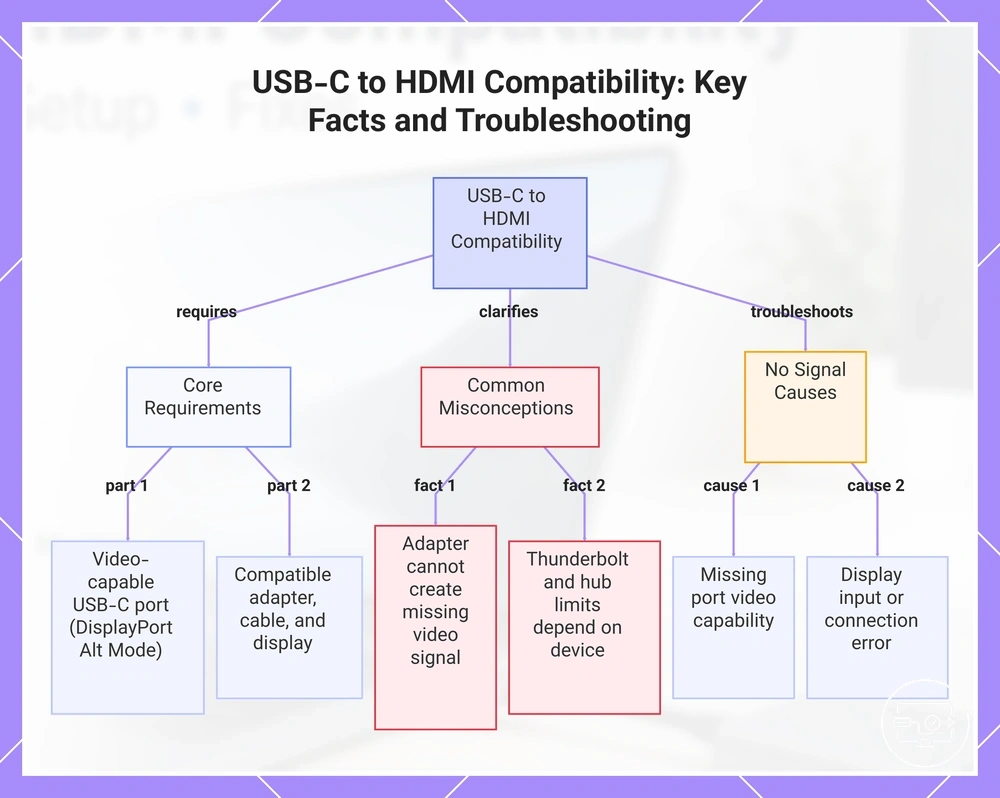
This chart explains the key requirements, common misconceptions, and causes of no signal when using USB-C to HDMI connections.