USB-C to HDMI Compatibility on Thunderbolt: What Changes and What Doesn’t
Thunderbolt can increase the likelihood of USB-C display output, but HDMI results still depend on the conversion chain. The scope covers Thunderbolt USB-C ports and the conditions under which HDMI output can be expected, with the USB-C to HDMI Compatibility hub providing the broader context.
The port label sets the decision frame: a Thunderbolt USB-C port is capable of video output, but the outcome depends on the adapter or dock used for conversion. The full conversion chain—port, cable or adapter, and display—must work together.
- More likely: Thunderbolt USB-C ports support video output with compatible adapters that support DisplayPort Alt Mode.
- Not guaranteed: A Thunderbolt label alone does not ensure HDMI output; the conversion path must be complete.
A Thunderbolt port that works on one device may not produce the same result on another because the conversion chain changes with each component, making compatibility testing at every link more important than the port type alone.
How Thunderbolt Delivers Display Output Through a USB-C Port
Thunderbolt over USB-C can carry display output by combining a high-speed data connection with a dedicated video protocol, DisplayPort Alt Mode, allowing the Thunderbolt controller to send video signals through the USB-C connector alongside data and power. The display protocol then reaches the monitor directly if the monitor supports DisplayPort, or requires a conversion step for HDMI displays. The diagram below labels the signal path through the USB-C port, showing how Thunderbolt delivers display output.
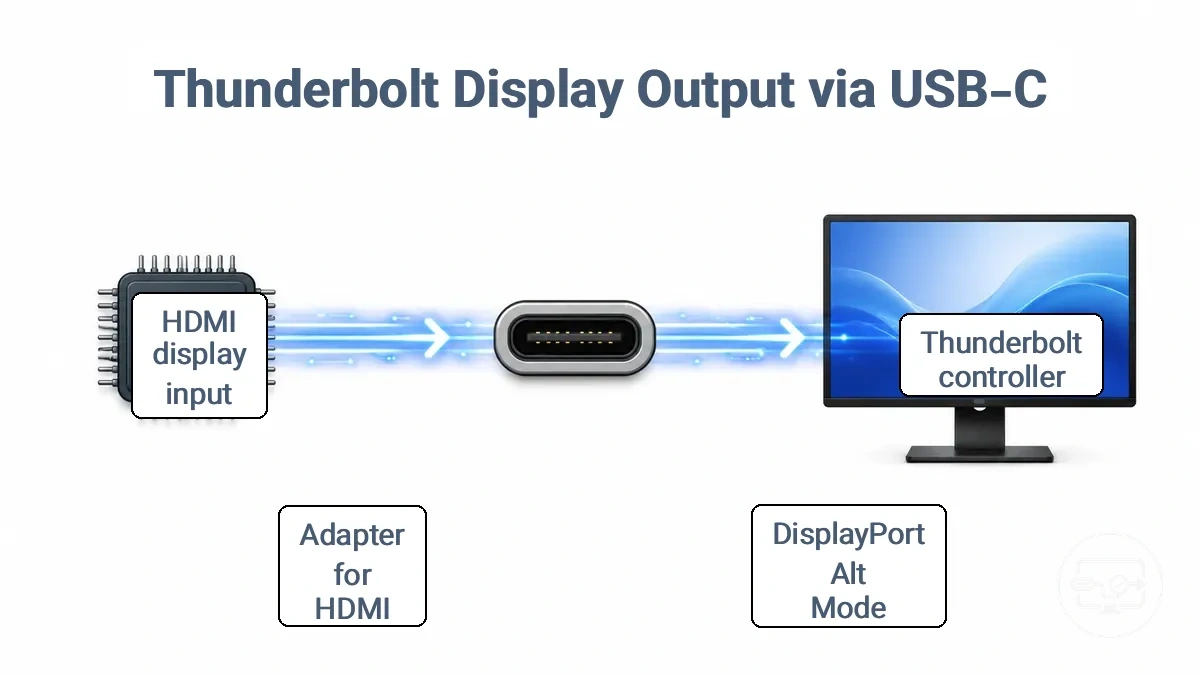
The USB-C shape itself does not guarantee video capability; only a Thunderbolt port or a USB-C port that supports DisplayPort Alt Mode can output video. Whether a specific port works for display output depends on the controller inside the host device, not the cable or connector. How Thunderbolt delivers display output involves these components:
- Thunderbolt controller or port that supports display output
- Supported display protocol (DisplayPort Alt Mode)
- Adapter or converter if the display uses HDMI
- HDMI cable to connect the adapter to the monitor
- HDMI display input that accepts the video signal
For a deeper explanation of the DisplayPort Alt Mode protocol, see Alt Mode compatibility basics.
What Thunderbolt Changes and What It Doesn't for USB-C to HDMI Adapters
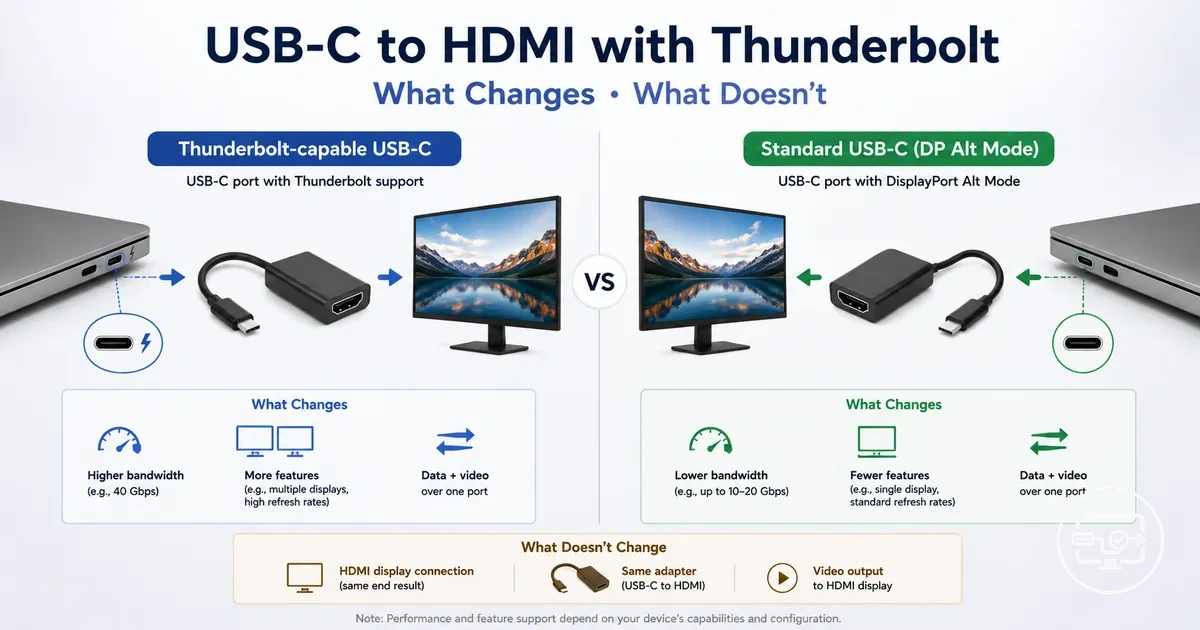
Thunderbolt makes HDMI output more likely, but it does not lock outcomes. A Thunderbolt port can drive video to an HDMI display, yet the result depends on the adapter's conversion path and the display's HDMI requirements.
For example, the same Thunderbolt port may work with one HDMI adapter but fail with another. The following points summarize what Thunderbolt changes and what it doesn't for USB-C to HDMI adapters.
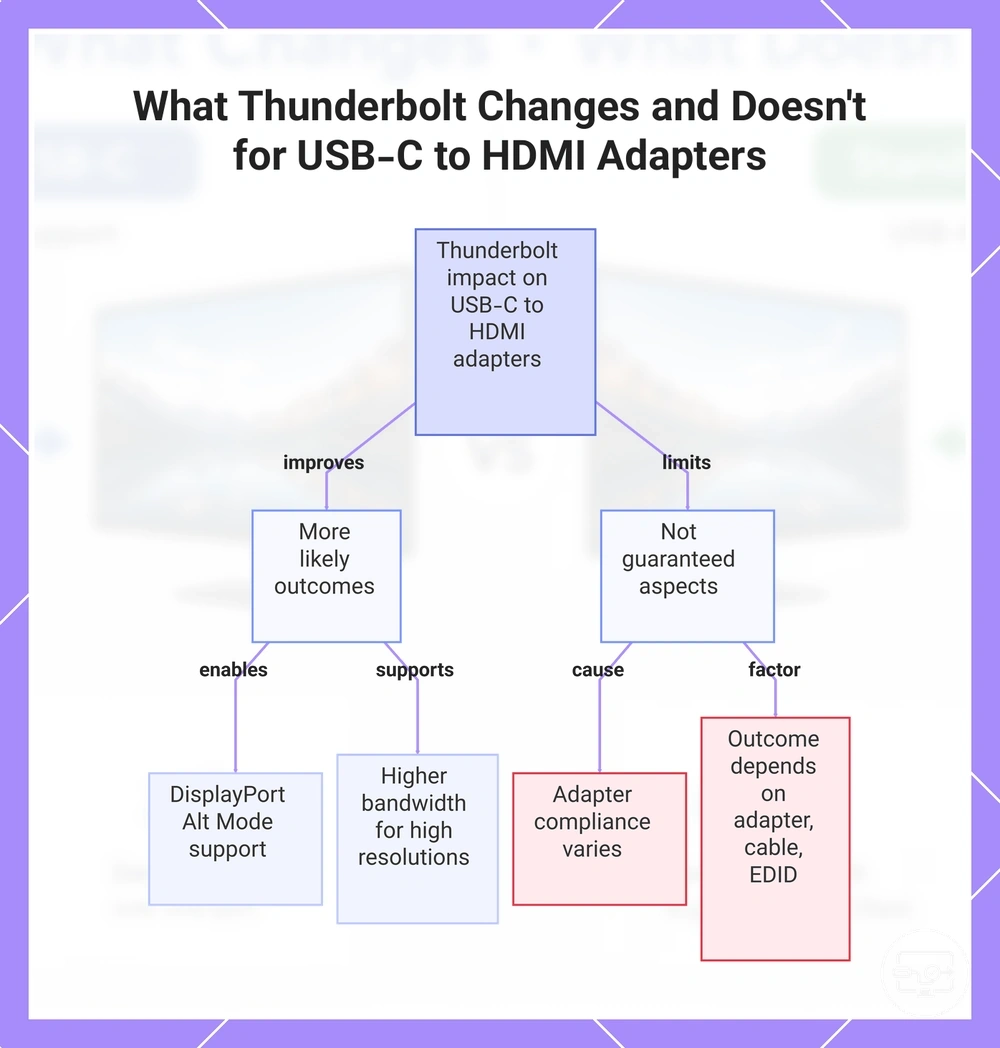
- More likely: Thunderbolt ports often support DisplayPort Alt Mode, so video output is compatible with many HDMI adapters. Thunderbolt docks often include integrated HDMI output for a reliable conversion path. Thunderbolt's higher bandwidth can support high resolutions when the adapter and display also support it.
- Not guaranteed: Even with a Thunderbolt port, the HDMI adapter's compliance with the port's Alt Mode and HDMI requirements is not automatic. Some adapters designed for USB-C only may not work correctly with Thunderbolt ports due to differing signal standards. The outcome varies by adapter, cable quality, and display EDID. A dock or hub's HDMI output depends on its internal converter, so it may not match the port's full capability.
This chart shows the key effects of Thunderbolt on USB-C to HDMI adapter performance, highlighting what is more likely and what remains uncertain.
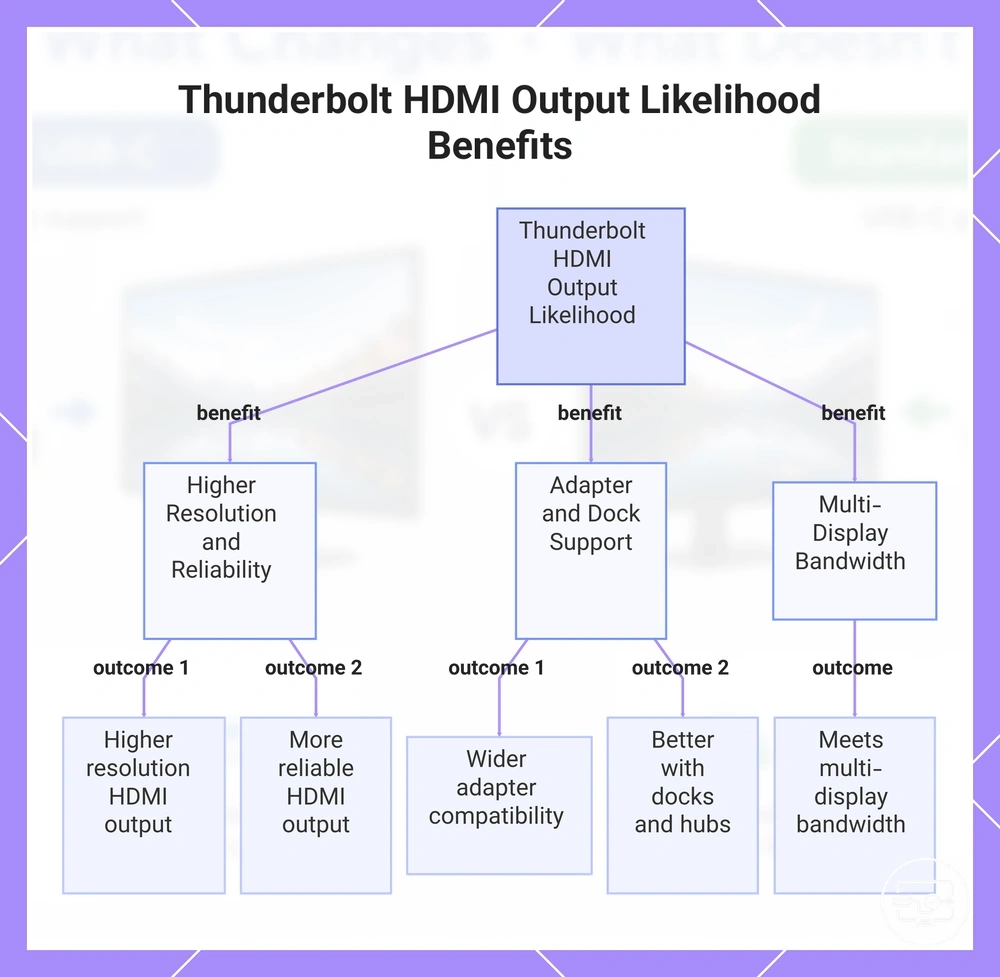
What Thunderbolt Makes More Likely for HDMI Output
A Thunderbolt-enabled port can make HDMI output more likely by providing a display output path that can reduce port-capability blockers. The specific conditional outcomes are as follows.
- Can make higher resolution HDMI output more likely.
- Can support a wider range of compatible HDMI adapters.
- Can provide more reliable HDMI output.
- Can improve HDMI output likelihood when using docks or hubs.
- Can help meet bandwidth requirements for multiple HDMI displays.
This chart shows how Thunderbolt makes HDMI output more likely by improving resolution, reliability, adapter compatibility, dock support, and multi-display bandwidth.
What Thunderbolt Still Does Not Guarantee for HDMI
Thunderbolt alone does not guarantee HDMI success. The Thunderbolt label indicates support for display output, but the specific HDMI mode you get through an adapter depends on the adapter’s conversion capabilities and the display’s HDMI implementation. The boundary between “supports display output” and “produces the HDMI mode you expect” is that the port label is not the same as the supported HDMI mode through the adapter.
- HDMI resolution such as 4K 60Hz depends on the adapter’s ability to convert the DisplayPort signal to HDMI, not on the Thunderbolt label alone.
- Higher refresh rates beyond 60Hz depend on both the adapter’s speed and the display’s HDMI version support.
- HDCP compliance may be affected by the adapter rather than solely by the Thunderbolt port.
- Thunderbolt dock output can differ from a direct adapter connection, so HDMI mode varies when using a dock.
- HDMI signal format (e.g., RGB vs YCbCr) depends on the conversion path and is not determined by the Thunderbolt label alone.
Why HDMI Compatibility Depends on the Conversion Path, Not the Port Label
HDMI compatibility from a USB-C output depends primarily on the conversion path between the source and the display, not on the physical port label. The chain of signal conversion — from the source output protocol through the adapter type and into the HDMI mode — is the controlling factor for what resolutions, refresh rates, and content protection are achievable. The diagram below shows where the conversion typically occurs: at the port, inside a simple adapter, or inside a dock.
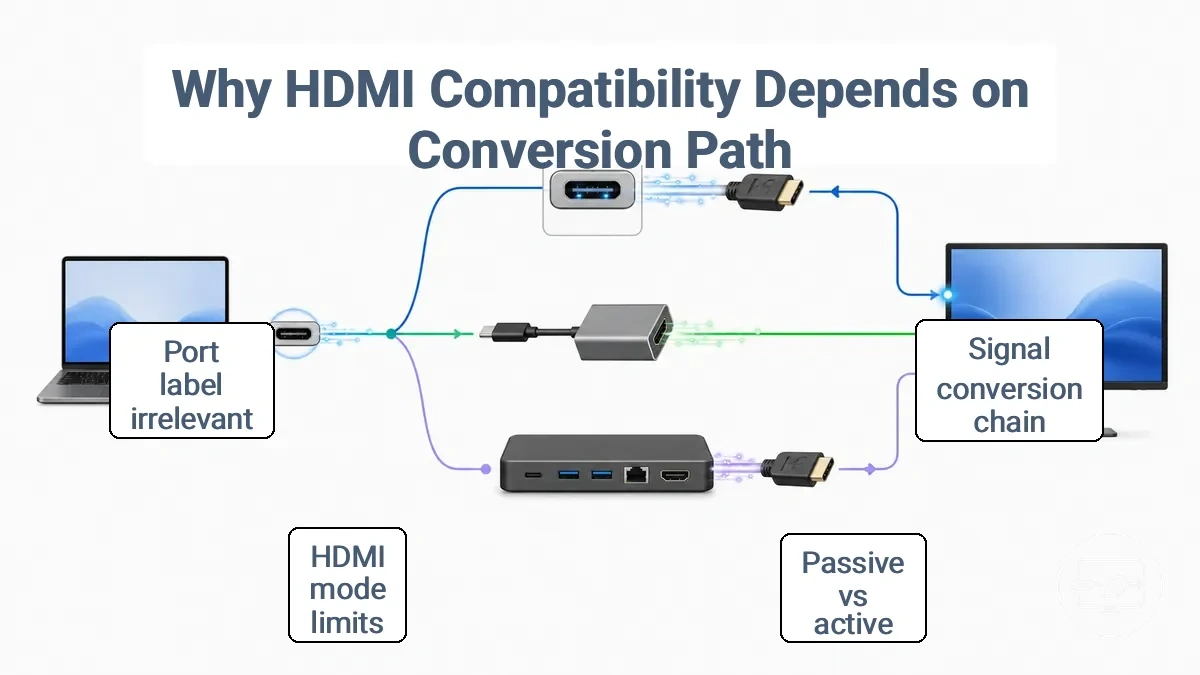
The adapter or cable handling the conversion can be passive or active. A passive adapter relies on the source device to output an HDMI-compatible signal over a DisplayPort-alt mode, which is common when the USB-C port supports DP Alt Mode and the graphics hardware can handle the conversion internally. An active adapter, by contrast, performs the conversion inside the adapter itself, making it more suitable when the source does not output a ready HDMI signal or when longer cable runs are involved. These two conversion types influence what HDMI mode the connection may sustain — for example, whether it may reach 4K at 60Hz or can be limited to lower resolutions.
The location of the conversion also shifts when using a dock or hub instead of a simple adapter. A dock may handle the protocol conversion upstream, effectively changing where in the chain the signal is transformed. Because HDMI compatibility depends on the conversion path, identifying the key variables before selecting a cable or adapter is essential.
Conversion variables to identify for any USB-C-to-HDMI setup:
- Source output protocol (DisplayPort Alt Mode, Thunderbolt, or proprietary)
- Adapter conversion type (passive vs active)
- HDMI mode expectations (e.g., 4K 60Hz, HDR support)
- Display input capabilities (HDMI version, EDID limits)
- Cable constraints (length, bandwidth rating, cable quality)
- Multi-display intent (daisy-chaining vs independent streams)
Port label vs conversion path:
- Port label: Indicates a USB-C port, but does not guarantee HDMI capabilities.
- Conversion path: The chain of protocol output, adapter type, and HDMI mode that controls achievable resolutions, refresh rates, and content protection.
DisplayPort Signaling vs Native HDMI Signaling and Why Adapters Differ
DisplayPort signaling and HDMI signaling rely on different transmission methods. This difference requires conversion, either through an active adapter or through dual-mode output, which is why adapters differ. DisplayPort-based output contrasts with HDMI signaling expectations in these key ways:
- DisplayPort signaling uses packetized data over 1–4 differential lanes; HDMI signaling expects a fixed-rate TMDS stream with a separate clock channel.
- DisplayPort signaling requires the source and display to negotiate link rate and lane count at each connection; HDMI signaling uses a predetermined clock rate tied to the video format.
- DisplayPort signaling includes an auxiliary channel for EDID, control, and link management; HDMI signaling uses separate DDC lines (I²C) for EDID and CEC.
- DisplayPort signaling can support multiple independent video streams (MST) over a single cable when both ends support it; HDMI signaling typically carries a single video stream unless using specialized features.
- DisplayPort signaling from USB-C or Thunderbolt ports requires active conversion when the source lacks dual-mode (DP++), which limits passive adapter compatibility.
HDMI Version, HDCP, and Chipset Limits That Affect Real Outcomes
Video may play on a USB-C to HDMI connection but still produce unexpected results when HDMI version, HDCP protection, or chipset limits cap the signal before it reaches the display. For example, 4K resolution may work at 30Hz instead of the expected 60Hz, or protected content may fail to play on one TV while basic video passes through on another. The main limits that affect real outcomes fall into the following groups.
- HDMI mode and version limits: The adapter chipset can limit the maximum HDMI mode it supports. For example, a chipset that only negotiates HDMI 1.4 mode may cap 4K output to 30Hz even when both the source and display are capable of 4K 60Hz.
- Protected playback constraints: HDCP authentication may fail on the adapter, blocking protected content playback even when basic video works. This can cause a black screen or force playback at a lower resolution, even when the connection otherwise works.
- Chipset and firmware limits: The adapter or dock chipset often has fixed bandwidth limits or incomplete handshake logic that can restrict compatibility with certain displays. Some chipsets may drop the link when switching between protected and unprotected content. Firmware bugs can cause intermittent signal loss or resolution caps depending on the display model.
Thunderbolt 3, Thunderbolt 4, and USB4 Branding Expectations for HDMI
Thunderbolt 3, Thunderbolt 4, and USB4 branding expectations for HDMI provide a baseline, but the label alone does not decide the outcome. This visual shows how the labels act as cues and why the conversion chain ultimately decides the HDMI outcome.
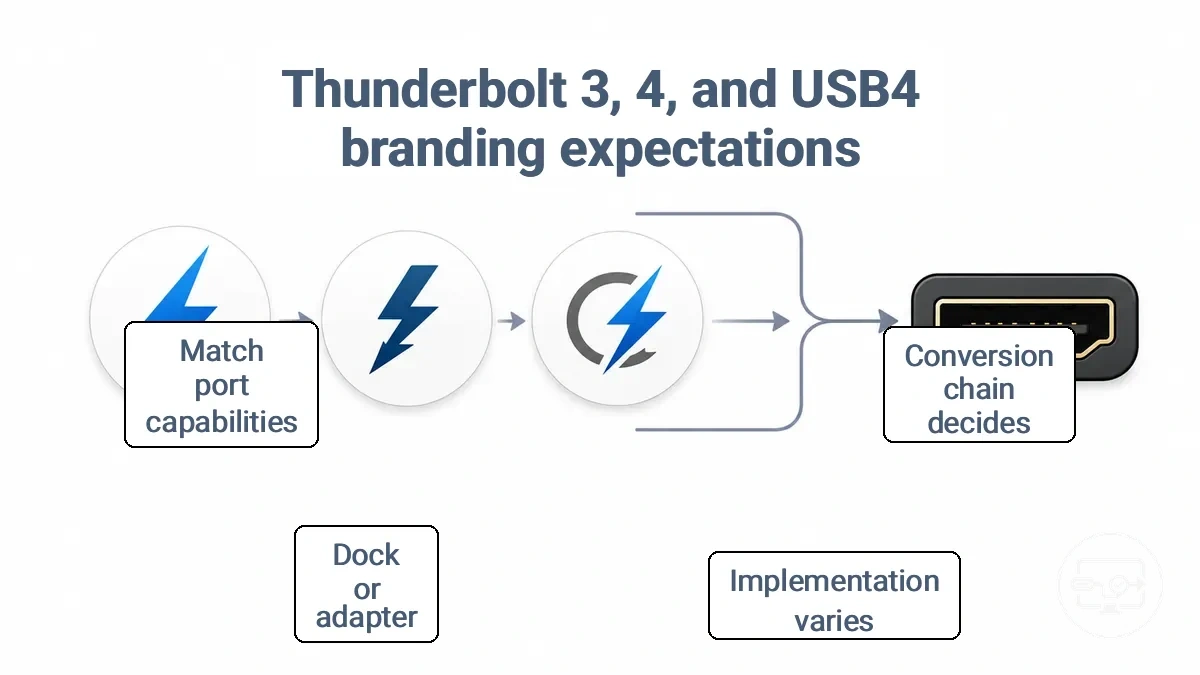
Thunderbolt 3, Thunderbolt 4, and USB4 are connectivity labels, each defining a capability envelope. This envelope typically includes display support, but the actual HDMI output varies depending on implementation and the conversion chain.
This table compares expectation cues across the three labels and shows what still determines the HDMI outcome.
| Label | Typical expectation cue | What still decides HDMI outcome |
|---|---|---|
| Thunderbolt 3 | Port often supports at least one 4K display; some implementations support dual displays. | Dock or adapter support and whether the port follows the Thunderbolt 3 full feature set. |
| Thunderbolt 4 | Label typically signals two-display output or higher single-display resolution. | The specific adapter used and the display's compatibility with the conversion path. |
| USB4 | Label indicates USB-C connectivity with variable bandwidth and optional display support; implementation varies. | Adapter or dock must match the port's actual capabilities, which vary by manufacturer. |
What Usually Stays the Same Between Thunderbolt 3 and Thunderbolt 4 for HDMI Output
For HDMI output, Thunderbolt 3 and Thunderbolt 4 usually share the same fundamentals. The conversion limits and reliance on adapters remain consistent across both generations.
- USB-C connector: usually the same.
- Adapter requirement: DisplayPort Alt Mode support is usually required.
- Bandwidth: 40 Gbps usually available for single 4K 60 Hz HDMI output.
- Audio and video pass-through: usually supported when converted to HDMI.
- Cable type impact: usually the same, depending on cable length.
When USB4 Looks Like Thunderbolt and When It Does Not
Whether a USB4 port behaves like Thunderbolt depends on the implementation. Manufacturers can include an optional capability set that controls Thunderbolt-like display output and HDMI adapter compatibility, so USB4 can look like Thunderbolt on one device but not on another.
A USB4 port may work identically to Thunderbolt on a laptop that includes full PCIe tunneling, DisplayPort support, and backward compatibility. The same cable and adapter may fail to produce a display signal on a different device that uses a narrower capability set.
When USB4 looks like Thunderbolt:
- Can support high‑resolution display output through a compatible HDMI adapter.
- Can provide consistent bandwidth for video and data over a single USB‑C cable.
- Includes the optional Thunderbolt 3 backward compatibility that enables direct connection with Thunderbolt docks.
When it does not:
- Uses a limited capability set that omits PCIe tunneling or DisplayPort support.
- May require the HDMI adapter to rely on USB3 fallback, which may reduce video quality or limit resolution.
Thunderbolt Docks, USB-C Hubs, and Adapters: Compatibility Requirements for HDMI
Choosing between a dock, hub, or adapter for HDMI output depends on the number of displays you need and where the video conversion takes place. The conversion location—inside the device or in a separate cable—affects resolution support and compatibility with dual monitors.
The output architecture—native HDMI ports (dock) or USB-C output requiring a separate adapter (hub/adapter)—determines maximum resolution and dual monitor support. Docks with dedicated HDMI ports can directly drive dual 4K 60Hz monitors if the host supplies enough bandwidth. Hubs and adapters relying on DisplayPort Alternate Mode may limit output to a single monitor or lower resolutions, depending on the host's graphics capability and USB-C implementation.
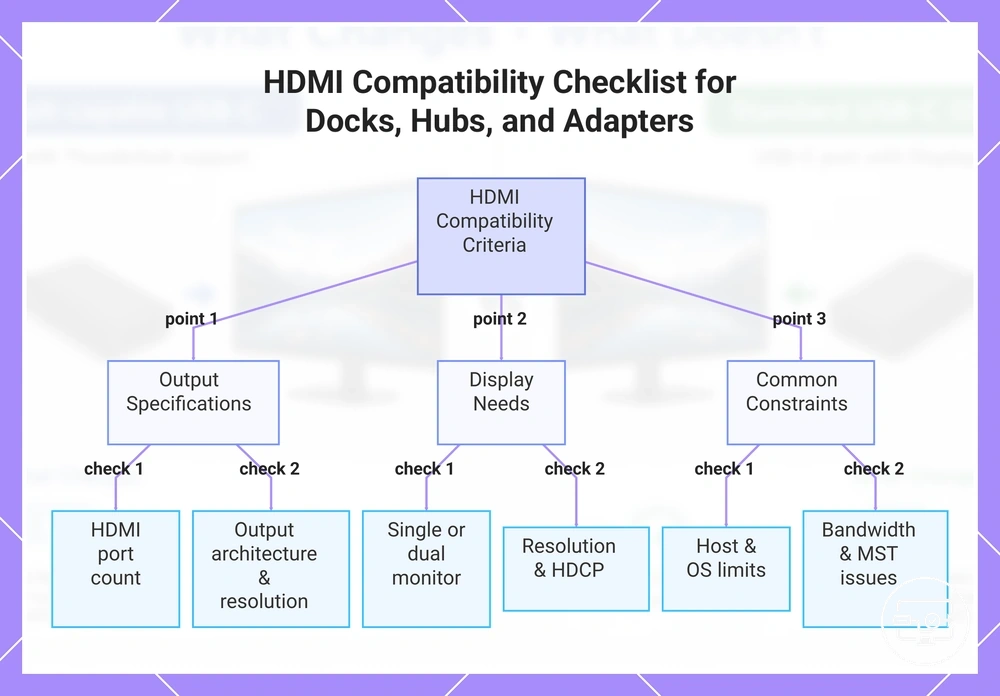
This checklist groups key criteria by output type, display needs, and common constraints to verify compatibility requirements for HDMI in your setup.
- Outputs
- Number of HDMI outputs available (single, dual, or more)
- Output architecture: native HDMI ports (dock) vs. USB-C output requiring a separate adapter (hub/adapter)
- Maximum resolution and refresh rate supported per output
- Display Requirements
- Single or dual monitor setup needed
- Target resolution such as 4K 60Hz and HDCP compliance for protected content
- Constraints
- Host hardware limitations: e.g., some laptops limit external displays to one
- OS or software constraints: macOS does not support MST for extended desktop via docks
- Bandwidth sharing: connecting multiple displays over a single USB-C link may reduce available resolution
Multi-output docks can introduce additional constraints—such as bandwidth allocation or MST support—that single adapters typically avoid. For a deeper comparison of form factors, see our guide to pick the right solution type.
This chart groups the key criteria—output specifications, display needs, and common constraints—to verify HDMI compatibility when choosing between a dock, hub, or adapter.
Dock HDMI Outputs vs USB-C Display Outputs and What That Changes
The compatibility difference between a dock HDMI output and a USB‑C display output comes down to where the video signal conversion occurs. A dock HDMI output typically includes a dedicated HDMI transmitter inside the dock, so the signal is already native HDMI. A USB‑C output, in contrast, often sends video as DisplayPort signals via Alt Mode, requiring an adapter or cable to convert to HDMI—this conversion can limit supported HDMI features, while a native HDMI path avoids those limits.
- Change: Conversion happens inside the dock for HDMI outputs, but inside the adapter or cable for USB‑C outputs.
- Still constrained: The adapter's conversion limits supported HDMI features such as refresh rate and HDR, depending on its bandwidth and capabilities.
- Change: Even when a USB‑C docking station handles conversion internally, the output remains non‑native and still subject to conversion constraints.
- Still constrained: Signal limitations can arise with longer cables or multiple displays, affecting overall performance.
Resolution, Refresh Rate, and Multi-Display Limits You Can Hit on Thunderbolt
The resolution, refresh rate, and number of displays you get from a Thunderbolt connection depend on the full hardware chain, not just the port label. The dock, adapter, cable, and display each affect the practical limit.
For a dual monitor setup targeting 4K at 60Hz, reaching that outcome often depends on whether the system supports dual 4K over a single Thunderbolt port or needs extra dock capabilities. Single display expectations are typically easier to meet, but adding more displays or higher refresh rates makes chain constraints more visible. The table outlines common limits for each target outcome across resolution, refresh rate, and number of displays.
| Target outcome | Typical limiting factor | What you observe |
|---|---|---|
| Single 4K at 60Hz | Thunderbolt cable and dock compatibility | May work directly; older cables may drop to 30Hz |
| Dual 4K at 60Hz | Number of DisplayPort lanes from the host to the dock | May require a Thunderbolt dock; with a USB-C dock may drop to 4K 30Hz |
| Triple display (e.g., 4K each) | Host silicon support (triple display optional) | Third display may not be recognized if the host limits external displays to two |
| 4K at high refresh (144Hz+) | Bandwidth of the Thunderbolt generation and cable quality | May drop to 60Hz if bandwidth is insufficient or cable is not rated for full speed |
Thunderbolt-Focused USB-C to HDMI Compatibility Check Before You Buy
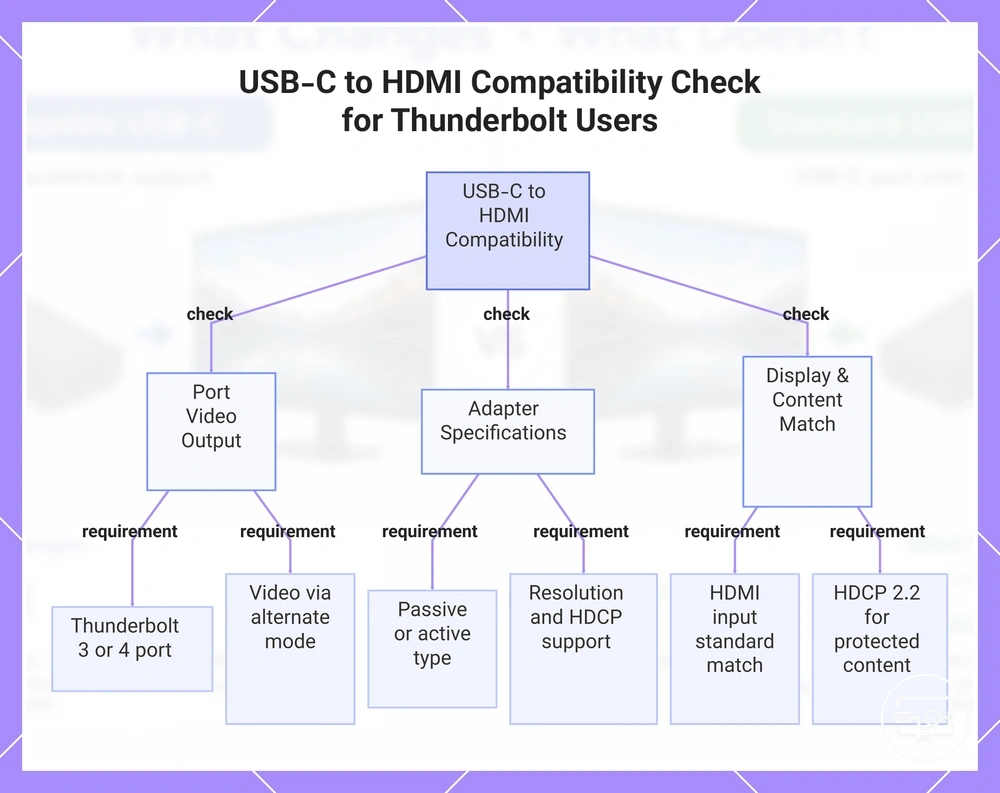
Verify that your Thunderbolt port can output video through USB-C alternate mode. Use this compatibility check before you buy to confirm each requirement.
- Confirm that your device has a Thunderbolt 3 or Thunderbolt 4 port.
- Verify that the USB-C port on your adapter or cable supports video output.
- Some USB-C ports are data-only and may not pass a video signal.
- Identify whether a passive or active adapter is correct for your setup.
- A passive USB-C to HDMI cable may work, but an active adapter may be necessary.
- Check that the adapter or cable supports the resolution you need, such as 4K at 60Hz.
- Not all adapters support high refresh rates or higher resolutions.
- Ensure the HDMI input on your display matches the adapter's output standard (e.g., HDMI 2.0 or 2.1).
- Older HDMI inputs may limit resolution or refresh rate.
- If you plan to play protected content from streaming services, verify that the adapter supports HDCP 2.2 or later.
- Without HDCP compliance, video may not display.
- Match the adapter type (cable, dongle, or dock/hub) to your Thunderbolt port's capabilities.
- A Thunderbolt dock can drive multiple displays, while a simple cable may only mirror a single screen.
To further validate your port's video output capability, check your USB-C port first.
This chart shows the three main requirement categories to verify before buying a Thunderbolt USB-C to HDMI adapter or cable.
Thunderbolt to HDMI Compatibility FAQs
Question: Does a Thunderbolt port work with a standard HDMI adapter?
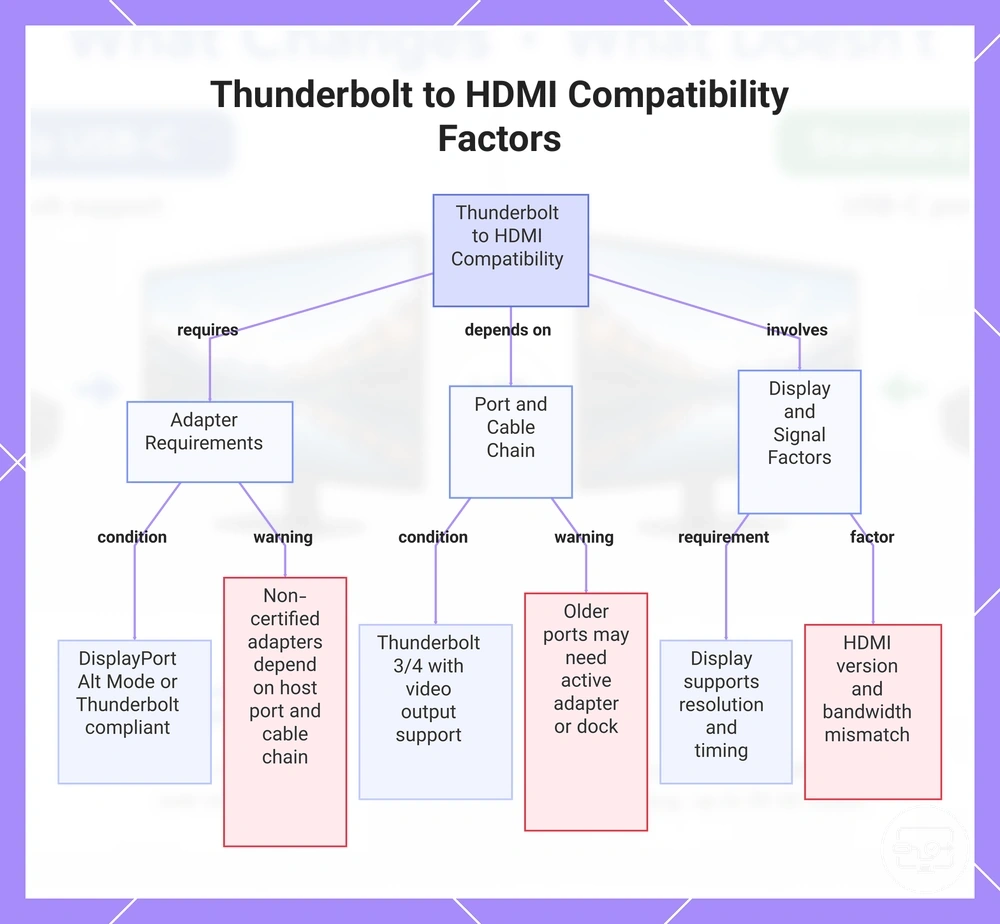
Answer: It works if the adapter is compliant with DisplayPort Alt Mode or Thunderbolt 3/4. However, the conversion path depends on the chain of adapter, cable, and port negotiation. If the adapter lacks Thunderbolt certification, the outcome depends on the host port and cable chain.
Question: Is a Thunderbolt to HDMI adapter the same as a USB-C to HDMI adapter?
Answer: They use the same physical connector. Compatibility depends on the adapter's internal chipset and the port's capability. USB-C adapters often work on Thunderbolt ports if they support DisplayPort Alt Mode. The distinction matters when the adapter relies on Thunderbolt-specific protocols rather than standard video conversion.
Question: Will an HDMI adapter work on any Thunderbolt port on my Mac?
Answer: It works on Thunderbolt 3 or 4 ports that support video output. The outcome depends on whether the system recognizes the adapter as a display device. Some older Thunderbolt ports may require an active adapter or a dock for reliable HDMI output.
Question: Why does my Thunderbolt to HDMI setup work on one display but not another?
Answer: The setup works if the display supports the resolution and timing sent by the adapter. The conversion path can fail if the second display requires a different HDMI version or bandwidth. It often depends on cable length and the adapter's ability to negotiate the signal with that specific display.
Question: Does a Thunderbolt dock change how HDMI compatibility works?
Answer: A dock adds an extra conversion step. Compatibility depends on whether the dock's internal video controller supports HDMI output. The outcome is supported if the dock passes the video signal without re-encoding. If the dock is designed for DisplayPort, an additional adapter may be needed for HDMI.
Question: Can I get 4K 60Hz through a Thunderbolt to HDMI adapter?
Answer: It depends on whether the adapter supports HDMI 2.0 or higher and whether the Thunderbolt port provides enough video bandwidth. Many Thunderbolt 3 and 4 ports can deliver 4K 60Hz when the adapter and cable meet the required standard. The outcome depends on the adapter's specification; with HDMI 1.4, 4K 60Hz may not be supported.
Question: Does the conversion path from Thunderbolt to HDMI affect video quality?
Answer: The conversion path is usually transparent if the adapter directly maps DisplayPort signals to HDMI. Quality depends on the adapter's chipset avoiding artifacts or dropped frames.
Question: What should I check if my Thunderbolt port does not output HDMI via adapter?
Answer: Whether a Thunderbolt port outputs HDMI via an adapter depends on whether the port supports video output, which is typical for Thunderbolt 3 and later. The adapter must be compliant with DisplayPort Alt Mode or Thunderbolt standards. The outcome also depends on the cable and display being correctly connected.
This chart shows the main conditions affecting Thunderbolt to HDMI compatibility, including adapter compliance, port capabilities, and display support.