USB-C to HDMI Compatibility Through DisplayPort Alt Mode
USB-C to HDMI compatibility through DisplayPort Alt Mode means a USB-C port can output video to an HDMI display when the port supports DP Alt Mode and an adapter or converter is used. This compatibility is conditional: not every USB-C port includes Alt Mode support, and even when it does, the conversion path depends on the port's video capabilities and the adapter's handling of DisplayPort signals.
The governing attributes for a working connection include Alt Mode presence, DP lane and bandwidth behavior, the conversion method, and common block points that may prevent video output.
If the USB-C port lacks either DP Alt Mode support or proper conversion, it may charge but will not output video. For the broader compatibility picture, back to compatibility overview. Detailed setup steps and symptom fixes are handled on dedicated pages; this page covers only the decision context, not execution.
What DisplayPort Alt Mode Is on a USB-C Port
DisplayPort Alt Mode is an alternate mode for USB-C ports that allows the port to carry a native DisplayPort signal for video output.
This capability makes a video-capable USB-C port a direct video source, but Alt Mode is a capability, not a guarantee of every display mode. What DisplayPort Alt Mode is on a USB-C port becomes clearer when examining common port markings — the image below shows how ports are often labeled and why such labels can be ambiguous.
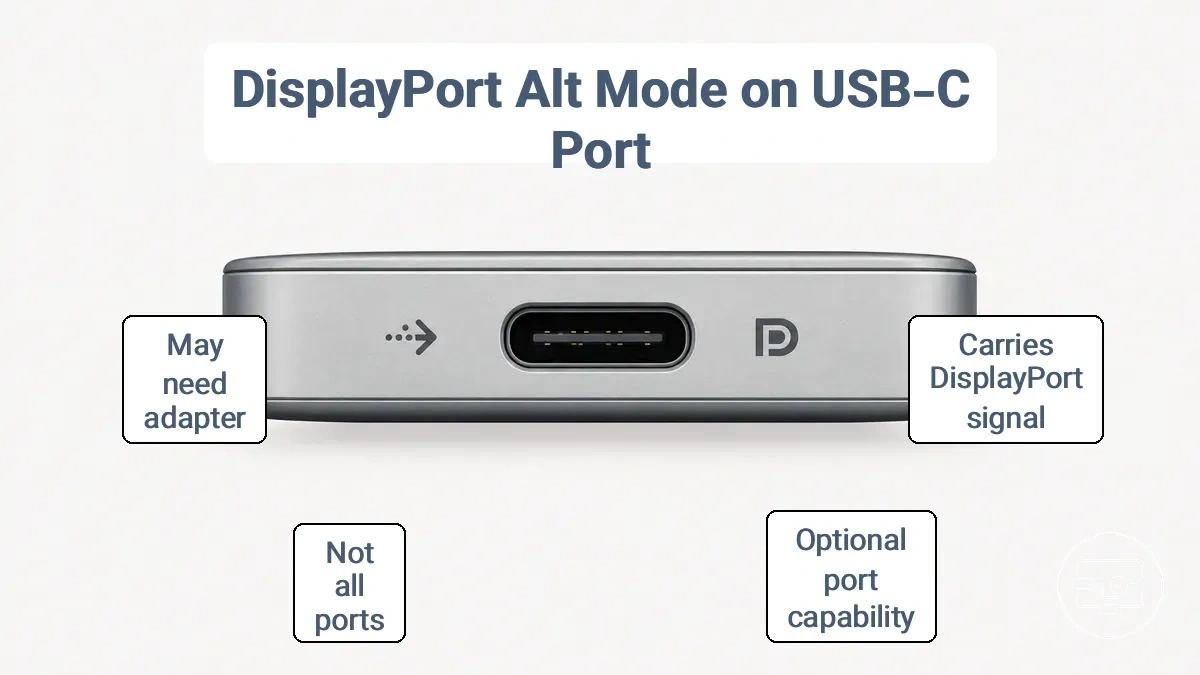
A common misconception is that any USB-C port supports video output, but many ports are charge-only or data-only because Alt Mode is optional and requires support from the port and controller. Even when Alt Mode is present, the DisplayPort signal still needs conversion to HDMI for many monitors and TVs.
The following points clarify what Alt Mode means and what it does not guarantee.
- Alt Mode means the USB-C port can transmit a DisplayPort signal when paired with a compatible cable and display.
- Alt Mode means the port can carry video alongside data and power, depending on controller design.
- Alt Mode means the port may drive high-resolution output if the supporting hardware allows.
- Alt Mode does not mean every USB-C port supports video — many ports lack this alternate mode entirely.
- Alt Mode does not mean that a DisplayPort icon or label on the port guarantees universal compatibility; markings are signals, not proof.
- Alt Mode does not mean the port can output HDMI directly — the DisplayPort signal may need an adapter or conversion to work with HDMI monitors.
How DisplayPort Alt Mode Carries Video Over USB-C
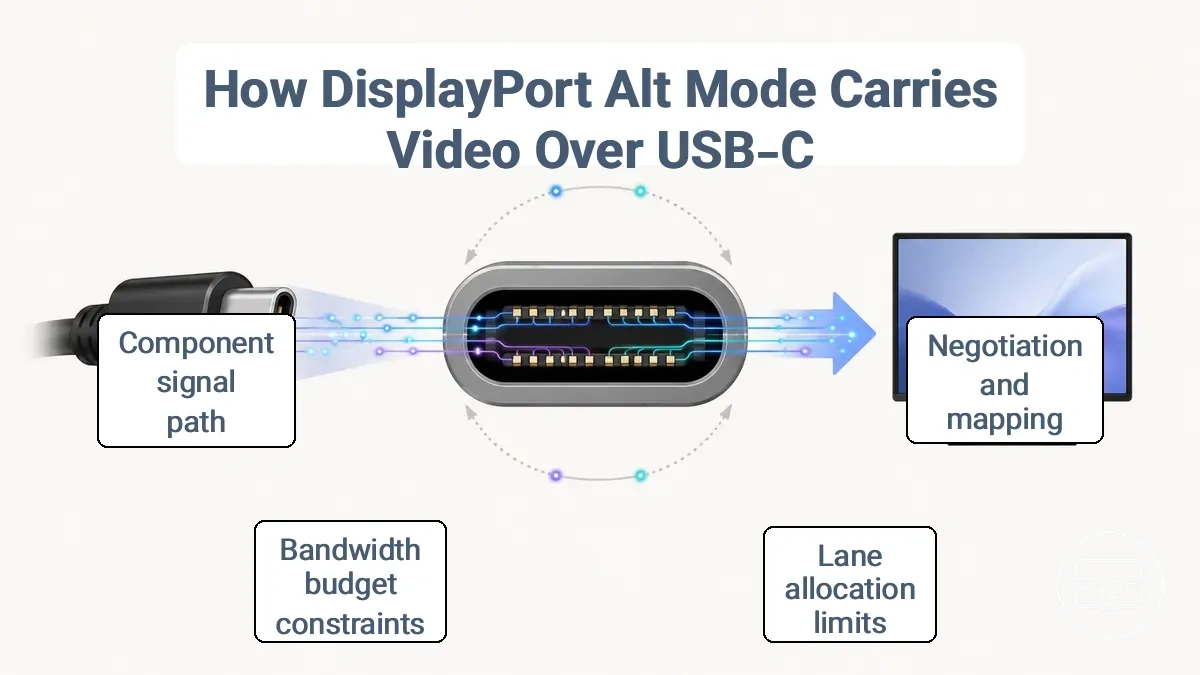
DisplayPort signaling is negotiated and mapped onto USB-C pins, enabling video transmission through the same connector used for data and power. Lane allocation determines how high-speed pins are divided between video and other functions and can limit output capabilities.
During negotiation, the host and display exchange capability information and agree on pin mapping, which affects lane allocation and the bandwidth budget. The bandwidth budget can constrain possible output modes, such as resolution and refresh rate.
Alt Mode transports DisplayPort; HDMI output requires conversion, which introduces additional compatibility considerations.
A typical scenario—connecting a laptop to a USB-C monitor—may work at lower resolution or reduced refresh rate because lane allocation limits bandwidth.
The following table organizes the signal path roles that influence how DisplayPort Alt Mode carries video over USB-C.
| Component | What it provides | What can block it |
|---|---|---|
| Host | DisplayPort signal source and negotiation capability | Missing GPU support, firmware limitations |
| Port controller | Lane mapping and power negotiation | Hardware design constraints |
| Cable/connector | Physical transport of signals | Insufficient specification, damage, or use of charge-only cable |
| Sink/display | Capability information (EDID) and video decoding | Lack of DP Alt Mode support in the display |
The diagram below shows where negotiation happens and where limits originate in the signal path, illustrating how DisplayPort Alt Mode carries video over USB-C.
Display lanes, bandwidth, and why USB data capability can change
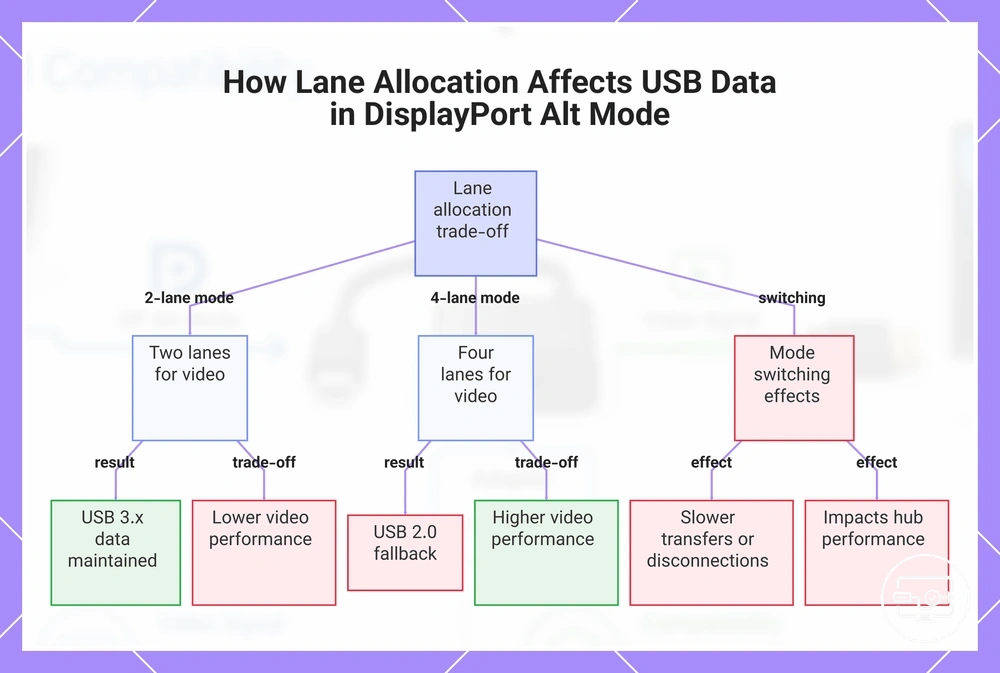
Lane allocation determines how USB-C DisplayPort Alt Mode splits its available bandwidth between video output and USB data. This trade-off means that when more lanes are dedicated to video, USB speed can drop while display works.
- Two lanes for video: less video bandwidth, but USB 3.x data often remains available for connected peripherals. Users may get lower resolution or refresh rate, but file transfer speeds stay high.
- Four lanes for video: maximum video bandwidth, but USB 3.x data typically falls back to USB 2.0. Users get higher display performance while slower data speeds affect drives and other high-throughput devices.
- When the port switches between two-lane and four-lane video modes, it can cause slower file transfers or peripheral disconnections.
This lane allocation affects the performance of ports on hubs connected through the same USB-C link.
This chart shows the trade-off between video performance and USB data speed when using DisplayPort Alt Mode over USB-C, and the effects of lane switching.
DisplayPort version and link rates that shape HDMI limits
The DisplayPort version and its link rate define a bandwidth ceiling that limits throughput for HDMI conversion and determines the feasible output modes. Conversion and device-specific limitations still apply, so the actual output depends on the adapter and display implementation.
The link-rate ceiling directly influences the HDMI output capabilities. However, a higher DP specification does not automatically guarantee a specific mode on every adapter.
| Higher link-rate ceiling | Lower link-rate ceiling |
|---|---|
|
|
Why USB-C to HDMI Usually Means DP Alt Mode Plus Conversion
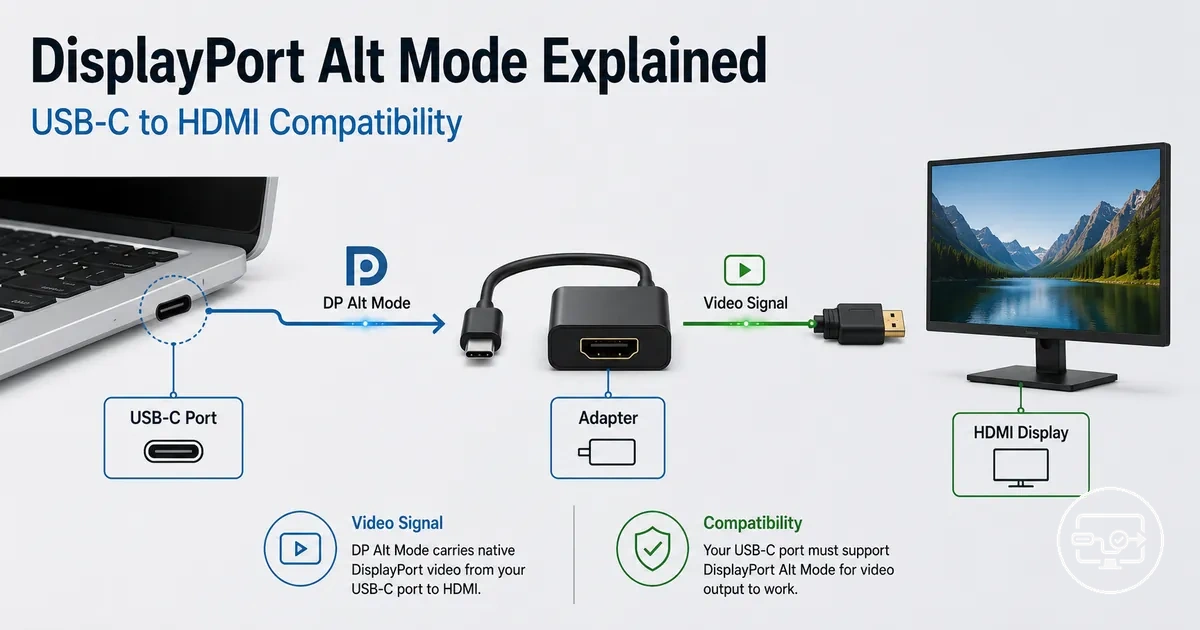
Most USB-C to HDMI connections use DisplayPort Alternate Mode (DP Alt Mode) output plus a DP-to-HDMI conversion stage, since devices usually output a native DisplayPort signal from the USB-C port when video mode is active. The conversion stage converts that DisplayPort signal into an HDMI-compatible format.
The diagram shows the DP Alt Mode plus conversion pathway and explains why a USB-C to HDMI cable is not a single cable type but a combination of output mode and conversion hardware.
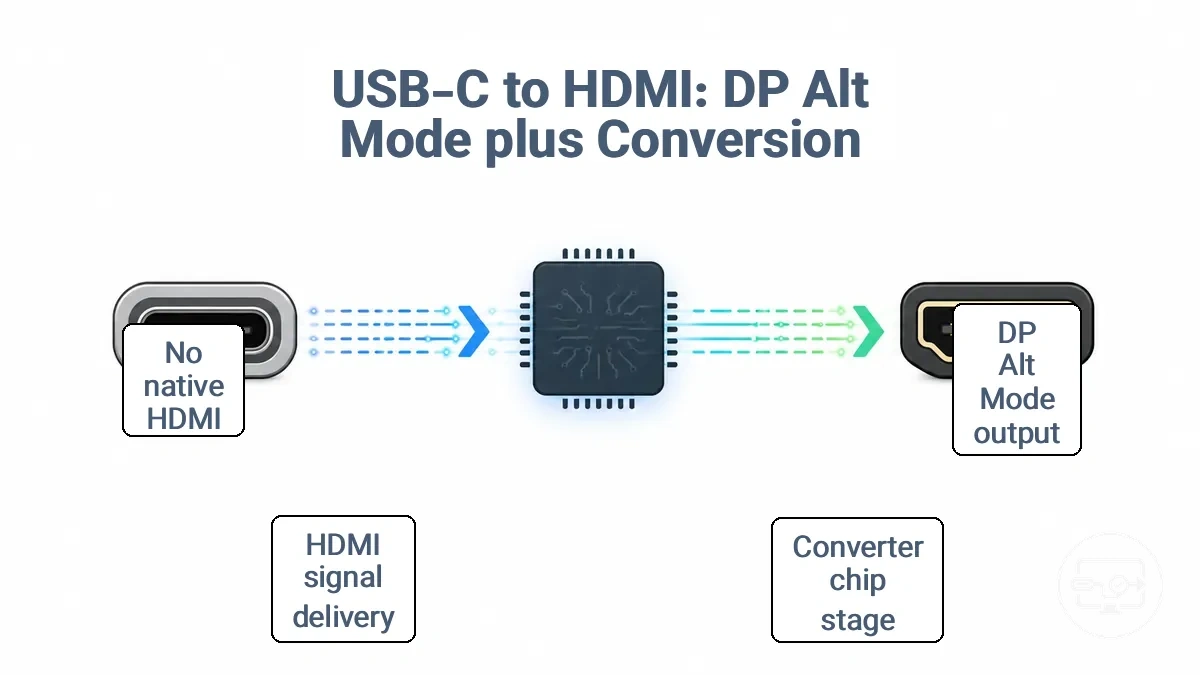
A common misunderstanding is that a USB-C to HDMI cable carries native HDMI signals from the device. In reality, the cable or adapter typically contains a converter chip that performs the signal conversion, and this conversion can be embedded inside the adapter or even inside the cable.
The conversion path follows a clear sequence from source to display.
- DP signal output from USB-C port via DP Alt Mode
- Signal conversion via a converter chip inside the adapter or cable
- HDMI signal delivered to the display
This conversion path creates compatibility constraints, and the choice of adapter, cable, or dock affects support for resolution, refresh rate, and audio features. Understanding these trade-offs helps when evaluating solution types and trade-offs.
HDMI Alt Mode versus DisplayPort Alt Mode for USB-C to HDMI
HDMI Alt Mode is uncommon on USB-C; DisplayPort Alt Mode (DP Alt Mode) is the typical path for HDMI output via conversion. Most listings mean DP Alt Mode.
Compatibility labels that say 'Alt Mode required' usually mean DP Alt Mode is needed.
| HDMI Alt Mode | DP Alt Mode |
|---|---|
|
|
For Thunderbolt ports, the compatibility scope expands beyond these two Alt Modes (Thunderbolt vs standard USB-C).
Active conversion chips, “passive” labeling, and what a USB-C to HDMI cable really is
Not every USB-C to HDMI cable is a simple passive conductor; many contain a converter chip inside that actively translates the DisplayPort signal into HDMI.
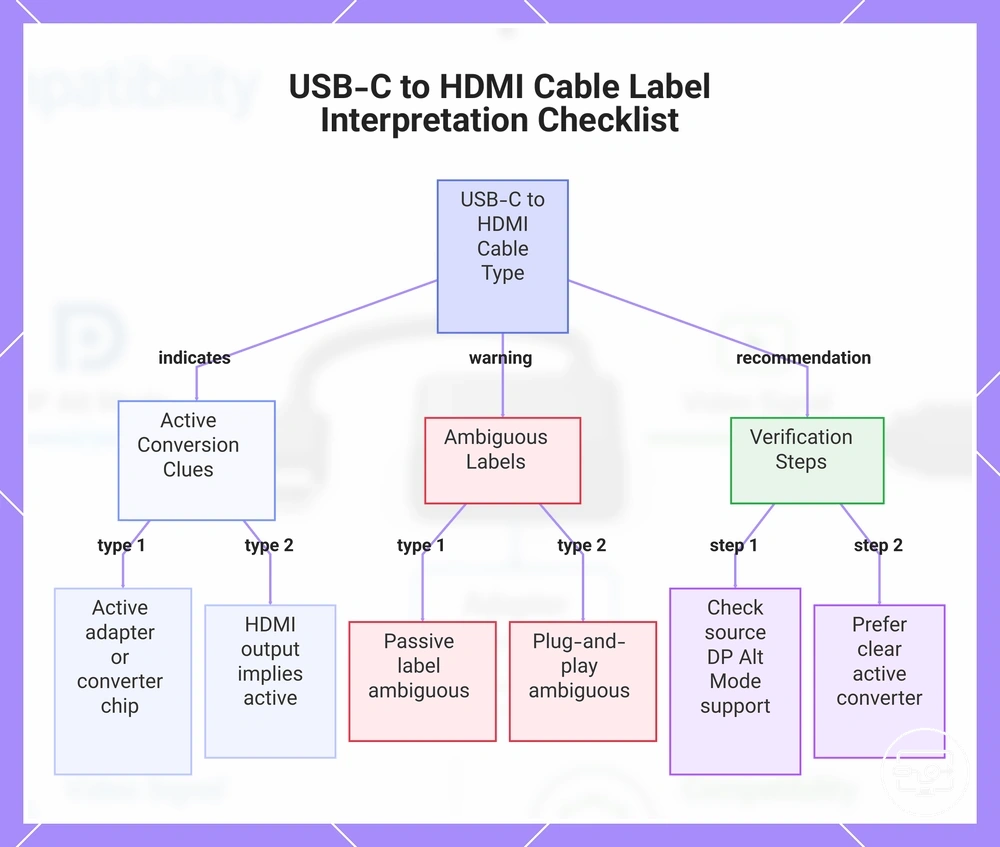
Terms like “active adapter,” “converter,” or “Alt Mode required” often signal active conversion, while a “passive” label alone is often ambiguous and can lead to mismatched expectations. Use this checklist to interpret labels and reduce the risk of mismatches.
- “Active adapter” or “converter chip” → often indicates built‑in active conversion; verify it supports HDMI output via DP Alt Mode.
- “Alt Mode required” → the device must support DisplayPort Alt Mode for video to work; check your source specs.
- “Passive” label → ambiguous: may indicate no conversion chip, but some cables marketed as passive still contain circuitry; verify specs and look for “converter” wording.
- “USB-C to HDMI cable” (no qualifier) → could be active or passive; examine the product details for “active” or “converter chip” to decide.
- “HDMI output” + “USB-C” → active conversion is usually implied because the USB-C port outputs DisplayPort, not native HDMI; confirm “converter” or “active” in the description.
- “Plug‑and‑play” → often used for both active and passive types; treat as ambiguous and verify specs.
Marketing labels vary widely, so prioritize listings that clearly state “DP Alt Mode” and “active converter” or “converter chip” to reduce mismatch risk.
This chart helps you interpret USB-C to HDMI cable labels to determine if the cable is active or passive and avoid mismatches.
When USB-C to HDMI Works With Alt Mode and When It Won’t
USB-C to HDMI works with DP Alt Mode only when the port is video-capable, the conversion path is compatible, and the display accepts the signal. Check port capability first.
Three factors determine whether USB-C to HDMI works: port capability, conversion type, and display constraints. Port capability is a common blocker. Conversion type matters because many adapters rely on DP Alt Mode, not the less common HDMI Alt Mode. Display constraints can lead to detection failure or a black screen.
The table groups common works and won’t work conditions to help pinpoint where the issue lies.
| Condition | What you’ll observe | What it implies |
|---|---|---|
| No video-capable port (no DP Alt Mode) | Typically, no signal, monitor not detected | Port cannot output video; adapter receives data only |
| Wrong conversion type | Typically, black screen or intermittent signal | Adapter may not perform DP-to-HDMI conversion correctly |
| Display-side mismatch | Typically, detected but no image, or resolution limited | Monitor does not support the signaled resolution or refresh |
Alt Mode presence is necessary; it does not guarantee every resolution and refresh mode. For example, a port with DP Alt Mode and a proper adapter may detect the monitor, but may fail to sustain 4K at 60 Hz if the cable or monitor does not meet the required bandwidth. Conversely, a USB-C port without video output capability may not show any detection at all, even with the same adapter and monitor.
For symptom-based fixes after confirming these prerequisites, refer to troubleshooting when video output fails.
Port-level requirements: video-capable USB-C versus charge-only or data-only ports
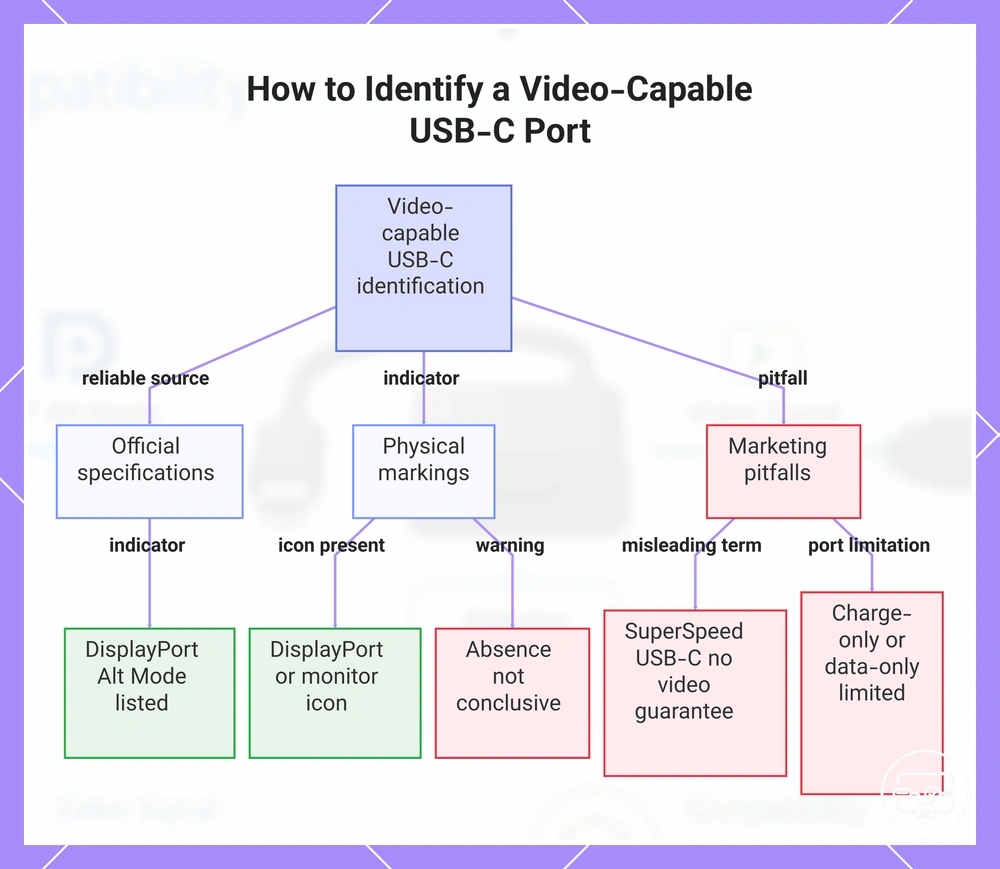
A video-capable USB-C port supports DP Alt Mode for display output, while charge-only or data-only ports do not. Official specifications are more reliable than physical markings for verifying port capabilities.
These indicators can help identify a video-capable USB-C port. For a comprehensive verification guide, see the port requirements checklist.
- Official specifications listing 'DisplayPort Alt Mode' or 'DP Alt Mode' strongly indicate the port can drive HDMI through conversion.
- A port labeled with a DisplayPort or monitor icon often indicates video output support, but the absence of such an icon does not rule it out.
- Marketing terms like 'SuperSpeed USB-C' or 'USB 3.2 Gen 2' refer only to data transfer speed and do not guarantee video output capability.
- Devices may hide alternate mode support behind OEM specification pages rather than physical port markings.
- A port described as 'charge-only' or 'data-only' is typically limited to power or file transfer and unable to send video to an HDMI monitor.
This chart shows the key indicators and pitfalls when verifying whether a USB-C port supports video output via DP Alt Mode.
Do you need to enable Alt Mode, and what settings can still block output
Alt Mode is typically negotiated automatically between the USB‑C port and the connected display. The term 'enable Alt Mode' actually means enabling external display output — it is not a literal switch. However, settings or device policies can still prevent output from reaching the monitor.
Blockers typically fall into three layers: hardware or firmware policy, OS display settings, and content protection restrictions. The most common blockers, grouped by layer, include:
- Hardware or firmware policy — Firmware restrictions or security policies may disable video output over USB‑C, often leaving the monitor undetected.
- OS display settings — OS display settings configured to a mismatched mode or a disabled external display may result in no output or a blank extended display.
- Protected content constraints — Playing protected content may trigger HDCP or other DRM policies that block video output, leading to a black screen or error message.
How to Check DisplayPort Alt Mode Support Before Buying
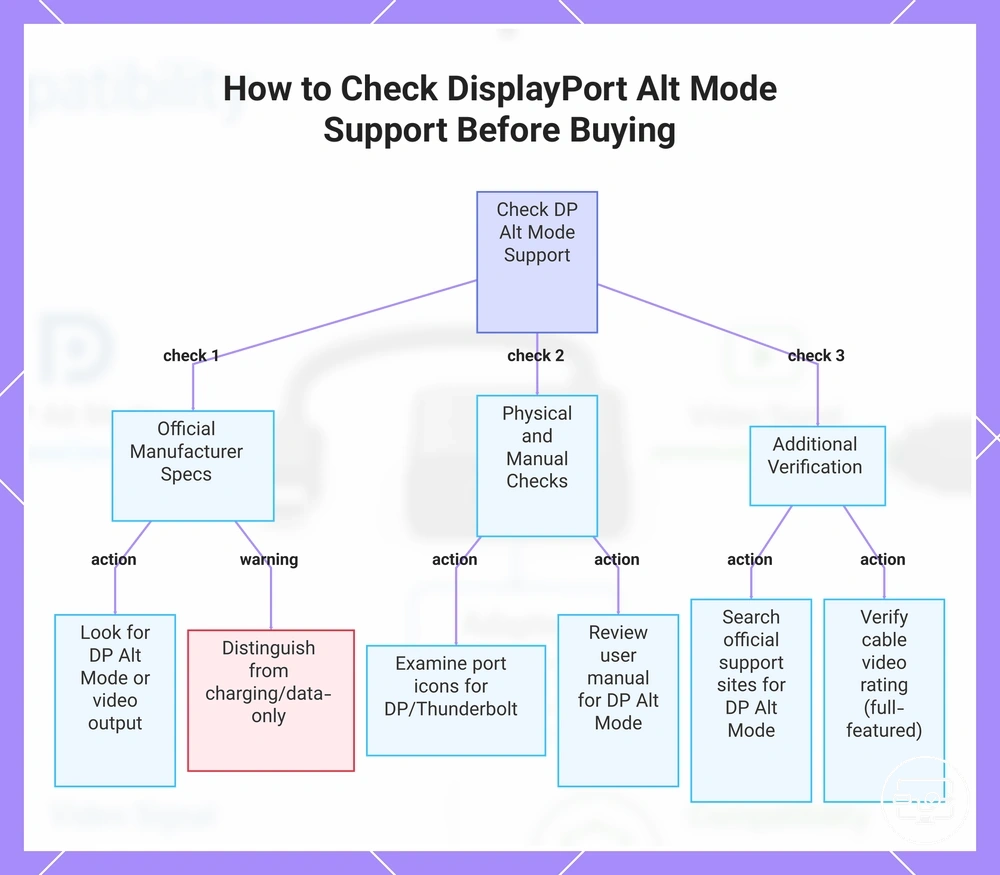
Check the manufacturer's official specifications for your exact device model. Look for explicit mention of "DP Alt Mode," "DisplayPort Alt Mode," or "display output" on the USB-C port. Start with OEM specs.
Not all sources are equally reliable. Manufacturer specs give high confidence; physical icons and marketing descriptions are less definitive. This checklist starts with the strongest evidence and moves to weaker guidance.
- Check the official manufacturer tech specs page for terms like "DP Alt Mode" or "video output" — this indicates compatibility.
- Examine physical icons near the USB-C port — a DisplayPort (D) symbol or Thunderbolt lightning bolt typically indicates video support, while no icon does not confirm or rule out support.
- Review the device user manual under charging and expansion sections — if "DisplayPort Alt Mode" appears, the port supports display output.
- Distinguish explicit DP Alt Mode mentions from charging/data-only descriptions — if only power delivery or data transfer is listed, the port likely lacks video output.
- For smartphones, search manufacturer support site or community forums to check DP Alt Mode support — community feedback is less reliable than official documentation.
- When using a USB-C to HDMI adapter, confirm the source device explicitly lists DP Alt Mode support — without it, the adapter may not carry video regardless of cable quality.
- Verify that the USB-C cable is rated for video capability (e.g., "full-featured" or "video" labeling) — not all USB-C cables carry DisplayPort signals.
This chart shows the step-by-step checklist to verify DisplayPort Alt Mode support on a device, starting from the strongest evidence to weaker guidance.
Icons, Specs, and Product Language That Indicate DP Alt Mode Support
Product wording and port icons can indicate DP Alt Mode support, but their reliability varies: some phrases directly state display output, while others may hint or mislead without verifying official specs.
High-signal wording includes:
- Explicit mention of 'DP Alt Mode' in specs – directly states display capability, leading to low mismatch risk when from official documentation.
- 'Supports DisplayPort' or 'DisplayPort over USB-C' – often indicates DP Alt Mode, keeping mismatch risk low when the port is USB-C.
- Thunderbolt 3 or Thunderbolt 4 icon – typically indicates video output, so mismatch risk remains low even though not a universal DP Alt Mode label.
- Spec listing 'USB-C with Power Delivery and DP Alt Mode' – typically confirms charging and video, so mismatch risk stays minimal if wattage meets needs.
Ambiguous or low-signal wording includes:
- 'USB-C' alone – may indicate data or charging only, leading to high mismatch risk if port lacks display capability.
- Battery icon only – may indicate charging only, not video, so mismatch risk is high without DP Alt Mode confirmation.
- 'USB 3.1 Gen 2' or 'USB 3.2' – suggests higher data bandwidth but not DP Alt Mode, so mismatch risk is moderate; verify explicit video support.
- 'Video output' or '4K support' without specifying DP Alt Mode – may refer to an alternative chip, so mismatch is possible if port requires a different adapter.
- Marketplace listings reusing 'display' or 'Alt Mode' – may inaccurately suggest DP Alt Mode, making mismatch risk high without verifying official docs.
System-level confirmation on common platforms without turning this into a setup guide
System-level confirmation means finding evidence that a device supports external display output. Look for display-capability signals in system information or settings rather than relying on generic port labels.
Platform groups where system information or settings indicate external display capability:
- Windows: Check system information (msinfo32) or display settings for terms like 'detects external display' or 'external display capability' under display adapter or connected monitors.
- macOS: Under About This Mac > System Report > Graphics/Displays, look for wording indicating external display support or a connected monitor with resolution details.
- Chrome OS: In chrome://settings or chrome://system, search for 'display' or 'external monitor' to see if an external display is detected or supported.
- OEM utilities: Some manufacturers provide tools showing USB/Thunderbolt port capabilities. Look for 'DisplayPort over USB-C' or 'Alt Mode support' to indicate video output. Options may differ by manufacturer.
Detection of a specific display mode (e.g., 4K@60Hz) in the system report is stronger evidence of DisplayPort Alt Mode support than a generic 'USB-C' label on the port.
USB-C to HDMI Without DP Alt Mode: What Can Still Work (and the Trade-offs)
Without DP Alt Mode, USB-C to HDMI typically requires an alternate technology path, such as a driver-based USB graphics adapter. These workarounds come with trade-offs in latency, CPU usage, reliability, and other limitations.
Driver-based USB graphics adapters offload video processing to the host CPU, enabling display output on systems without DP Alt Mode. However, video quality and responsiveness depend on device processing power and OS driver support, which can vary. This is not the same as native display output over DP Alt Mode. A direct comparison highlights the key differences between native Alt Mode and non-Alt-Mode workarounds.
| Native Alt Mode Path | Non-Alt-Mode Workaround |
|---|---|
|
|
Driver-based USB graphics adapters and why they behave differently from Alt Mode
Driver-based USB graphics adapters transmit display data as USB traffic rather than using native DisplayPort signaling over Alt Mode. This leads to distinct trade-offs that are expected.
Practical implications include driver requirement and compression latency:
- Driver requirement: These adapters depend on specific driver software installed on the host system. Without the correct driver, the adapter typically cannot output video, and driver updates may be needed for compatibility with new OS versions.
- Compression and latency: Video is compressed to fit within USB bandwidth, which introduces additional latency compared to native DP Alt Mode. This can lead to noticeable delay in gaming or real-time tasks, and the impact depends on the compression algorithm and USB speed.
- Compatibility variance: OS support for driver-based USB graphics adapters varies by operating system version and vendor. Some platforms may offer limited or outdated drivers, so compatibility should be verified per device.
- Performance variability: Actual resolution, refresh rate, and smoothness depend on the host's CPU and USB controller capabilities. Heavier compression loads the CPU, which can affect overall system performance, particularly on lower-powered devices.
- Use-case boundaries: These adapters are functional when no Alt Mode exists, but they are not a replacement for native Alt Mode in terms of raw performance and responsiveness. They are better suited for productivity and secondary display tasks than for demanding gaming or high-refresh-rate use.
DisplayPort Alt Mode for USB-C to HDMI FAQs
Can a USB-C port output HDMI without Alt Mode?
No, a USB-C port cannot output HDMI without DP Alt Mode. Without that support, the port only handles data or charging, so a separate video port is needed.
Does Thunderbolt guarantee HDMI output?
Thunderbolt does not guarantee HDMI output on its own. Thunderbolt ports typically include DP Alt Mode, but actual HDMI output also depends on device design and the use of an adapter that converts DisplayPort to HDMI.
Do you need to enable Alt Mode?
No, you do not need to manually enable Alt Mode. It typically activates automatically when a compatible display or adapter is connected, though the operating system may need to detect the display.
What does 'Alt Mode required' mean on adapters?
'Alt Mode required' on an adapter means the USB-C port must support DisplayPort Alt Mode for the adapter to convert the signal to HDMI. This label tells you the adapter is not a simple data converter; it relies on the port's video output capability.
Why can one USB-C port work while another doesn't?
One USB-C port may work while another does not because not every USB-C port on a device supports DP Alt Mode. Manufacturers often designate only specific ports for video output, so compatibility varies by port and device model. Port labeling or device specifications show which ports support DisplayPort Alt Mode.
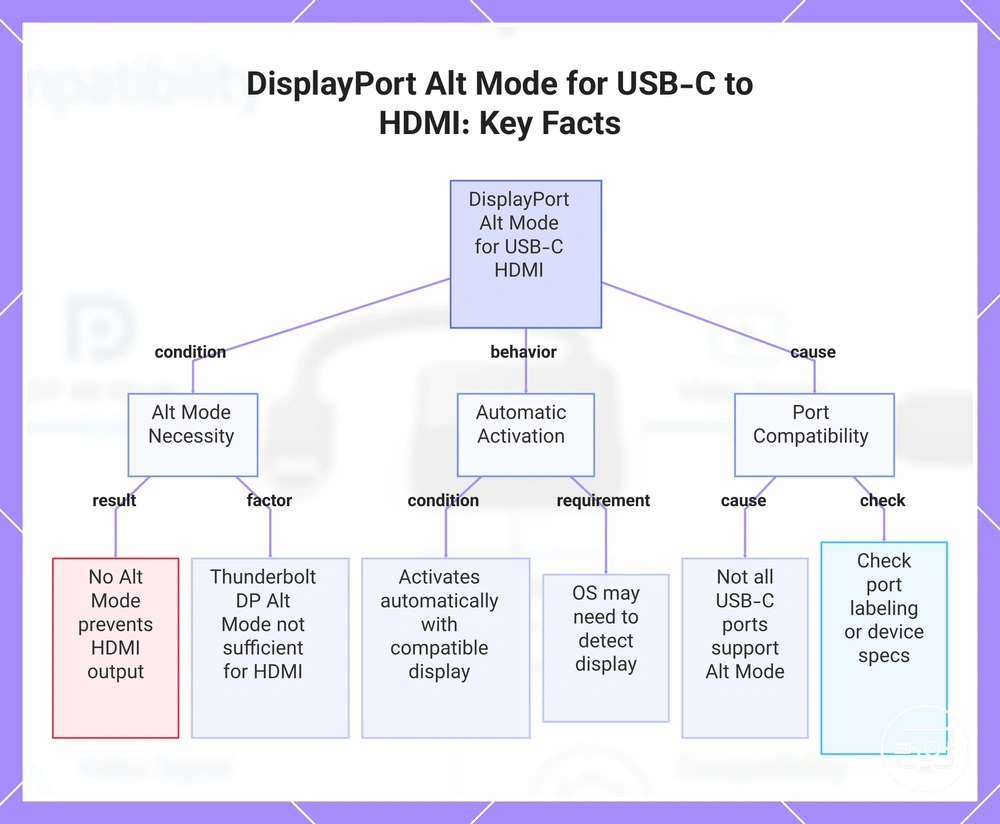
This chart explains how DisplayPort Alt Mode enables HDMI output from USB-C, including the requirement for Alt Mode, automatic activation, and why some ports work while others do not.