USB-C to HDMI refresh rate compatibility: 60Hz baselines, higher-Hz limits, and realistic expectations
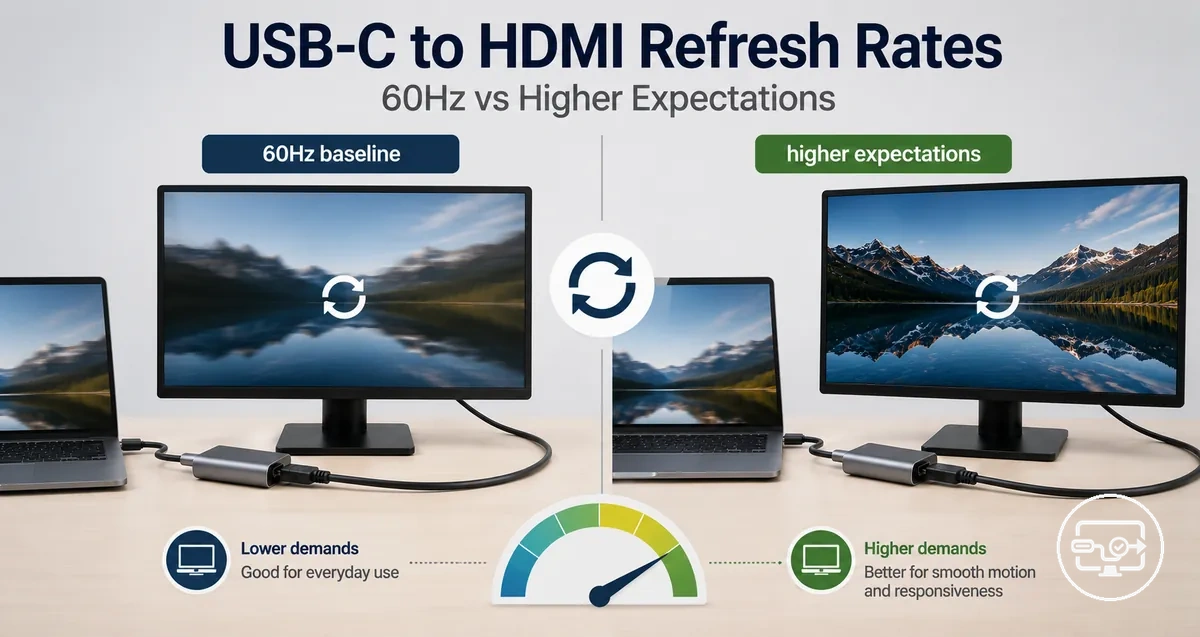
USB-C to HDMI refresh rate is limited by the entire signal chain. A 60Hz baseline is common, but the actual rate depends on the source output mode, adapter path, and display input capability.
A common assumption is that a better adapter alone can deliver 120Hz or more. The weakest link sets the limit. The key nodes to evaluate are:
- the USB-C port's video protocol (such as DisplayPort Alt Mode or Thunderbolt)
- the adapter's HDMI version
- the monitor's supported timing
For instance, a 4K monitor may remain at 30Hz or 60Hz even when connected to a capable source, because the adapter uses an older HDMI standard or the display lacks the required bandwidth. Higher refresh rates often involve tradeoffs, such as reduced color depth, disabled HDR, or a lower resolution, rather than a straightforward upgrade.
What refresh-rate compatibility means when USB-C is converted to HDMI
Refresh-rate compatibility when USB-C is converted to HDMI is the alignment between the source’s video output mode, the adapter’s conversion capability, and the display’s timing acceptance that affects the maximum stable Hz at a given resolution. The conversion path often introduces a bottleneck because the adapter chip may operate at a lower HDMI specification than the display supports, capping the achievable refresh rate. Observed Hz is often lower than with a direct DisplayPort or native HDMI connection.
The actual refresh rate you see depends on the following flow: the source outputs a USB-C video signal (typically DisplayPort Alt Mode), the adapter converts it to HDMI using its internal chip, the display negotiates a timing mode it can accept, and the system locks to the highest stable Hz that survives conversion. Within this sequence, three categories describe what you can expect:
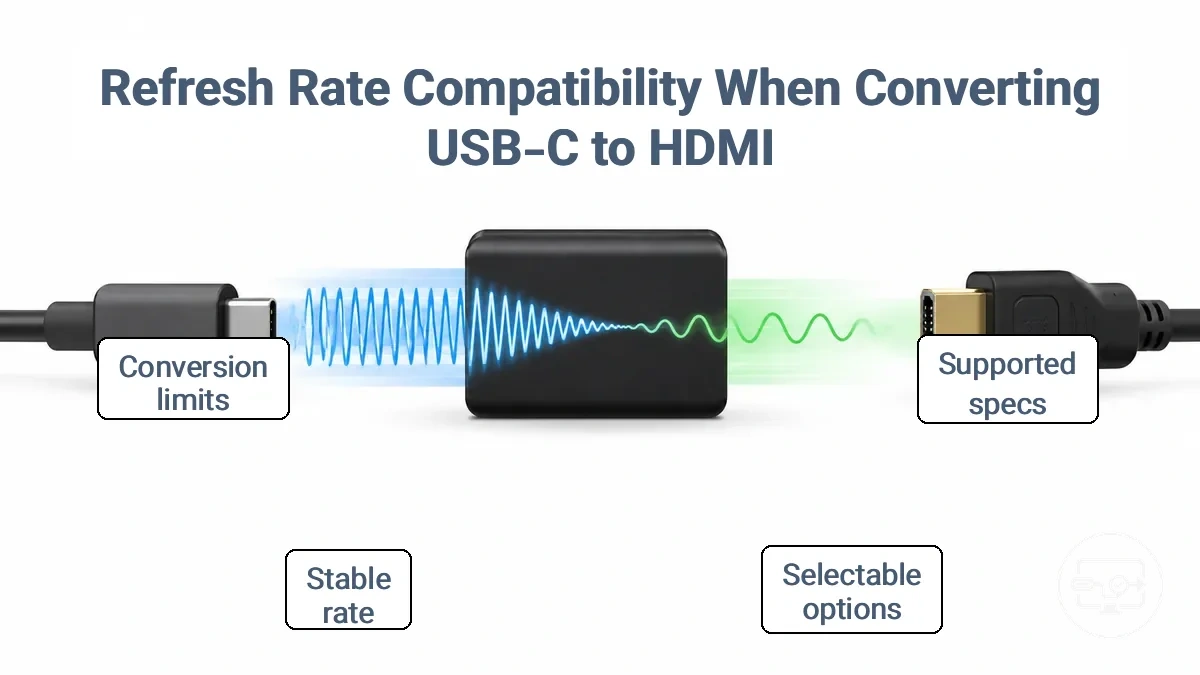
- Supported refresh rate — the maximum Hz the adapter and display claim to handle under ideal conditions, often based on marketing specs.
- Selectable refresh rate — the rates that appear as options in your operating system’s display settings after conversion; these may be fewer or lower than supported because of handshake limitations.
- Stable refresh rate — the actual Hz that consistently works without flickering, frame drops, or blackouts in your real setup; this is often lower than the selectable choices when cable length, hub power, or signal interference is involved.
A key clarification: marketing claims on the adapter box (such as ‘4K@60Hz’ or ‘4K@120Hz’) may not match the negotiated mode in practice. When hubs or conversion paths intervene — especially if the adapter uses an older HDMI 2.0 chip or the hub shares bandwidth with other peripherals — the stable refresh rate can settle at a lower value even if both source and display are capable of higher. Verify with your actual hardware rather than relying solely on listed specs. For a broader overview of this topic, refer to the USB-C to HDMI Compatibility hub.
USB-C source output constraints that decide the maximum HDMI refresh rate
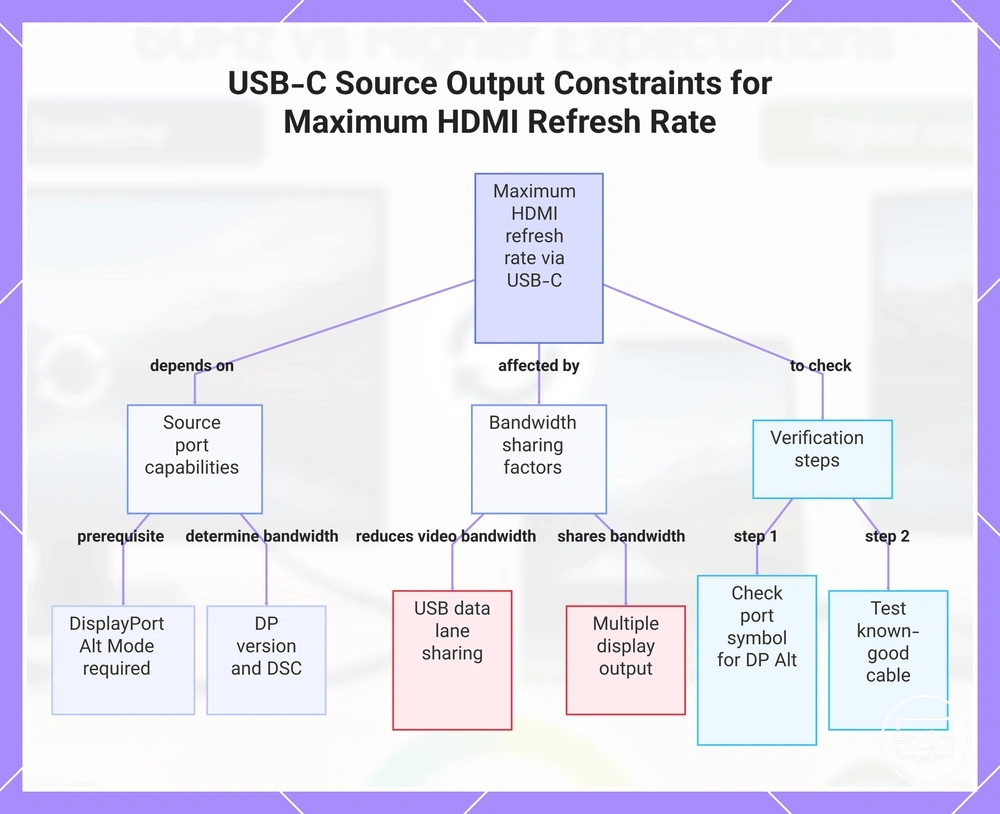
The maximum HDMI refresh rate via a USB-C connection depends on the source device's port capability and output mode; the adapter or cable cannot add bandwidth beyond that.
Whether a USB-C port supports DisplayPort Alternate Mode (or Thunderbolt) and the version of DisplayPort it carries (typically 1.2, 1.4, or higher) determine the available video bandwidth. When the source uses Display Stream Compression (DSC), it can increase the refresh rate at a given resolution. However, the same port may deliver different timings depending on whether it shares bandwidth with USB data or multiple displays. Laptops usually offer more flexible output modes than phones, but two models in the same laptop class can still differ.
For example, the same USB‑C to HDMI adapter may deliver 4K at 60 Hz on one laptop and only 1080p at 60 Hz on another, because port capability and output mode differ.
- Check the port symbol or spec sheet for DP Alt Mode or Thunderbolt → without this support, no video output over USB-C is possible.
- Identify the DisplayPort version the source supports → DP 1.2 may limit to 4K@30 Hz without DSC, while DP 1.4 can reach 4K@60 Hz or higher with DSC.
- Determine whether the source uses the USB-C port for both video and high‑speed data → sharing lanes often reduces the available video bandwidth, lowering the achievable refresh rate.
- Check if the source supports Display Stream Compression (DSC) → DSC enables higher refresh rates at a given resolution by compressing the video stream.
- Test a known‑good cable rated for the target resolution and refresh rate → a cable that is data‑only or not rated for video can cap the signal even if the source can output higher.
This chart shows the main factors and verification steps that determine the maximum HDMI refresh rate from a USB-C source.
USB-C Ports That Support Video Versus Ports That Cannot Drive HDMI at Higher Refresh
A USB-C connector alone does not guarantee video output or support for higher refresh rates; that capability depends on the underlying port implementation. Video capability is the first requirement; without it, higher refresh rates are impossible.
- Check for a Thunderbolt or DisplayPort logo next to the port, or review the device's specifications for terms like DisplayPort Alt Mode or USB-C with DisplayPort, as Thunderbolt 3 and Thunderbolt 4 ports typically support video and can drive higher refresh displays.
- Use a full-featured USB-C cable that explicitly supports video, not a charge-only cable.
- Verify that the monitor or adapter is rated for the resolution and refresh rate you expect, as older adapters may cap at 4K 30 Hz.
- Test different USB-C ports if available, as some devices have multiple ports with different capabilities.
GPU and display-output modes that cap resolution and Hz before the adapter matters
GPU output and the selected output mode can cap both resolution and refresh rate even when the conversion path is technically capable. The graphics card may apply a default mode or a conservative format choice that reduces available bandwidth, limiting the maximum Hz the monitor can receive.
- Default mode: the GPU may assign a lower refresh rate if it does not fully recognize the monitor's EDID.
- Conservative port version: some GPUs restrict output to a base HDMI or DisplayPort version until a custom resolution or higher refresh rate is explicitly set, capping Hz.
- Color-depth and subsampling choices: selecting a higher color depth (e.g., 10-bit) or enabling chroma subsampling consumes more bandwidth, reducing headroom for refresh rate and causing the GPU to cap the final Hz.
- Resolution and refresh rate combination: when the chosen resolution and refresh rate together exceed the available bandwidth of the cable or port, the GPU may automatically lower the refresh rate to stay within the limit.
- Display Stream Compression (DSC) status: if DSC is not enabled or not supported by the output mode, the GPU may cap the refresh rate to fit uncompressed bandwidth constraints.
Conversion hardware limits in adapters, cables, hubs, and docks that reduce achievable Hz
Conversion hardware can lower the achievable refresh rate because the signal has to pass through or be translated by components that have their own bandwidth limits. The main difference is between direct passthrough, where the video signal travels with minimal alteration, and conversion-constrained setups, where active processing or re-timing occurs.
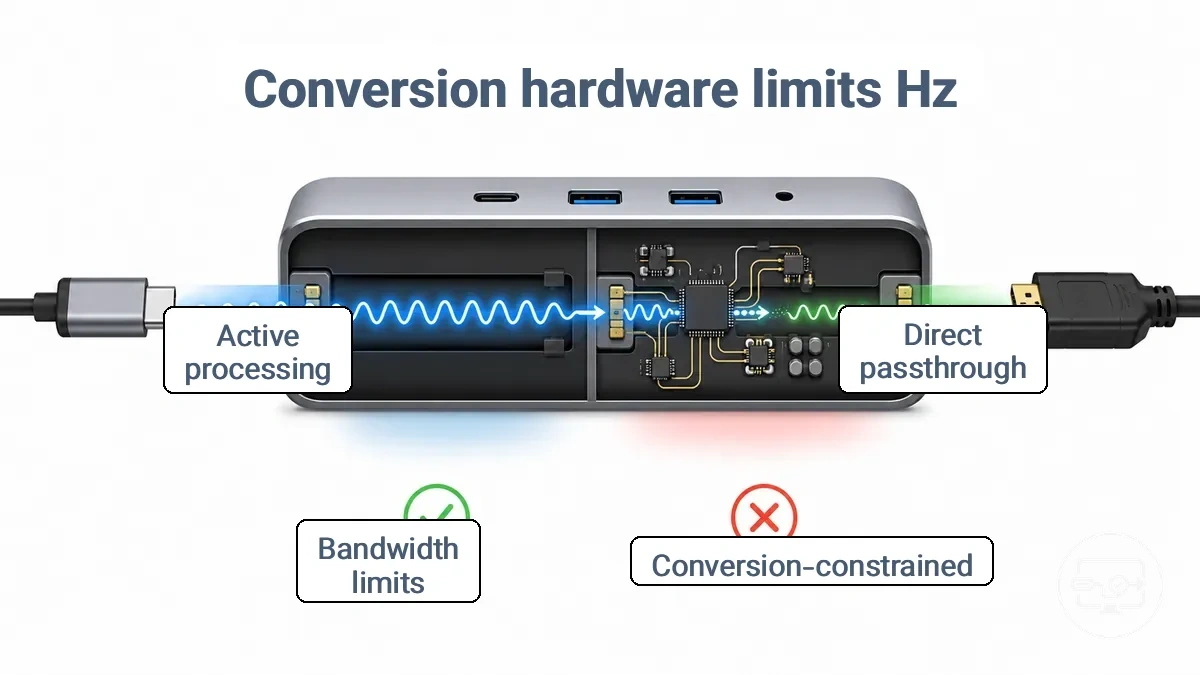
Hubs and docks share bandwidth among video, data, Ethernet, audio, and charging. Running multiple functions simultaneously can limit display performance. Adding peripherals or high-power charging may further constrain bandwidth if the hub lacks sufficient headroom for the intended resolution and refresh rate.
| Attribute | Direct Passthrough | Conversion-Constrained |
|---|---|---|
| Signal handling | Video signal passes through with minimal alteration; bandwidth depends on cable version and length | Signal is actively converted, re-timed, or encapsulated; can introduce extra latency and bandwidth limits |
| Supported timings | Typically retains full timing support of the source and display, up to the cable’s certified bandwidth | May cap at lower resolutions or refresh rates, especially with older standards |
| Stability at target Hz | Stable when cable length and quality meet the signaling requirements | Can be affected by adapter quality, power delivery, and overall hub load; flicker or disconnects may occur |
| Trade-off | Fewer features on the cable/hub; dedicated to display | Provides connectivity for multiple devices but may sacrifice display performance under heavy load |
Why hubs and multiport dongles often top out at 4K 30Hz or 4K 60Hz
USB-C hubs and multiport dongles often cap 4K output at 30Hz or 60Hz because they allocate only part of the USB-C connector's high-speed lanes to video, using the rest for data. Whether a hub can reach 60Hz depends on its design and the port mode selected by the connected devices.
- When the hub dedicates fewer DisplayPort lanes to video, 4K output is often capped at 30Hz.
- When the hub supports 4K60, high-speed USB 3.0 ports may be downgraded to USB 2.0 to free bandwidth.
- Older HDMI or DisplayPort specifications on the hub can limit the achievable refresh rate.
- Intentional stability measures in some hubs restrict HDMI output to 30Hz even if the hardware could go higher.
- Some hubs can switch between a 4K60-only and a 4K30+USB3 mode, but not operate both at the same time.
Cable and signal-quality factors that affect stability at higher refresh rates
Higher refresh rates reduce signal margin, making the connection more sensitive to path quality. When signal degrades, the display may flicker, drop out, or go black even though the mode appears selectable. The following cable and run factors commonly affect stability:
- Cable length: longer runs increase attenuation and timing errors.
- Cable quality: cables rated for the required bandwidth maintain cleaner signal integrity than uncertified or older cables.
- Connector condition: bent pins, corrosion, or loose fit cause intermittent contact and signal loss.
- Electrical interference: running the cable near power cords or high-current lines can introduce noise that disrupts the signal.
- Seating: a connector not fully inserted may work at lower refresh rates but fail under higher bandwidth demand.
- Physical damage: kinks, crushed sections, or sharp bends deform internal twisted pairs and increase error rates.
Display-Side Constraints That Force 60Hz Even When the Source Can Output More
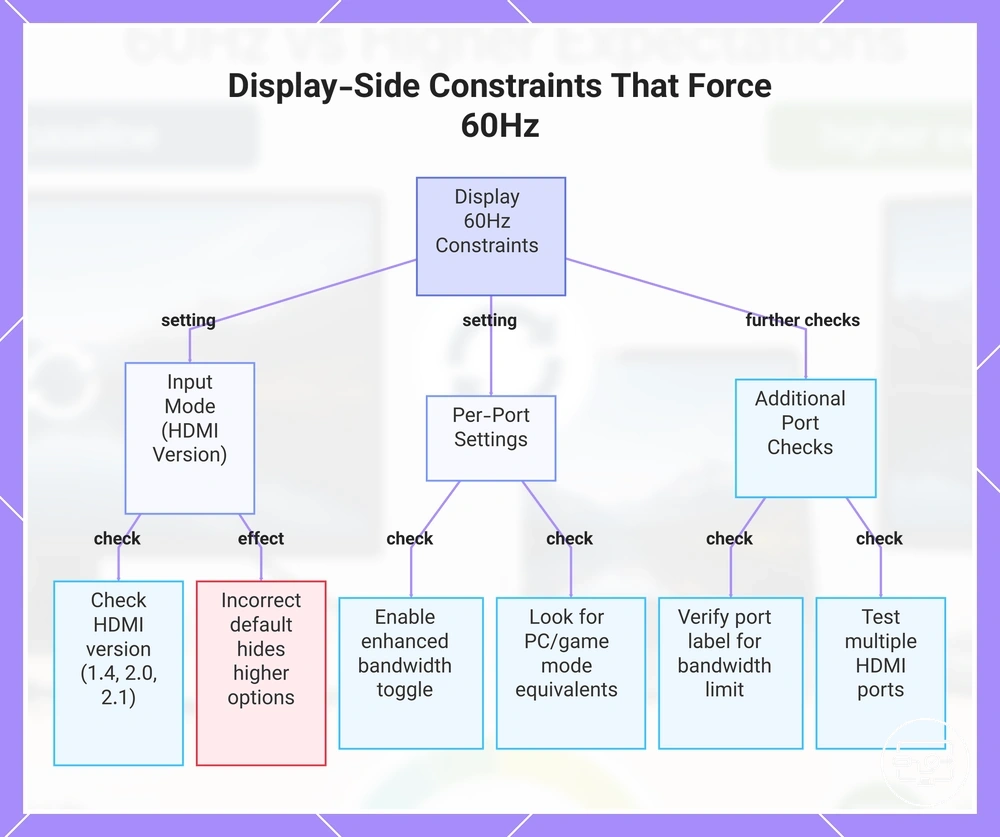
A display's HDMI input configuration and per-port settings can cap the available refresh rate independently of the source hardware, often forcing 60Hz when the input mode is incorrect. Two common controls are the input mode (HDMI version) and per-port settings such as enhanced bandwidth mode.
A typical scenario involves a laptop or game console capable of 120Hz or 144Hz, but the monitor's input mode may default to a lower HDMI specification that limits the refresh rate by hiding the higher option from its timing list. The specific setting names and menu locations vary by manufacturer; common input mode configurations are covered separately.
- Check the HDMI input version or mode (1.4 vs 2.0 vs 2.1) in the display menu.
- Enable any enhanced bandwidth or high-speed toggle if available for the input.
- Look for PC or game mode equivalents that may enable higher refresh rates.
- Verify the port label; some ports may be limited to a lower bandwidth.
- Enabling HDR or high color depth may reduce the maximum selectable refresh rate.
- If the display has multiple HDMI ports, test each port to see if the refresh rate option appears.
This chart shows the display-side settings and checks that can cap the refresh rate to 60Hz even when the source supports higher rates.
HDMI input version, bandwidth modes, and settings that change available refresh rates
Refresh rates a display can accept often depend on per-port mode and bandwidth settings, not just the HDMI version number. These settings control which timing lists are exposed to the source and can stabilize or limit the achievable refresh rate. Check per-port configuration and bandwidth mode when expected refresh rates do not appear.
- Port mode setting – affects maximum bandwidth and feature set, e.g., HDMI 1.4, 2.0, or 2.1 mode.
- Bandwidth mode – affects whether higher data rates (e.g., 18 Gbps or 48 Gbps) are enabled or capped.
- Color format and chroma subsampling setting – affects data rate per frame; using uncompressed 4:4:4 may reduce achievable refresh rate compared to 4:2:2 or 4:2:0.
- Variable refresh rate (VRR) toggle – affects whether variable timing ranges are accepted but may impose bandwidth constraints on fixed-rate fallback.
- Display Stream Compression (DSC) enable/disable – affects whether the port can exceed native bandwidth limits, unlocking higher resolutions or refresh rates.
- EDID override or custom timing setting – affects which resolution and refresh combinations are reported, potentially hiding or exposing usable modes.
Color depth, chroma, and HDR choices that trade image quality for higher Hz
When bandwidth is limited, higher color depth or full 4:4:4 chroma may restrict refresh rate, while reducing these settings can free up bandwidth for higher Hz. Whether this trade-off is needed depends on your specific display, cable, and adapter. The choice comes down to whether you prioritize image precision or motion smoothness.
| Priority | Output Format | Bandwidth Demand | Resulting Hz & Image |
|---|---|---|---|
| Quality-first | RGB 4:4:4 or YCbCr 4:4:4 with 10-bit depth | High – requires more data per pixel | Lower refresh rate possible; sharp text, accurate colors, smooth HDR gradients |
| Refresh-first | YCbCr 4:2:2 or 4:2:0 with 8-bit depth | Lower – reduces chroma detail to conserve bandwidth | Higher refresh rate achievable; motion is smoother, but colored text and fine edges may appear softer |
How 4K and HDR signals behave over USB-C to HDMI is explained in our guide on 4K and HDR compatibility.
Common resolution and refresh-rate outcomes over USB-C to HDMI and what enables higher Hz
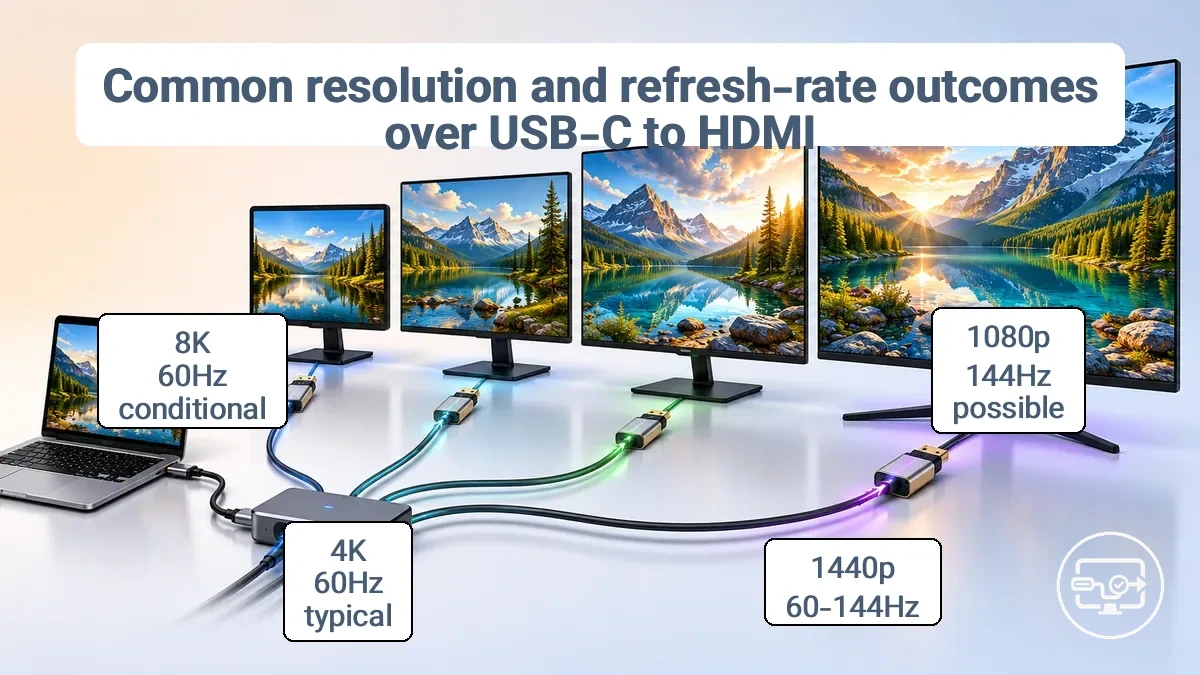
The resolution and refresh rate you get over USB-C to HDMI depends on the weakest link: the USB-C port's video capability, the adapter's HDMI version, and the display's input limits. At 4K, 60 Hz is the most common reliable outcome when using a typical DisplayPort 1.2 over USB-C with an HDMI 2.0 adapter. For 4K at 120 Hz or higher, you typically need a DisplayPort 1.4 source, an HDMI 2.1 adapter, and a display that supports that bandwidth. At lower resolutions such as 1080p or 1440p, higher refresh rates — 120 Hz, 144 Hz, or more — can often be achieved even with less capable adapters, as long as the monitor and GPU support those rates.
| Target resolution | Required chain capability | Realistic Hz range | Common failure when a link is weak |
|---|---|---|---|
| 1080p (Full HD) | USB-C with DisplayPort Alt Mode 1.2 or higher; adapter with at least HDMI 1.4 | Up to 120–144 Hz (depends on monitor and GPU) | Adapter limited to HDMI 1.4 may limit refresh rate |
| 1440p (QHD) | DisplayPort 1.4 or Thunderbolt; adapter with HDMI 2.0 or better | 60–144 Hz (varies by bandwidth) | Hub or cable does not support enough bandwidth for higher Hz |
| 4K (UHD) | DisplayPort 1.4 with DSC or Thunderbolt; adapter with HDMI 2.1 | 60 Hz typical; up to 120–144 Hz with HDMI 2.1 and DSC | Adapter limited to HDMI 2.0 forces 60 Hz |
| 8K | DisplayPort 1.4 with DSC; adapter with HDMI 2.1; Thunderbolt 4/5 | 60 Hz (conditional on DSC and cable quality) | Insufficient bandwidth without DSC or short cable |
4K at 60Hz versus 4K above 60Hz: what usually changes in the chain
Going beyond 4K at 60 Hz usually requires changes across the entire signal chain, not just swapping one component. The source device, cables, adapter, and display must all support the higher refresh rate.
- Source mode: The output device (GPU, console, media player) must support and be set for the target resolution and refresh rate; otherwise, the chain may drop to a lower rate.
- Conversion path: Cables and adapters must handle the required bandwidth; older HDMI or DisplayPort standards may limit the refresh rate.
- Display input mode: The monitor or TV must natively accept the higher refresh rate at 4K, possibly only through specific input ports or after adjusting color settings.
- Format tradeoffs: Achieving 4K above 60 Hz may involve compromises such as chroma subsampling or reduced color bit depth, affecting image fidelity.
1080p and 1440p at 120Hz and beyond: when higher refresh is more realistic
Higher refresh rates above 120Hz are more attainable at 1080p or 1440p because these resolutions demand less bandwidth. 240Hz at 1080p is a practical target for many mid-range graphics cards. Stable performance depends on the entire signal path maintaining the targeted refresh rate without drops.
- GPU output capability – the source must consistently deliver enough frames per second at the chosen resolution.
- Converter or cable capacity – adapters and cables must support the required bandwidth for the selected resolution and refresh rate combination.
- Display support – the monitor must natively accept the target refresh rate over the connection interface used.
- Format choice – selecting a resolution and refresh rate that stays within the available bandwidth of the chain reduces the risk of instability.
How to confirm refresh-rate support before buying a USB-C to HDMI adapter, cable, or hub
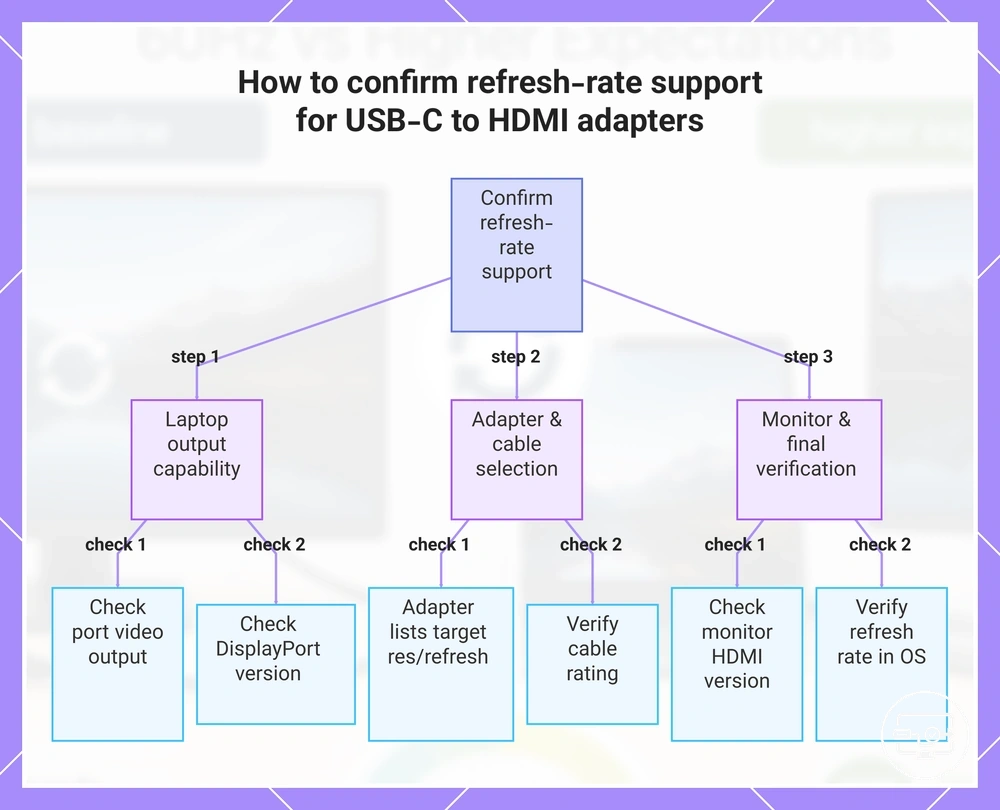
To confirm refresh-rate support for a USB-C to HDMI adapter, cable, or hub, check both the source output capability and the conversion device’s explicitly stated supported timings. The desired outcome defines the required chain capability across laptop, adapter, cable, and monitor; verify each link to avoid a capped refresh rate or no signal.
- Check the laptop’s USB-C port for video output support. Look for a DisplayPort symbol, a lightning bolt, or confirm DisplayPort Alt Mode or Thunderbolt in the spec sheet. Pass: the port typically supports video output. Fail: the laptop may not deliver any display signal through that port without additional hardware.
- Identify the laptop’s DisplayPort version (e.g., DP 1.2, DP 1.4 with or without DSC) or Thunderbolt generation. Pass: the version can provide enough bandwidth for the target refresh rate. Fail: insufficient bandwidth may limit the refresh rate or force lower color depth.
- Choose a USB-C to HDMI adapter or hub that explicitly lists the target resolution and refresh rate, such as 4K at 60 Hz, 4K at 120 Hz, or 1440p at 144 Hz. Pass: the adapter’s specification matches the goal. Fail: the adapter may only support lower rates, such as 4K at 30 Hz.
- Verify that every cable in the path can handle the required bandwidth. HDMI cables should be rated High Speed for 4K at 60 Hz or Ultra High Speed for higher. USB-C cables must support video and the needed data rate (look for USB4, Thunderbolt, or DisplayPort‑capable markings). Pass: the cable can carry the signal. Fail: the cable may become a bottleneck and reduce the refresh rate.
- Confirm that the monitor’s HDMI input matches the version needed. For example, HDMI 2.0 typically supports 4K at 60 Hz, while HDMI 2.1 is needed for 4K at 120 Hz or higher. Pass: the monitor can accept the signal. Fail: the monitor may force a lower refresh rate.
- After connecting, open the operating system’s display settings and verify that the target refresh rate is available. Pass: the expected rate appears. Fail: recheck each link for incompatibility.
This chart shows the step-by-step process to verify that a USB-C to HDMI adapter, cable, and hub setup can support a target refresh rate.
Spec signals that reliably indicate 4K 60Hz support and avoid vague marketing claims
Explicit wording such as '4K at 60Hz' or '4K 60Hz' is the safest indicator. To avoid guesswork, verify the spec per HDMI port on hubs, as each port may support different resolutions and refresh rates.
Spec phrase → Implied capability → Expected outcome → Ambiguity risk
Reliable spec phrases
- '4K at 60Hz' or '4K 60Hz' → implies 60Hz refresh support → expected outcome: smoother video with fewer frame drops → low ambiguity risk.
- 'Premium High Speed HDMI' (certified 18 Gbps) → implies tested for 4K 60Hz with HDR → expected outcome: stable HDR and high refresh → low ambiguity risk.
- 'HDMI 2.0' or 'HDMI 2.0b' → implies up to 18 Gbps bandwidth → expected outcome: 4K 60Hz with 8-bit color or 4:2:0 chroma → low ambiguity risk.
- 'Ultra High Speed HDMI' (certified 48 Gbps) → implies 4K 120Hz+ and 8K → expected outcome: future-proof for 4K 60Hz with headroom → low ambiguity risk.
Red flag phrases
- '4K support' without refresh rate → could mean 4K at 30Hz or lower → expected outcome: may only deliver 30Hz or unstable 60Hz → high ambiguity risk.
- 'High Speed HDMI' without certification → bandwidth may be inconsistent → expected outcome: may fail under HDR or long cables → high ambiguity risk.
- 'HDMI 1.4' → limited to 10.2 Gbps → expected outcome: 4K at 30Hz maximum, no HDR → high ambiguity risk.
- 'For 4K' generic → no performance guarantee → expected outcome: often means it accepts 4K signal but may downscale or skip frames → high ambiguity risk.
How to verify the active refresh rate in your OS and on the display after connecting
Check the active refresh rate in your OS display settings and, when available, the monitor's on-screen display (OSD) for the incoming signal rate.
Selecting a higher rate in the OS does not guarantee the monitor runs at that rate. The active rate may differ if the cable or GPU cannot sustain the signal, or if the monitor falls back to a lower rate when the signal becomes unstable.
- Open your operating system's display settings to view the refresh rate options.
- Locate the refresh rate dropdown or display information panel.
- Note the displayed refresh rate (in Windows, under 'Refresh rate (Hz)' in Advanced display; in macOS, hold Option while viewing Displays settings).
- Compare the OS-reported value with the monitor's OSD (if available). Press the menu button and check the Info or Status page for the incoming signal's refresh rate.
- If the two values do not match, or if the image appears choppy or flickers, the monitor is likely running a different refresh rate than selected.
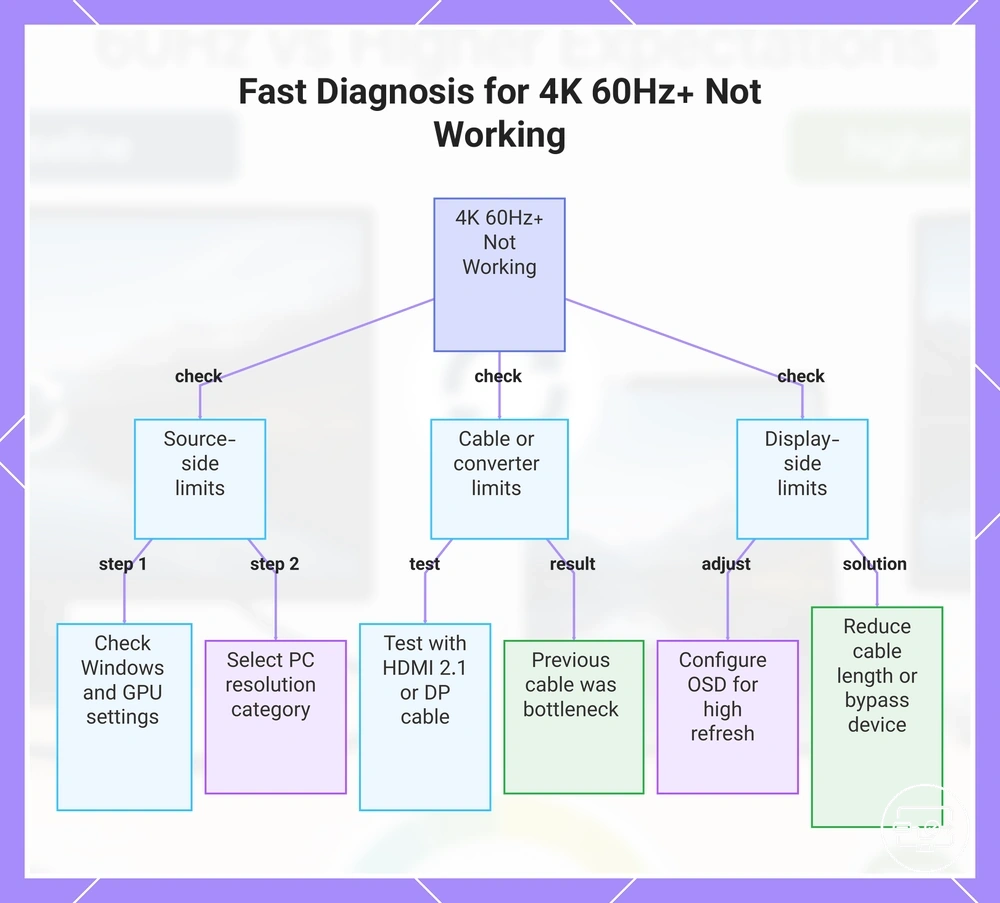
When 4K 60Hz or higher refresh is not working: fast diagnosis for the most common causes
When a 4K 60Hz or higher refresh rate is not working, the likely cause is a single weak link or a conservative mode selection somewhere in the signal chain. Windows, the GPU control panel, the cable, or the monitor itself can silently cap the refresh rate even when the reported signal appears correct. A fast diagnosis starts with the easiest checks and moves to deeper constraints. The aim is to identify the first proven constraint.
- Source-side limits: Check Advanced display settings in Windows and the GPU control panel, and ensure the correct resolution and highest available refresh rate are selected under the PC category. Correcting these settings restores the expected refresh rate if the source was the issue.
- Converter or cable limits: A USB-C to HDMI adapter or a cable that does not support the required bandwidth may cap the signal at 4K 60Hz. Test with a direct HDMI 2.1 or DisplayPort cable that supports the required bandwidth for the target resolution and refresh rate. If the monitor works at the full refresh rate with a different cable or adapter, the previous converter or cable was the bottleneck.
- Display-side limits: The monitor’s OSD may have power-saving mode, Eco mode, or a DisplayPort version set too low. Open the monitor menu and set the DP version to the highest supported option, disable any energy-saving feature, and confirm that no built-in overclock toggle is needed to reach the advertised refresh rate. These changes may allow the monitor to accept the higher signal.
- Stability and fallback behavior: When the signal is borderline, the display may fall back to 60Hz to maintain a stable connection. This often happens with long cables or when multiple devices are daisy-chained. Reducing the cable length or bypassing an intermediate device can stabilize the link and allow the full refresh rate to be used.
This chart shows the most common checks to identify why a 4K 60Hz or higher refresh rate is not working, from source settings to cable and display limits.
Being stuck at 30Hz or 60Hz: mismatched modes, limits, and settings to check first
When a display is stuck at 30Hz or 60Hz despite being advertised for higher refresh rates, the cause usually falls into one of three categories: a mode selection or setting mismatch, a port bandwidth or cable limitation, or a hardware conversion-capability ceiling. Start by verifying mode settings, then confirm hardware limits.
- Mode checks
- Open the monitor’s on-screen display (OSD) and look for features like HDMI ULTRA HD Deep Color or refresh rate limits needed for the desired refresh rate.
- In the operating system’s display settings, confirm that the correct refresh rate is selected from the dropdown — the system may default to a lower option.
- Ensure the resolution is not set higher than what the port can support at the target refresh rate; for example, 4K at 60Hz may require lowering the resolution or color depth temporarily to isolate the issue.
- In the GPU control panel (NVIDIA, AMD, or Intel), set the refresh rate to the highest available option and disable any frame rate caps or power-saving features that could override the setting.
- Limit confirmations
- Check port specifications; HDMI 1.4 typically caps 4K at 30Hz, while HDMI 2.0 or DP 1.2+ can typically handle 4K at 60Hz.
- Inspect the cable: Standard Speed HDMI cables may lack bandwidth for higher resolutions at 60Hz; use High Speed or Premium High Speed.
- For multiple displays, verify GPU bandwidth; mixing 4K 60Hz and high-refresh 1080p may force a lower mode.
- When using a USB-C to HDMI adapter or a laptop docking station, confirm that the adapter supports the target resolution and refresh rate — some adapters may limit 4K output to 30Hz.
Flicker, dropouts, and black screens at higher Hz: interpreting symptoms as signal or compatibility limits
When flicker, dropouts, or black screens appear only at higher refresh rates, the symptoms usually point to signal instability or a bandwidth limit—the display link has less margin at higher timing demands—rather than an outright unsupported mode. The safe first step is to lower the refresh rate to a stable level—for example, 60 Hz or 100 Hz—and then isolate the cause by testing changes in cable, port, or settings one at a time.
- Symptom: Flicker or black screen when setting refresh rate above 120 Hz → likely cause: marginal cable or port bandwidth → safe action: test a certified short cable and connect directly to the GPU.
- Symptom: Black screen for 1–2 seconds during alt-tab or loading screens at higher refresh rates → likely cause: combination of 10‑bit color, DSC, and VRR → safe action: reduce color depth to 8‑bit or disable VRR.
- Symptom: Brightness flicker in dark scenes or menus with VRR and HDR both enabled → likely cause: VRR‑HDR interaction, common on VA panels → safe action: disable HDR or VRR and test each separately.
- Symptom: Screen goes black at higher refresh rates when a nearby appliance (heater, lamp) switches on → likely cause: electrical interference or a brief power dip → safe action: separate signal cables from power cables by at least 6–8 inches and use a surge protector.
- Symptom: Dual monitors both lose signal at higher refresh rates while the PC stays on → likely cause: graphics card seating, power supply, or driver instability → safe action: reseat the GPU and its power connectors, then test with one monitor.
- Symptom: Monitor works at 60 Hz but fails at 144 Hz or higher → likely cause: link bandwidth margin too low → safe action: lower the refresh rate to 120 Hz or 100 Hz; if stable, proceed to check the cable and port.
- Symptom: Ultrawide or 4K monitor drops signal in games at full resolution and max refresh → likely cause: resolution‑plus‑refresh rate exceeds stable link capacity → safe action: reduce resolution (e.g., to 2560×1440) or switch to windowed mode.
The troubleshoot flicker and dropouts guide provides a complete breakdown.
Latency Expectations for USB-C to HDMI at 60Hz and Higher Refresh Rates
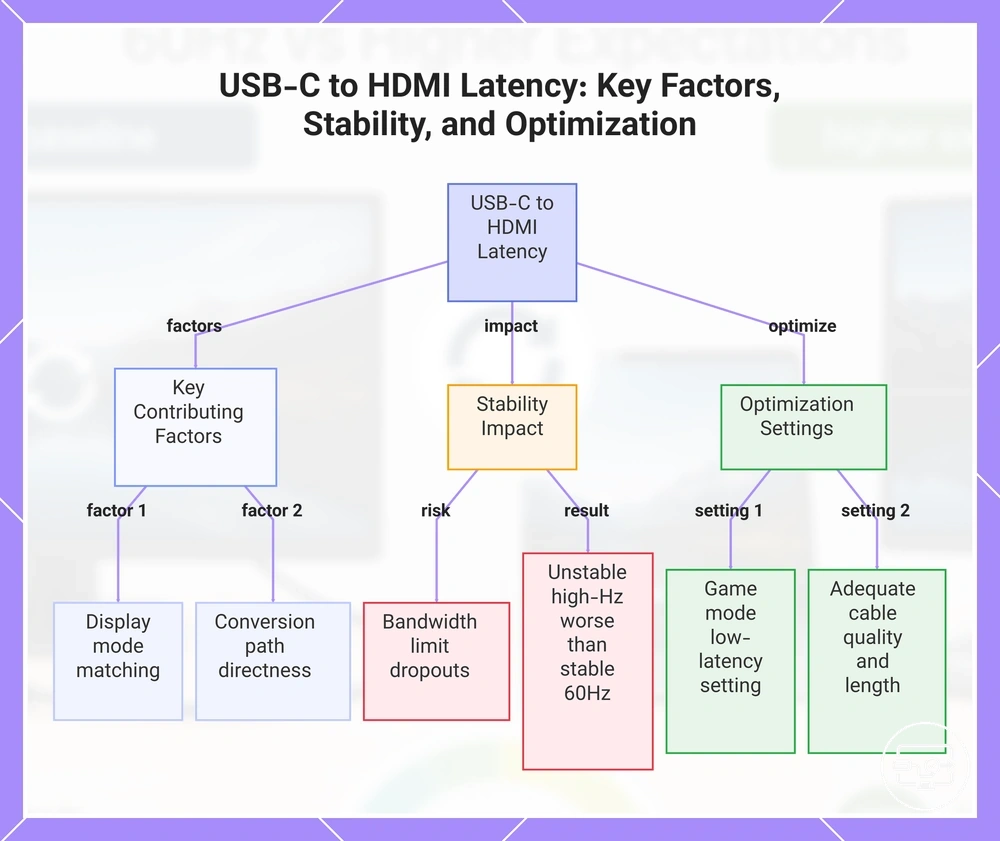
Perceived latency in a USB-C to HDMI connection is the delay between a user action on the source device and the corresponding visual update on the display. This delay is not determined by refresh rate alone; it depends on the display mode, the conversion path, and the stability of the signal chain, which together define responsiveness.
Pushing the connection to a higher refresh rate than the chain can reliably sustain may introduce instability such as frame drops, periodic blackouts, or fallback to a lower resolution or refresh rate. In many cases, an unstable high-Hz attempt can result in a worse visual experience than a stable 60Hz mode, because the interruptions can make perceived lag more noticeable. For most setups, choosing a stable mode that the equipment can maintain typically provides a smoother experience than chasing an unsupported refresh rate.
- Display mode selection: Matching the output mode to the display's native resolution and refresh rate can reduce processing overhead, which may lower perceived latency.
- Conversion path: A direct USB-C to HDMI adapter without intermediate conversion stages usually introduces less latency than a multi-adapter chain, but the outcome depends on the specific hardware.
- Stability versus headroom: Pushing the connection close to its bandwidth limit can cause dropouts that increase perceived inconsistency; leaving some headroom often improves stability.
- Game mode or low-latency settings: Many displays offer a game mode that reduces internal processing delay, which can offset some of the latency introduced by the conversion.
- Cable quality and length: Using a cable rated for the required bandwidth and keeping the length short can help maintain signal integrity, reducing the chance of fallback to a lower refresh rate.
This chart shows the main factors affecting perceived latency in USB-C to HDMI connections, the impact of pushing bandwidth limits, and recommended settings to improve responsiveness.